

A computer for seniors with dementia can be helpful when it is simple, familiar, and set up around the person’s daily life. The goal is not to add more technology, but to make a few useful tasks easier, such as video calls, photos, music, email, or simple games.
For many families, the right choice is less about the newest device and more about reducing confusion. A clear screen, fewer choices, and steady routines can make a computer feel more manageable.

Start With What The Person Already Knows
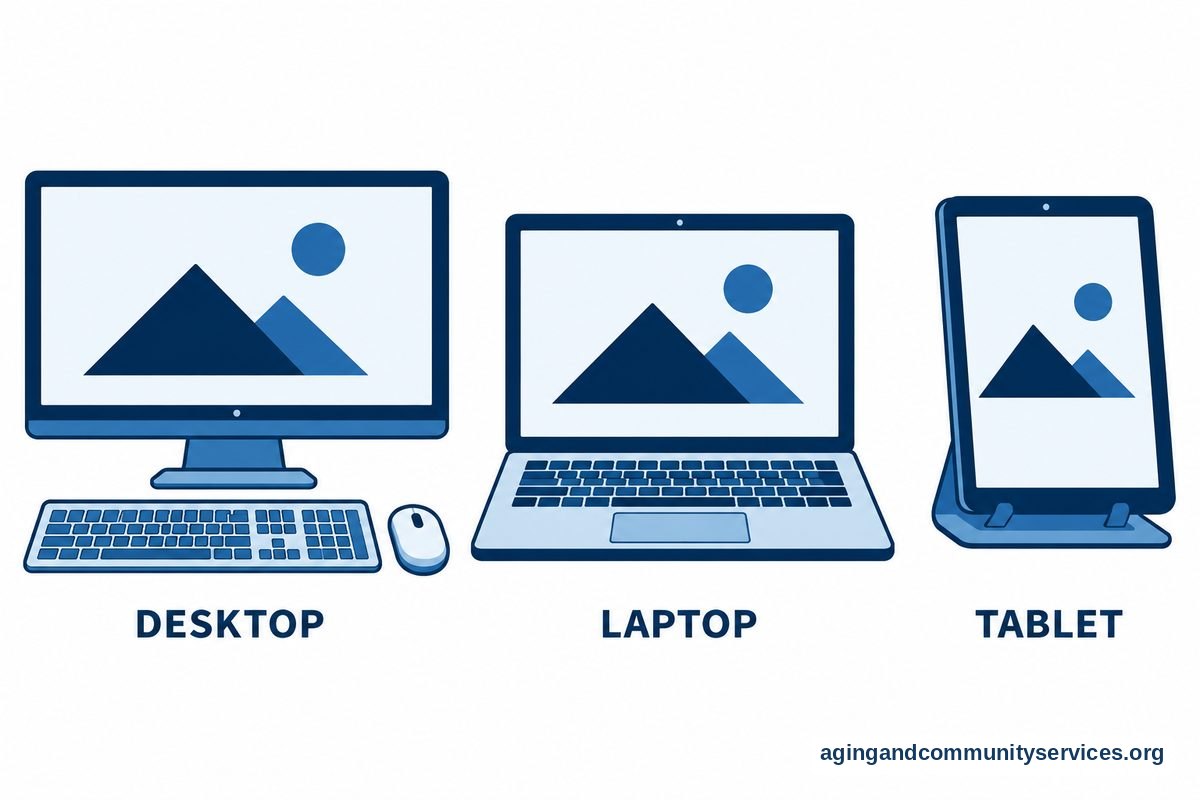
The easiest computer is often the one that feels familiar. If the person has used a desktop for many years, a desktop may be less confusing than a new tablet or laptop. If they have always used a laptop at the kitchen table, keeping that setup may help.
Try to notice what they still enjoy doing on a screen. Some people like seeing family photos. Others want to read messages, listen to music, watch familiar videos, or join a video call with help nearby.
Before buying anything new, ask a few simple questions:
- What does the person want to do on the computer?
- Which device have they used most in the past?
- Do they use a mouse, keyboard, touch screen, or voice controls more comfortably?
- Will someone be nearby to help with updates, passwords, and calls?
- Is the computer for daily use, occasional use, or shared family use?
If the answer is mostly video calls, photos, and simple apps, a tablet for dementia may be easier than a full computer. If typing, printing, or using a large screen matters, a desktop or laptop may be the better fit.
Choose Simple Hardware And A Clear Screen
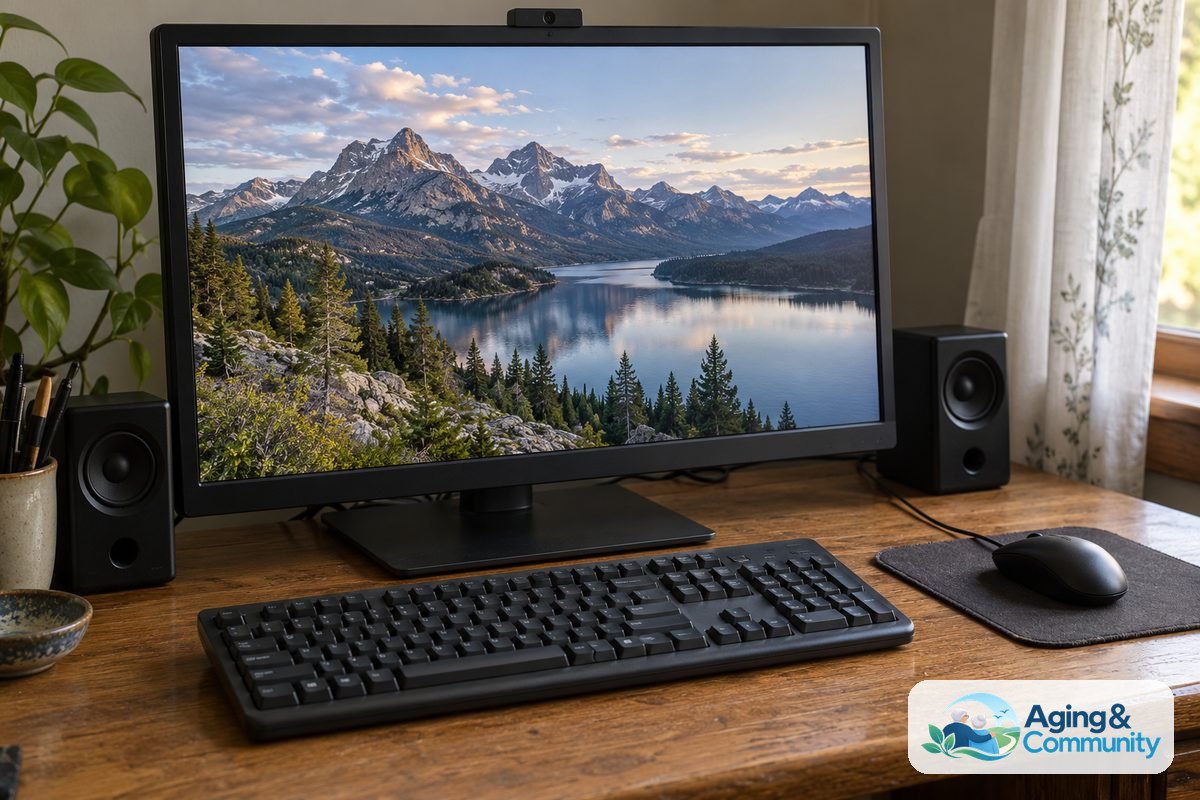
A computer for this situation should be easy to see, easy to reach, and steady in one place. A large screen can reduce strain and make icons easier to recognize. A full size keyboard may help if the person has typed for many years.
For some people, a desktop is easier because it stays in the same spot. The chair, screen, keyboard, and mouse can remain in a familiar layout. A laptop can work well too, but it may get moved, closed, or unplugged more often.
Look for features that reduce extra steps:
- A large, bright screen with clear text
- A simple keyboard with high contrast letters
- A mouse that fits the hand well
- A stable desk or table with good lighting
- Speakers that are loud enough for calls and videos
- A webcam that does not need to be attached each time
A touch screen may help some people, but it can confuse others. If the person touches the screen by mistake or gets lost after tapping, a mouse and keyboard may be calmer. If they already use a phone or tablet with ease, a touch screen may feel natural.
If you are comparing options, an easy to use computer guide can help you think through screen size, controls, and setup without focusing only on brand names.
Set Up The Computer To Show Fewer Choices
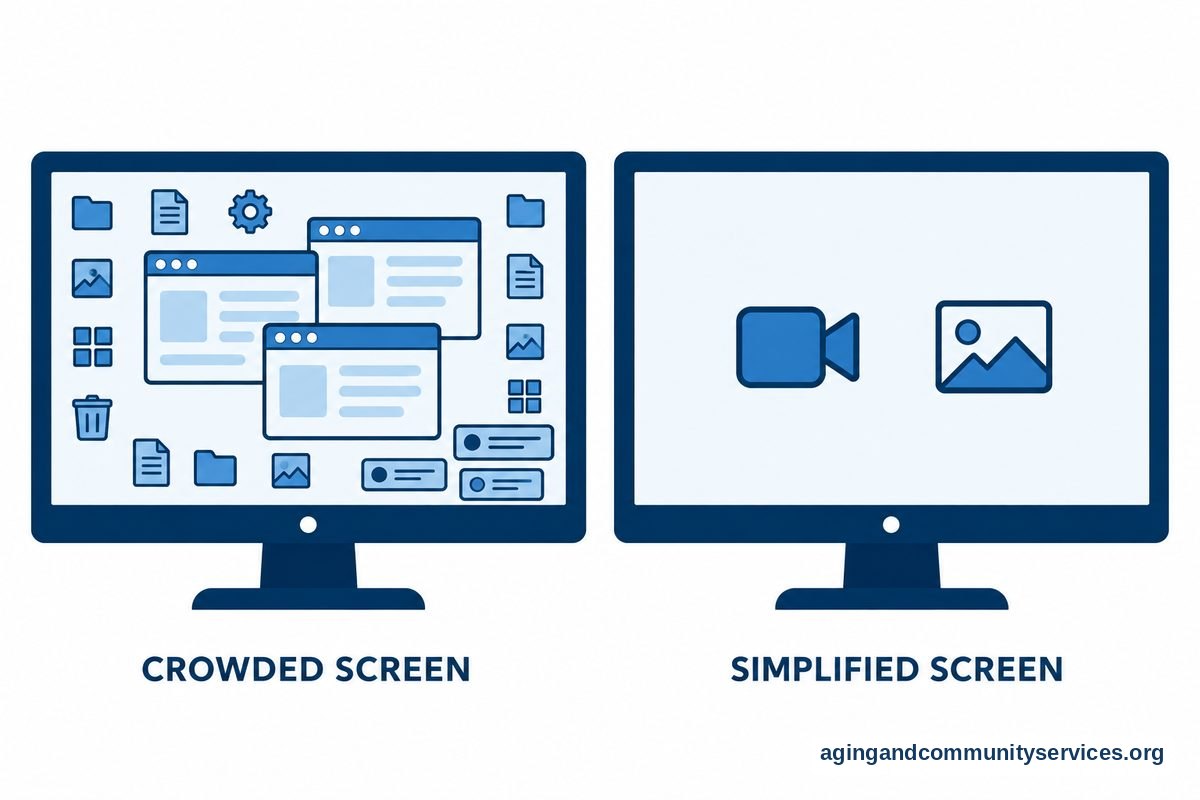
Too many icons, pop ups, and menus can make a computer harder to use. A simpler home screen helps the person find the same few tasks each time. It also makes it easier for a helper to give step by step support.
Start by removing or hiding items that are not needed. Keep only the main tools, such as video calls, photos, music, email, and a browser shortcut to a trusted page. Use large icons and plain names.
Helpful setup steps include:
- Make text larger in the display settings
- Use a plain background photo or solid color
- Place the most used icons in one area
- Rename shortcuts with simple words, such as Family Call or Photos
- Turn off extra notifications when possible
- Set the browser to open to one useful page
Passwords can be a common source of stress. If it is safe and appropriate, a trusted family member can help manage passwords with a secure password manager or written plan kept in a private place. Avoid leaving sensitive passwords in open view if visitors, paid helpers, or others may see them.
For video calls, consider setting up one app and practicing the same steps each time. If apps are part of the plan, choose only a few and keep them visible. A guide to apps for dementia can help families think about simple uses such as reminders, photos, and music.
Make Safety And Privacy Part Of The Setup
Computer safety is mostly about reducing mistakes and making support easier. It does not need to be complicated. The aim is to limit unwanted purchases, scam messages, confusing links, and account problems.
Use the computer’s built in settings to help. A separate user account with limited access may be useful. You can also save trusted websites as shortcuts and use browser settings to block pop ups when available.
Practical privacy steps include:
- Use a strong password for the main account
- Keep banking and medical portals off the home screen unless needed
- Remove saved payment details if impulse purchases are a concern
- Turn on automatic updates when possible
- Use spam filters for email
- Keep a trusted helper as the recovery contact when appropriate
Some families also create a simple rule: if a message asks for money, passwords, gift cards, or urgent action, pause and ask a trusted person first. Write that rule on a small card near the computer if it helps.
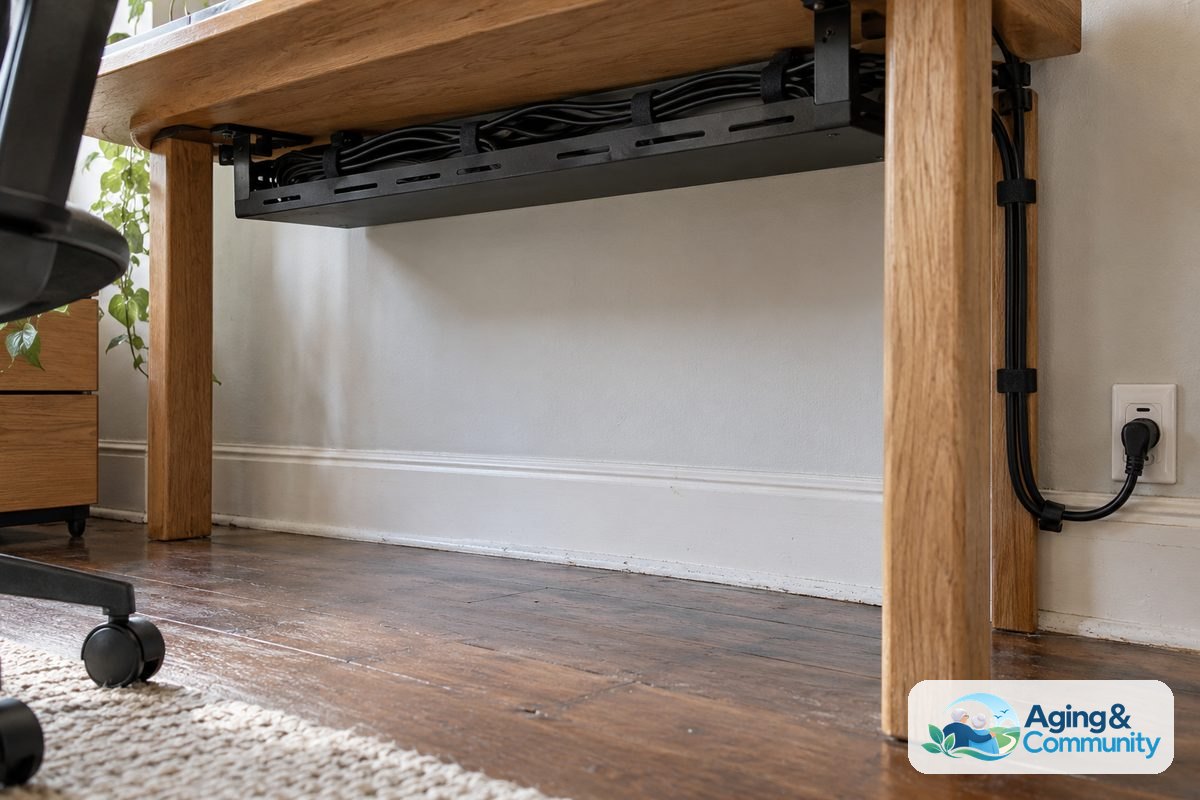
Home safety matters around technology too. Cords, lighting, chair height, and clutter can affect daily use. The National Institute on Aging offers home safety tips that may help families think through the room where the computer sits.
Build A Routine Around One Or Two Main Uses
A computer is easier to use when it becomes part of a simple routine. Rather than teaching many tasks at once, choose one or two meaningful uses. For example, the computer may be used for a family video call after lunch or music before dinner.
Keep the routine the same when possible. Use the same chair, the same screen, the same app, and the same words. A printed step list can help, especially if it uses large text and short phrases.
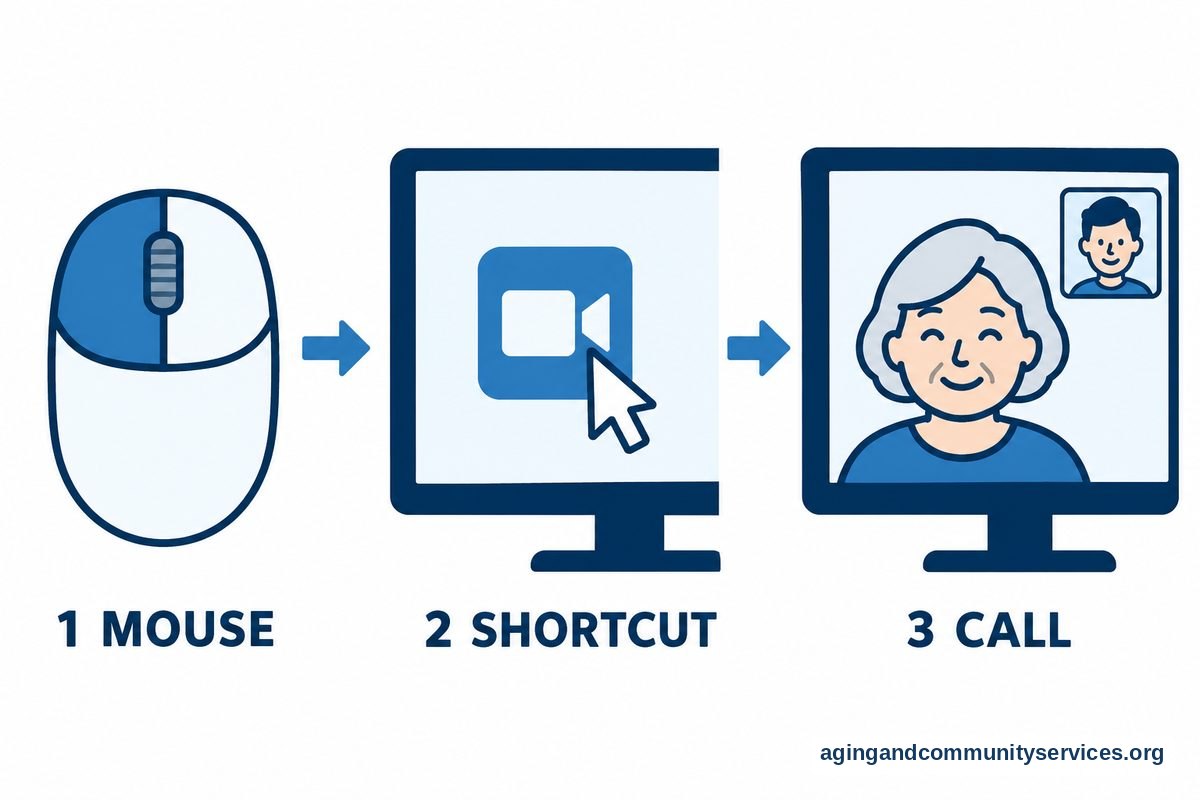
A simple video call card might say:
- Sit at the computer.
- Move the mouse.
- Click Family Call.
- Wait for the call to open.
- Say hello.
Some people may do better when a helper starts the call. That is okay. The value may be in seeing a familiar face, hearing a voice, or enjoying shared music, not in doing every step alone.
If a phone is more familiar than a computer, a smartphone for dementia setup may be worth considering. For iPhone users, a guide on setting up iPhone can help with display, contacts, and fewer distractions.
Know When To Adjust Or Step Back
Technology should fit the person, not the other way around. If the computer causes repeated frustration, it may need fewer features, more help, or a different role. It may still be useful for shared activities even if the person no longer uses it alone.
Watch for signs that the setup is too complex. The person may close the laptop, avoid the desk, click many items without meaning to, or become upset by pop ups. These signs do not mean the computer has failed. They mean the setup may need to change.
Possible adjustments include:
- Move the computer to a quieter space
- Reduce the number of icons again
- Switch from email to video calls only
- Use a larger monitor or keyboard
- Have a helper start each session
- Replace typed steps with picture labels
If vision, hearing, movement, or memory changes affect computer use, it can help to ask a doctor, occupational therapist, or physical therapist for guidance. They may suggest safer seating, better lighting, easier controls, or other supports based on the person’s needs.
What You Can Do Next
Start with one small change instead of a full technology makeover. Choose the task that matters most, such as seeing family photos or joining a call, and make that task as simple as possible.
Here is a practical plan:
- Write down the top one or two reasons for using the computer.
- Remove extra icons, apps, and notifications from the screen.
- Make text and icons larger.
- Create one shortcut with a clear name.
- Practice at the same time of day for a short session.
- Ask the person what feels easy or confusing.
If you need local support, the Eldercare Locator can help connect families with services in their area. You can also ask a library, community center, or local aging service about basic technology help.
Keep notes as you try changes. Write down what worked, what caused confusion, and what the person seemed to enjoy. These notes make it easier for family members and helpers to stay consistent.
Frequently Asked Questions
What is the easiest computer for someone with dementia?
The easiest computer is usually the one that feels familiar and has the fewest steps. A desktop with a large screen may work well if it stays in one place. A laptop may work if the person already knows it and someone can help keep it charged and updated.
For simple video calls, photos, and music, a tablet may be easier than a computer. The best choice depends on the person’s habits, comfort with touch screens, and how much help is available.
Should I buy a new computer or simplify the one they have?
If the current computer still works, simplifying it is often a good first step. You can enlarge text, remove extra icons, turn off notifications, and create clear shortcuts. This keeps the device familiar while making it easier to use.
A new computer may make sense if the old one is slow, unreliable, hard to see, or no longer safe to update. If you do buy a new one, try to keep the setup close to what the person already knows.
Are tablets better than computers for dementia?
Tablets can be easier for some people because they are light, simple, and use touch controls. They can work well for photos, music, video calls, and a few simple apps. They may be less helpful for people who prefer a mouse, keyboard, or larger screen.
A computer may be better if the person likes typing, using a printer, or sitting at a familiar desk. The right choice is the one that causes the least confusion and supports the activities that matter most.
How can I make a computer safer to use?
Use a limited account, remove saved payment details if needed, keep updates on, and reduce pop ups. Put only trusted shortcuts on the main screen. Make a simple rule to ask for help before replying to urgent messages or sharing private information.
It also helps to have one trusted person manage passwords, recovery options, and settings. Review the setup from time to time, especially if the person starts getting lost or upset while using the computer.
What if the person gets frustrated with the computer?
Pause and make the task smaller. Try one activity, one shortcut, and one short session. If the person still seems frustrated, use the computer together rather than expecting them to use it alone.
Technology should support comfort and connection. If it does not, it is fine to step back, use another device, or focus on non digital activities that the person enjoys.