

Setting up email for seniors with dementia requires simple tools, strong safety controls, and steady support from family. Digital messages can help a loved one stay connected with grandchildren, old neighbors, and close friends without causing confusion. With the right adjustments, online messaging remains a positive activity rather than a source of stress.
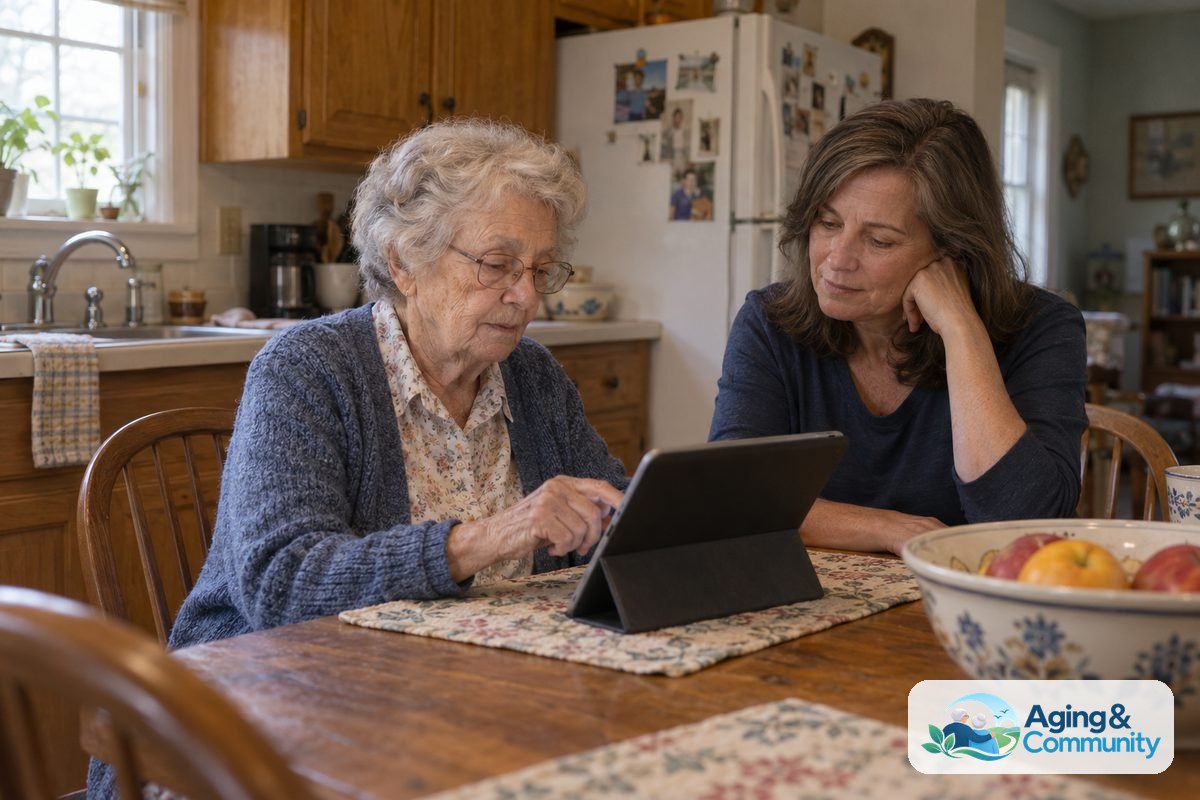
How to Set Up Email for a Loved One with Memory Loss
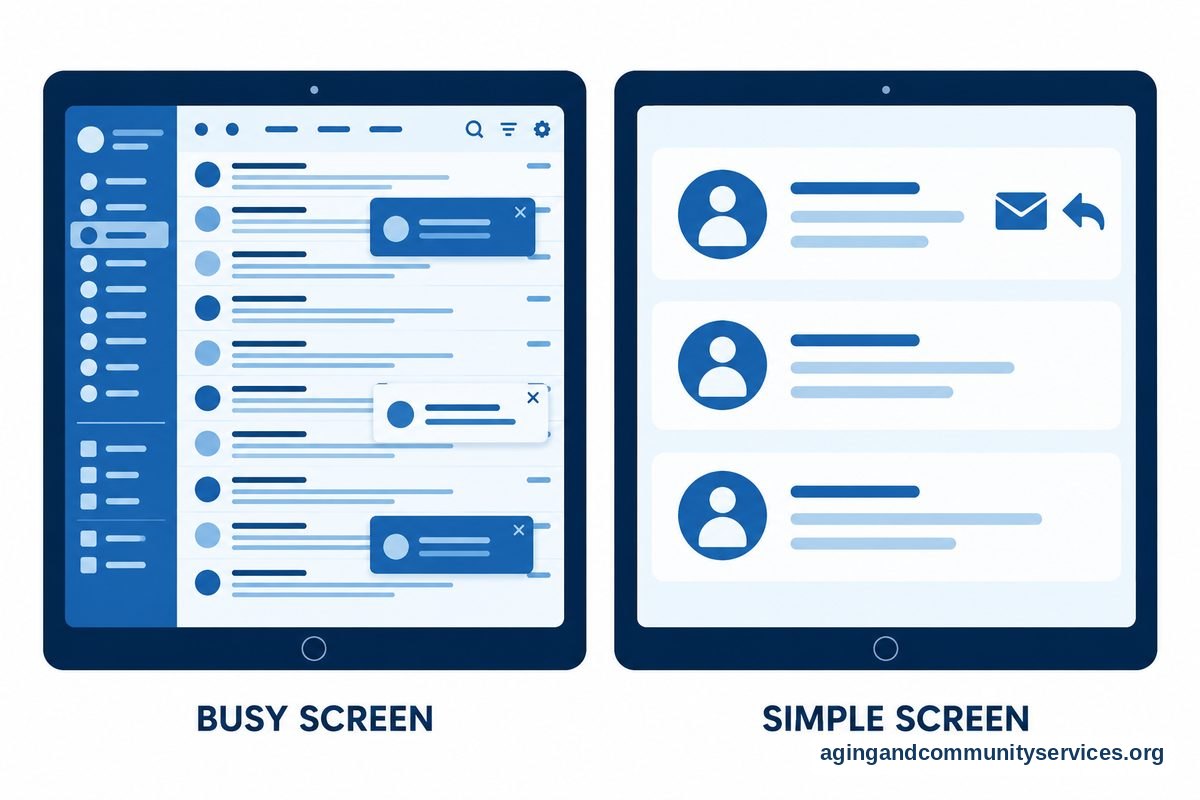
- Choose a dedicated, simplified interface. Look for programs that display large text, clear icons, and only basic functions like reading and sending notes.
- Set up a closed address book. Configure the account settings so incoming notes only arrive from approved senders like family members and close friends.
- Turn off outside notifications and alerts. Disable sound chimes, banner pop-ups, and badge counts that could trigger unnecessary worry during the day.
- Automate spam and marketing filters. Direct all newsletters, sales promotions, and automated mailings directly into the trash folder so the inbox stays clean.
- Pair the account with an easy device. Many families find that using a dedicated tablet for seniors with dementia helps avoid the clutter of traditional mouse and keyboard setups.
- Share management access. Keep a trusted family member logged into the account on another device to monitor incoming notes and assist with replies.
Common Mistakes to Avoid
- Leaving the inbox open to the public: An open inbox quickly fills with junk mail, solicitations, and confusing messages that can cause anxiety.
- Expecting memorization of complex passwords: Requiring frequent password entry leads to frustration, so use saved credentials or single-tap logins instead.
- Introducing too many features at once: Video calls, calendar alerts, and chat tabs should be hidden so only basic reading and writing remain visible.
- Ignoring physical screen limitations: Small fonts and low screen contrast can make reading tiring, which quickly discourages use.
- Reprimanding mistakes or repeated messages: Loved ones may send the same note twice or forget they received a reply, so patience is essential.
When to Call for Help or Get Professional Advice
Managing digital technology can sometimes bring unexpected challenges, especially as care needs evolve. If managing online communication becomes overwhelming or causes sudden agitation, reach out to local support networks. You can contact the Eldercare Locator to find community resources, caregiver respite programs, and tech assistance programs in your area.
When speaking with community specialists or care coordinators, explain your specific situation clearly. Tell them how memory changes are affecting daily routines, what devices are currently in the home, and where your loved one experiences the most frustration. If confusion extends beyond electronic devices into other daily tasks, you may also review general home safety tips to ensure the physical living environment remains safe and comfortable.
Choosing the Right Hardware and Display Settings
The device you choose makes a major difference in how comfortable your loved one feels when reading messages. A full desktop setup can be overwhelming with cords, updates, and separate accessories. In many situations, an adapted computer for seniors with dementia with a touchscreen or simplified operating system works best.
Make sure to adjust the display properties before handing the device over. Increase the overall text size to a large, comfortable reading font. Adjust the brightness so it does not strain the eyes, and turn on high-contrast settings to make words stand out against white backgrounds. Removing extra desktop shortcuts ensures that only the messaging icon is visible.

Alternative Ways to Share Written Notes
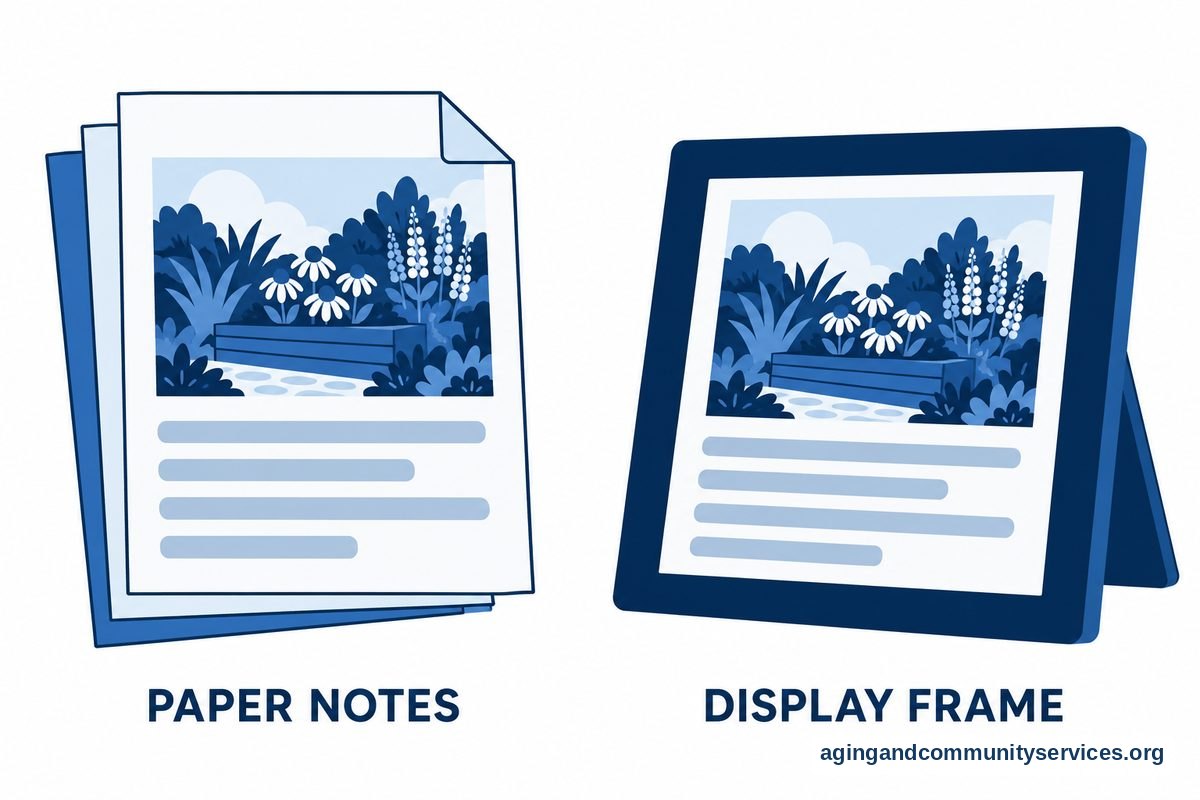
Not every person enjoys interacting with a screen as memory changes progress. For some, physical mail or paper printouts feel far more natural and comforting. You might consider services that convert digital family notes and photos into printed physical postcards or newsletters that arrive in the regular mailbox.
You can also explore options for email for seniors without computer access, such as printing stations or digital picture frames that display incoming notes automatically. These dedicated devices show messages as gentle slideshows, allowing your family member to read sweet notes from relatives without needing to touch buttons, tap screens, or manage passwords.
Establishing a Calm Digital Routine
Routine provides comfort and predictability for people living with cognitive changes. Try to designate a specific time of day for checking messages together, such as right after breakfast or during an afternoon tea break. Sitting together while reading notes turns the activity into a warm, shared experience rather than an isolated chore.
Encourage family members to write short, cheerful messages. Ask relatives to include recent family photos and focus on positive daily updates. When replies are needed, you can type while your loved one speaks the words, or help them record a short voice note. General advice on selecting email for seniors often emphasizes independence, but shared interaction is usually the most rewarding path when memory loss is present.

Frequently Asked Questions
How can I protect my loved one from email scams?
The most effective strategy is setting up an approved sender list in the mail program settings. This whitelist feature automatically blocks or redirects any message coming from an unknown address. In addition, keep account recovery options linked to your own phone number and personal address so security alerts come straight to you.
What is the easiest way for someone with memory loss to send a reply?
Using speech to text features or recording short audio clips is often much easier than typing on a physical or digital keyboard. Many simplified messaging apps have a prominent microphone button that records spoken words with a single press, allowing natural conversation without spelling worries.
Should I close an existing email account or create a brand new one?
Creating a new, clean account specifically for close family and friends is usually the best approach. Older personal accounts often carry years of automated subscriptions, junk mail, and promotional lists that are difficult to fully clean out. A fresh account gives you a completely controlled, peaceful environment from day one.
What should I do if electronic messages start causing agitation?
If looking at a screen leads to frustration, confusion, or restlessness, pause the activity right away. Offer a soothing alternative, like looking through a printed photo album or sharing a calm conversation over a snack. You can always print out thoughtful family messages on paper later and read them aloud together during a peaceful moment.