

If you need to know how to set up iPhone if old phone is broken, you can still do it without using the old phone in your hand. Most people can set up the new iPhone with an Apple Account, an iCloud backup, a carrier account, or a computer backup if one exists.
The main goal is to get the new iPhone working first, then restore what you can. If the old phone is cracked, will not turn on, or is missing, you may still be able to bring back contacts, photos, messages, apps, and settings from cloud services.
Main Steps to Set Up the New iPhone
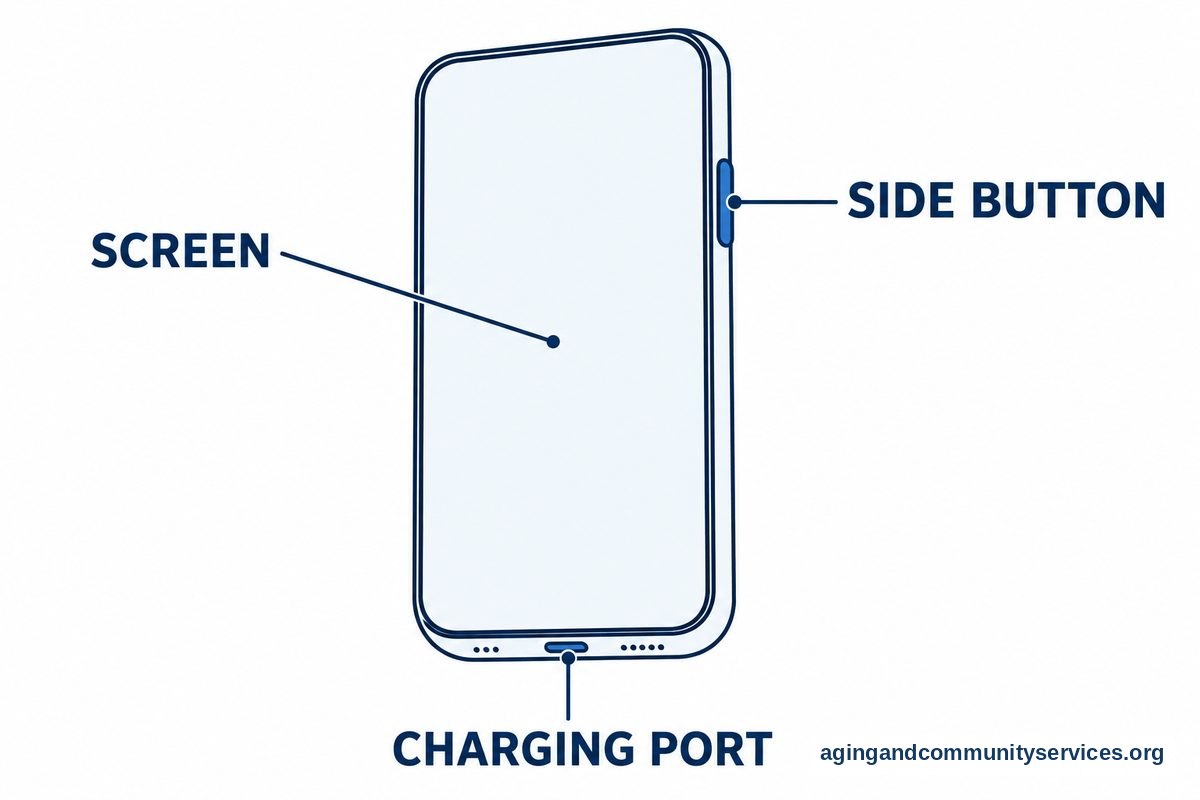
- Charge the new iPhone and connect to Wi-Fi. Plug in the new iPhone and keep it near your Wi-Fi router if you can. A steady Wi-Fi connection helps the phone activate and download your backup.
- Turn on the iPhone and choose basic settings. Press and hold the side button until the Apple logo appears. Choose your language, country, text size, and any display choices that make the screen easier to read.
- Use Quick Start only if another Apple device is available. If you have an iPad or another iPhone signed in to the same Apple Account, it may help start setup. If you do not, choose the option to set up manually.
- Connect to Wi-Fi and activate the phone. Pick your home Wi-Fi network and enter the password. The iPhone may also activate through your carrier if the SIM or eSIM is ready.
- Sign in with the Apple Account used on the old phone. This is often the most important step when the old phone is broken. Use the same email address and password that were used for iCloud, the App Store, and iMessage.
- Choose a restore option. If you see an iCloud backup, choose the most recent backup that looks right. If you backed up to a computer, connect the new iPhone to that computer and restore from Finder or iTunes.
- Set up Face ID, Touch ID, or a passcode. Pick a passcode you can remember but others cannot guess. Write down the Apple Account email in a safe place, but do not write the passcode where others can easily find it.
- Wait for apps, photos, and messages to return. The phone may look ready before everything has downloaded. Leave it connected to power and Wi-Fi while photos, apps, and messages continue to appear.
- Check calls, texts, and contacts. Make a short call, send a text, and open Contacts. If something is missing, check iCloud settings before you erase or change anything.
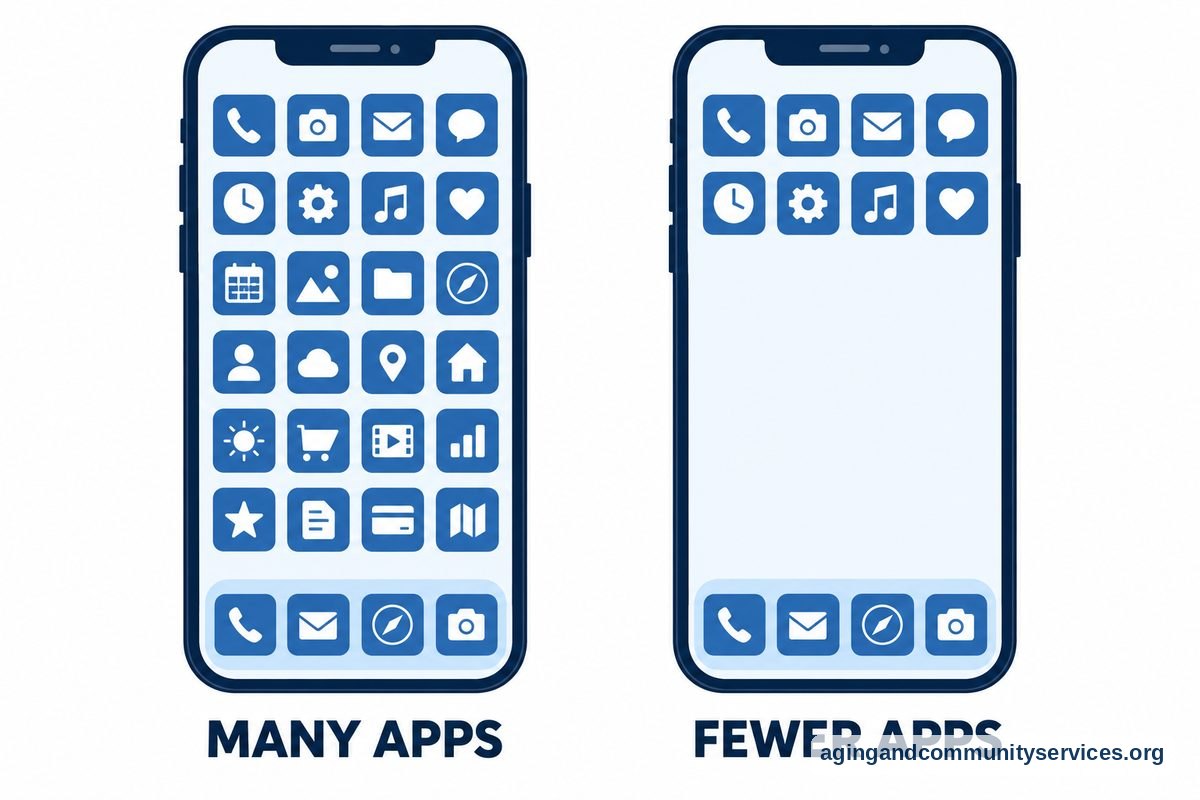
- Adjust the phone for comfort and safety. Increase text size, turn on helpful alerts, and remove clutter from the Home Screen. If you are setting this up for someone else, these iPhone settings for seniors can help you make the phone easier to use.
Common Mistakes to Avoid
- Using the wrong Apple Account. If you sign in with a different account, the phone may not show the old contacts, photos, apps, or purchases.
- Skipping Wi-Fi during setup. Cellular service may not be enough for a full restore. Wi-Fi is usually needed for a smoother transfer from iCloud.
- Erasing the old phone too soon. If the old phone turns on later, it may still have photos, notes, or app data that were not backed up.
- Forgetting two-factor codes. Apple may send a code to another trusted device or phone number. Have that device, phone number, or recovery contact ready if possible.
- Expecting every app to sign in by itself. Banking, email, pharmacy, and health portal apps may ask for passwords again. Keep those account details nearby.
- Rushing the restore. Photos and messages can take time to return. Keep the new iPhone plugged in before deciding that data is missing.

When to Call for Help or Get Professional Advice
Call your mobile carrier if the new iPhone cannot make calls, send texts, or activate the SIM or eSIM. Tell them the old phone is broken, whether you still have the old SIM card, and whether the new phone was bought from them, Apple, or another store.
Contact Apple Support or visit an Apple Store if you cannot sign in to your Apple Account, do not see an iCloud backup, or the phone is stuck during setup. Be ready to share the Apple Account email, the new iPhone model, and any message shown on the screen.
Ask a trusted family member or caregiver for help if passwords, security codes, or app sign-ins feel confusing. For a broader setup plan for older adults, this guide to set up iPhone explains comfort settings and simple layout choices.
If phone setup is part of a larger plan to stay connected at home, you may also want help from a local aging service. The Eldercare Locator can help people find local support for aging services in their area.
How to Set Up iPhone Without Old Phone
You can set up iPhone without old phone access by choosing manual setup and signing in with the same Apple Account. The old phone does not need to be nearby if your information was already saved to iCloud or backed up to a computer.
During setup, look for the screen that asks how you want to move your apps and data. Choose iCloud backup if you used iCloud before. Choose computer backup if you used a Mac or Windows computer to back up the old phone.
If there is no backup, you can still set up the iPhone as new. Your contacts, calendars, notes, and photos may still return if they were synced to iCloud, Google, Outlook, or another account. After setup, go to Settings and add those accounts one by one.
Some items may not come back if they were stored only on the broken phone. This can include photos that were never synced, text messages not included in a backup, or app data that was not saved online. Still, many common items can return once you sign in to the right accounts.
After the phone is working, make it easier to use before adding too many apps. You can simplify the screen, enlarge text, and place key contacts where they are easy to find. These tips on how to make iPhone easy may help with that step.
What You Can Recover When the Old Phone Is Broken
What you can recover depends on what was backed up or synced before the old phone broke. An iCloud backup can bring back many settings, messages, app layouts, and app data. iCloud syncing can bring back contacts, photos, calendars, notes, reminders, and some messages even if you do not restore a full backup.
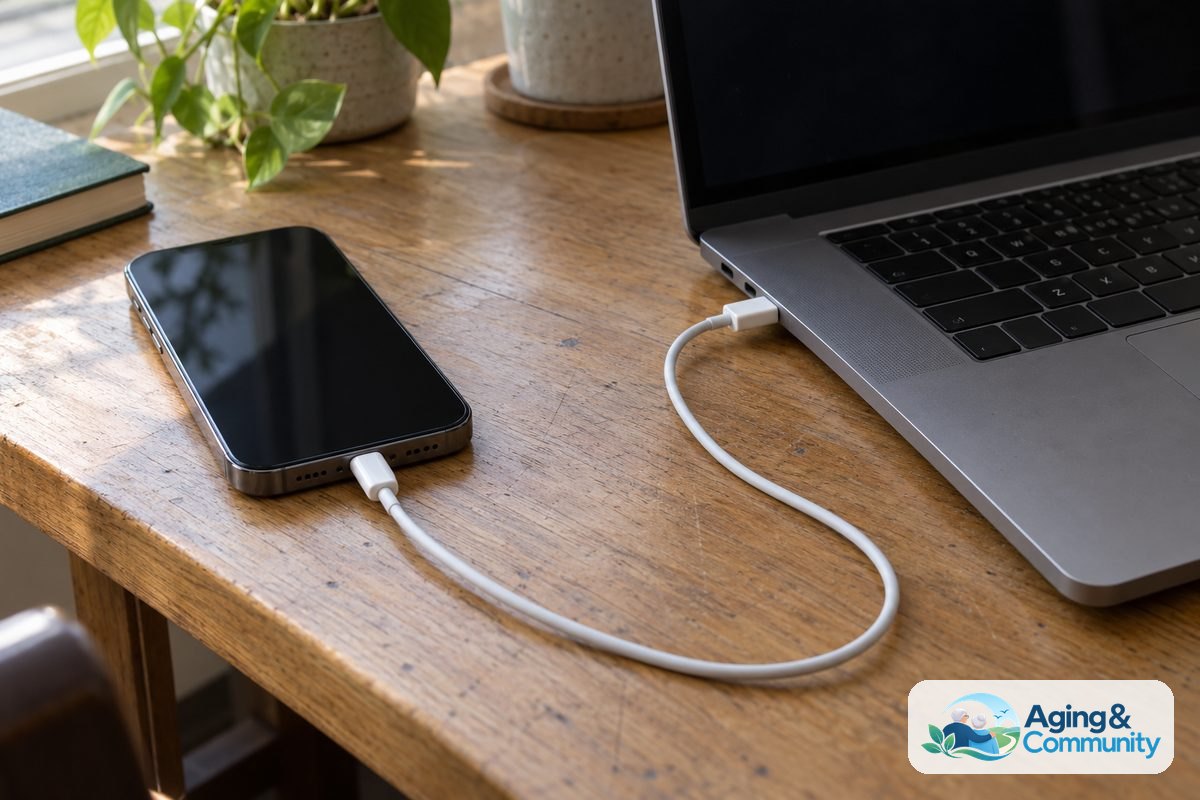
A computer backup can also help if one was made before the old phone stopped working. On a Mac, this is usually done through Finder. On some Windows computers, it may be done through iTunes or the Apple Devices app.
Email accounts are often separate from the iPhone backup. If you used Gmail, Outlook, Yahoo, or another email service, you can usually add that account again in Settings. Your mail should return after you sign in.
Apps can be downloaded again from the App Store if they are still available and tied to the same Apple Account. Some apps will remember your information after you sign in. Others may need a new password or a code sent by text or email.
If the old phone is physically damaged but still turns on, do not keep trying random passcodes. Too many attempts can lock the phone for longer periods. If the screen does not work, ask Apple or a trusted repair shop whether the phone can be accessed long enough to make a backup.
Simple Setup Checklist
| What You Need | Why It Helps |
|---|---|
| Apple Account email and password | Lets you restore iCloud data and download past apps |
| Wi-Fi name and password | Helps activate the phone and restore backup files |
| Carrier account details | Helps move service, SIM, or eSIM to the new iPhone |
| Trusted phone number or device | Receives Apple sign-in codes when needed |
| App passwords | Helps sign back in to email, banking, and other services |
Keep this information together while you set up the phone. If you are helping someone else, ask before changing passwords or security settings. It is respectful and safer to let the phone owner stay part of each choice whenever possible.
After setup, it can help to review basic calling, texting, photos, and charging. These basic iPhone instructions can make the first few days less confusing.
Frequently Asked Questions
How do I set up an iPhone if my old phone is broken?
Turn on the new iPhone, connect to Wi-Fi, and sign in with the same Apple Account used on the old phone. When asked, choose an iCloud backup or a computer backup if one is available.
Can I set up iPhone without old phone nearby?
Yes. You can choose manual setup and use your Apple Account, iCloud backup, carrier account, or computer backup. The old phone does not have to be nearby if your information was saved elsewhere.
What if I do not know the Apple Account password?
Use Apple account recovery steps from the sign-in screen or Apple Support. You may need access to a trusted phone number, trusted device, or recovery contact.
Will my photos come back if the old phone is broken?
They may come back if iCloud Photos was turned on or if the photos were included in a backup. If photos were stored only on the old phone and it cannot be accessed, they may not return.
How do I set up iPhone without the old phone or a backup?
Choose to set up as new, then sign in to iCloud, email, contacts, and other accounts. You may not get every old item back, but you can still make calls, send texts, install apps, and use the phone.
Should I move the old SIM card to the new iPhone?
Move the SIM card only if your carrier or setup instructions tell you to do so. Many newer phones use eSIM, so your carrier may need to activate service without a physical card.