

When deciding which iPhone for an older person is the best match, the right answer usually comes down to screen size, battery life, and simplicity. A larger screen makes text much easier to read, while a modern standard model keeps daily communication straightforward without unnecessary complexity. Selecting a phone that balances clear viewing with comfortable handling ensures staying connected remains easy and enjoyable.
Choosing the Right Screen Size for Daily Comfort
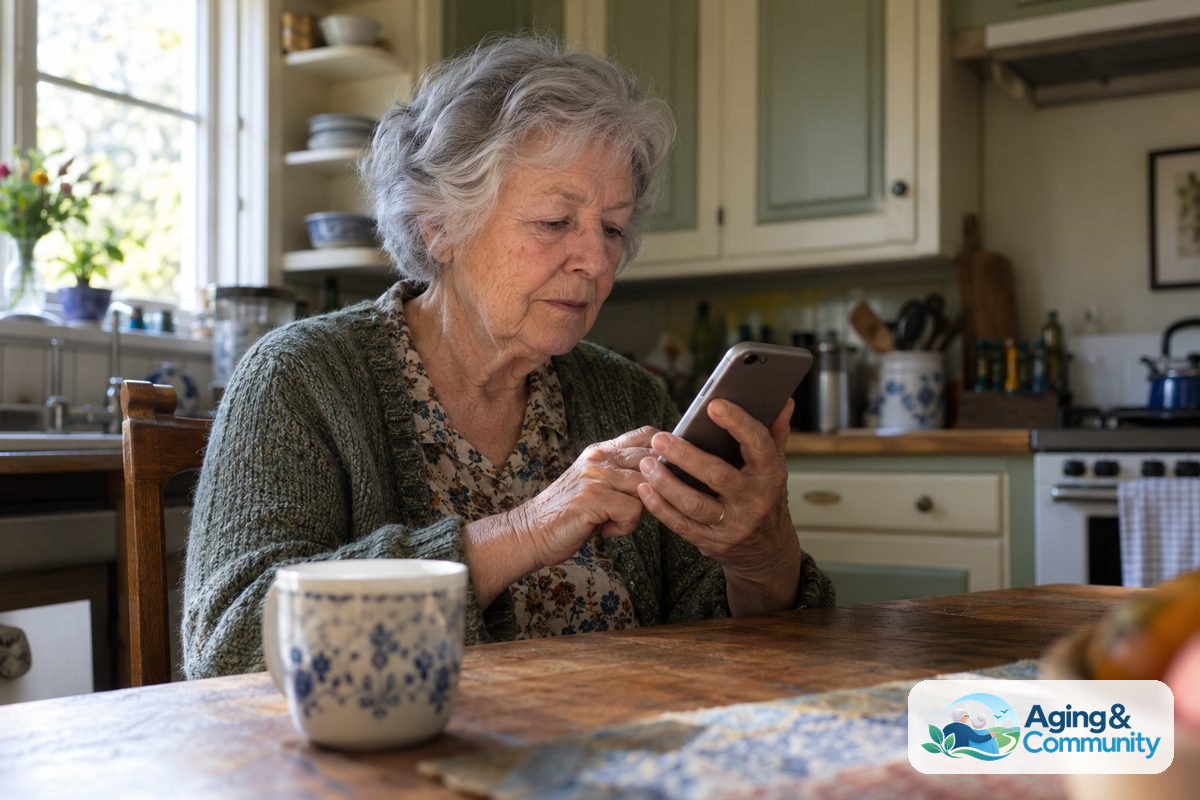
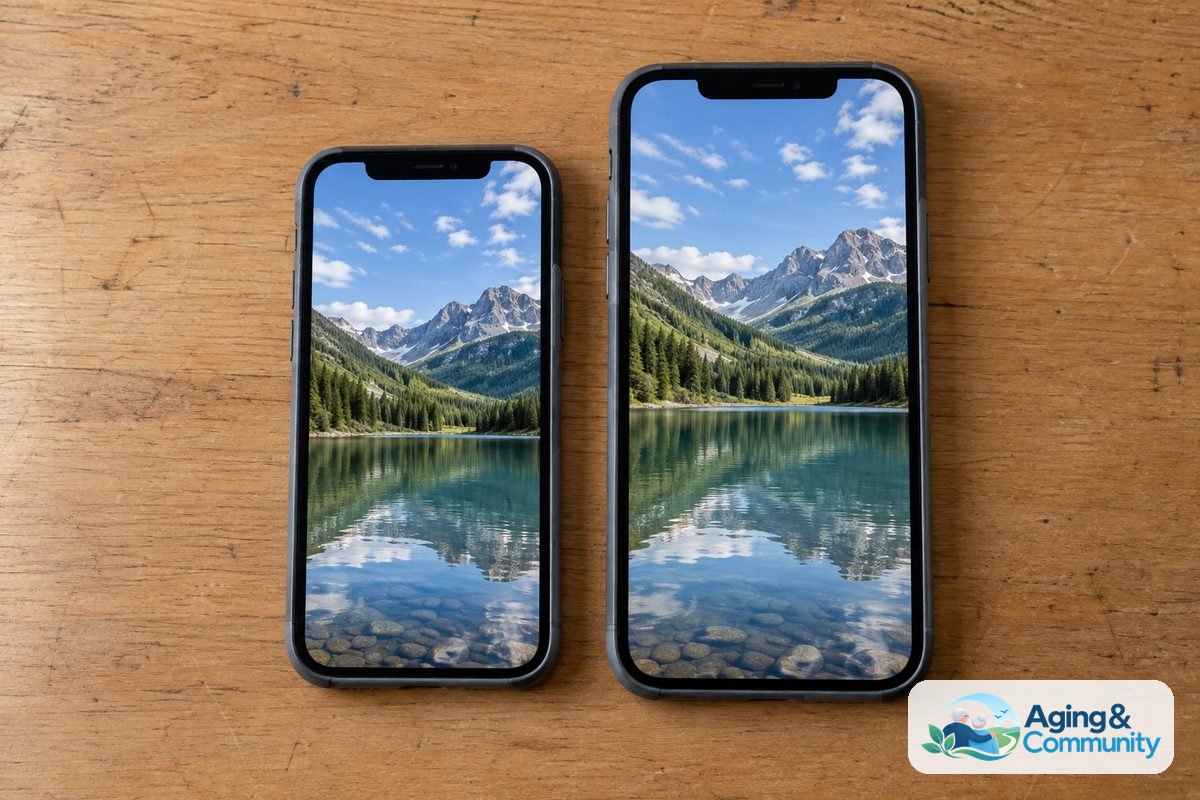
Screen size is often the most important factor to consider. As our eyes change, small text on a compact display can cause strain and fatigue. A larger display gives words and buttons plenty of room to breathe, which helps make reading text messages or looking at family photos a pleasure.
Apple offers phones in several common sizes. Compact models are easy to slip into a pocket, but they can be tricky to type on if joints are stiff. Larger plus-sized models provide wide, bright displays that let you boost the font size without crowding the screen. You can review our guide on the recommended iPhone for seniors to see how different screen styles compare for everyday use.
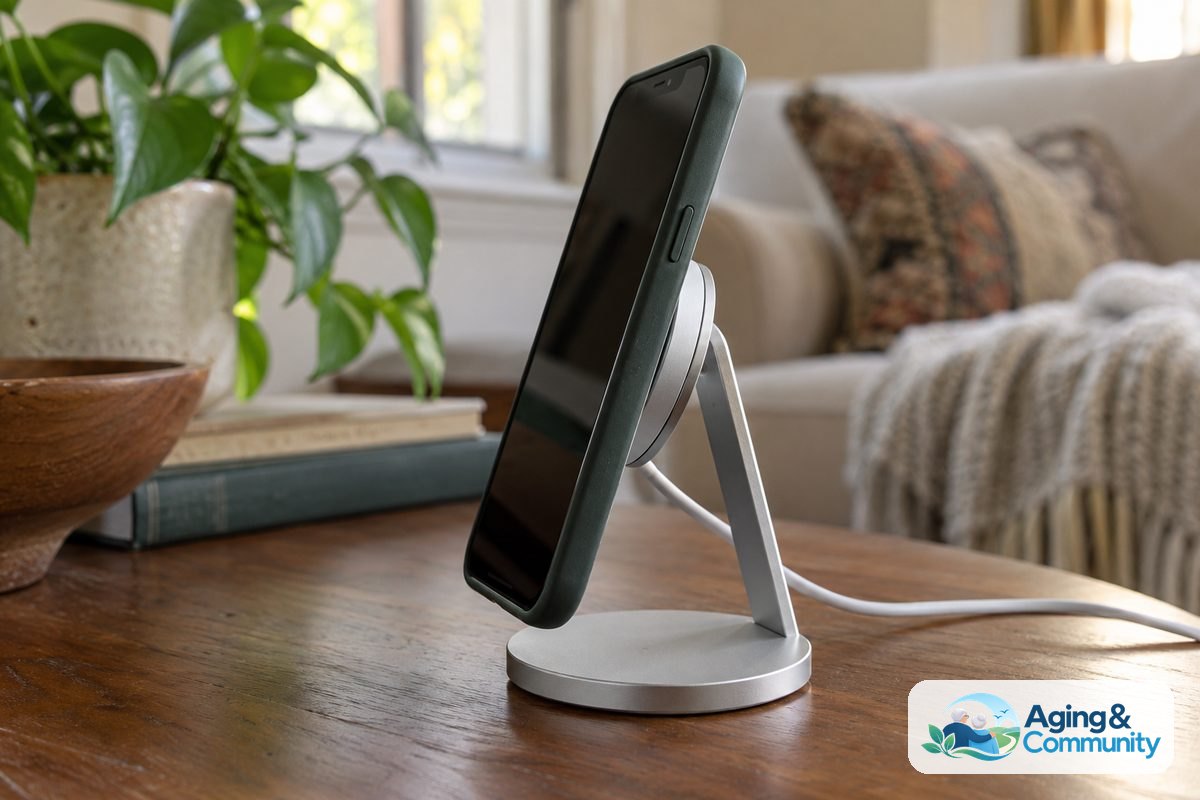
Keep in mind that bigger screens also mean a heavier phone. If holding a larger phone for long phone calls feels tiring, using a lightweight case with a built-in ring or strap can make a big difference. Table stands and magnetic charging docks also allow hands-free viewing during video calls with family.
Physical Home Buttons Versus Full Screen Swiping
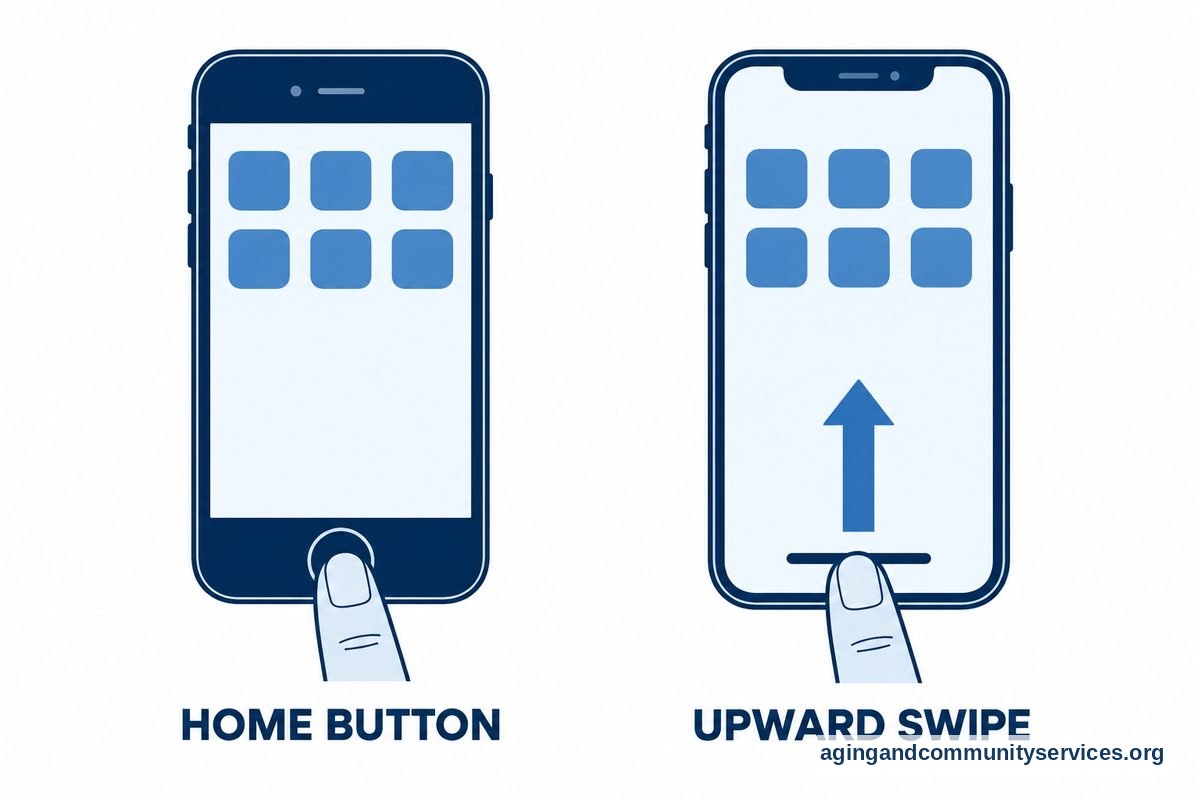
Another major choice is the way you navigate the phone. Traditional designs include a round physical Home button at the bottom of the front glass. Pressing this button always takes you straight back to your main screen, which gives many people a strong sense of comfort and control.
Modern designs eliminate the physical button in favor of a screen that stretches from edge to edge. To go home on these devices, you swipe upward from the bottom edge of the glass. While swiping can take a few days of practice to master, it allows for a much larger viewing area without increasing the overall size of the handset.
If you prefer a familiar button that clicks under your thumb, models like the iPhone SE remain popular choices. If you want larger icons and video that fills the entire palm of your hand, a full-screen model like the standard base number models or Plus models will serve you better.
Helpful Safety and Health Features Built In
Modern mobile phones offer practical tools that support independent living at home. Built-in sensors can detect sudden impacts and alert designated family members if an emergency occurs. Resources from the National Institute on Aging: Falls and Falls Prevention highlight how awareness and personal safety plans support long-term wellness.
Key safety tools built into modern Apple devices include:
- Emergency SOS: A simple way to call local emergency services by pressing and holding the side buttons.
- Medical ID: A secure summary showing allergies, blood type, and emergency contacts on the lock screen without needing a passcode.
- Crash Detection: Modern models can sense severe vehicle accidents and automatically prompt for help if there is no response.
- Location Sharing: Family members can use the Find My app to check that a loved one arrived home safely from an errand.
These tools work quietly in the background. They do not replace regular check-ins or professional care, but they provide peace of mind when running errands or walking around the neighborhood.
Battery Life and Simple Charging Options
No one likes worrying about a phone running out of power halfway through the day. Larger phones naturally have larger batteries inside, which often means they can last two full days between charges with moderate use. This reliability is especially helpful if someone occasionally forgets to plug the device in at night.
Charging methods have also improved. Plugging in a small cable can sometimes be frustrating if hand strength is limited or lighting is dim. Modern models support magnetic wireless charging docks. With these docks, you simply rest the back of the phone against the charging stand, and it snaps into place automatically.
If you are still deciding whether an Apple device is the right platform overall, reviewing an iPhone vs Android for seniors breakdown can help clarify which operating system feels most natural for your charging and interface preferences.
Software Features That Make iOS Simple to Use
Apple includes strong accessibility settings that let you customize the phone to your exact preferences. You do not have to accept the default settings out of the box. Adjusting just three or four toggles can transform a confusing screen into a clean, readable surface.
Helpful built-in adjustments include:
- Larger Text and Bold Text: Increases the size of system fonts across email, messages, and web browsing.
- Display Zoom: Magnifies all controls, making buttons and app icons physically larger on the screen.
- Spoken Content: Allows the phone to read text out loud when you highlight a paragraph in an article.
- Assistive Access: A streamlined mode that replaces standard menus with huge, high-contrast buttons for core tasks like calls, photos, and messages.
Learning how to set up iPhone senior mode gives you step-by-step instructions for activating this simplified interface. For everyday adjustments to audio clarity and visual zoom, our walk-through on iPhone settings for seniors offers clear, plain-language guidance.

How to Choose and Set Up Your Device Next
Choosing a new phone is a personal decision that works best when done without rush. Here are practical steps you can take today to move forward with confidence:
- Visit a local retail store: Hold a standard model, a compact model, and a Plus model in your hands. Feel the difference in weight and test how easily you can reach across the screen with one hand.
- Check hearing device compatibility: If you use hearing aids, check whether your specific models connect directly to Apple devices via Bluetooth for clear phone calls.
- Plan the setup together: Set aside an unhurried hour at a kitchen table to complete the initial setup. Reviewing how to set up iPhone for elderly family members will help you organize the home screen and silence unwanted spam calls before handing the phone over.
- Explore community resources: Many local libraries and senior centers host free, gentle technology classes. You can contact the Eldercare Locator to find aging support programs and community resources in your neighborhood.
Frequently Asked Questions
Is a Plus or Pro Max screen too big to hold?
Larger screens offer great visibility, but they do add weight. Many older adults find that using a two-handed grip or resting the phone on a table makes the larger size very comfortable. If you prefer carrying a phone in a shirt or pants pocket, a standard size may feel more manageable.
Can I use my existing hearing aids with a new phone?
Most modern Apple phones connect seamlessly with hearing aids designed for mobile devices. This allows phone conversations, audiobooks, and video calls to stream straight into your hearing aids with high clarity. An audiologist can help you pair the devices during a regular visit.
What is the easiest way to make text readable on the screen?
You can adjust the font size at any time in the device settings under the Display and Brightness menu. Turning on Bold Text and using the Text Size slider will immediately enlarge letters across your messages, contacts, and emails without cutting off important information.
Does an older model still receive software updates?
Apple generally supports its phones with software updates and security improvements for many years after release. Choosing a recent model ensures the device will receive reliable support, clear call quality, and regular safety protections for a long time to come.