

A computer for seniors reviews and benefits search usually means you want a clear answer: which computer is easiest to use, what it can help with, and what problems to watch for. The right choice depends less on brand names and more on screen size, comfort, support, and the tasks the person wants to do.
For many households, a simple computer can make everyday tasks easier. It can help with video calls, photos, messages, bills, hobbies, classes, and reading. It can also feel frustrating if the screen is too small, passwords are hard to manage, or setup is rushed.

What A Computer Can Help With Day To Day
A computer does not need to be fancy to be useful. The most helpful computer for senior citizens is often the one that makes daily life feel simpler, not more complex.
Common benefits include staying in touch with family, joining video calls, reading news, managing appointments, storing photos, and using email. Some people also enjoy games, family history projects, recipes, online classes, or church and community updates.
- Communication: Email, video calls, messages, and shared photos.
- Daily tasks: Online forms, bank access, bills, calendars, and reminders.
- Learning: Classes, how-to videos, language practice, and hobbies.
- Entertainment: Music, puzzles, movies, books, and family photo albums.
- Independence: Easier access to services, stores, and local information.
If the person is aging at home, technology may fit into a wider plan for comfort and safety. The National Institute on Aging has plain guidance on aging in place, which can help families think beyond the computer itself.
Reviews And Feedback: What To Look For
Computer for seniors reviews and feedback are most useful when they describe real use. Look for comments about setup, screen clarity, keyboard comfort, sound quality, and customer support.
Try not to rely only on star ratings. A high rating may not matter if the review comes from someone who uses the computer for gaming, business travel, or photo editing. The better question is whether the computer fits simple, common tasks.
Helpful reviews often mention whether the computer starts quickly, updates without much trouble, and stays easy to read. They may also say whether the keyboard has large letters, whether the mouse feels steady, and whether video calls are simple to join.
Computer for seniors reviews and ratings can still be helpful when you read them carefully. Look for repeated patterns. If several people mention confusing setup or poor sound, that is worth noting. If several mention clear instructions and patient support, that may be a good sign.
Computer for seniors reviews and testimonials should feel specific. A helpful testimonial says what the person used the computer for and what became easier. A vague comment like “great computer” is less useful than a note about readable text, easy email, or a smooth video call.
Desktop, Laptop, Or Tablet: Simple Comparisons
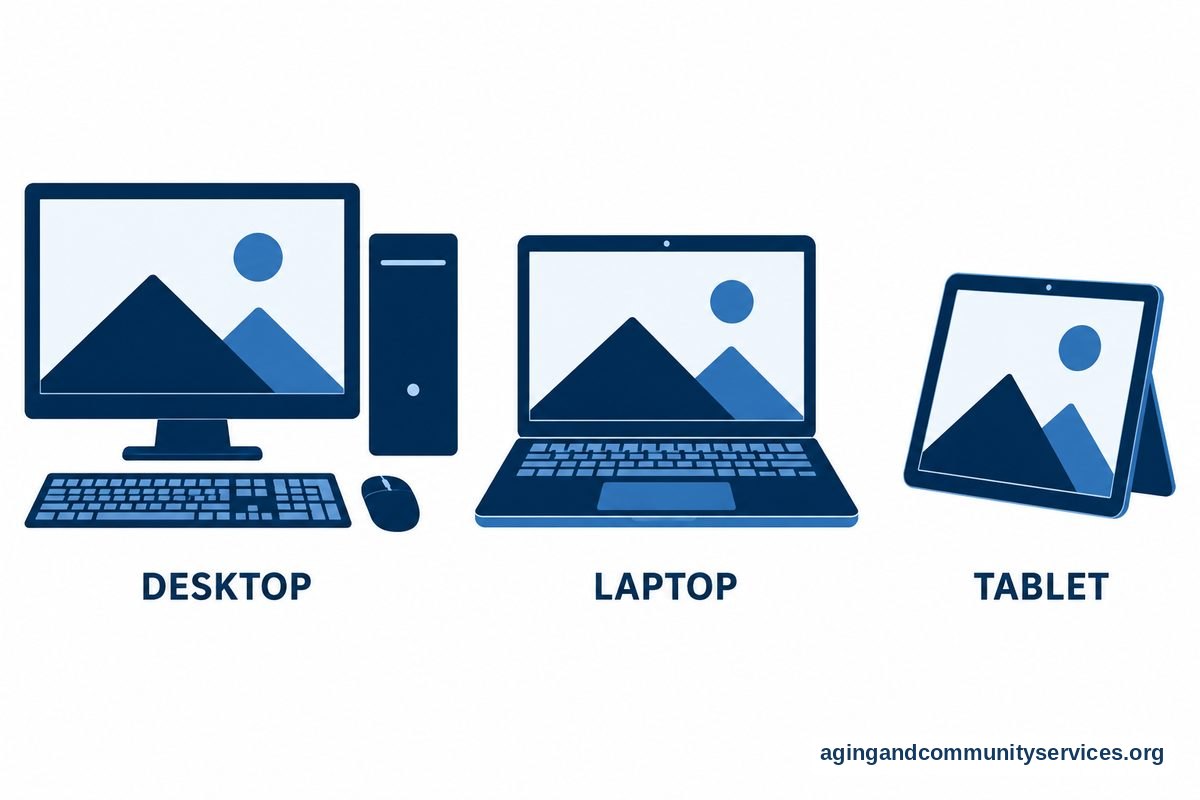
Computer for seniors reviews and comparisons often come down to three choices: desktop computer, laptop, or tablet. Each can be a good choice, depending on where and how it will be used.
A desktop computer for seniors can be a strong option for someone who uses the same desk or table every day. It can have a large monitor, full-size keyboard, and separate mouse. This can make reading and typing easier.
A laptop is better when the computer needs to move from room to room. It takes less space and closes when not in use. If a laptop sounds like a better fit, a guide to laptops for senior citizen use can help you compare common features.
A tablet is often easiest for reading, video calls, photos, and light browsing. It may be less comfortable for long typing sessions unless you add a keyboard. For people who want a lighter screen for the couch or kitchen table, tablets for elderly people may be worth comparing.
| Type | Good For | Watch For |
|---|---|---|
| Desktop | Large screen, steady setup, full keyboard | Stays in one place |
| Laptop | Portable use, email, video calls, browsing | Smaller keyboard and screen than a desktop |
| Tablet | Reading, photos, video calls, simple apps | Typing can be harder without accessories |
There is no one perfect answer. The best fit is the one the person will actually use without feeling worn out by it.
Common Challenges And How To Plan For Them
Computer for seniors reviews and challenges often mention the same issues: passwords, updates, tiny text, confusing menus, and fear of pressing the wrong thing. These are normal barriers, and many can be reduced with setup choices.
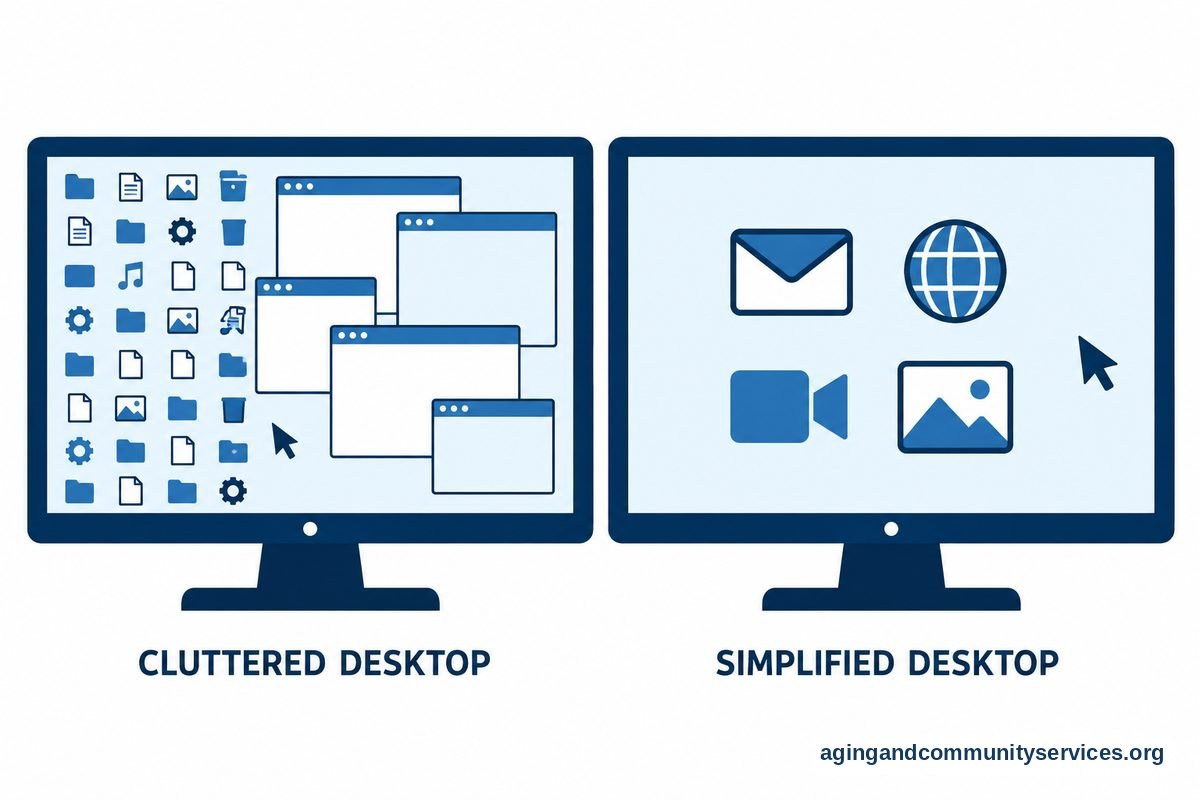
Start with the screen. Increase text size, choose a clear wallpaper, and place only the most used icons on the home screen. Keep the email, browser, video call app, and photo app easy to find.
Next, make sign-in simple but still safe. A written password book stored in a safe place may be better than relying on memory alone. A trusted family member can also help set up account recovery options.
Sound and vision comfort matter too. Choose speakers or headphones that are easy to adjust. If glare, posture, hand pain, or balance while reaching for equipment is a concern, it can be wise to ask a doctor, physical therapist, or occupational therapist about a comfortable setup.
The National Institute on Aging shares practical home safety ideas in its guide to falls prevention. A computer area should have clear cords, good lighting, and a chair that feels steady.
- Use a large monitor or increase display size.
- Choose a keyboard with clear letters.
- Place the computer on a stable table.
- Keep cords away from walking paths.
- Write down simple steps for common tasks.
- Set updates to run at a convenient time.
A Dummies Style Buying Guide Without The Jargon
Searches like computers for seniors for dummies, computer for seniors for dummies, and computers for seniors dummies usually mean the buyer wants a plain-English checklist. You do not need to know every technical term to make a smart choice.
Focus first on use. Ask what the computer needs to do most often. Email, video calls, photos, and web browsing do not usually require advanced features. More demanding tasks, such as large photo editing projects, may need a stronger machine.
Next, look at comfort. A larger screen can reduce squinting. A separate mouse may feel easier than a touchpad. A full-size keyboard can help people who dislike cramped keys.
Then look at support. A computer is only helpful if someone can get help when it gets confusing. This may mean a local shop, family member, community class, written guide, or built-in support service.
If the computer is for a parent, it may help to compare needs by location and routine. A resource on laptops for elderly parents can give families a starting point for that conversation.
- List the top three tasks the person wants to do.
- Decide where the computer will be used.
- Choose screen size before extra features.
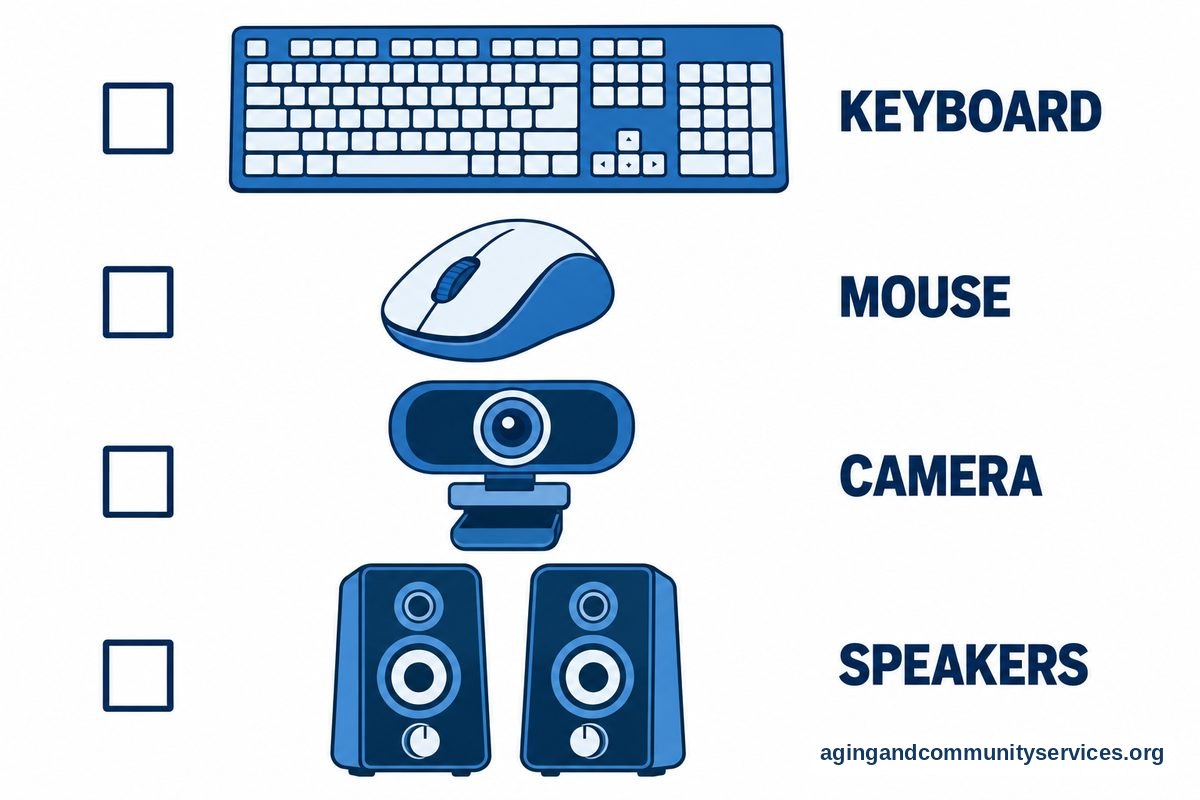
- Check keyboard, mouse, camera, and speakers.
- Plan who will help with setup and questions.
- Write simple instructions for the first week.
It is also smart to think about internet access, printer needs, and whether the person already uses a phone or tablet. Staying within a familiar brand or system may reduce the learning curve.
Setup Tips That Make A Computer Easier To Use
A good setup can matter as much as the computer itself. Many frustrations come from cluttered screens, hard-to-read text, and too many alerts.
Keep the desktop simple. Remove shortcuts that are not needed. Pin only the main apps. Use a clear browser homepage, such as email, a family photo page, or a simple search page.
Set up bookmarks for common sites. These may include email, the local library, pharmacy account, bank, photo sharing, weather, church, or community center. Use names that are easy to recognize.
Security should be simple and steady. Turn on automatic updates when possible. Use strong passwords, but keep recovery options practical. Remind the user not to share passwords, gift card numbers, or codes that arrive by text or email.
For broader help with devices, apps, and safe use, a guide to technology for seniors can help families build confidence step by step.
- Create one page of written steps for email.
- Create one page of written steps for video calls.
- Use the same browser every time.
- Turn on larger text and pointer size.
- Label chargers, cables, and buttons if needed.
- Schedule a short practice session instead of a long lesson.
Short lessons usually work better than one long setup day. Let the person practice one task at a time, then repeat it later. Confidence grows when the steps feel familiar.
What You Can Do Next
Start with a calm conversation, not a shopping list. Ask what the person wants the computer to help with. Write down the answers before comparing models.
If possible, try a desktop, laptop, and tablet in person. Notice screen size, keyboard feel, sound, weight, and how easy it is to find basic apps. Comfort should guide the choice.
Before buying, decide who will set up the device, who will answer questions, and how passwords will be stored. If local help is needed, the Eldercare Locator may help families find community resources.
After setup, choose three starter tasks. Good first tasks include reading email, joining a video call, and opening family photos. Keep the first week simple.
- Make a list of must-have tasks.
- Choose desktop, laptop, or tablet based on where it will be used.
- Set up large text, bookmarks, and simple shortcuts.
- Write down passwords and recovery steps safely.
- Plan patient help for the first few weeks.

Frequently Asked Questions
What Should I Look For In Computer For Seniors Reviews And Feedback?
Look for comments about ease of setup, screen readability, keyboard comfort, sound, camera quality, and customer support. The most useful feedback explains how the computer worked for email, video calls, photos, and web browsing.
What Are The Main Computer For Seniors Reviews And Challenges?
The most common challenges are passwords, updates, small text, confusing menus, and too many alerts. Many of these can be managed with larger display settings, a clean home screen, written steps, and patient practice.
How Do Computer For Seniors Reviews And Comparisons Help?
Comparisons help you decide between a desktop, laptop, and tablet. They also help you weigh screen size, portability, typing comfort, setup needs, and support options.
Is A Desktop Computer For Seniors Better Than A Laptop?
A desktop may be better if the computer will stay in one place and the person wants a large screen and full keyboard. A laptop may be better if it needs to move between rooms or take up less space.
Are Computers For Seniors For Dummies Guides Useful?
Yes, plain guides can be useful when they avoid jargon and focus on real tasks. A good guide explains email, video calls, browsing, photos, passwords, and updates in simple steps.
How Should I Read Computer For Seniors Reviews And Ratings?
Read ratings as a starting point, not the final answer. Look for repeated comments about comfort, reliability, and support. A computer with clear instructions and easy daily use may be a better fit than one with advanced features the person does not need.