

Technology for seniors works best when it solves a real daily need, such as calling family, reading messages, managing appointments, or feeling more confident at home. The right device does not need to be fancy. It should be simple to use, easy to see, easy to hear, and supported by patient help.
Many people search for technology for elderly family members, technology for senior citizens, or help seniors with technology because they want practical answers. A good starting point is to focus on one or two helpful tasks, not every feature at once. Small steps make learning feel calmer and more useful.
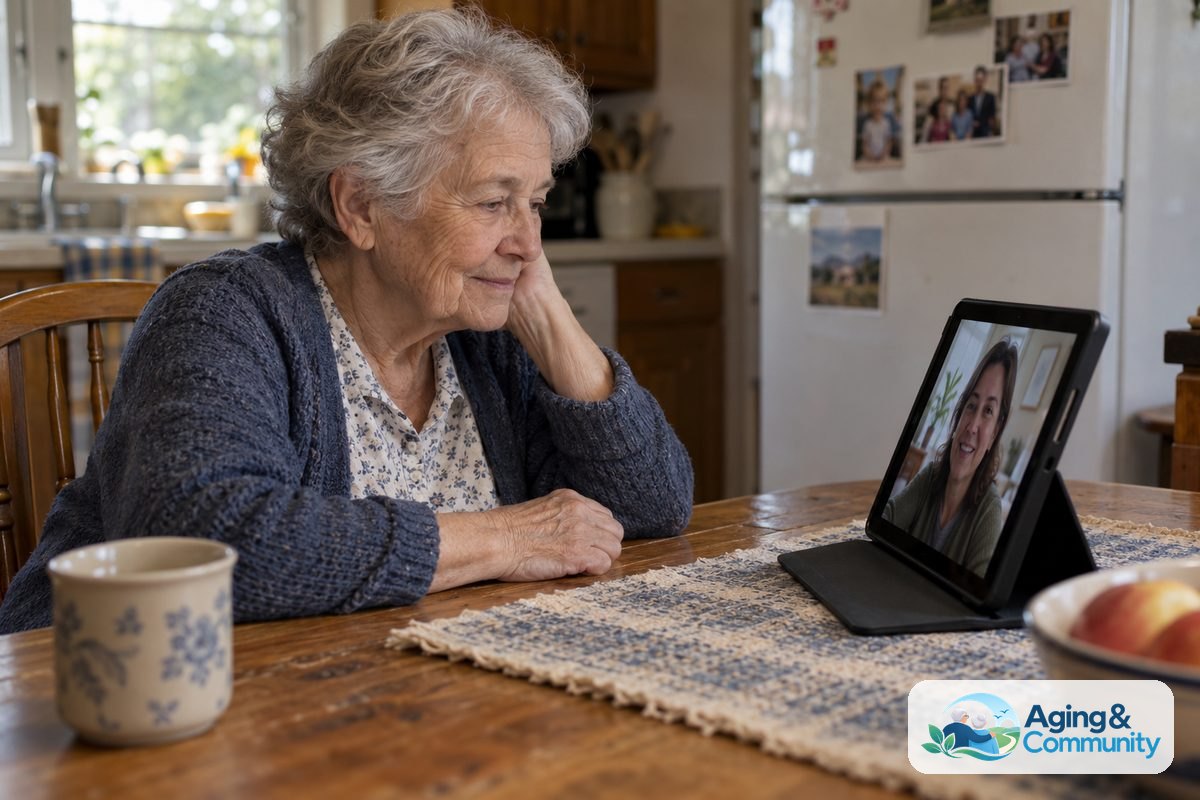
What Technology Can Help With Day To Day
Technology and senior citizens can be a strong match when the tool fits the person, not the other way around. The goal is not to make someone use every new app. The goal is to make daily life easier, clearer, or more connected.
Common uses include staying in touch, keeping a calendar, reading news, watching faith services or community events, ordering household items, and using maps. Some people also like photo sharing, games, music, or video calls with grandchildren.
- Communication: Phone calls, texts, email, video calls, and shared photo albums.
- Organization: Calendar alerts, reminders, notes, and simple to do lists.
- Home comfort: Smart speakers, voice controls, lights, and thermostats.
- Safety planning: Emergency contacts, location sharing by choice, and fall related home changes.
- Entertainment: Audiobooks, music, puzzles, movies, and hobby videos.
If falls are a concern, technology should be only one part of a larger plan. The National Institute on Aging explains practical home and activity steps in its guide to falls prevention. A doctor, physical therapist, or occupational therapist can also help match tools and home changes to the person.
Choosing Devices That Feel Simple
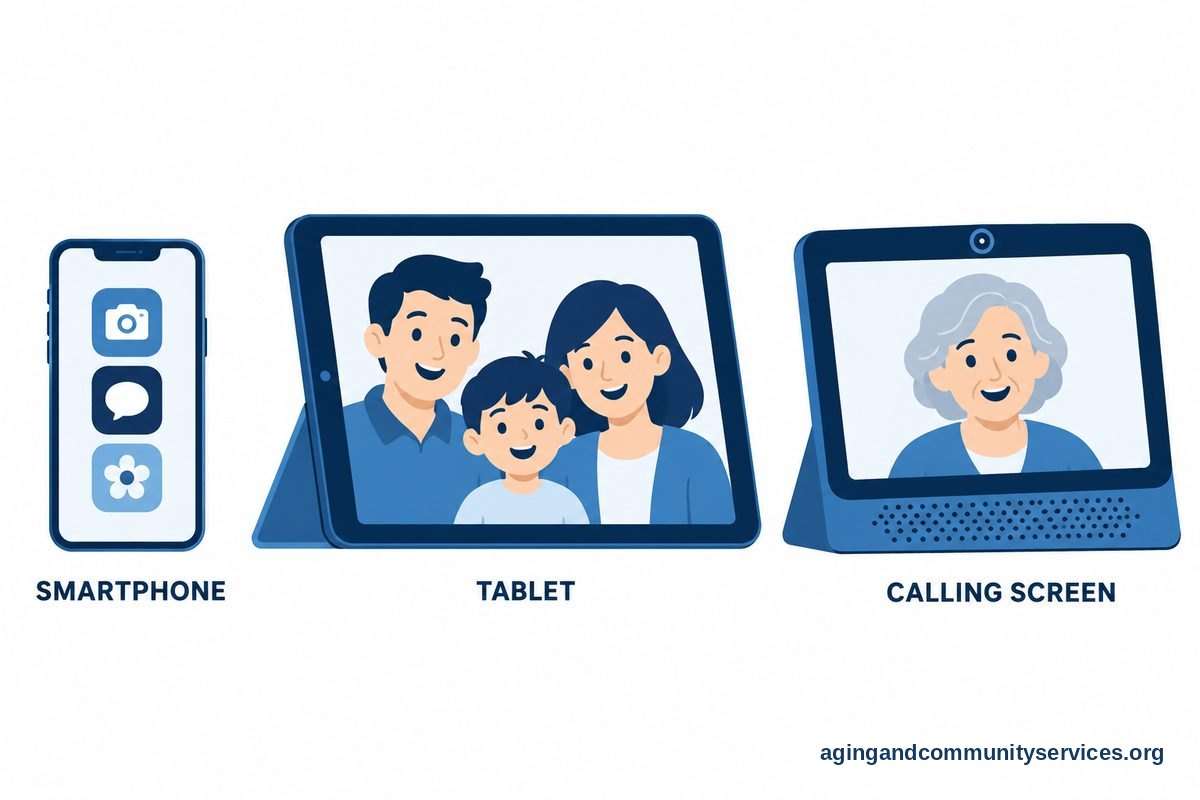
For technology for older adults, comfort matters more than having the newest model. A device with a bright screen, large text, clear sound, and fewer choices on the home screen may be easier to use. The best device is often the one the person will actually keep nearby and charge.
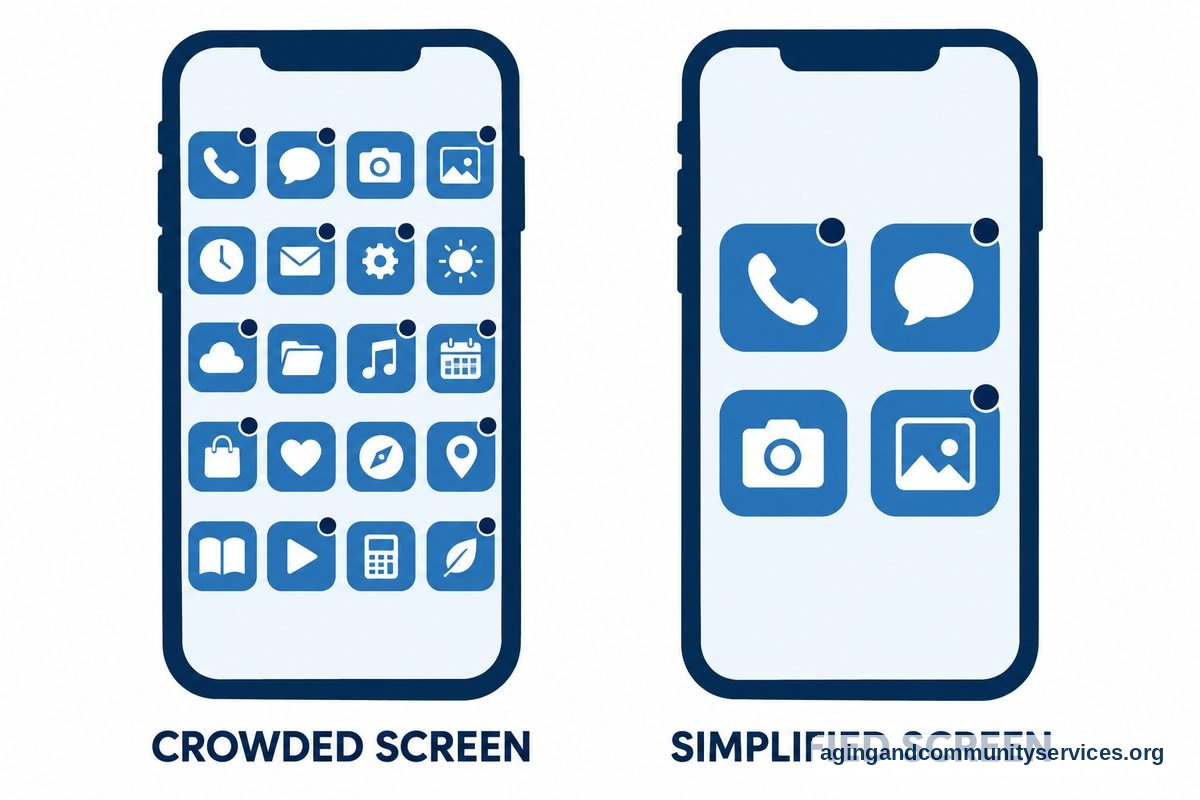
Phones are usually the first choice because they support calls, texts, photos, directions, and emergency contacts. If a standard smartphone feels crowded, simplify the home screen, remove unused apps, and place the most important contacts on the first screen. You can compare options for phones for elderly people if a current phone no longer fits the person well.
Tablets can be easier for reading, video calls, games, and forms because the screen is larger. A tablet may work well for someone who sits at a kitchen table, favorite chair, or desk and wants a bigger view. For families comparing screen size and setup needs, a guide to tablets for elderly parents can help narrow the choices.
Video calling devices are another option when family connection is the main need. Some devices are made mostly for calls and photos, which can make them less confusing than a full computer. If connection is the goal, video calling devices may be worth considering.
| Need | Helpful Feature | Setup Tip |
|---|---|---|
| Reading messages | Large text and high contrast | Set text size before giving the device to the person |
| Hearing calls | Loud speaker and clear ringer | Pick one ringtone and keep it familiar |
| Remembering tasks | Calendar alerts | Use simple labels such as appointment or trash day |
| Calling family | Favorites list | Add names and photos for key contacts |
| Reducing clutter | Simple home screen | Move unused apps into one folder |
Setting Up A Phone, Tablet, Or Computer
Technology help for seniors often begins with setup. A device may be powerful, but it can still feel stressful if the first screen is crowded or full of alerts. Take time to make the device calm before teaching someone how to use it.
Start with the basics: charge the device, connect to Wi-Fi, add contacts, adjust text size, turn on captions where helpful, and remove apps that will not be used. If the person uses an iPhone, step by step guidance on setting up an iPhone can make the process easier.
Passwords should be handled with care. Use strong passwords, write down recovery steps in a safe place, and choose a trusted helper for account recovery. Avoid sharing passwords by text message or leaving them in plain view.
It also helps to create a short practice routine. For example, the person can practice answering a call, sending one text, opening the calendar, and adjusting the volume. Repeat the same steps several times before adding anything new.
- Place the most used apps on the first screen.
- Use plain names for contacts, such as daughter, neighbor, or pharmacy.
- Turn off alerts that are not useful.
- Set up automatic updates if the person is comfortable with them.
- Keep the charger in the same easy to reach spot.
Helping Without Taking Over
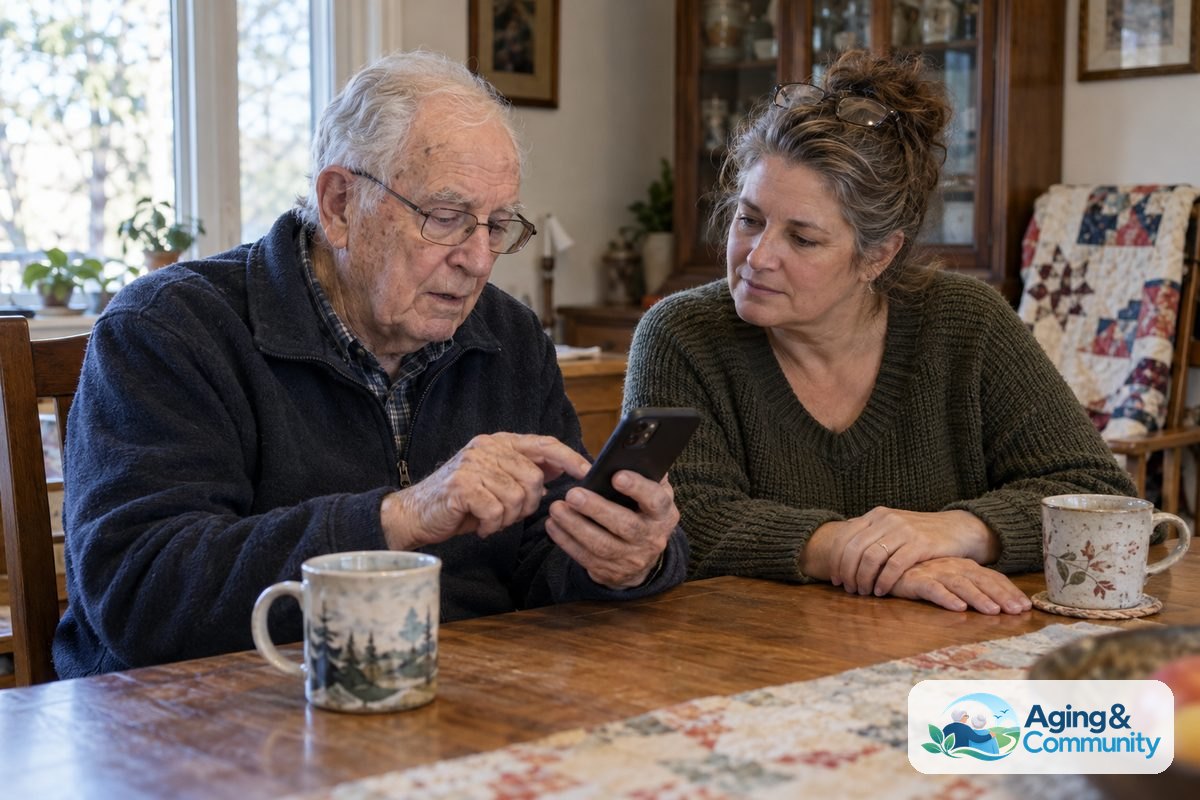
Help with technology for the elderly works best when the helper stays patient and lets the person remain in control. It can be tempting to grab the phone and fix everything quickly. That may solve the moment, but it can make the next problem feel harder.
Instead, sit beside the person and talk through each step. Use the same words each time. If you say tap today and press tomorrow, the directions may feel more confusing than they need to be.
Ask what the person wants to do first. Maybe they only want to see family photos, answer calls, or read church messages. Starting with a wanted task builds confidence faster than starting with settings menus.
- Ask what they want the device to help with.
- Write down the steps in large, plain words.
- Practice one task at a time.
- Let the person do the tapping while you guide.
- End the session before either person gets tired or frustrated.
A calm tone matters. If a mistake happens, say that the device can be confusing and try again. Most problems can be fixed, and most skills improve with repetition.
Privacy, Scams, And Safer Use
Seniors using technology deserve the same respect and privacy as anyone else. A family member can help with settings, but the person should know what is being changed and why. If location sharing, shared calendars, or account access is used, talk about it clearly first.
Scam messages can look very real. A simple rule can help: pause before tapping links, opening attachments, or sending information. If a message says there is an urgent problem with a bank, delivery, prize, or account, it is reasonable to stop and check another way.
- Do not share passwords, codes, or account numbers in a message.
- Use caller ID, but do not trust it completely.
- Let unknown callers go to voicemail.
- Check website addresses before signing in.
- Ask a trusted person before responding to a message that feels rushed.
Privacy settings should be reviewed from time to time. Turn off access that is not needed, such as location access for apps that do not need it. Keep software updated when possible, since updates often include security fixes.
Artificial intelligence tools can also raise privacy questions. If a family is curious about chat tools, voice helpers, or writing support, a plain guide to AI for the elderly can help explain common uses and limits.

Technology At Home And In The Community
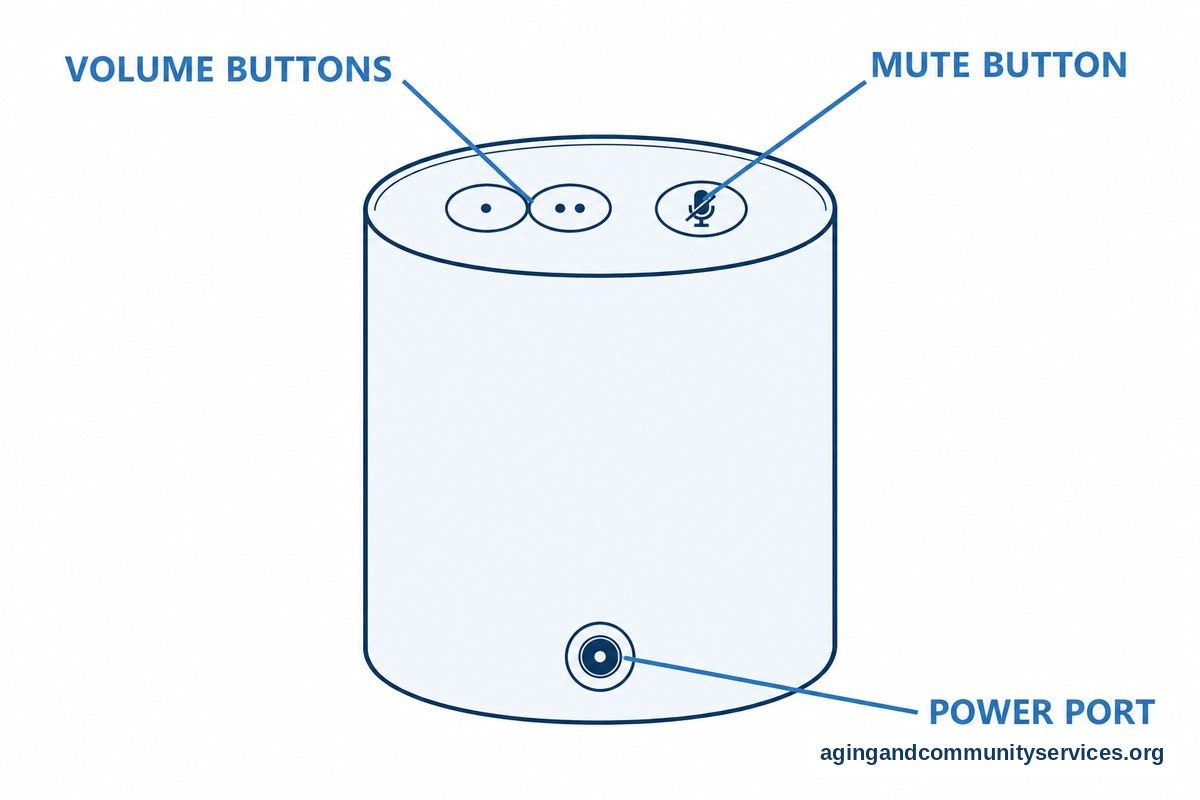
Older adults using technology at home may benefit from tools that support routines, comfort, and connection. Smart speakers can set timers, play music, make calls, or answer simple questions. Voice controls can be helpful for people who find small buttons hard to use, though they still require setup and practice.
Smart home tools should be added slowly. Start with one device, such as a lamp plug or speaker, and make sure it works reliably. Too many devices at once can make the home feel less simple, not more.
For people planning to remain at home, the National Institute on Aging has practical information about aging in place. Technology may be part of that plan, along with home layout, transportation, social support, and trusted local services.
Community help can also make a difference. Libraries, senior centers, adult education programs, and local agencies may offer classes or one to one support. The Eldercare Locator can help people look for local aging services in the United States.
What You Can Do Next
Start with one problem, one device, and one simple goal. A good first goal might be making a video call, reading a text, checking the calendar, or saving a favorite photo. Keep the first session short and positive.
If you are helping a family member, ask permission before changing settings or deleting apps. Write down what you changed. Leave a simple note with steps for the task you practiced.
- Choose one main purpose for the device.
- Adjust text size, volume, brightness, and notifications.
- Add only the apps that are truly useful.
- Create a short printed guide for common tasks.
- Practice the same task several times on different days.
- Ask a doctor, physical therapist, or occupational therapist when a device relates to balance, movement, vision, hearing, or daily activities.
If the first device does not work well, that does not mean the person cannot use technology. It may mean the settings, teaching style, or device type needs to change. Patient support and a simpler setup often make the biggest difference.
Frequently Asked Questions
What is the best technology for seniors to start with?
The best starting point is usually the tool that solves a clear need. For many people, that is a phone for calls and texts, or a tablet for video calls and reading. Start with one device and a few important tasks.
How can families help seniors with technology?
Families can help by setting up large text, simple contacts, clear shortcuts, and fewer alerts. The most helpful approach is to guide slowly, let the person do the steps, and write down instructions in plain language.
Is technology for elderly people hard to learn?
It can be hard at first, especially if the device has too many choices or unfamiliar words. Learning is easier when lessons are short, repeated, and focused on something the person wants to do.
What should senior citizens know about technology safety?
Senior citizens should know that urgent messages are worth checking carefully. Do not share passwords or codes through calls, texts, or emails. When unsure, pause and ask a trusted person before taking action.
Why do some older adults using technology feel frustrated?
Frustration often comes from small text, fast changes, too many alerts, or instructions that use unfamiliar terms. A simpler screen, slower pace, and written steps can make the device feel more manageable.
What is the easiest way to offer technology help for seniors?
Pick one task, sit beside the person, and use the same words each time. Let them practice while you coach. Keep sessions short so the experience ends with progress instead of fatigue.