

Learning how to set up phone for elderly relatives begins with making the device comfortable, clear, and easy to hold. The goal is to remove confusing clutter, make words easier to read, and ensure important contacts are just one tap away. With a few thoughtful adjustments, any mobile device can become a reliable tool for everyday connection and safety.
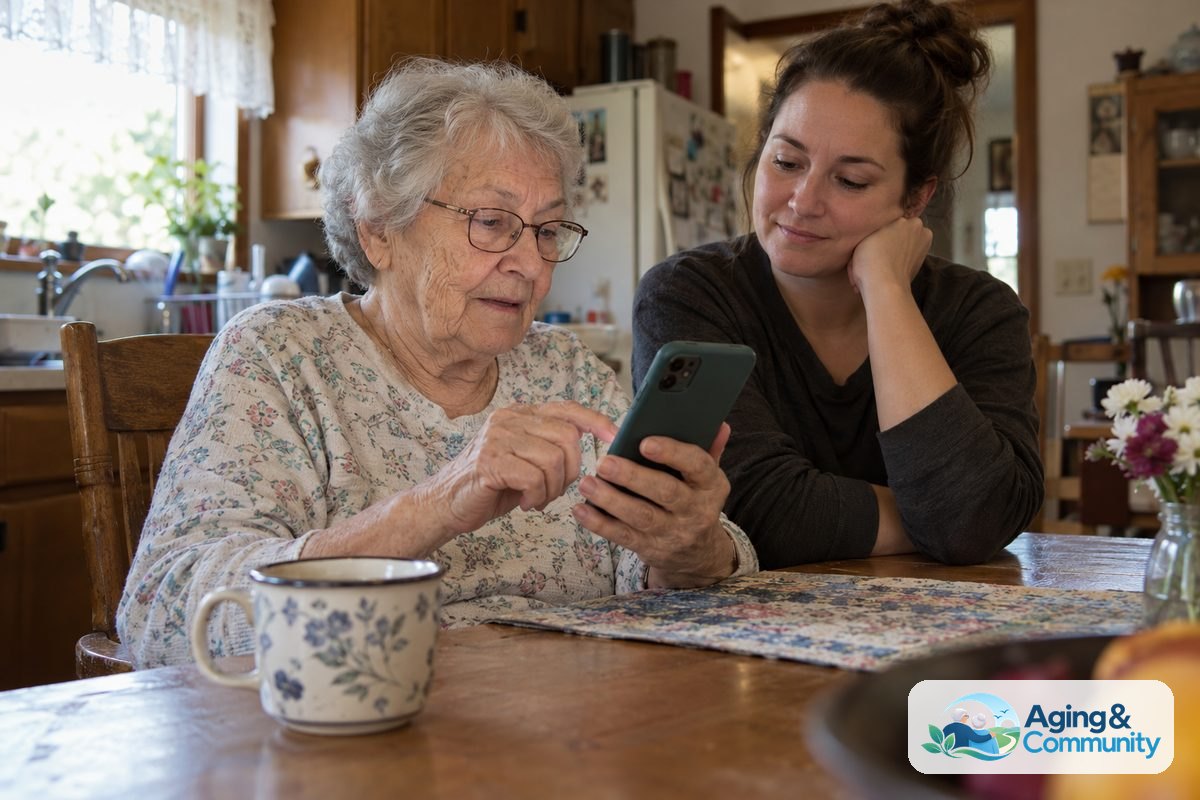
Steps to Set Up a Phone for an Older Loved One
- Enlarge the text and display size. Open the main display settings to increase font size and make screen items larger so messages are easy to read without eye strain.
- Turn up ringtones and turn on vibration alerts. Set the ringer volume to a comfortable, clear level and select simple, distinct chimes that stand out across a quiet room.
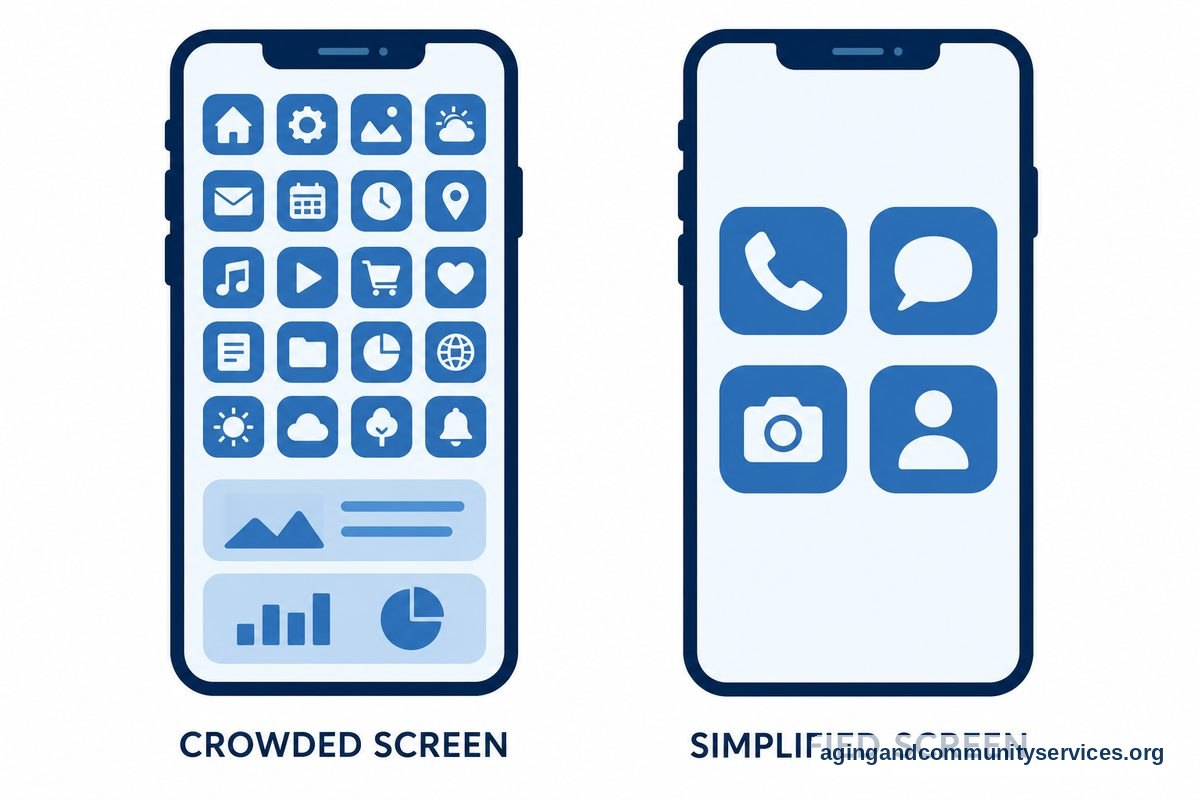
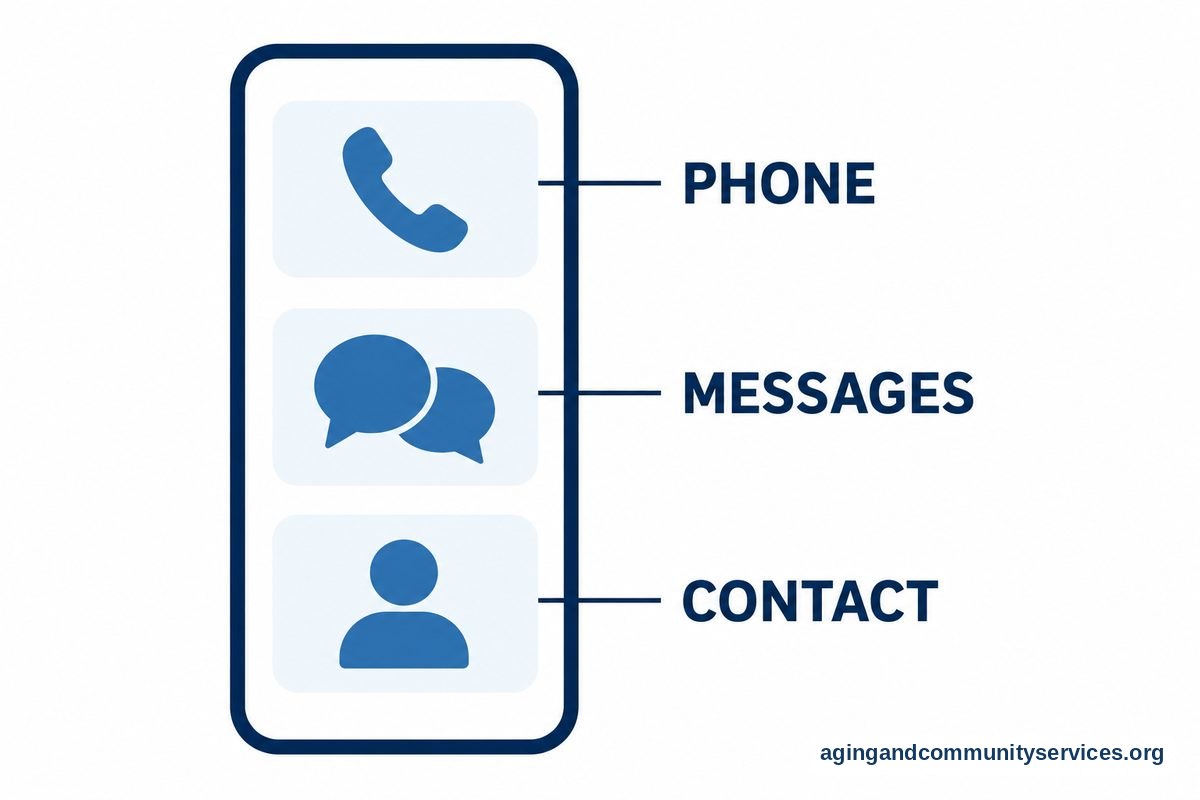
- Clean up the home screen. Remove unused widgets and extra pages, leaving only essential icons like the phone, messages, and camera right on the main screen.
- Set up one-touch speed dial contacts. Place direct-dial shortcuts or large contact widgets on the home screen for key family members, close neighbors, and doctors.
- Adjust security and lock screen options. Use simple unlock methods like fingerprint scanning, facial recognition, or an easy four-digit PIN so unlocking does not cause frustration.
- Turn on emergency location sharing. Enable built-in safety tools like medical ID cards and emergency contacts so responders can view vital information from the lock screen.
If your family member uses an Apple device, you can read our specific guide on how to set up old iPhone models for elderly users. Tailoring the specific operating system makes daily use much smoother.
Common Mistakes to Avoid
- Leaving too many apps on the screen: Cluttered screens make it hard to spot basic tools like the phone dialer or text messaging app.
- Choosing complex passwords: Long, complicated passcodes often lead to locked devices and unnecessary worry.
- Ignoring hearing aid compatibility: Forgetting to turn on hearing aid pairing or compatibility modes can result in muffled calls or whistling feedback.
- Skipping hands-on practice: Handing over a newly configured device without walking through a few practice phone calls can leave loved ones feeling uncertain.
- Setting the volume too high: Extremely loud, shrill ringtones can distort small speakers and startle the person when a call comes in.
For those managing a Google-powered device, learning how to simplify android phone for seniors can help you hide unnecessary menus and replace stock launchers with easier layouts.
When to Call for Help or Professional Advice
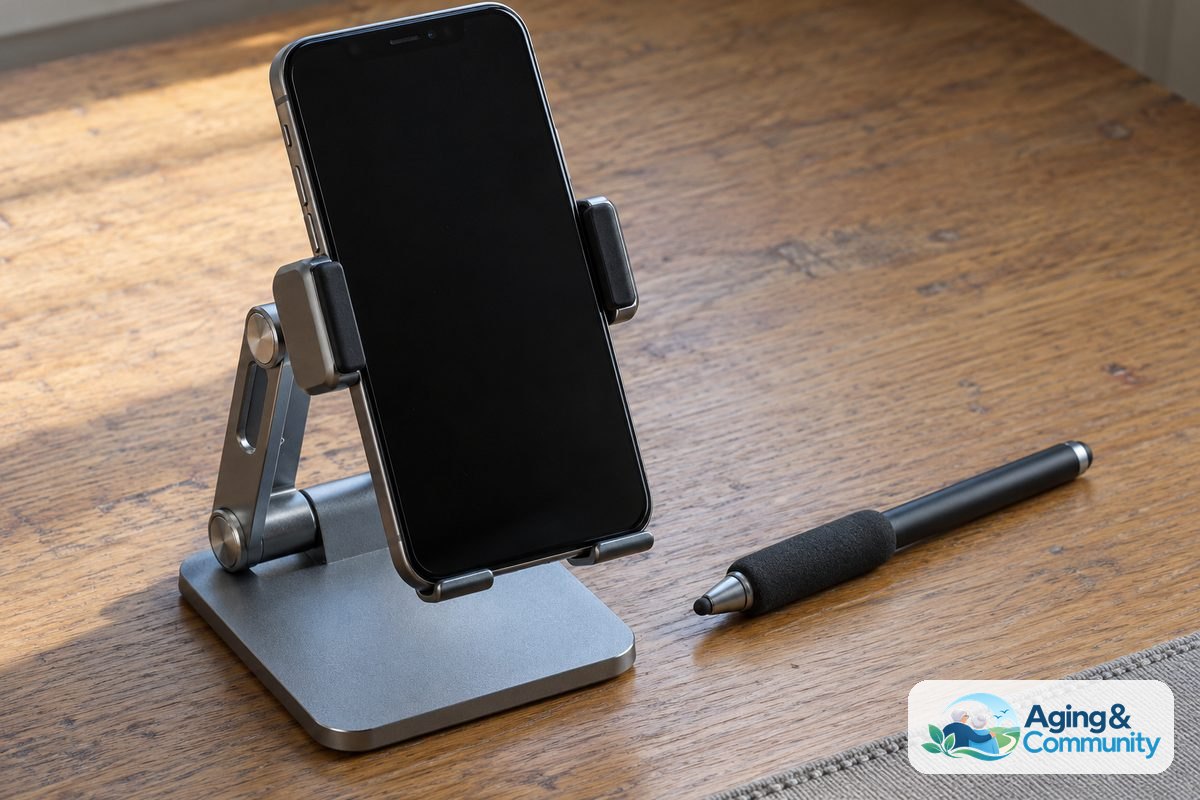
Sometimes setting up a device requires extra support, especially if your family member has significant vision changes, tremors, or hearing loss. In these situations, an occupational therapist can offer personalized guidance on physical adaptations, stylus pens, or specialized phone mounts that encourage independence.
You can also reach out to community organizations for local technology training programs. The Eldercare Locator connects families to local resources and area agencies that often offer hands-on workshops for digital devices. When speaking with a specialist or support representative, be ready to describe your loved one’s specific daily routines, any physical challenges with grip or vision, and the exact model of the phone.
Making Calls and Messages Easier to Navigate
Modern mobile operating systems offer helpful accessibility features that simplify everyday communication. You can set incoming calls to automatically route to the speakerphone if holding the handset to the ear is uncomfortable. Many phones also allow voice assistants to place calls through simple spoken phrases, which reduces the need to navigate touchscreens.
Reviewing iphone settings for seniors allows you to explore features like LED flash alerts for incoming calls and spoken text options. These small adjustments help ensure calls and text messages are never missed, supporting safe aging in place while keeping loved ones in touch with their community.
For a broader look at modern devices, our guide on setting up smartphone for elderly family members provides additional tips on battery management, voice-to-text messaging, and spam call protection.
Physical Protection and Daily Charging Tips
Software settings are only half the equation when preparing a phone for daily use. Physical accessories protect the hardware and make handling the phone far more comfortable for older hands.
| Feature | Recommended Choice | Practical Benefit |
|---|---|---|
| Phone Case | Thick rubber or textured silicone | Improves grip and cushions accidental drops on hard floors. |
| Screen Protector | Tempered glass | Shields display glass from scratches, cracks, and heavy taps. |
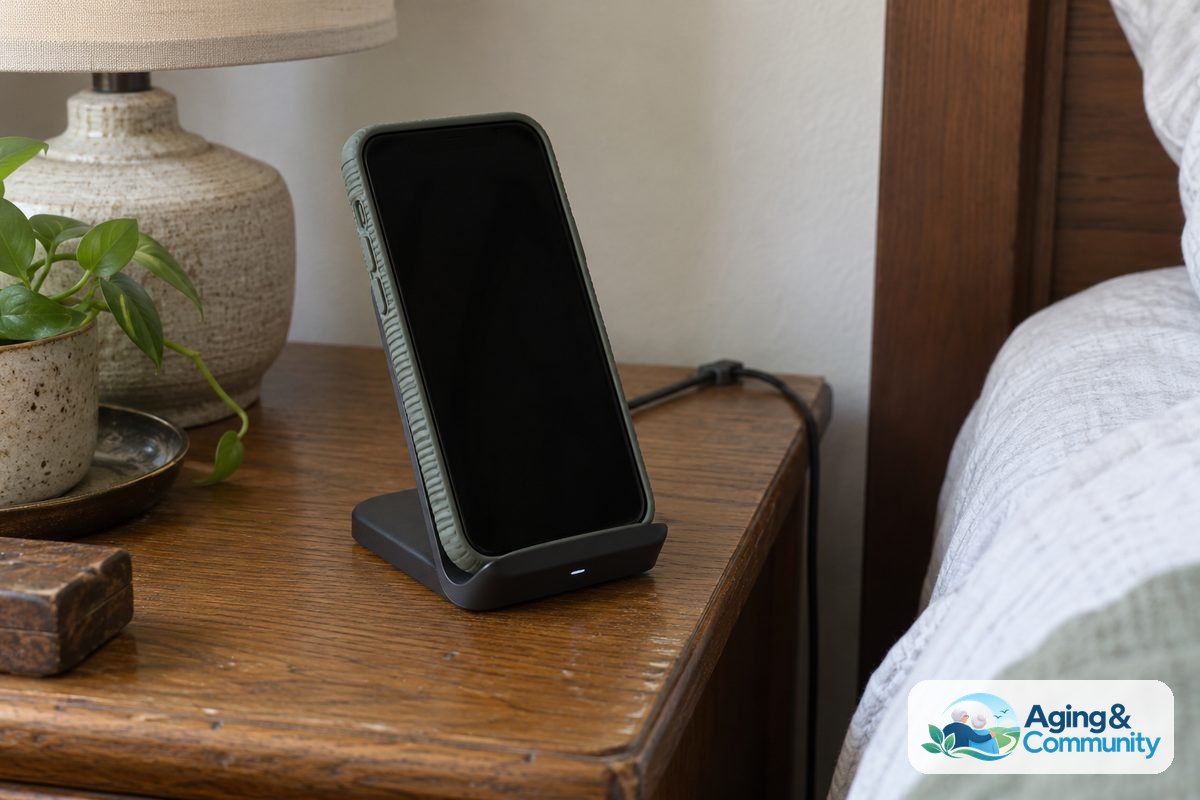
| Charging Cord | Magnetic cable or wireless stand | Eliminates struggling to plug small cables into tiny ports. |
| Carrying Style | Lanyard case or belt holster | Keeps the phone within reach throughout the day without slipping from pockets. |
A secure grip helps prevent drops around the house, which can also help keep walkways clear and support broader falls and falls prevention efforts at home. A dedicated charging stand on a bedside table ensures the phone stays charged every night without tricky cords.
Frequently Asked Questions
How do I make the phone screen easier to see?
Open the display settings on the device and turn on bold text, increase the text size slider, and set the screen zoom to large. You can also increase the display contrast and turn off dynamic wallpapers so icons rest on a plain, dark background.
What is the easiest way to block spam calls?
Most modern phones include a built-in setting to silence unknown callers. When turned on, calls from numbers not saved in the contact list go straight to voicemail, protecting your family member from unwanted interruptions and telemarketing calls.
Can an older phone work with modern hearing aids?
Yes, most recent phones support direct Bluetooth streaming to modern hearing aids. To find the right hearing device fit, check the accessibility menu under hearing devices to pair the hearing aids directly, which routes phone calls and alerts straight into the ear for clear sound.
How can family members help manage the phone remotely?
You can set up shared family accounts or use remote support tools to manage subscriptions, update software, and locate the device if misplaced. Always make sure to write down account details and backup passwords in a secure home notebook for easy reference.