

Finding a computer for seniors free can be possible through local programs, public libraries, community groups, and family support. The right path depends on where you live, what kind of device you need, and whether you also need internet or lessons.
A free device may be a desktop, laptop, tablet, or refurbished computer. If a free computer is not available right away, there are still practical ways to borrow one, use one in public, or get low cost help while you wait.
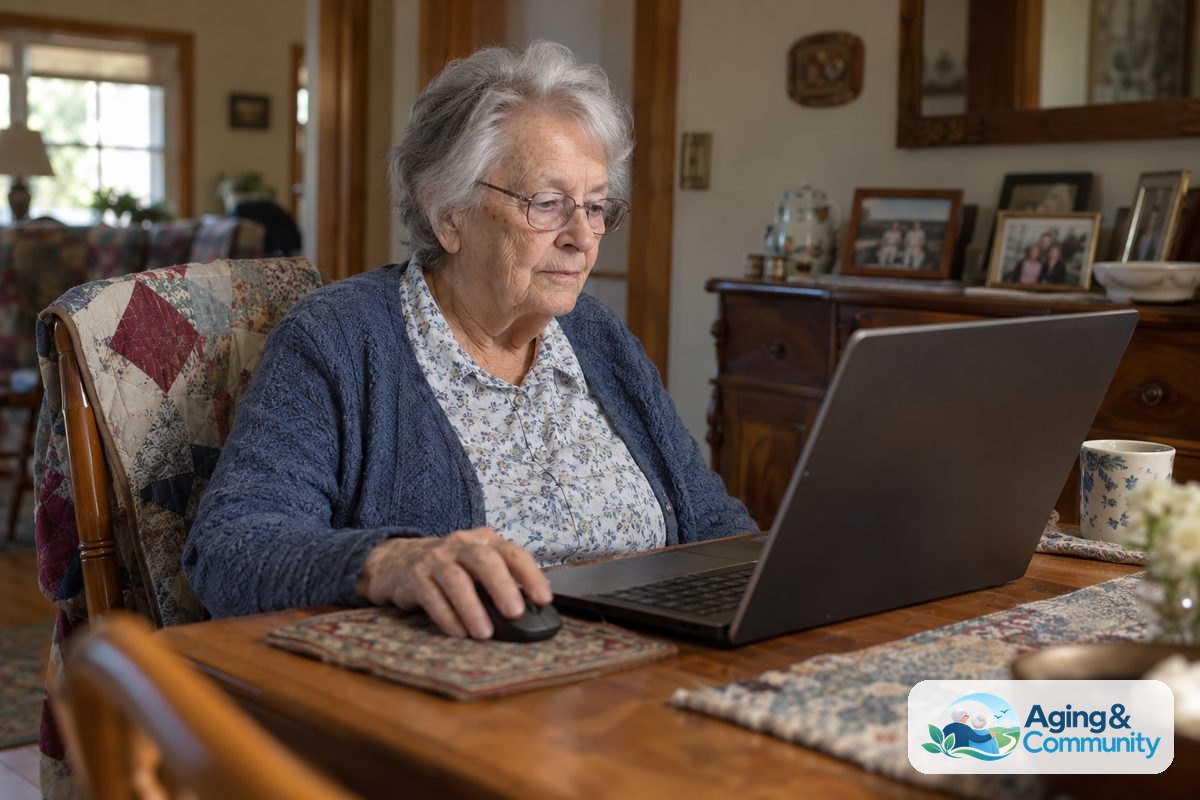
Where to Look for a Free Computer
Start close to home. Many helpful programs are local, and they may not show up in a quick online search. A library, senior center, community center, faith group, or local nonprofit may know who gives out refurbished computers.
Ask whether the program serves people by age, income, disability, veteran status, housing status, or school and job needs. Some programs have a wait list. Others may give out devices only during certain times of the year, but you do not need to know the perfect wording before you ask.
- Call or visit your public library and ask about computer lending, free computer use, and local device programs.
- Ask a senior center or area agency on aging if they know of computer donation programs.
- Check with community colleges, adult education programs, and job centers.
- Ask local nonprofits that help with housing, food, benefits, or job training.
- Ask family, neighbors, or faith groups if they know someone donating a working device.
If you are not sure who to call, the Eldercare Locator can help connect people with local aging services. You can ask about technology help, transportation to a class, or programs that help people stay connected at home.
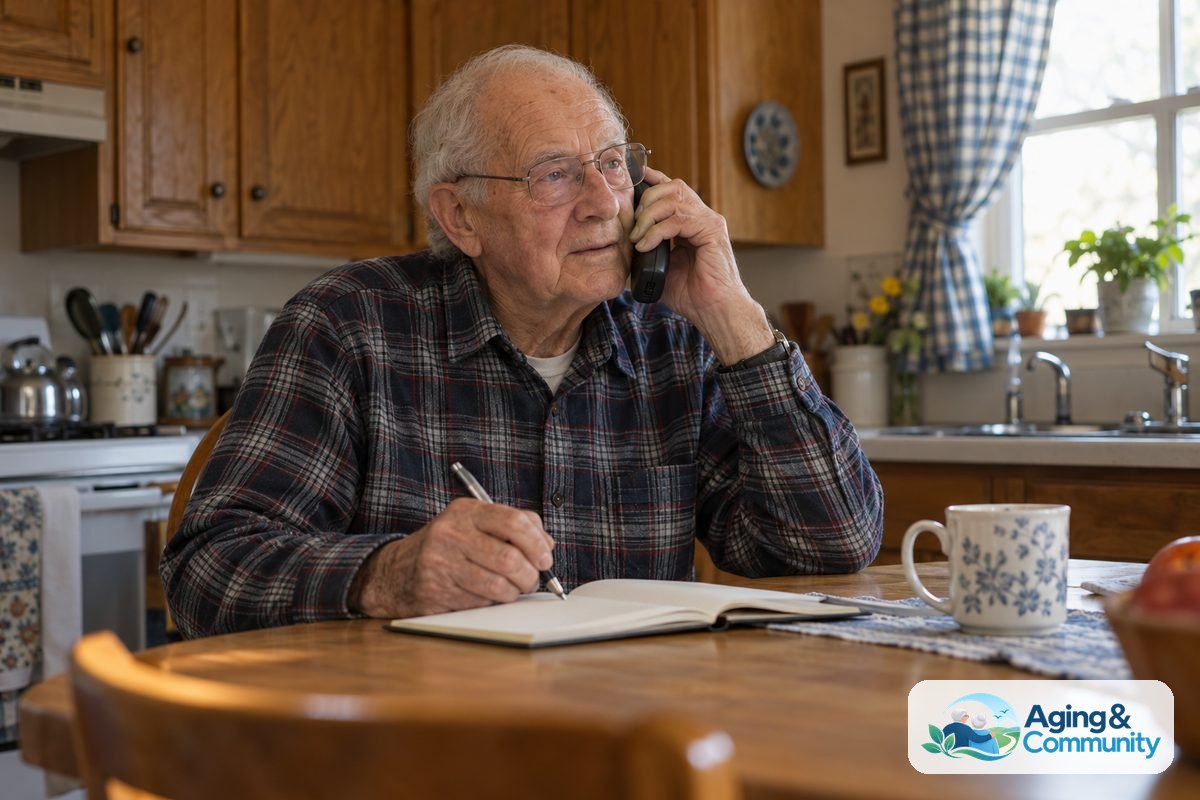
Free Computers, Borrowed Computers, and Public Access
A free computer is only one option. Some people do better by borrowing a device first, using a library computer, or learning on a tablet before choosing a laptop. This can make the process less stressful.
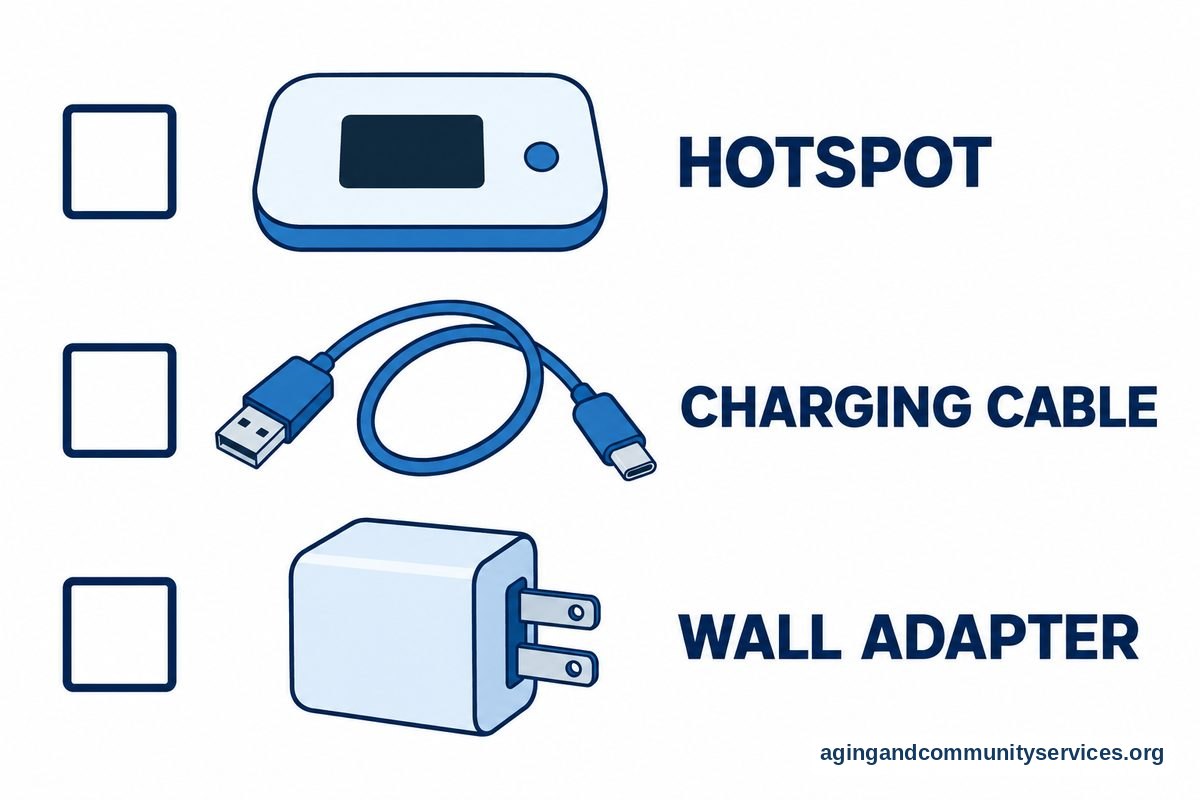
Libraries often have desktop computers, printers, scanners, and staff who can help with basic steps. Some libraries also lend laptops, tablets, hotspots, or assistive tools. Rules vary, so ask what you can use in the building and what you can take home.
Community centers may have open computer labs. These can be useful if you need to fill out forms, send email, print documents, or practice with a mouse and keyboard. If transportation is hard, ask whether any nearby program offers help by phone or at home.
| Option | Good For | What to Ask |
|---|---|---|
| Library computer | Short tasks, printing, email, forms | Do I need a library card or appointment? |
| Borrowed laptop or tablet | Trying a device before choosing one | How long can I keep it? |
| Refurbished computer | Home use and regular practice | Does it include a charger and basic setup? |
| Computer lab | Learning with help nearby | Are there beginner times or classes? |
If you want a device that feels simple from the start, it may help to compare choices made for ease. A plain explanation of a computer easy to use can help you decide what features matter before accepting or buying anything.
What Makes a Computer Easier to Use
Computers for seniors made easy are not about age. They are about clear screens, simple steps, and fewer barriers. A device should match the person, not the other way around.
For many beginners, the most important features are a comfortable screen size, readable text, a keyboard that feels steady, and simple access to email, video calls, photos, and web pages. A tablet may feel easier for touch use. A laptop may be better for typing, forms, and classes.
- Readable screen: Look for text that can be enlarged without making the page hard to use.
- Comfortable keyboard: Keys should be easy to see and press.
- Simple sign in: The password should be safe but not so complex that it stops daily use.
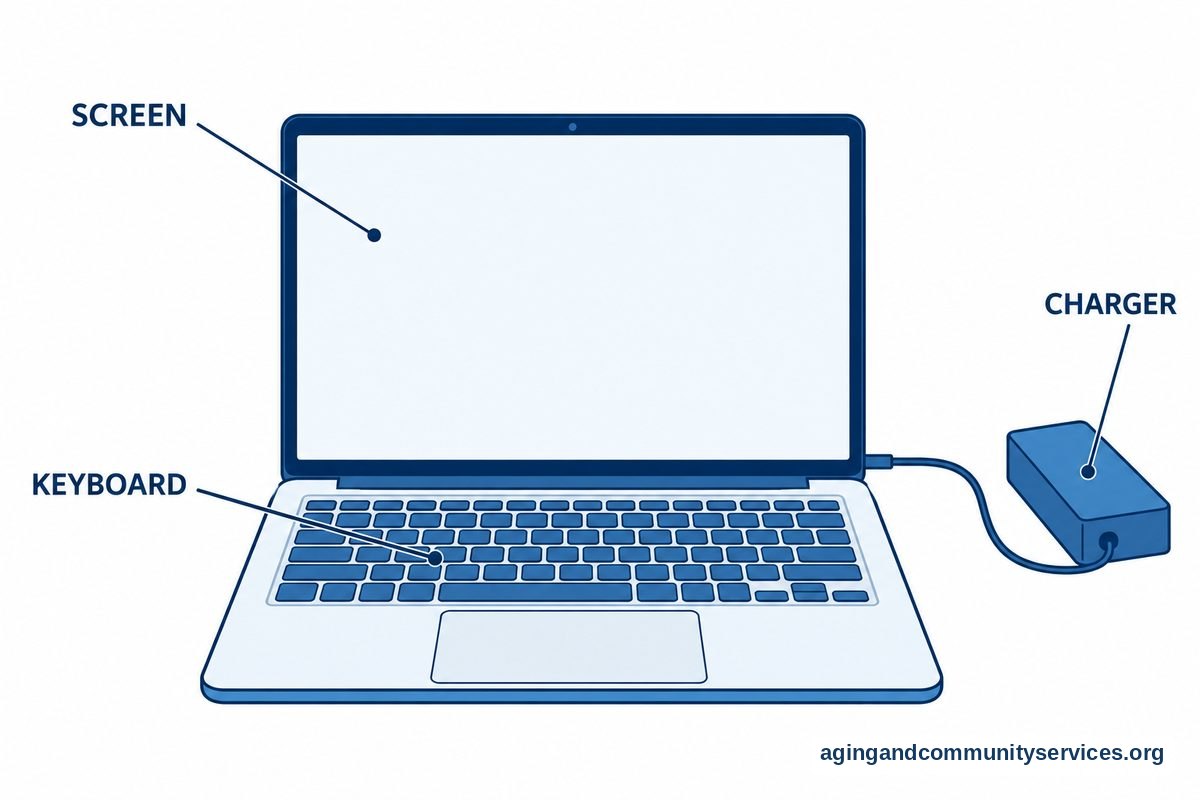
- Reliable charger: Make sure the charger fits and works before taking a donated device home.
- Basic apps: Email, web browsing, video calls, and document viewing should already be set up if possible.
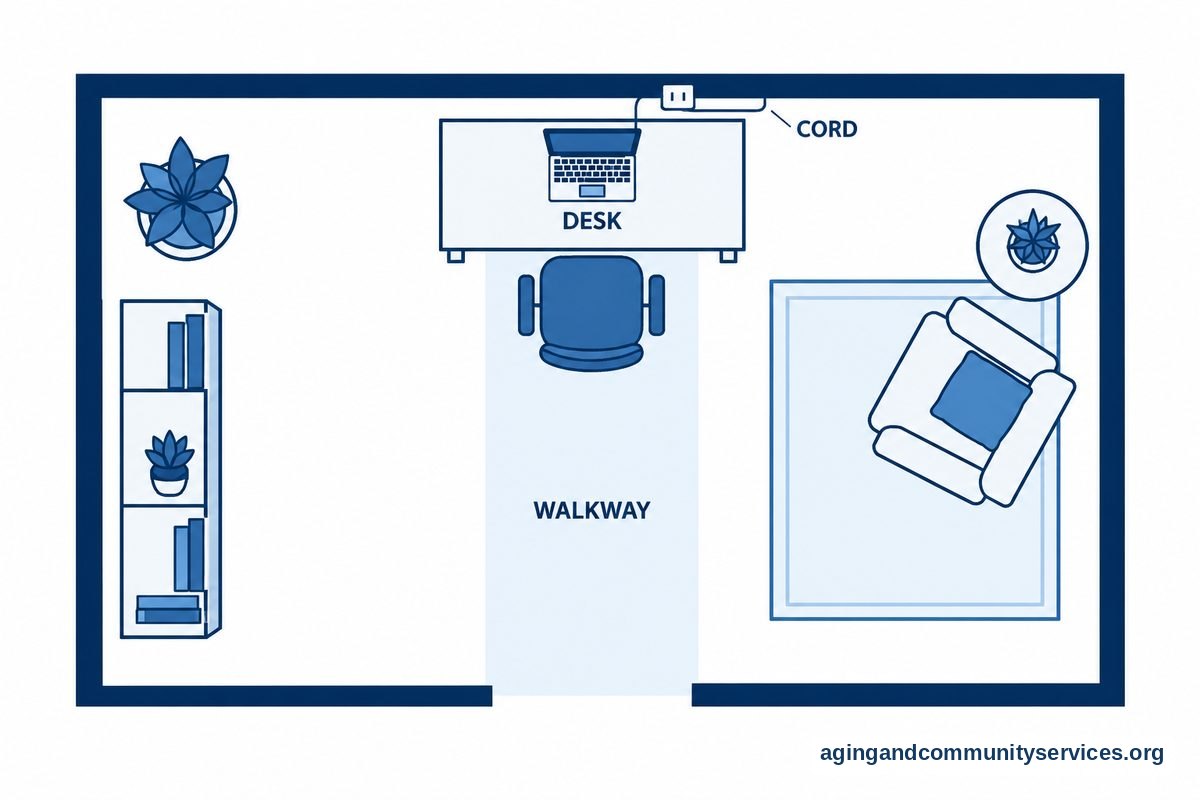
Safety and comfort matter too. Place the computer on a stable table, keep cords out of walkways, and use good lighting. The National Institute on Aging shares home safety ideas related to falls and falls prevention, including ways to reduce tripping risks around the home.
How to Learn Basic Computer Skills for Free
You can teach seniors basic computer skills for free through patient practice, local classes, and simple written steps. Many people learn best when lessons are short and focused on one real task at a time.
Good first lessons include turning the device on and off, using a mouse or touch screen, opening email, typing a short message, joining a video call, and searching for information. It is fine to repeat the same lesson many times. Repetition builds comfort.
Libraries and community centers may offer free beginner classes. Some classes are one on one. Others are small groups. If a class sounds too advanced, ask for a true beginner session or help with one task, such as email.
A local guide to computer classes free can help you think through what to look for in a class. Ask whether you need to bring your own device, whether printing is available, and whether someone can help you practice after class.
- Pick one goal, such as checking email.
- Write down each step in large, clear words.
- Practice the same task several times.
- Keep passwords in a safe place, not on a public computer.
- Ask for help before changing settings or clicking unknown messages.
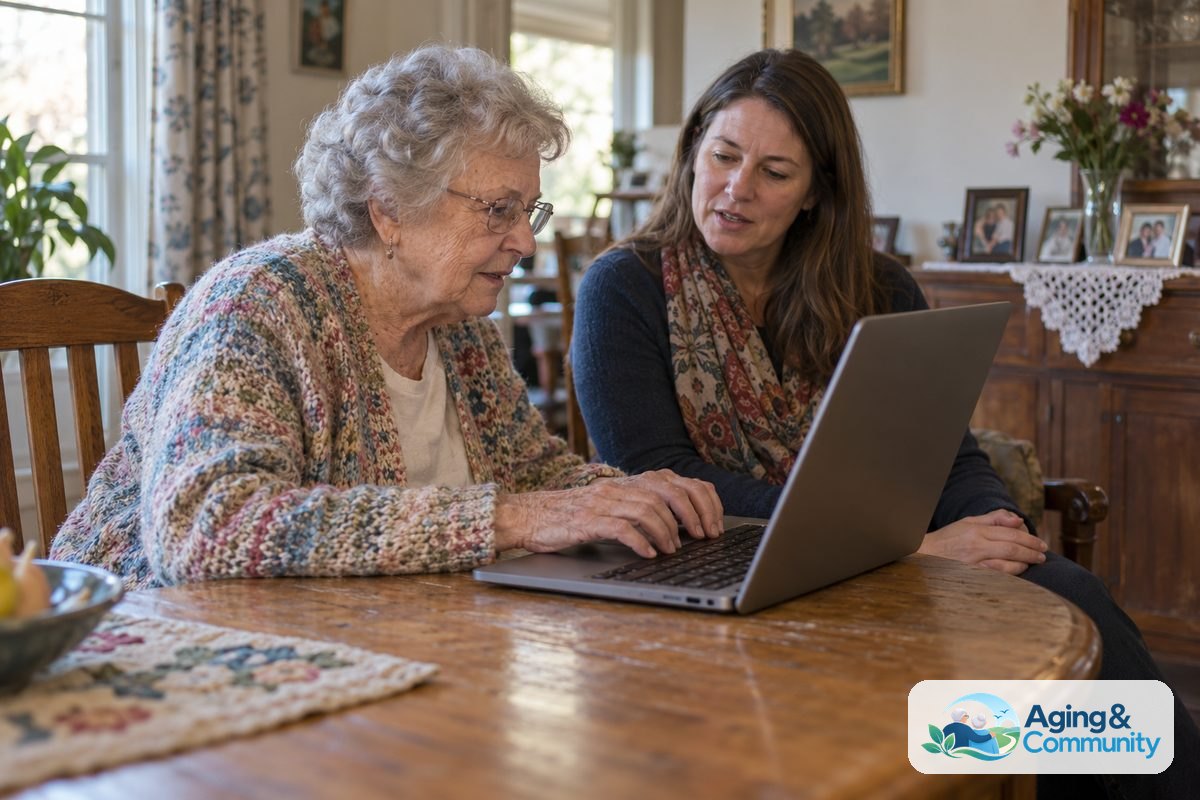
Family members can help by slowing down and using plain words. Instead of taking over the keyboard, sit nearby and talk through each step. A calm pace can make the lesson feel more respectful and easier to remember.
Do Not Forget Internet Access and Setup Help
A free computer is more useful when it has internet access, updates, and basic setup. If the device is going home, ask whether the person already has internet service. If not, ask local programs whether they know about free or reduced cost options in the area.
Some libraries lend hotspots or have Wi-Fi that can be used in or near the building. Housing communities, senior centers, and community rooms may also offer access. If home internet is not possible right now, a regular library visit may still be enough for email, forms, and video calls.
Before using a donated computer, ask whether it has been wiped clean and set up for a new owner. A safe setup should remove the old owner’s files, add updates when possible, and create a user account for the new person. If you are unsure, ask a library tech helper, trusted repair shop, nonprofit, or family member with experience.
If internet access is the main barrier, a guide to internet for seniors free may help you gather questions before calling local providers or agencies. For ongoing help, technology support for seniors can also be useful when the issue is setup, passwords, updates, or scams.
How to Stay Safer While Using a Free Computer
Good computer habits can be simple. You do not need to understand every technical detail to use a device with more confidence. A few steady rules can help protect personal information.
- Use a strong password for email, banking, and important accounts.
- Do not share passwords by email, text, or social media message.
- Be careful with messages that ask for urgent action or personal information.
- Do not let a stranger take control of the computer.
- Ask a trusted person before installing unknown programs.
- Sign out when using a public or shared computer.
If a message says an account is locked, a package is waiting, or a computer has a problem, pause before clicking. Go to the official website by typing the address yourself, or call a known number from a bill, card, or printed statement. Do not use contact details from a message that feels suspicious.
It also helps to keep a small notebook with safe notes. Write down the device password hint, the name of the internet provider, and who to call for help. Do not write full banking passwords or sensitive account details in a place other people can see.
What You Can Do Next
Start with one clear goal. You might want a computer for email, video visits, online forms, photos, classes, or reading news. The goal will help you choose the right device and the right kind of help.
- Call your library and ask about free computer use, lending, classes, and hotspots.
- Call a senior center, community center, or local aging office and ask about refurbished computer programs.
- Ask whether any program can help set up email, Wi-Fi, printing, and video calls.
- Make a short list of what the computer must do, such as email, forms, video calls, or photos.
- Plan one practice session each week, even if it is only a short one.
If the computer area includes cords, rugs, or tight spaces, consider the home setup too. The National Institute on Aging has practical information on aging in place that may help when arranging a safer, more comfortable space for daily tasks.
If pain, vision changes, hand strength, balance, or seating comfort makes computer use hard, it may be worth asking a doctor, physical therapist, or occupational therapist for guidance. They can suggest safer positioning, tools, or workarounds based on personal needs.
Frequently Asked Questions
Can I Really Get a Computer for Seniors Free?
Sometimes, yes. Free computers may be available through local nonprofits, libraries, community programs, schools, job centers, or donation drives. Availability changes by location, so the best first step is to ask local groups directly.
If a free computer is not available, ask about borrowing a device, using a public computer, or joining a wait list. These options can still help you get online while you keep looking.
Where Can I Find Computers for Seniors Free?
Good places to ask include public libraries, senior centers, area agencies on aging, community action agencies, faith groups, and adult education programs. Ask if they know of refurbished device programs or technology grants in your area.
When you call, keep the request simple. Say that you are looking for a free or donated computer and basic setup help. Ask if they can refer you to another local program if they do not offer one.
Who Can Teach Seniors Basic Computer Skills for Free?
Libraries, senior centers, community colleges, volunteer groups, and family members may offer free help. Some programs teach in groups, while others offer one on one support.
Look for beginner lessons that cover email, internet searches, video calls, passwords, and online forms. A good helper should be patient, clear, and willing to repeat steps without rushing.
Are Computers for Seniors Made Easy Different?
They can be, but the phrase usually means the device is simpler to read, hold, type on, or understand. Large text, clear icons, fewer extra apps, and easy access to help can make a big difference.
Some people prefer a tablet because touch screens feel natural. Others prefer a laptop because typing and filling out forms is easier. The right choice depends on comfort and daily needs.
What Should I Check Before Accepting a Free Computer?
Ask whether it turns on, charges, connects to Wi-Fi, and has been cleared of the past owner’s files. Make sure it includes the charger and that the screen, keyboard, mouse, or touchpad work.
Also ask whether someone can help set up updates, email, and basic security. A free computer is most helpful when it is ready to use safely and simply.