

The easiest computer for seniors is usually the one with a clear screen, simple controls, a comfortable keyboard, and help available when something goes wrong. For many people, that means a basic laptop, an all in one desktop, or a tablet with a keyboard, depending on where and how it will be used.
The right choice is not about buying the most powerful device. It is about making daily tasks feel easier, such as video calls, email, photos, online forms, reading, and staying in touch with family.
What Makes a Computer Easy to Use?
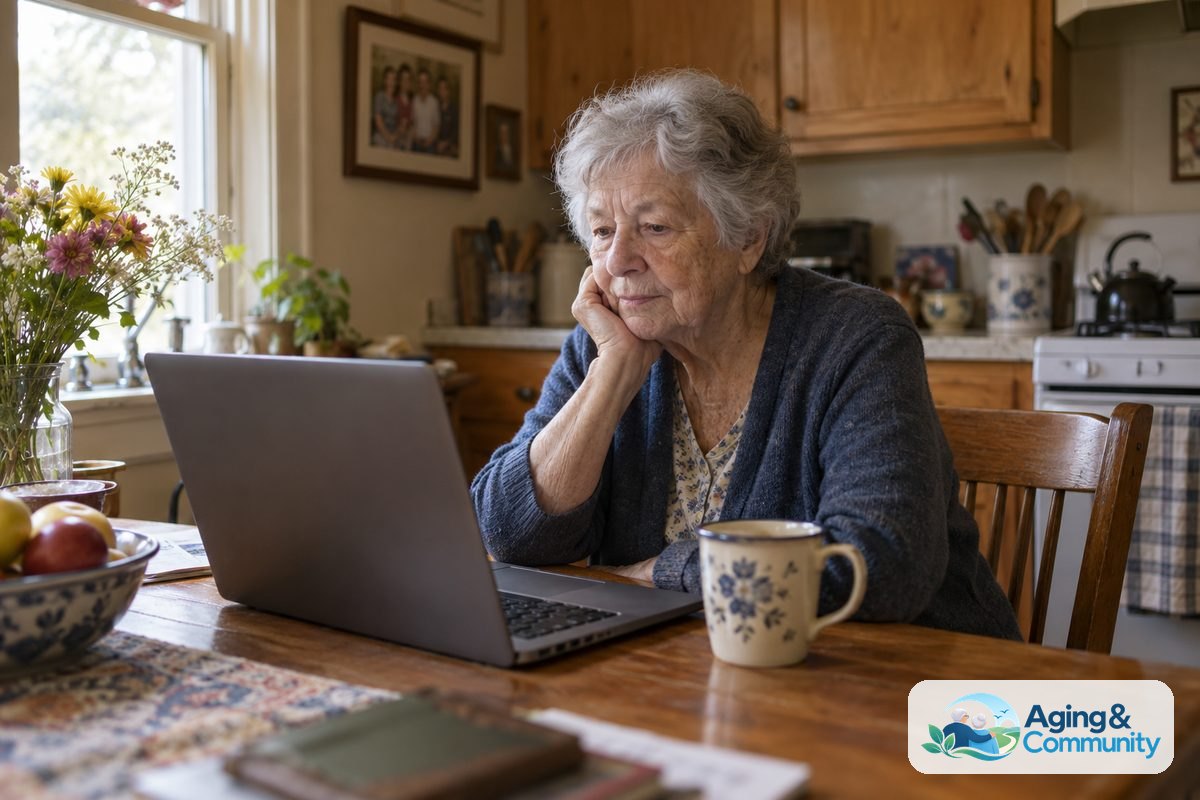
An easy computer should feel calm and predictable. The screen should be large enough to read, the buttons should be easy to find, and the steps for common tasks should not change often.
Start with the tasks the person wants to do most. A computer used for email and video calls does not need the same features as one used for photo editing or work documents.
- Clear display: A larger screen helps with reading email, websites, captions, and menus.
- Simple setup: Fewer accounts, fewer pop ups, and clear menus make a big difference.
- Comfortable keyboard: Full size keys can be easier than small keys on a compact laptop.
- Good speakers and camera: These help with video calls and online classes.
- Reliable support: Family help, local classes, or store support can matter as much as the device.
If you want a broader look at features, this guide to a computer easy to use can help you compare common options in plain language.
Laptop, Desktop, Tablet, or Chromebook?
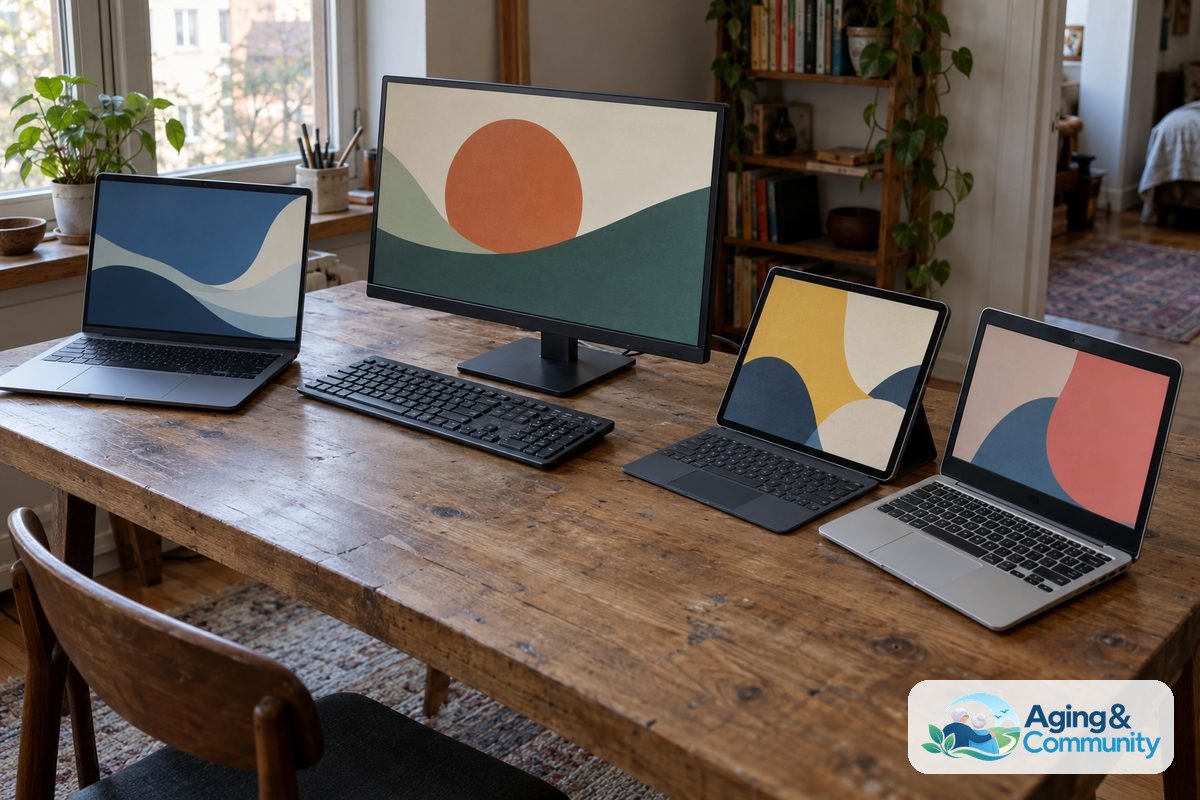
Each type of computer has strengths. The easiest choice depends on the room, eyesight, hand comfort, travel needs, and how much help is nearby.
A laptop is flexible because it can move from room to room. It is a good fit for email, web browsing, video calls, and online forms. Look for a screen that is large enough to read and a keyboard that does not feel cramped.
A desktop with a separate monitor may be easier for someone who mostly uses the computer in one place. The screen can be larger, the keyboard can be full size, and the mouse can be chosen for comfort. An all in one desktop keeps the computer and screen in one unit, which can reduce clutter.
A tablet can feel simple because it uses touch. It may be easier for reading, games, photos, and video calls. But typing long messages or filling out forms can be harder unless a keyboard is added.
A Chromebook can be simple for people who mostly use the internet. It often starts quickly and is built around web apps. It may not be the right fit if the person needs special desktop software or wants to use familiar programs from another type of computer.
| Type | Often Good For | Watch For |
|---|---|---|
| Laptop | Email, video calls, web browsing, moving between rooms | Small keys or screen on compact models |
| Desktop | Large screen, steady setup, long sessions at a desk | Needs a set place in the home |
| Tablet | Reading, photos, simple apps, touch controls | Typing may be harder without a keyboard |
| Chromebook | Web use, email, simple documents | May not run every program someone expects |
If a portable computer sounds right, a guide to laptops for senior citizen needs can help narrow the choice by screen size, keyboard feel, and everyday use.
Computers for Seniors With Low Vision
Computers for seniors with low vision should make text, buttons, and images easier to see without creating extra confusion. A larger screen is often the simplest place to start.
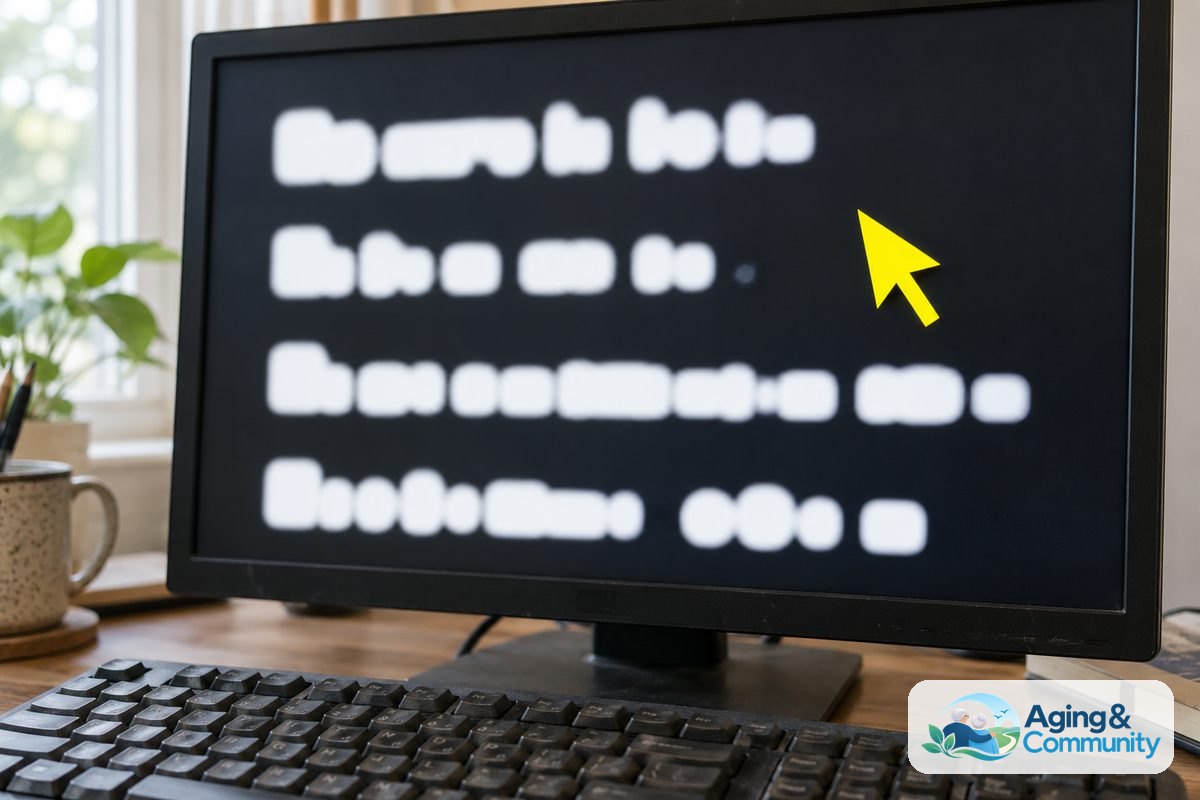
Look for display settings that allow larger text, higher contrast, and easier cursor tracking. Many computers also include built in screen magnifiers, voice typing, speech reading, and color adjustments.
- Screen size: A larger laptop screen or desktop monitor can reduce strain during reading.
- Text size: Make sure menus, email, and websites can be enlarged.
- Contrast: High contrast settings can make words and buttons stand out.
- Keyboard labels: Large print keyboard stickers or a large print keyboard may help.
- Mouse pointer: A larger pointer can be easier to follow on the screen.
- Voice features: Speech to text and text reading tools can reduce typing and reading effort.
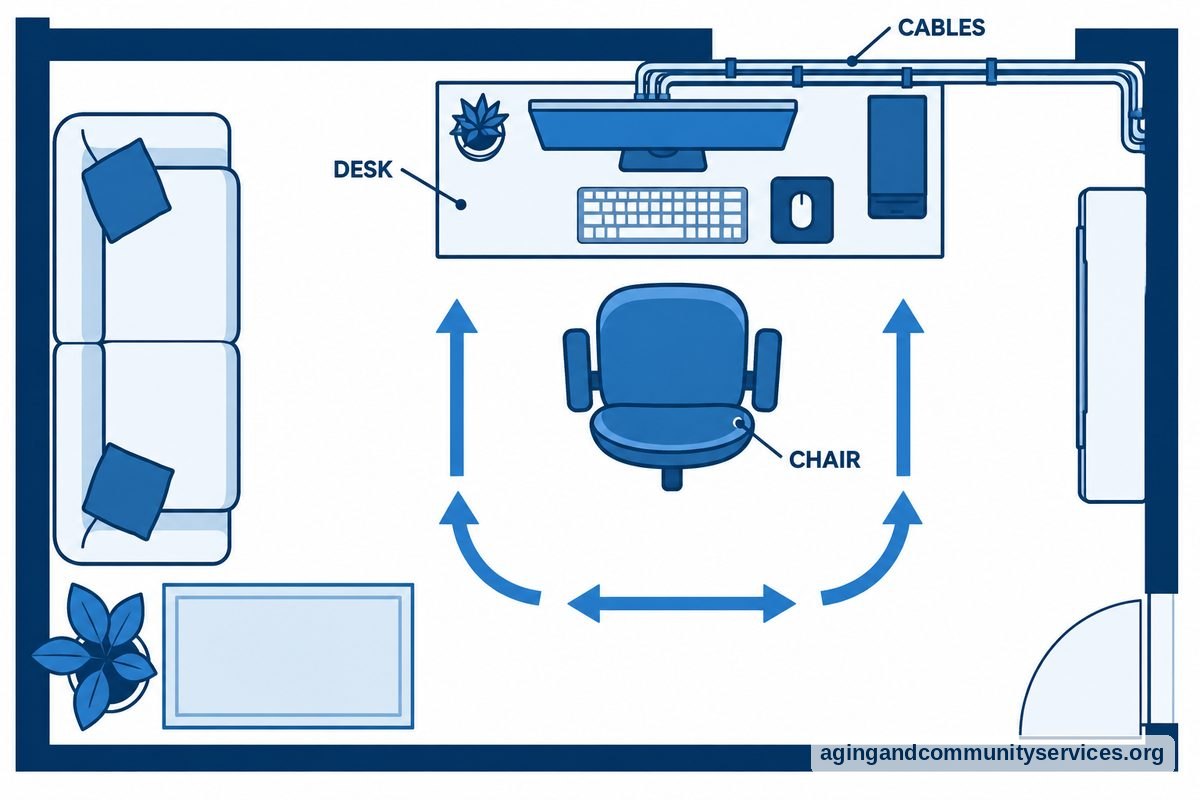
Lighting also matters. Place the screen so glare from windows or lamps does not shine directly on it. A steady chair, clear floor space, and reachable cords can make the computer area easier to use.
For home setup, the National Institute on Aging shares practical ideas for aging in place, including ways to think about comfort and safety in the home. If vision changes are affecting daily life, it is wise to ask an eye doctor or occupational therapist about tools and setup ideas.
Features That Reduce Frustration
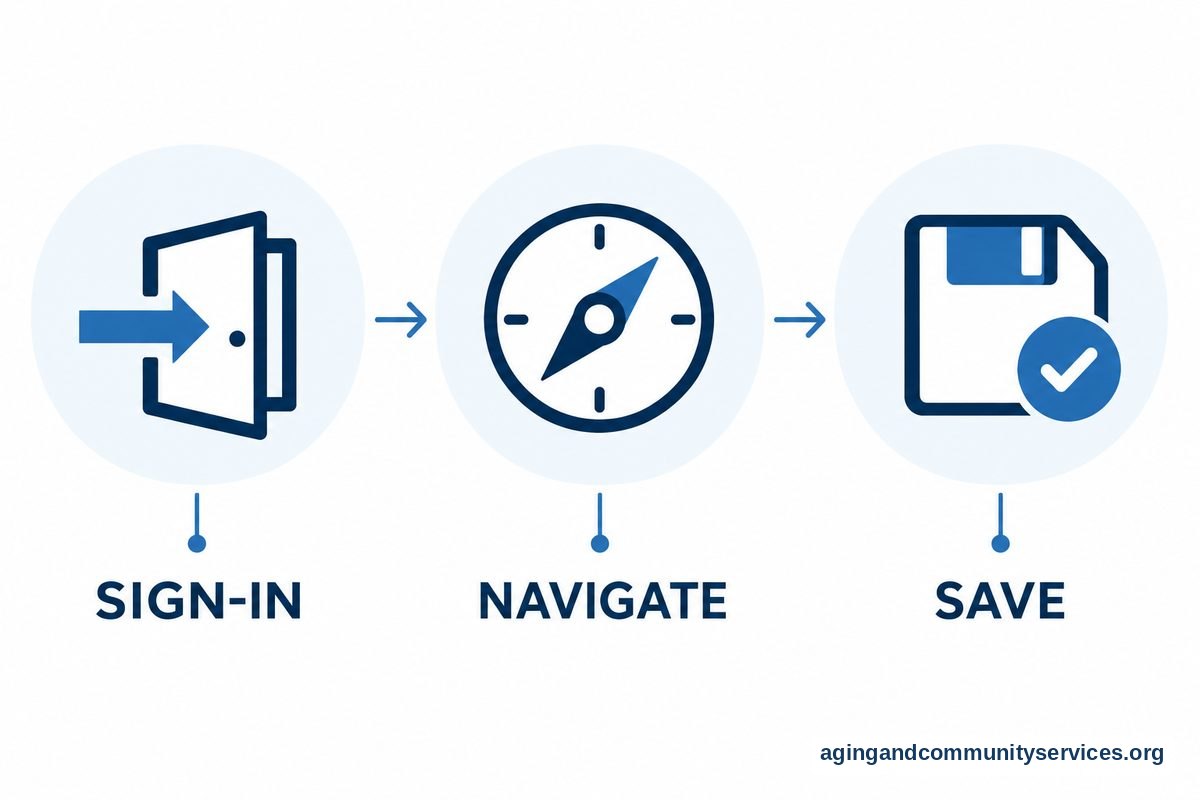
Small details can make a computer feel much easier. Before choosing a device, picture the person opening it, signing in, finding email, joining a video call, and closing it when done.
A simple sign in method can help. Some people prefer a short passcode, while others like fingerprint sign in if it is available and comfortable. The main goal is a method the person can remember and use without stress.
Storage should be simple too. If photos and documents are important, decide where they will be saved and who can help if the person cannot find them. Cloud storage can be useful, but only if the user understands the basics and has help with passwords.
- Large screen: Easier for reading, video calls, and finding buttons.
- Full size keyboard: Helpful for email, forms, and messages.
- Touch screen: Useful for tapping photos and links, but not needed for everyone.
- Simple home screen: Keep only the most used apps in view.
- Automatic updates: Helpful when they run quietly and do not interrupt often.
- Good battery life: Helpful for a laptop used away from a desk.
It can also help to compare common pros and limits in plain terms. A page on computer reviews and benefits can support that discussion without focusing only on technical details.
How to Set Up the Computer So It Feels Simple
Even a good computer can feel hard if the setup is cluttered. A few calm changes can make daily use much easier.
Place the most used apps on the main screen or taskbar. Remove shortcuts that are not needed. Set the browser home page to something familiar, such as email, a family photo page, or a simple search page.
Write down key steps in large print. Keep the notes near the computer. Include how to turn it on, how to open email, how to start a video call, and who to contact for help.
- Increase text size and screen zoom.
- Set up email and make sure the password is stored safely.
- Add favorite contacts for video calls.
- Place common websites in the bookmarks bar.
- Turn on automatic backup if it is easy to understand.
- Practice turning the computer on and off several times.
It is also helpful to choose one main helper. Too many people changing settings can make the computer feel different each time. If family members help from another home, remote support tools may be useful, as long as the user understands who is connecting and why.
For someone learning from the beginning, free computer classes may offer a slower pace and a chance to practice common tasks.
What the Reader Can Do Next
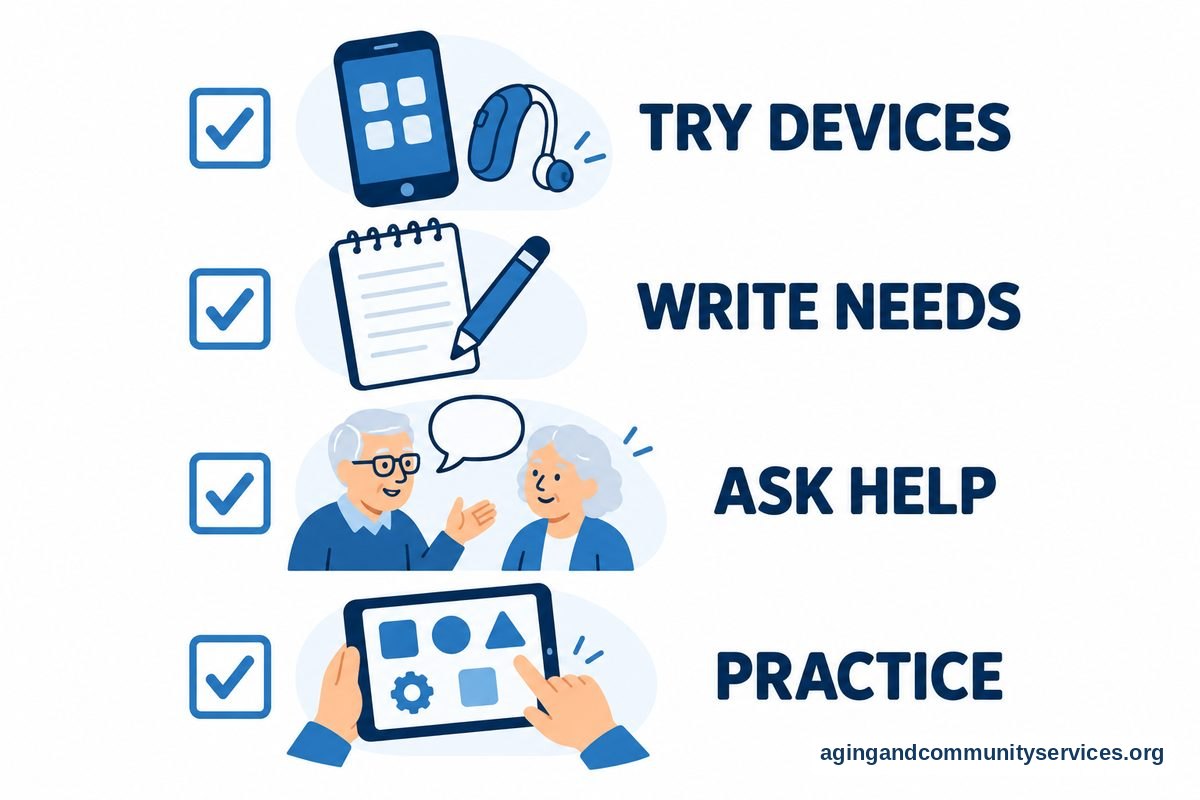
Start with a short list of needs, not a brand name. Write down the main tasks, the room where the computer will be used, and any comfort needs such as a larger screen, louder speakers, or a lighter device.
If possible, try a few devices in person. Notice whether the screen is easy to read, the keyboard feels comfortable, and the mouse or touchpad is easy to control. Bring reading glasses or other usual aids so the trial feels like normal use.
Ask about return rules, support options, setup help, and whether the device can be made simpler before it goes home. If balance, reach, hand pain, or vision changes make computer use harder, a doctor, physical therapist, or occupational therapist may be able to suggest safer setup ideas.
- Choose the device type first: laptop, desktop, tablet, or Chromebook.
- Pick a screen size that feels easy to read.
- Make sure the keyboard and mouse feel comfortable.
- Set up only the apps and shortcuts that are truly needed.
- Schedule one practice session for email, video calls, and web browsing.
- Keep help information in large print near the computer.
If local help is needed, the Eldercare Locator can help connect families with community resources. Local libraries, community centers, and adult education programs may also offer basic computer help.
Frequently Asked Questions
What Is the Easiest Computer for Seniors?
The easiest computer is usually a simple laptop, an all in one desktop, or a tablet with a keyboard. The right choice depends on screen comfort, typing comfort, and what the person wants to do most.
For steady use at a desk, a desktop with a large monitor can be very comfortable. For moving around the home, a laptop may be easier. For reading and video calls, a tablet may be enough if typing needs are light.
What Is the Easiest Computer for Seniors With Low Vision?
A computer with a large screen, strong contrast, adjustable text size, and easy zoom controls is often the most comfortable option. A desktop monitor or larger laptop can be easier to read than a small screen.
Also look for voice typing, screen reading, a large pointer, and a large print keyboard. If low vision is changing daily computer use, ask an eye doctor or occupational therapist about helpful settings and tools.
Is a Laptop or Tablet Easier for Seniors?
A laptop is usually better for typing, online forms, printing, and longer tasks. A tablet may feel easier for reading, photos, games, and quick video calls.
If the person wants both simple touch controls and easier typing, a tablet with a separate keyboard may be a good middle ground. Try the keyboard before choosing, because small keys can be tiring.
Are Chromebooks Good for Seniors?
Chromebooks can be a good fit for email, web browsing, video calls, and simple documents. They often have a clean layout and are built around internet use.
They may not be the right choice for someone who needs certain desktop programs or wants everything to work like a past computer. Before buying, list the websites, apps, printer, and files that must work.
How Can I Make a Computer Easier to Use?
Increase the text size, enlarge the pointer, add favorite websites, and remove unused shortcuts. Keep the main screen simple and place the most used apps where they are easy to find.
Write a one page guide in large print with the steps for email, video calls, and turning the computer off. Practice the same steps a few times so they become familiar.
What Should Families Look for When Buying a Computer?
Families should look for comfort first. Screen size, keyboard feel, simple menus, clear sound, and support options matter more than advanced features.
It also helps to choose a device that family members know how to support. A familiar computer is often easier to explain over the phone or during a visit.