

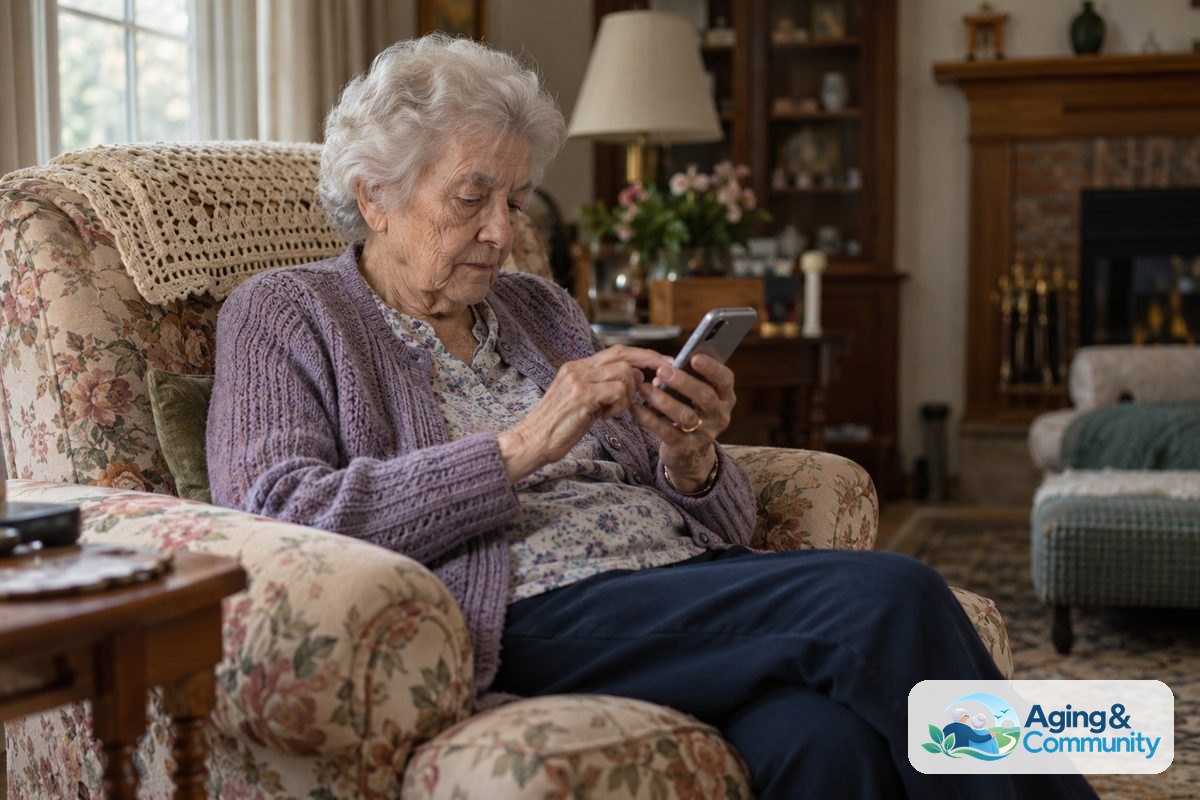
An easy to use smartphone for seniors should feel simple from the first day, not like a puzzle. Look for a clear screen, loud sound, simple menus, strong battery life, and easy ways to call or text trusted people.
The right choice depends on how the person will use it. Some people want video calls, maps, photos, and apps. Others mainly want calls, texts, a camera, and emergency contacts. A good phone is the one that fits daily life without adding stress.
What Makes a Smartphone Easy to Use
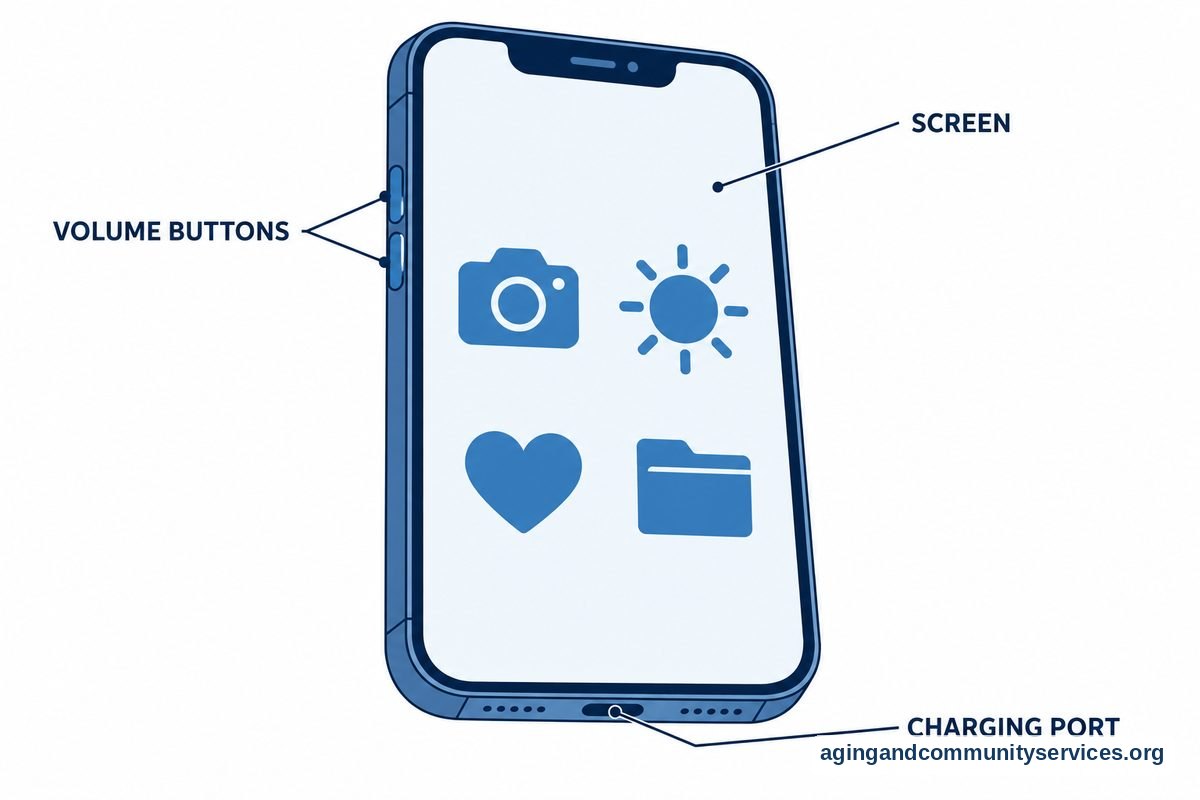
A smartphone for seniors easy to use is not just about having fewer buttons. It is about making common tasks clear, repeatable, and comfortable. The phone should make it easy to answer a call, read a message, change volume, charge the battery, and find help.
Start with the basics. A bright display, large text, strong speaker, and simple home screen can matter more than fancy features. If the person has trouble with small text or fast menus, the setup matters as much as the phone model.
- Large, clear screen: A larger display makes reading, typing, and video calls easier.
- Simple home screen: Keep only the most-used apps on the first screen.
- Good sound: Loud speakers and clear call quality help in busy rooms.
- Voice controls: Voice typing and voice commands can reduce tapping.
- Reliable charging: A phone with good battery life and simple charging helps build routine.
- Easy support: Choose a phone that a family member or local helper can explain.
If the person only wants very basic calling, a smartphone may not be needed. Some people are happier with phones for elderly people that keep calling and texting simple.
Smartphone Types to Consider
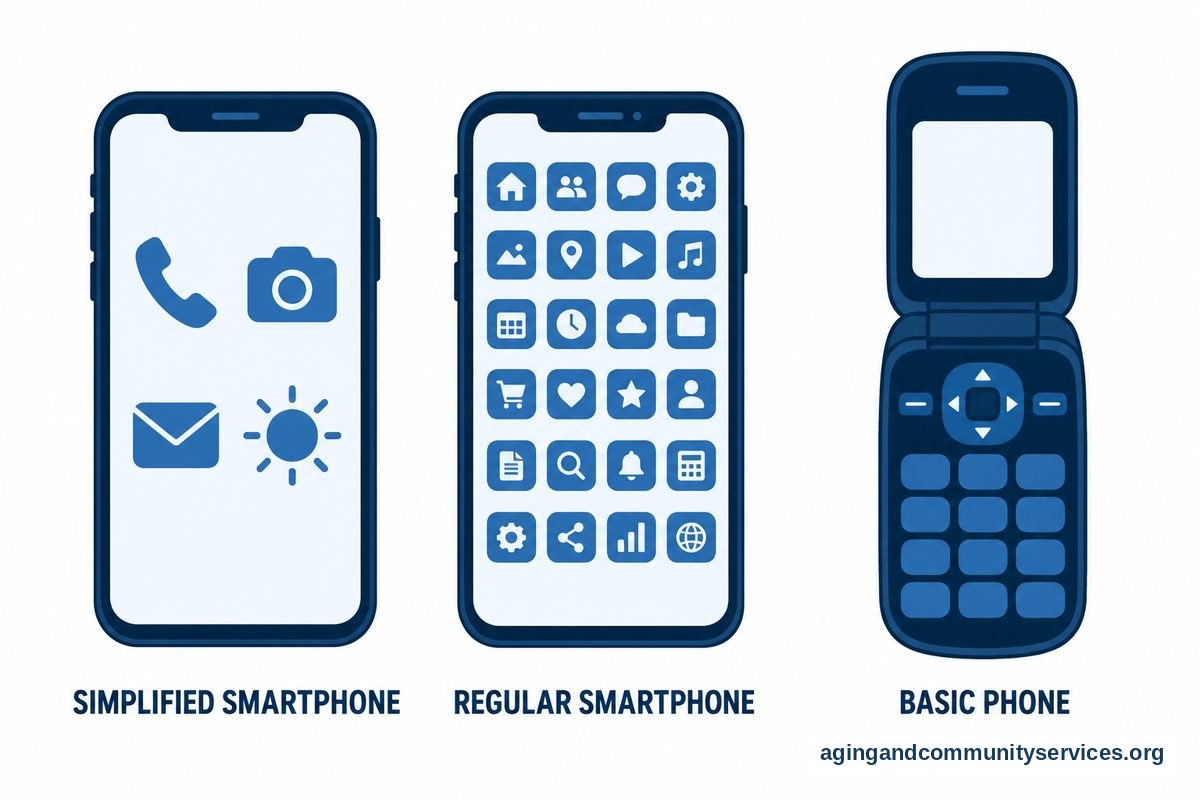
There are three common paths: a simplified smartphone, a regular smartphone set up for easier use, or a basic phone with limited smart features. Each can be the right choice for different needs.
A simplified smartphone is built around fewer menus and larger icons. It may be helpful for someone who wants video calls and photos but does not want many settings. The tradeoff is that some models may have fewer app choices or fewer customization options.
A regular iPhone or Android phone can also be made easier to use. This can be a good fit when family members already know that type of phone and can help with setup. You can add large text, remove clutter, pin favorite contacts, and turn on voice features.
A basic phone with large buttons may be better if the person does not want apps. If the main goal is simple calling, large-button phones may be easier to learn than a touch screen.
| Phone Type | Good Fit For | Watch For |
|---|---|---|
| Simplified smartphone | Calls, texts, photos, video calls, simple menus | May have fewer app choices |
| Regular smartphone with easy settings | People who want common apps and family support | Needs careful setup |
| Basic phone | Mainly calling and simple texting | Limited apps and features |
If you want a wider comparison, a guide to smartphones for elderly people can help you think through features before choosing.
Helpful Features to Look For
When comparing smartphones for seniors, focus on features that make daily use easier. A long list of features can be confusing, so it helps to ask what the person will do most often.
For many families, the most useful features are simple calling, clear texting, photo sharing, video calls, maps, medication reminders, and ride or delivery apps. Not everyone needs all of these. It is better to set up a few useful tools well than to fill the phone with apps that never get used.
- Large text and display zoom: These settings make words and icons easier to see.
- Favorite contacts: Add close family, friends, neighbors, and care contacts to the home screen.
- Voice typing: This helps when typing on a small keyboard feels tiring.
- Emergency information: Many phones let you add health notes and contacts that can be seen from the lock screen.
- Video calling: Choose an app the family already uses, then place it where it is easy to find.
- Location sharing: Use only with clear consent and explain how it works.
Some phones also have fall detection or emergency calling tools. These features can be useful, but they are not a replacement for good home safety habits or medical advice. The National Institute on Aging says practical home and activity steps can lower the risk of falls, and its falls prevention guidance is a useful place to review general safety ideas.
If vision, hearing, hand strength, balance, or memory changes are making phone use hard, it may help to speak with a doctor, physical therapist, or occupational therapist. They can suggest safe ways to use devices, manage daily tasks like learning how to use a wheelchair, and choose helpful tools.
How to Set Up Smartphones for Easy Mode
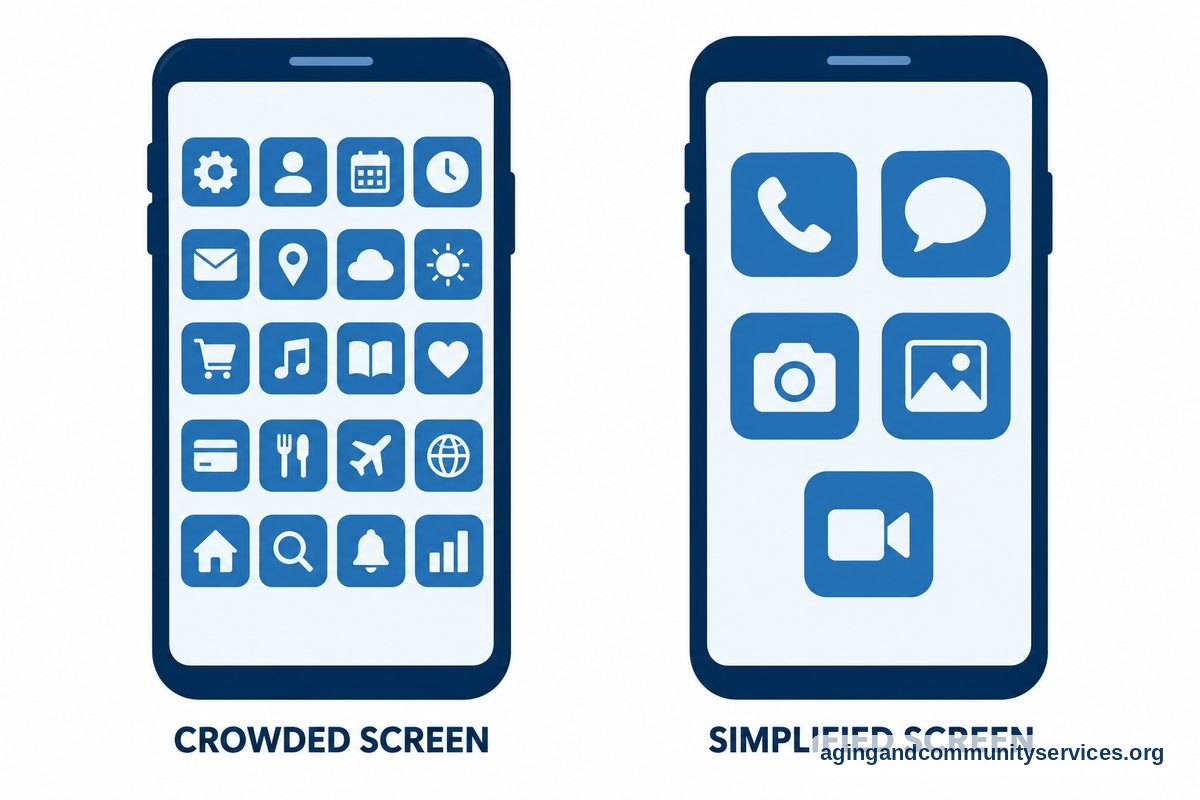
Smartphones for seniors easy mode can mean a built-in simple mode, or it can mean a careful setup that removes clutter. Either way, the goal is the same: fewer steps and fewer surprises.
On many Android phones, an easy mode or simple mode can make icons larger and screens less crowded. On iPhone, you can use display zoom, larger text, simplified app layout, and accessibility settings. If the person already owns an iPhone, a step-by-step guide on setting up iPhone can make the process easier.
For Android users, start with large text, display size, favorites, and voice controls. You can also remove unused apps from the home screen. A guide to Android phone setup may help if you want a simple checklist.
- Choose one main screen for daily use.
- Put phone, messages, camera, photos, and video calls on that screen.
- Add favorite contacts with names and photos if possible.
- Increase text size and icon size.
- Turn on loud ringer and vibration if helpful.
- Remove apps that are not needed.
- Set up automatic updates when possible.
- Write down the passcode and safe account recovery steps in a secure place.
Keep the first lesson short. Practice making a call, answering a call, sending a text, charging the phone, and returning to the home screen. Repeating the same steps builds comfort.
Unlocked Phones and Service Plans
A smartphone for seniors unlocked means the phone is not tied to one carrier. This can make it easier to choose a service plan or change carriers later, as long as the phone works with the network you want to use.
Unlocked phones can be helpful for families who want flexibility. They may also be useful if the person moves, travels, or changes plans. Before buying, check that the phone works with the carrier and has the right support for calling, texting, and mobile data.
Also think about where help will come from. A phone bought from a local store may come with setup help. A phone bought online may offer more choices, but the family may need to handle setup, data transfer, and account details.
- Check compatibility: Make sure the phone works with the carrier before purchase.
- Ask about setup: Find out whether contacts, photos, and apps can be moved over.
- Review coverage: The best phone is frustrating if service is weak at home.
- Keep the number: Ask how to transfer the current phone number if needed.
- Plan for support: Decide who will help with updates, passwords, and questions.
If someone is aging in place, the phone should fit the home routine. The National Institute on Aging offers practical ideas for aging in place, including planning for support, safety, and daily needs.

Questions to Ask Before Buying
Before choosing a smartphone for the elderly, slow down and match the phone to the person, not the other way around. A phone that looks simple in a store may feel different after a few days at home.
Ask the person what they want the phone to do. Their answer may be different from what family members expect. Respecting that choice can make the phone more welcome and more likely to be used.
- Will the phone be used mostly for calls and texts?
- Does the person want video calls with family?
- Is a touch screen comfortable, or would buttons be easier?
- Does the person already know iPhone or Android?
- Who will help with setup and updates?
- Is the screen easy to read in normal home lighting?
- Can the person charge it without trouble?
- Are important contacts easy to find?
It can help to try a family member’s phone for a few minutes. Practice opening the phone app, reading a text, changing volume, and taking a photo. Notice what feels natural and what causes confusion.
What You Can Do Next
Start with the person’s real daily routine. Make a short list of the tasks the phone must handle, such as calling family, texting, taking photos, using maps, or joining video calls. Then choose the simplest phone and setup that supports those tasks.
- Write down the top five things the phone must do.
- Choose iPhone, Android, simplified smartphone, or basic phone based on those needs.
- Set up large text, clear sound, favorite contacts, and a simple home screen.
- Practice one skill at a time for a few days.
- Keep a short printed guide near the charging spot.
- Review the setup after a week and remove anything that is not useful.
If the person needs community help with technology, transportation, home support, or local services, the Eldercare Locator can help connect families with local resources. For health, safety, balance, hearing, vision, or hand-use concerns, talk with a doctor, physical therapist, or occupational therapist before relying on phone features alone.
Frequently Asked Questions
What is a smartphone for seniors easy to use?
It is a phone with clear text, simple calling, easy texting, loud sound, and a home screen that is not crowded. It may be a simplified phone, or it may be a regular iPhone or Android phone with easier settings turned on.
What should I look for in a smartphone for seniors?
Look for a readable screen, good speaker, simple menus, long battery life, easy charging, and helpful support. Also check that the person can answer calls, send a text, and find favorite contacts without too many steps.
Are smartphones for seniors different from regular phones?
Some are different because they use larger icons, simpler menus, and fewer features. Regular phones can also work well when they are set up with large text, fewer apps, voice controls, and a clean home screen.
What is the best smartphone for the elderly if they have never used one?
The best choice is usually the one that matches the person’s comfort level and has someone nearby who can help. If family members use iPhone, an iPhone may be easier to support. If family members use Android, an Android phone may be easier to explain.
Should I buy a smartphone for seniors unlocked?
An unlocked phone can be a good choice if you want more flexibility with carriers or plans. Before buying, confirm that it works with the carrier, has good coverage at home, and can be set up with the needed contacts and apps.
Do smartphones for seniors easy mode really help?
Easy mode can help by making icons larger and screens simpler. It works best when paired with a clean home screen, favorite contacts, larger text, and short practice sessions focused on real daily tasks.