

Knowing how to set up iPhone for senior with dementia starts with making the phone simpler, safer, and easier to recognize. The goal is not to add more features, but to make daily calls, messages, reminders, and help easier to reach.
Start with the person’s current needs and habits. If they already use an iPhone, keep what feels familiar and remove what gets in the way. If the phone is new, set it up slowly and practice one task at a time.
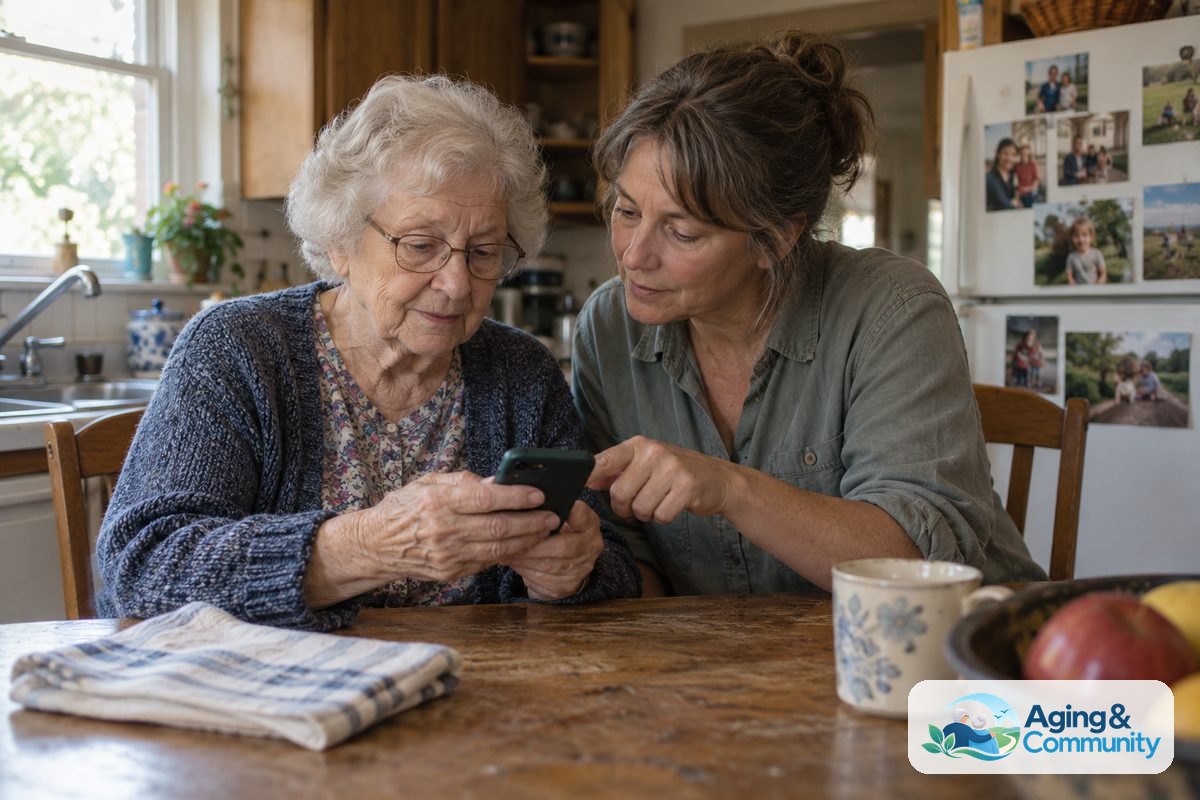
Main Steps to Set Up the iPhone
- Choose one main helper account: Use a trusted family member or caregiver as the main helper for setup, passwords, and recovery. Write down the Apple ID, passcode, and recovery information in a safe place that the care team can access when needed.
- Update the phone first: Before changing settings, connect to Wi-Fi and install available iPhone updates. This helps the phone run smoothly and keeps current safety features available.
- Use a simple passcode: Pick a passcode the person can remember, if that is still realistic. If not, talk with the family and care team about a plan that keeps the phone secure without locking the person out often.
- Set up Face ID or Touch ID: If the person can use it comfortably, Face ID or Touch ID may make unlocking easier. Keep the passcode written down in a secure place because the phone may still ask for it.
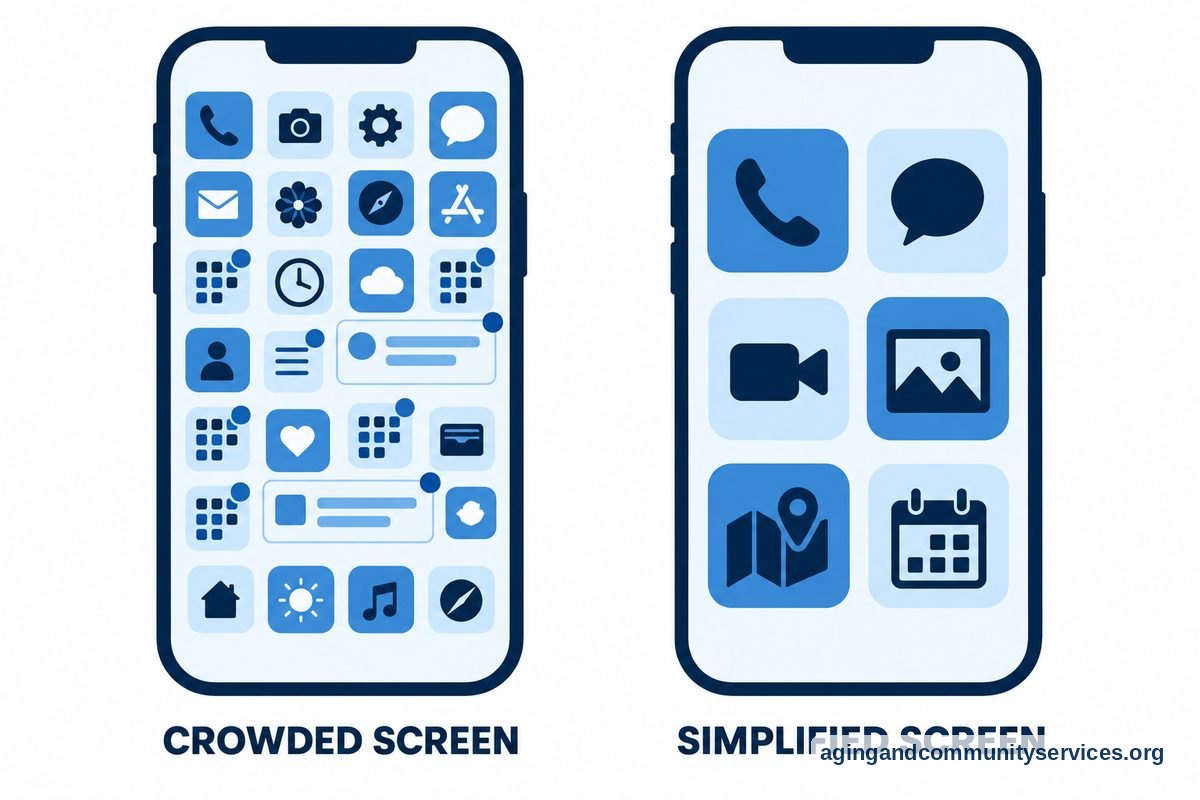
- Simplify the Home Screen: Move the most important apps to the first screen, such as Phone, Messages, FaceTime, Photos, Maps, and Calendar. Put other apps in folders or remove apps that cause confusion.
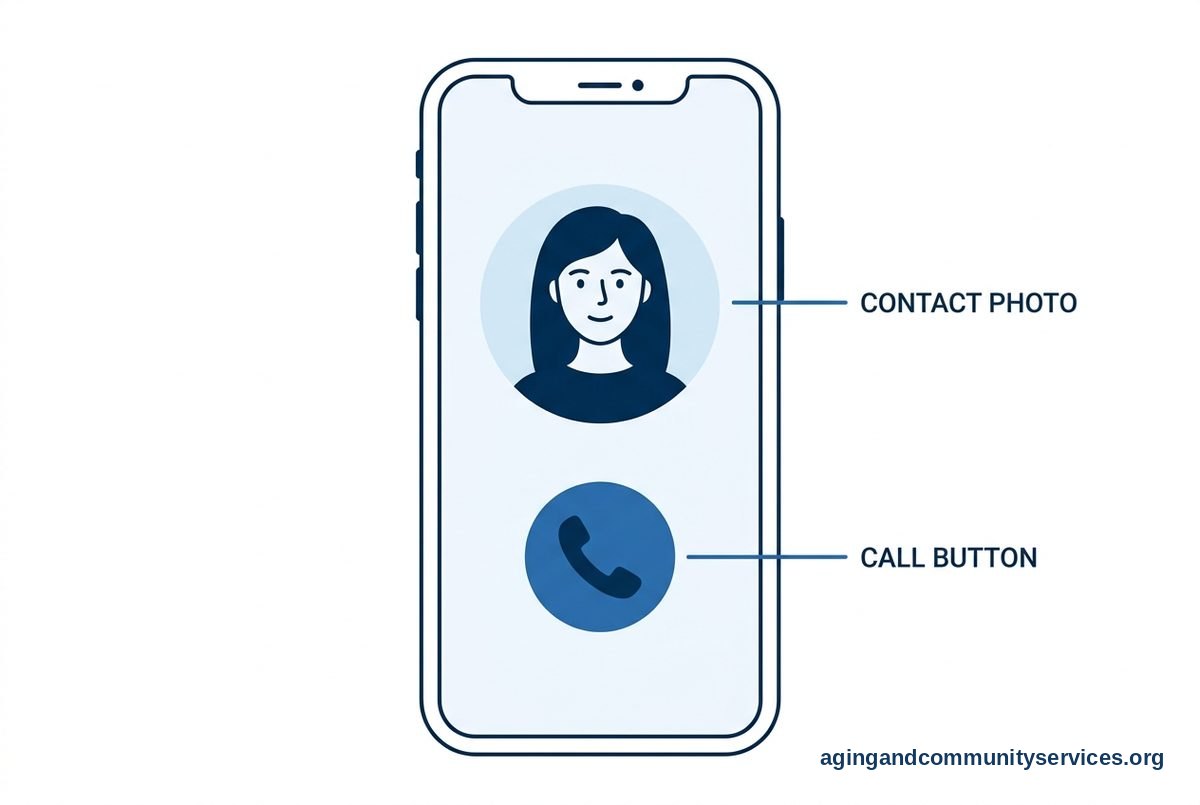
- Make contacts easy to find: Add clear contact names like “Daughter Anna” or “Doctor Smith” instead of nicknames. Add photos to key contacts so the person can recognize who they are calling.
- Set favorites for calling: In the Phone app, add the most important people to Favorites. Place the Phone app where it is easy to see, and practice opening Favorites together.
- Turn on emergency contacts: Set up Medical ID in the Health app and add emergency contacts. Include allergies, important conditions, medicines, and the main caregiver if the person agrees or if the legal decision maker is handling setup.
- Use location sharing with consent: If appropriate, set up Find My location sharing with trusted family members. Explain it in plain language, such as “This helps us find your phone and help you if you are lost.”
- Set up reminders gently: Use the Reminders or Calendar app for simple daily prompts, such as meals, appointments, or charging the phone. Keep reminder wording short and kind.
- Reduce interruptions: Turn off nonessential notifications so the screen is not full of pop-ups. Keep alerts for calls, messages, calendar events, and other truly helpful items.
- Increase text and sound: Make text larger, raise ringtone volume, and choose a clear ringtone. You can find more ideas in these iPhone settings for seniors if vision, hearing, or touch changes are part of the concern.
- Limit purchases and account changes: Use Screen Time to limit app downloads, in-app purchases, and account changes if needed. This can lower stress from accidental subscriptions, strange apps, or changed settings.
- Practice one routine: Pick one task, such as calling a daughter or answering FaceTime, and practice it several times. A short paper note near the charging spot can help more than a long instruction sheet.
Common Mistakes to Avoid
- Changing everything at once: Too many changes can make a familiar phone feel new and confusing. Make a few important changes, then wait and see what helps.
- Using tiny labels or many folders: Folders can hide apps from someone who relies on visual memory. Keep the first screen simple and clear.
- Leaving scam calls unchecked: Unknown callers, spam texts, and strange links can create stress. Consider call filtering tools, blocked numbers, and reminders not to answer unknown callers.
- Relying only on the phone: A phone is useful, but it should not be the only safety plan. Pair it with routines, written notes, family check-ins, and home safety steps.
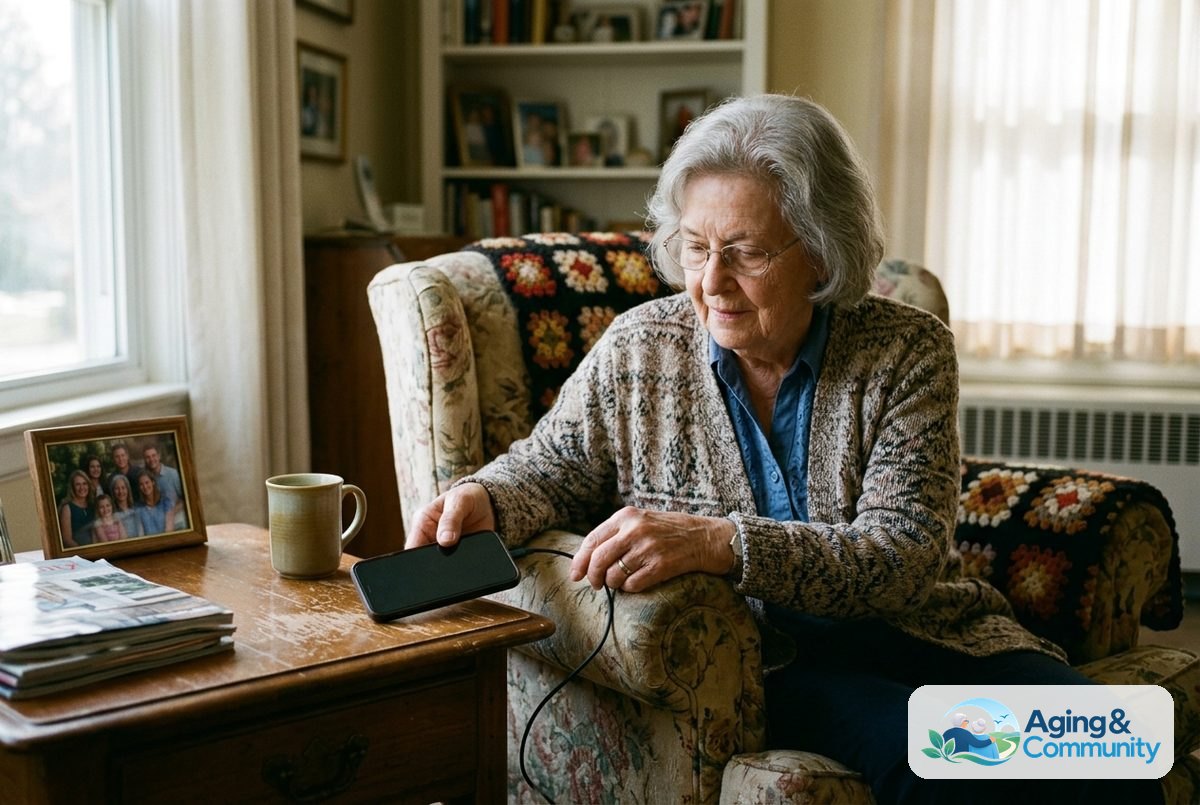
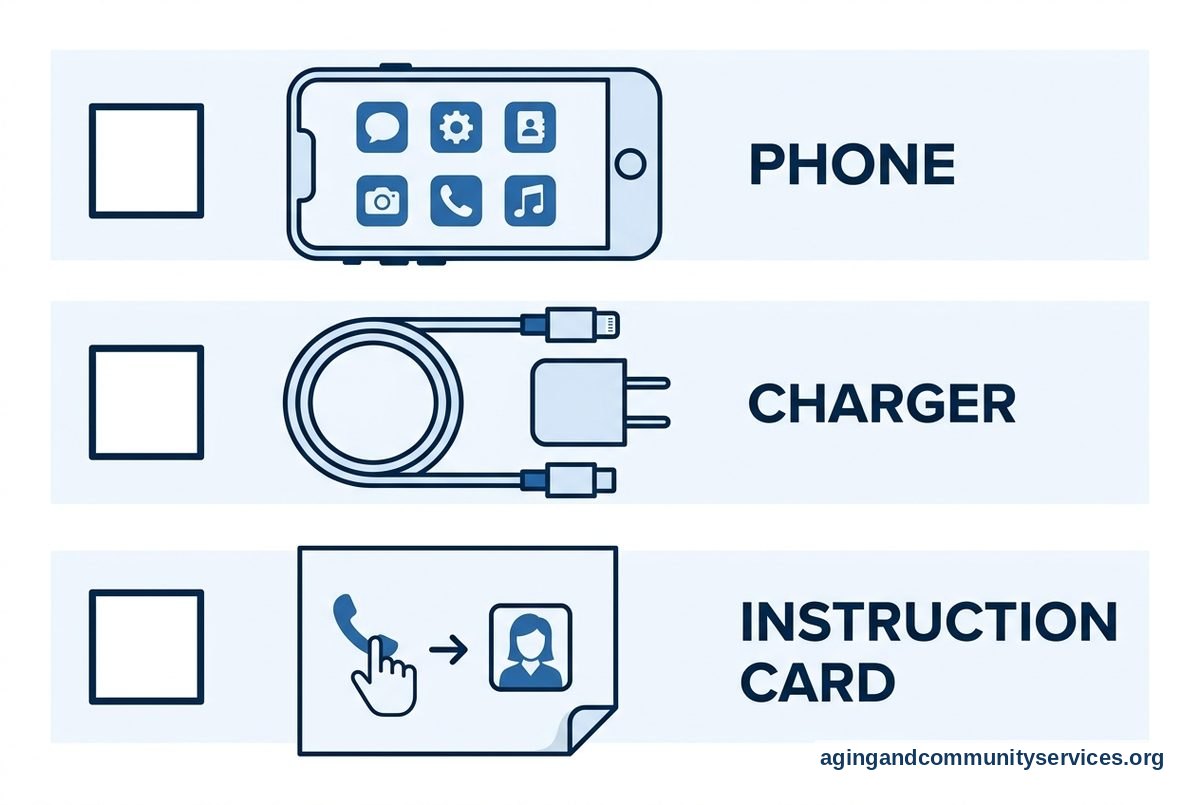
- Forgetting the charger routine: A helpful phone is not helpful if the battery is often dead. Create one charging spot and charge the phone at the same time each day.
- Skipping consent and dignity: When possible, explain changes and ask for agreement. If someone else has legal authority to help, still use respectful language and keep the person involved as much as possible.
When to Call for Help or Get Professional Advice
Call the person’s doctor if phone problems seem tied to a sudden change in memory, mood, sleep, balance, or daily function. Tell the doctor what changed, when it started, and whether it is affecting safety, medicines, meals, or appointments.
An occupational therapist can often help match phone settings to daily routines, vision, hearing, hand strength, and memory needs. A physical therapist may be helpful if the main concern is falls, walking, balance, or getting safely to the phone or charger.
If home safety is part of the reason for setting up the phone, the National Institute on Aging shares practical home safety tips for Alzheimer’s caregivers. These steps can lower the risk of common home hazards when used with advice from a clinician or care professional.
If you are not sure what local help exists, the Eldercare Locator can connect families with aging services in their area. Be ready to share the person’s city, living situation, main concerns, and what kind of help you need, such as caregiver support, transportation, or safety planning.

How to Set Up iPhone for Elderly With Dementia in Daily Life
When people search for how to set up iPhone for elderly with dementia, they are often looking for more than a settings checklist. They want the phone to support the person’s real day, including calling family, keeping appointments, and getting help when confused.
Think of the iPhone as a small daily tool. It should answer three simple questions: Who can I call, what do I need to do today, and how can my helper find me or my phone if needed?
Start with the Home Screen. Put only the most useful apps on the first page. If the person uses FaceTime, place it next to Phone. If they like seeing family pictures, keep Photos easy to reach. If games, news, or shopping apps create confusion, move them away or remove them.
Next, make the phone easier to read and hear. Use larger text, bold text if helpful, strong contrast, and a clear ringtone. Avoid too many custom sounds because they may be harder to remember.
For step-by-step setup beyond dementia care, this guide to set up iPhone can help with basic choices like contacts, display, and calling. Keep the setup personal, because what helps one person may frustrate another.
Use written backup supports. A simple card can say, “To call Anna, tap the green Phone button, then Favorites, then Anna.” Keep the card near the favorite chair, bedside table, or charging station.
Ask family members to use the same words when helping. If one person says “tap Phone” and another says “open the calling app,” that can create extra work for the person using it.
iPhone for Seniors With Dementia: Helpful Settings and Apps
An iPhone for seniors with dementia works best when it is set up around simple routines, not every possible feature. A few settings can make a big difference in daily use.
Screen Time can reduce accidental changes. You can limit app installs, app deletion, account changes, and certain content. Use a Screen Time passcode that the main helper can remember, and store it safely.
Do Not Disturb or Focus can quiet the phone during sleep or rest times. Allow calls from Favorites so trusted people can still get through. This can help reduce the number of random alerts on the screen.
Find My can help locate the phone if it is misplaced. If location sharing is turned on, trusted family members may also be able to see the phone’s location. This should be explained with respect and used as part of a broader care plan.
Medication reminders, calendar alerts, and shared notes may help some families. Keep them short and specific, such as “Take morning pills with breakfast” or “Appointment today at 2.” If medicines are involved, confirm the plan with a doctor, pharmacist, or nurse.
Some families also look at apps for dementia for reminders, routines, or family coordination. Choose only a few. Too many apps can make the phone harder to use.
If the iPhone is still too complex, it may be worth comparing it with an easy to use smartphone. The right phone is the one the person can use with the least stress and the most support.
For wandering concerns, talk with the doctor, care team, or local aging services about a full safety plan. Some families also review GPS tracker options, but no device replaces supervision, planning, and professional guidance when safety concerns are serious.
Simple Setup Checklist
| Need | iPhone Setting | Helpful Tip |
|---|---|---|
| Easy calling | Favorites and contact photos | Use clear names and put key people first. |
| Less confusion | Simple Home Screen | Keep only the most used apps on page one. |
| Fewer interruptions | Notifications and Focus | Allow important calls, but reduce extra alerts. |
| Safer account use | Screen Time limits | Limit purchases, app installs, and account changes. |
| Finding the phone | Find My | Share location only with trusted helpers. |
| Daily reminders | Calendar or Reminders | Use short, kind wording and simple times. |
Frequently Asked Questions
How do I set up iPhone for senior with dementia?
Start by making the phone simpler. Add key contacts with photos, set favorites, increase text size, reduce notifications, turn on Medical ID, and consider location sharing with trusted family members.
How do I set up iPhone for elderly with dementia?
Use the same basic steps, but focus on the person’s routine. Keep familiar apps, remove confusing ones, write down simple instructions, and practice one task at a time.
What is the easiest iPhone setup for seniors with dementia?
The easiest setup usually has one Home Screen, large text, loud ringer, contact photos, a short favorites list, and very few alerts. The best setup is the one the person can use without repeated frustration.
Should I turn on location sharing?
Location sharing can be helpful if the person may get lost or misplace the phone. Use it with consent when possible, limit it to trusted helpers, and include it in a wider safety plan.
Can an iPhone replace in-person support?
No. An iPhone can help with calls, reminders, location, and routines, but it does not replace family support, caregiving, medical advice, or emergency help when needed.
What should I do if the phone keeps causing stress?
Simplify it further. Remove extra apps, turn off more alerts, use a written cue card, and ask an occupational therapist or other care professional for help matching the phone to the person’s abilities.