

Learning how to set up old iPhone for new user needs is simple when you take it one step at a time. The process involves backing up your old data, signing out of personal accounts, erasing the device, and walking through the initial startup screen with the new owner. Taking these careful steps ensures that private photos and messages stay safe while the next person enjoys a fresh start.
Passing down a smartphone is a wonderful way to help family members stay connected. A reliable mobile phone can support independent living, which connects closely with aging in place goals for older adults who want to remain in their own homes. With the right setup, an older device can feel just like a brand new one.

Steps to Prepare and Set Up an Old iPhone
- Back up your data to the cloud or a computer. Save your photos, text messages, and contacts so you do not lose anything important before clearing the device.
- Unpair any connected accessories. Open the Watch app or Bluetooth settings to disconnect smartwatches, hearing aids, and vehicle connections.
- Sign out of your Apple ID and iCloud. Go to Settings, tap your name at the very top, scroll down, and tap Sign Out to release the activation lock.
- Erase all content and settings. In the Settings menu, tap General, choose Transfer or Reset iPhone, and select Erase All Content and Settings.
- Remove the physical SIM card if needed. Use a small paperclip to open the side tray if you plan to keep your existing phone number on a different device.
- Turn on the phone to start the setup assistant. Press the power button until the screen lights up with a cheerful greeting in multiple languages.
- Connect to a secure Wi-Fi network. Select your home wireless network and enter the password so the phone can activate with Apple servers.
- Create or enter the new user Apple ID. Sign in with the account of the person who will use the device, or create a free new account right on the screen.
- Set up a simple passcode. Choose a four-digit or six-digit number that the new owner can easily remember and tap in each day.
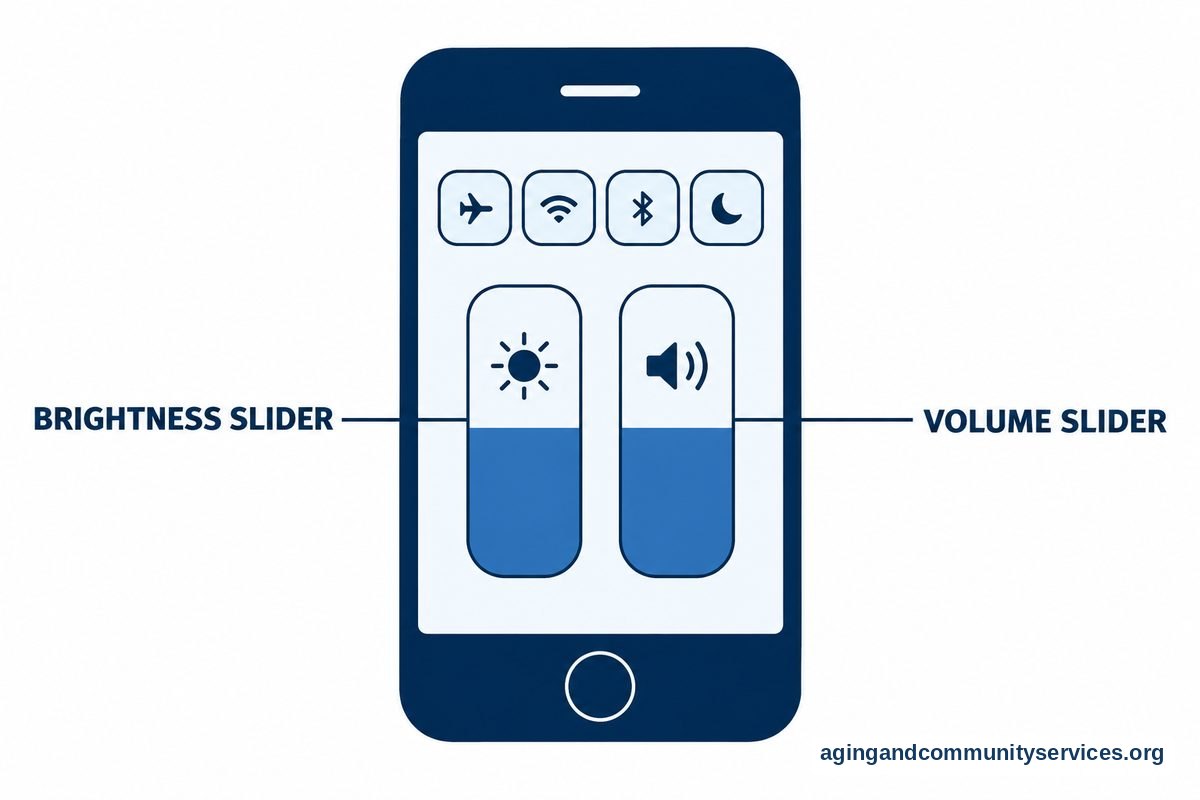
- Customize the basic accessibility settings. Adjust the text size, screen brightness, and sound volume to fit the comfort level of the person holding the device.

Common Mistakes to Avoid
- Forgetting to turn off Find My: If you erase a phone without signing out of your account, the phone stays locked to your identity. The next owner will not be able to activate it without your personal password.
- Handing over the phone without a full factory reset: Simply deleting photos or apps one by one leaves behind hidden accounts, emails, and browsing history. A full reset is the only way to protect your privacy.
- Using a complicated passcode: Setting up a long, complex code can lead to frustration and accidental lockouts. Pick a number that makes sense to the user, or rely on fingerprint or facial recognition if available.
- Skipping the initial battery check: Older devices may have worn batteries that shut down suddenly. Look at the battery health section in settings before handing it over so there are no surprises.
- Rushing through the font and display adjustments: Default phone text can be tiny and hard to read. Taking an extra five minutes to make things larger makes a huge difference in how much the user enjoys the phone.
When to Call for Help or Get Professional Advice
Sometimes technology does not behave the way we expect. If the phone asks for an old password you cannot remember, or if an activation lock message appears on the screen, it is time to contact Apple Support directly. You can visit a retail store or call their support line. When you speak with them, tell them you are trying to transfer an owned device to a family member and need help clearing an old account.
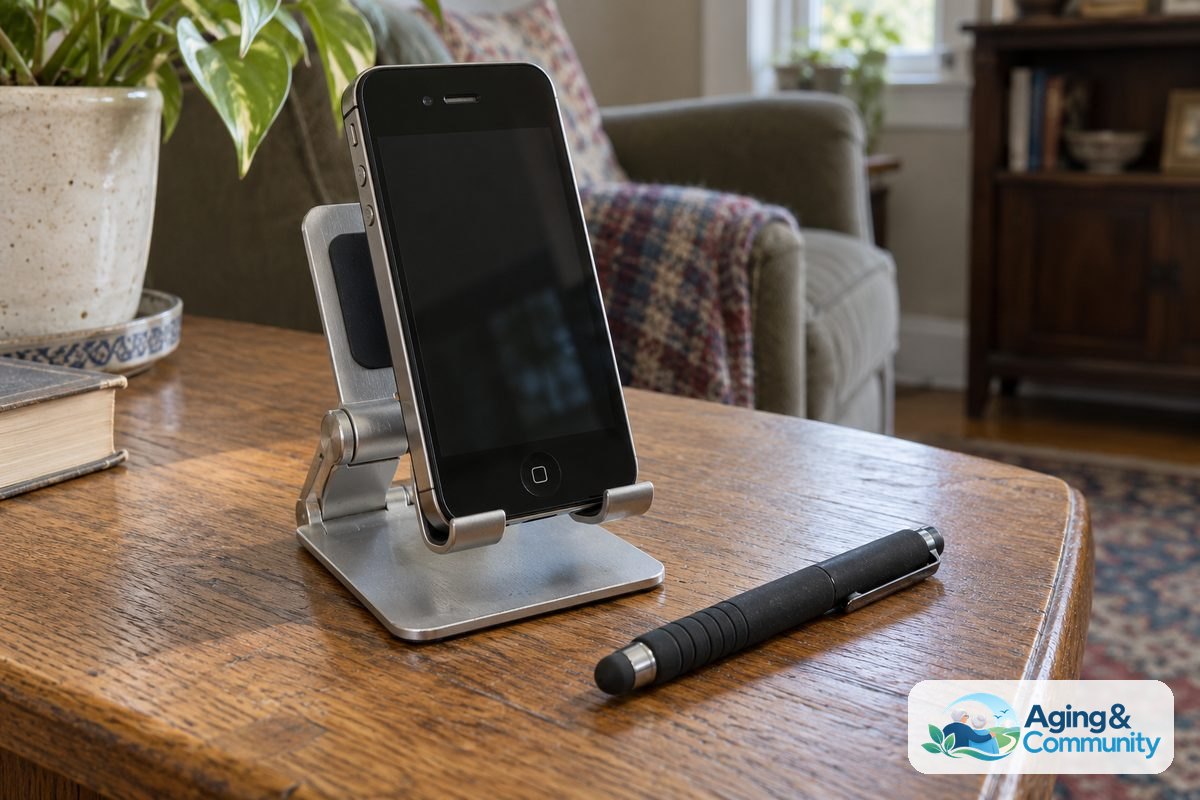
If you are coordinating care or communication tools for a loved one, community organizations can also offer guidance. The Eldercare Locator can connect you with local support services that help families navigate home resources. When physical challenges make holding or tapping a screen difficult, consider speaking with an occupational therapist. An occupational therapist can suggest helpful phone stands, styluses, or adaptive tools that make using a phone comfortable and safe.
How Do I Set Up an Old iPhone for a New User with Ease?
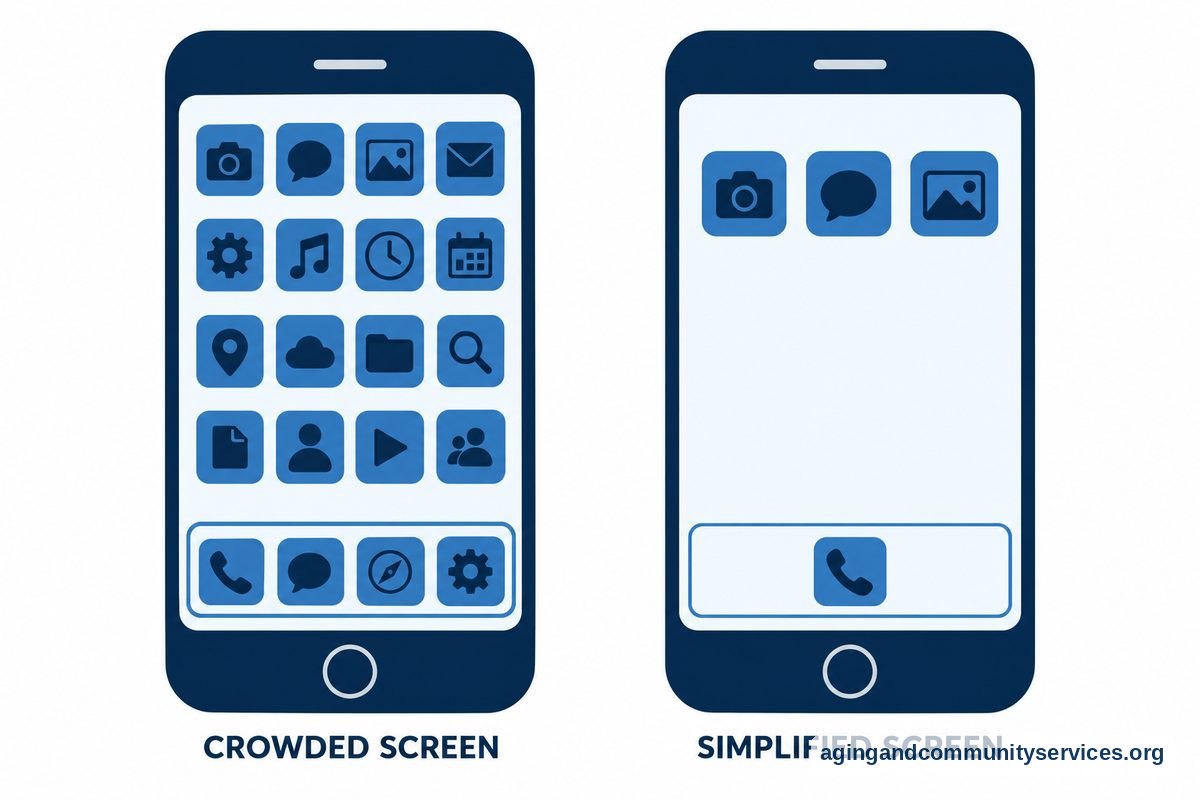
Many people ask, how do i set up an old iphone for a new user without creating confusion? The best approach is to simplify the home screen immediately after the reset. Remove unused icons, place the phone app right at the bottom, and add family members to the favorites list. You can explore our guide on how to make iphone easy for elderly family members to see layout ideas that reduce clutter.
You can also turn on features designed specifically to streamline daily use. Learning how to set up iphone senior mode allows you to activate large buttons and high-contrast labels. This turns an advanced phone into a clear, approachable tool for everyday calls and messages.
Fine-Tuning Sound and Visual Settings
Once the basic setup is complete, spend time adjusting the display. You can find many helpful options inside the accessibility menu. Reviewing essential iphone settings for seniors can show you how to turn on bold text, boost speaker volume, and enable spoken alerts for incoming calls.
For those who want to explore more options, you can read our walkthrough on how to set up phone for elderly loved ones. Making these simple changes right away ensures that the phone feels welcoming from the very first day.
Frequently Asked Questions
How do I set up an old iPhone for a new user if I forgot the old passcode?
If you cannot remember the passcode, you must connect the phone to a computer and put it into recovery mode. This process erases the device completely so you can follow instructions on how to set up old iPhone models. You will still need the original Apple ID password to remove the activation lock after the computer finishes the restore.
Can two people share the same Apple ID on one phone?
It is best for every person to have their own unique Apple ID. Sharing an account can cause text messages, contacts, and photo libraries to merge together, which causes confusion. Creating a separate account takes only a few minutes and keeps personal data organized.
Do I need a new SIM card when giving an old phone to someone else?
If the new user wants their own phone number and carrier plan, they will need their own SIM card or digital eSIM. If they only plan to use the phone on home Wi-Fi for video calls and internet games, no cellular card is required.
How can I make the screen easier to see for a beginner?
Go to Settings, tap Display and Brightness, and choose Text Size to move the slider to a larger setting. You can also turn on Bold Text and set Display Zoom to Larger Text, which makes app icons and keyboard keys much easier to see.
What is the easiest way to teach someone how to use the device?
Start with just two or three basic actions, such as making a phone call, sending a quick message, and taking a picture. Writing down short, step-by-step instructions on paper can give the user confidence. Practice together in a quiet room without any rush.