

If you are wondering how to teach computer to seniors, start with one useful task, go slowly, and let the learner do each step. The goal is not to cover everything at once. It is to build comfort, trust, and a small set of skills that make daily life easier.
Pick a quiet time, use plain words, and keep each lesson short. A computer can feel less confusing when the screen is simple, the instructions are written down, and the teacher stays patient even when a step needs to be repeated.
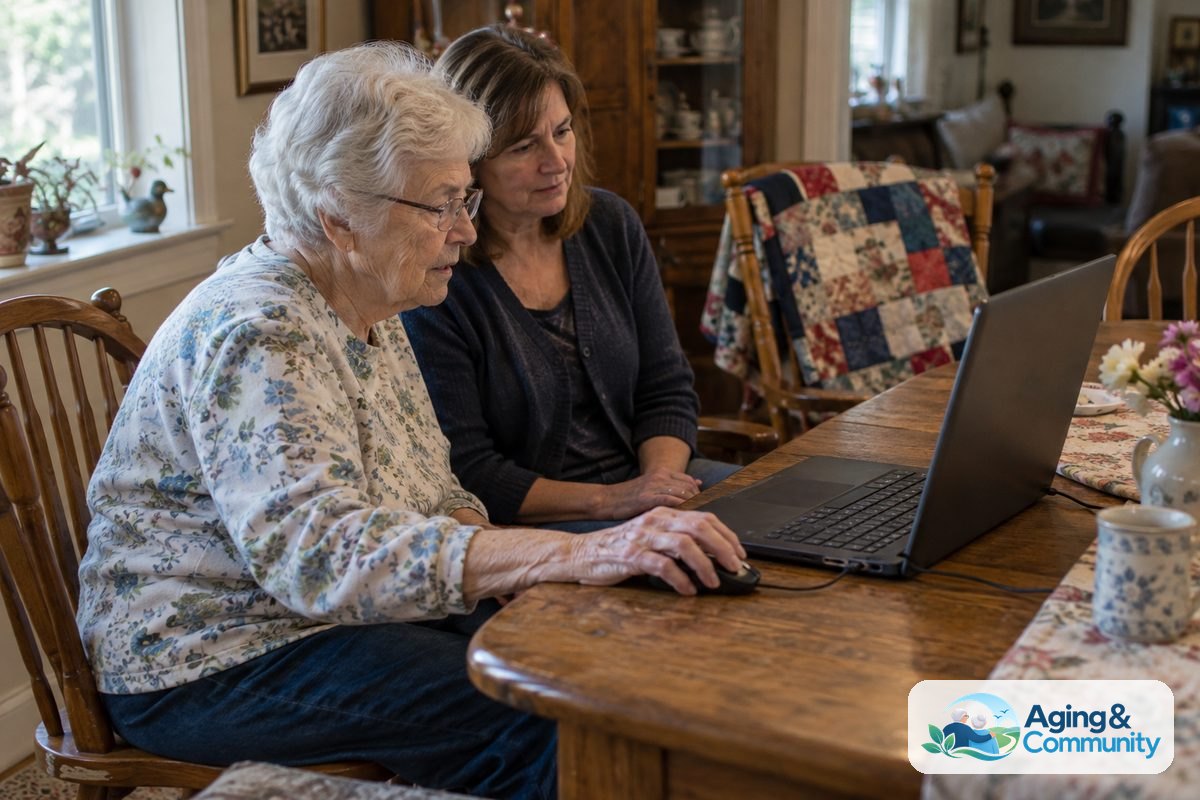
Main Steps for Teaching Computer Skills
- Start with a real goal: Ask what the person wants to do first, such as reading email, joining a video call, looking at photos, or checking a community website. A useful goal gives the lesson meaning and helps you decide what to skip for now.
- Set up a simple workspace: Choose a chair and desk that feel steady, with good lighting and little background noise. Keep the charger, mouse, glasses, and written notes nearby so the lesson does not stop for small problems.
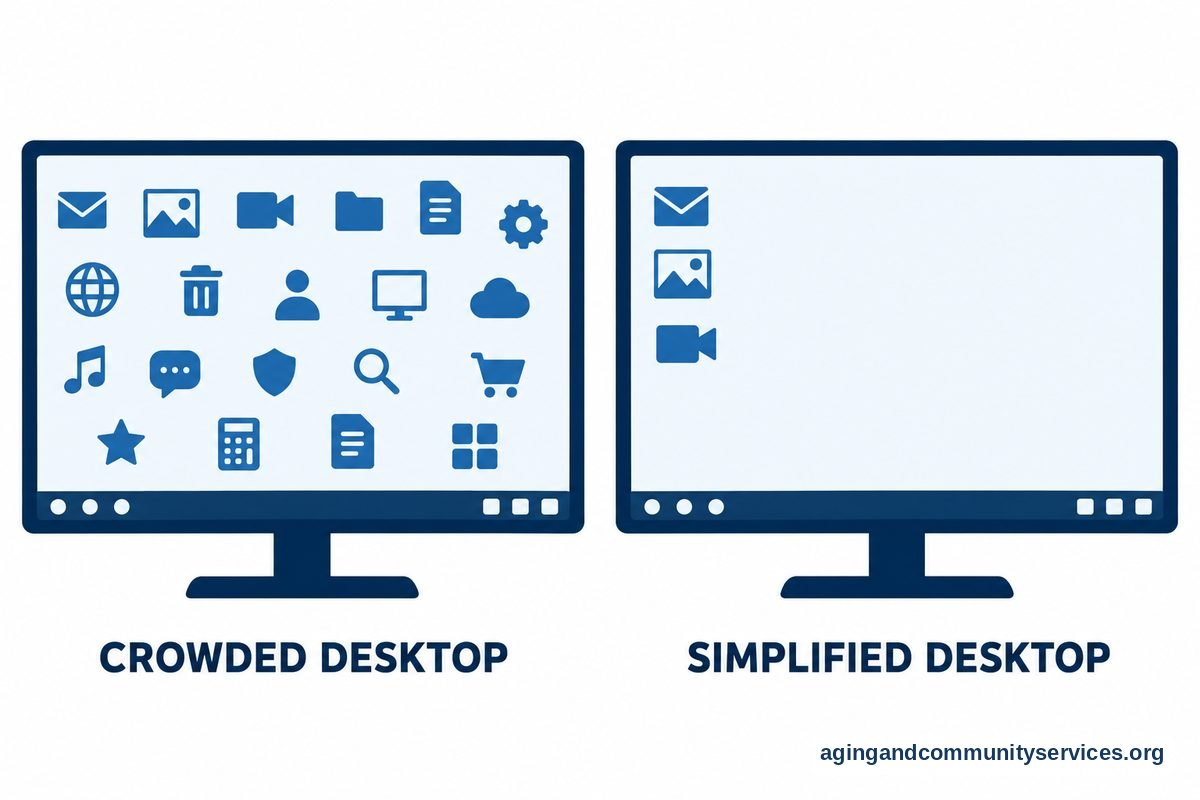
- Make the screen easier to use: Increase text size, remove unused icons, and place the most needed programs on the desktop or taskbar. If the current device feels too confusing, a guide to an easy to use computer can help you compare simpler options.
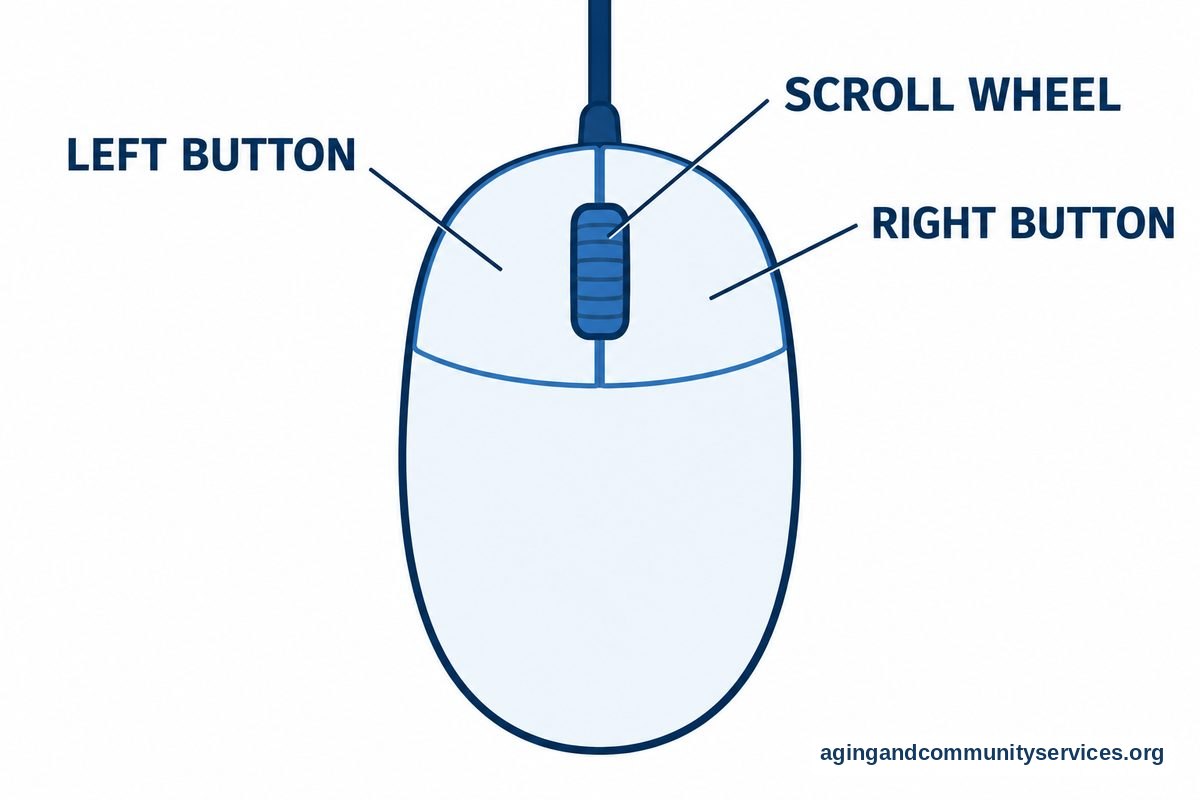
- Teach the mouse or touchpad slowly: Practice moving the pointer, single clicking, double clicking, scrolling, and closing a window. Use a practice page or an empty document so mistakes feel safe and easy to fix.
- Explain the keyboard basics: Point out letters, numbers, space bar, backspace, enter, shift, caps lock, and delete. Let the learner type their name, a short sentence, and a password practice line that is not a real password.
- Use the same words each time: Pick simple terms like open, close, save, search, and send. Try not to switch between several names for the same action, because that can make the lesson harder to follow.
- Show one step, then let them do it: Demonstrate the action once, then move your hands away and let the learner try. If they get stuck, guide with a question such as, “What do you see on the screen?” instead of taking over right away.
- Write clear notes: Create a one page cheat sheet for each task, with large text and short steps. For example, write “Open email,” “Read message,” “Reply,” and “Send,” with space between each line.
- Practice internet safety early: Explain that real companies do not need passwords sent by email or text. Teach the habit of pausing before clicking links, opening attachments, or sharing personal information.
- Review at the next lesson: Begin each session by repeating the last skill before adding a new one. Repetition is not a setback. It is how computer actions become familiar.

Common Mistakes to Avoid
- Teaching too much at once: A long lesson can make the computer feel harder than it is. Keep the focus on one task and save extra features for later.
- Using jargon without explaining it: Words like browser, app, download, cloud, and tab may be new. Say what the word means in plain language the first few times you use it.
- Grabbing the mouse too quickly: It may feel faster to do the step yourself, but that can stop the learner from building confidence. Talk them through the step whenever it is safe to do so.
- Making mistakes seem serious: Most computer mistakes can be undone, closed, or tried again. Keep your voice steady and show how to recover from common errors.
- Skipping passwords and safety: A person may learn email or shopping before learning how to spot risky messages. Include simple safety habits from the start.
- Changing the setup often: Moving icons, switching browsers, or using different devices can make practice harder. Keep the screen layout as steady as possible.
When to Call for Help or Get Professional Advice
Call for help when a problem keeps repeating, when the device shows warning messages you do not understand, or when you suspect a scam. A trusted family member, local library staff member, adult education teacher, or computer repair service may be able to explain the next step in plain language.
Before you call, write down what happened, what the screen says, and what you were trying to do. If possible, take a photo of the message on the screen. Do not share passwords, banking details, or codes unless you are sure you are working with a trusted person or service.
If vision, hearing, hand strength, balance, or memory changes make computer use harder, it may help to ask a doctor, physical therapist, or occupational therapist what adjustments could make the setup more comfortable. The National Institute on Aging shares general home safety ideas in its information on growing older at home, and some of those ideas can also support a safer computer area, such as better lighting and reduced clutter.
For local support, the Eldercare Locator can help connect people with community services. You can also look for technology support options if you need regular help with setup, passwords, updates, or practice.
What to Teach First
The first lessons should cover the tasks the person will use most often. Do not begin with file systems, settings, or long explanations of how the computer works inside. Start with daily actions that bring a quick result.
A good first lesson might be turning the computer on, signing in, opening the internet, and closing the window. Another simple lesson might be opening email, reading one message, and sending a short reply. If email is the main goal, a focused guide to email for seniors can give you a helpful order for practice.
Video calls are another useful skill, especially for staying in touch with family, friends, or community groups. Practice joining a call before the real meeting time. Show how to turn the camera and microphone on or off, and write those steps down in large print.
Searching the internet should come after basic clicking and typing feel easier. Teach how to type a question into the search box, choose a result, and return to the previous page. Explain that not every result is correct, and it is wise to compare information from trusted sources.
Online forms, shopping, and banking should wait until the learner is comfortable with basic navigation and safety habits. These tasks can involve personal information, so they deserve slower lessons and careful review.
How to Make Practice Easier
Short, regular practice works better than rare long lessons. Try a simple routine, such as practicing the same task several times in one sitting, then repeating it again another day. Praise effort and progress, not speed.
Use a notebook that stays near the computer. Put each task on its own page. Write the title at the top, then number the steps. If a step changes after an update, cross it out and write the new step clearly.
Make the device feel familiar. Use a plain wallpaper, keep only needed icons visible, and place important shortcuts where they are easy to find. If the person uses a tablet and a computer, teach one device first before switching between both.
It also helps to create a practice account or practice document when possible. This gives the learner a place to type, click, and explore without worrying about changing something important. If that is not possible, choose low risk tasks, such as opening a weather page or typing a grocery list.
Some people learn better in a class, especially when they enjoy practicing with others. Local libraries, senior centers, community colleges, and adult education programs may offer beginner lessons. A guide to free computer classes can help you think through what kind of class may fit.
Simple Lesson Plan You Can Reuse
| Lesson Part | What to Do | Helpful Tip |
|---|---|---|
| Warm up | Review the last skill for a few minutes. | Start with something the learner can already do. |
| New skill | Teach one new task, such as sending an email. | Use the same words each time. |
| Practice | Let the learner repeat the task several times. | Step back unless help is needed. |
| Notes | Write or update the steps in a notebook. | Use large text and short sentences. |
| Finish | End with a successful repeat of the task. | Stop before the lesson feels tiring. |
This simple pattern keeps lessons calm and predictable. It also makes it easier for another helper to continue teaching later, because the notes show what has already been practiced.

Frequently Asked Questions
What is the easiest way to teach computer basics?
The easiest way is to begin with one useful task and break it into small steps. Show the step once, let the learner do it, and repeat it until it feels more familiar.
How long should each computer lesson be?
Keep lessons short enough that the person can stay focused and leave feeling successful. Many learners do better with brief practice sessions than with long lessons that cover too many topics.
What computer skills should come first?
Start with turning the device on, signing in, using the mouse or touchpad, typing, opening the internet, and closing windows. After that, move to email, video calls, searching, and printing if those tasks are useful.
How can I help someone remember the steps?
Use a notebook, large print, and one page per task. Keep the wording the same each time, and review the same task at the start of the next lesson.
What should I do if the learner gets frustrated?
Pause the lesson and return to a step they can do. A short break, a slower pace, or a simpler task can help the next try feel easier.
How do I teach computer safety without causing worry?
Use simple rules: pause before clicking, do not share passwords, and ask a trusted person before responding to urgent messages. Present safety as a normal computer habit, not as something to fear.