

Learning how to use iPhone features for seniors starts with a few simple choices: make the screen easier to see, make sound easier to hear, and place the most useful tools within easy reach. The iPhone has built-in settings for calls, messages, reminders, photos, safety, and accessibility, and many can be adjusted in just a few taps.
Start with the features used every day, not every feature at once. A family member, friend, Apple support staff, or local technology helper can sit nearby while the person practices calling, texting, and finding key buttons at a calm pace.

Main Steps for Using iPhone Features
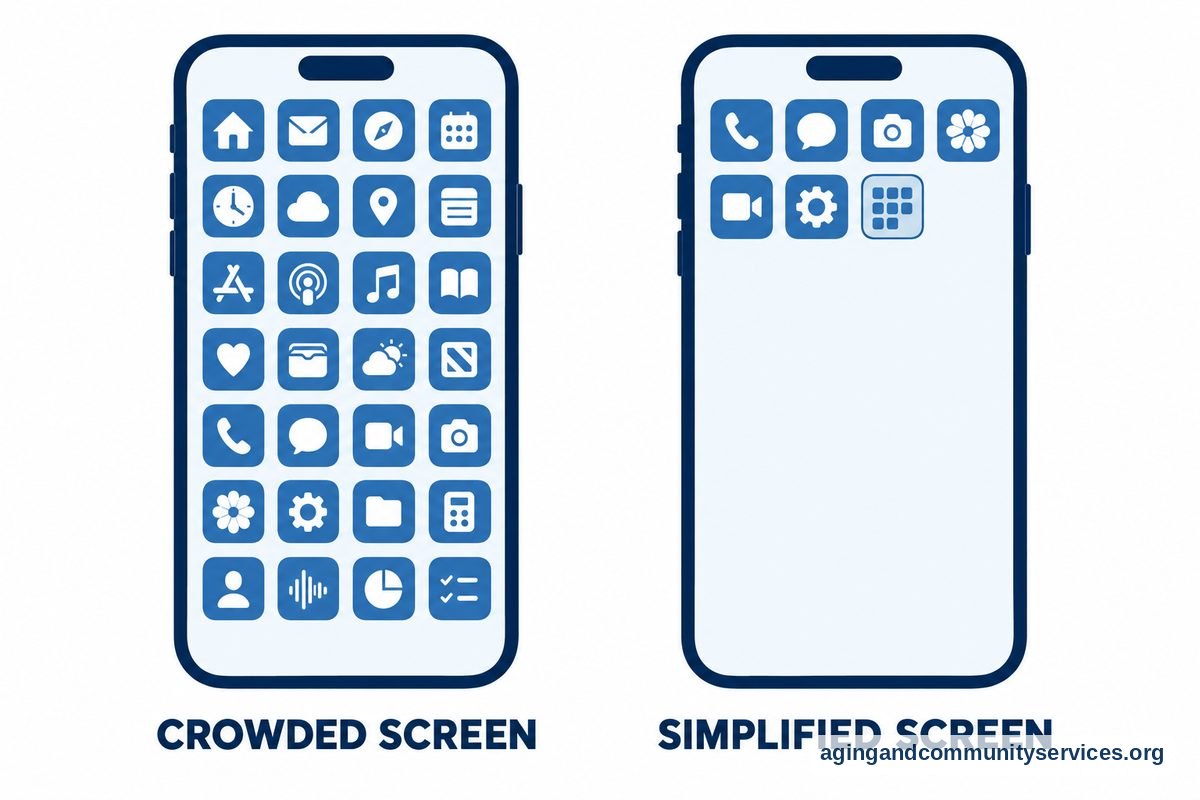
- Start with the Home Screen: Keep the Home Screen simple by placing Phone, Messages, Camera, Photos, FaceTime, and Settings on the first page. Move less-used apps into a folder so the screen feels less crowded.
- Make text and buttons easier to see: Open Settings, then Display and Brightness, and adjust text size, brightness, and bold text. For more step-by-step help, a guide to iPhone settings can make these choices easier to understand.
- Set up important contacts: Add family, close friends, doctors, pharmacy contacts, and trusted neighbors to Contacts. Mark a few people as Favorites so they are easier to call from the Phone app.
- Practice calls and messages: Open Phone to make a call, or open Messages to send a short text. Practice answering a call, ending a call, using speakerphone, and reading a reply.
- Use Siri for simple tasks: Siri can place calls, send messages, set timers, create reminders, and answer simple questions. Try short phrases such as, “Call Maria,” “Set a reminder,” or “What is on my calendar today?”
- Turn on helpful accessibility tools: Go to Settings, then Accessibility, and review options for vision, hearing, touch, and speech. These tools can make the phone easier to read, hear, hold, and control.
- Set up emergency and health information: In the Health app, review Medical ID and emergency contact options. Share only the information the person is comfortable sharing, and ask a health professional if there are questions about what to include.
- Use reminders and calendar alerts: The Reminders and Calendar apps can help with appointments, chores, birthdays, and medication schedules. They are not a substitute for medical advice, but they can support daily routines.
- Review privacy and security: Use a passcode that is easy enough to remember but not easy for others to guess. Turn on Face ID or Touch ID if the person is comfortable using it, and write backup instructions in a safe place.
- Practice one feature at a time: Choose one task, repeat it several times, and stop before it becomes tiring. A short practice session is often more helpful than a long lesson with too many new steps.
Common Mistakes to Avoid
- Changing too many settings at once: It can be hard to remember what changed. Make one or two changes, then use the phone for a day or two before adjusting more.
- Keeping the screen too crowded: Too many apps on the first screen can make the phone harder to use. Keep only the most important apps where they are easy to find.
- Skipping practice with real tasks: Reading instructions helps, but practice helps more. Make a real call, send a real text, and take a real photo during each lesson.
- Using a passcode no one can recover: A secure passcode matters, but a trusted helper should know how to assist if the phone is locked out. Store account recovery information in a safe place.
- Ignoring updates forever: Updates can improve security and app function. If updates feel confusing, ask a trusted person to review them before installing.
- Assuming one setup fits everyone: Some people need larger text, some need louder sound, and some need fewer apps. The best setup is the one the person can use comfortably.
When to Call for Help or Get Professional Advice
Call for help when the iPhone keeps asking for a password, will not charge, will not make calls, has missing contacts, shows strange messages, or feels too confusing to use safely. A trusted family member, Apple support staff, a mobile phone carrier, or a local technology coach can help with setup, account access, updates, and app questions.
Before calling, write down the iPhone model if known, the problem, when it started, and any message shown on the screen. Also note whether the issue happens all the time or only with one app, one contact, or one place in the home.
If the question involves vision, hearing, hand strength, balance, memory, or daily function, consider asking a doctor, physical therapist, or occupational therapist for advice. They can suggest safe ways to use devices as part of daily life, and the National Institute on Aging has information on aging in place that may help families think through home routines and support.
If local support is needed and the family is not sure where to start, the Eldercare Locator can help connect people with community resources. It is also helpful to ask a library, senior center, place of worship, or community group whether they offer phone classes or one-on-one technology help.
iPhone Help for Everyday Tasks
The most useful iPhone help often begins with daily needs: calling, texting, taking photos, checking appointments, and finding information. These tasks should be easy to reach from the Home Screen, and each one should be practiced slowly until it feels familiar.
For phone calls, open the Phone app and use Favorites for the people called most often. The Recents tab shows recent calls, and the Contacts tab lets the person search by name. The speaker button can make calls easier to hear, especially when the phone is resting on a table.
For messages, open Messages, tap a conversation, type a short note, and tap the send button. Voice dictation can help if typing is hard. Tap the microphone on the keyboard, speak clearly, and review the words before sending.
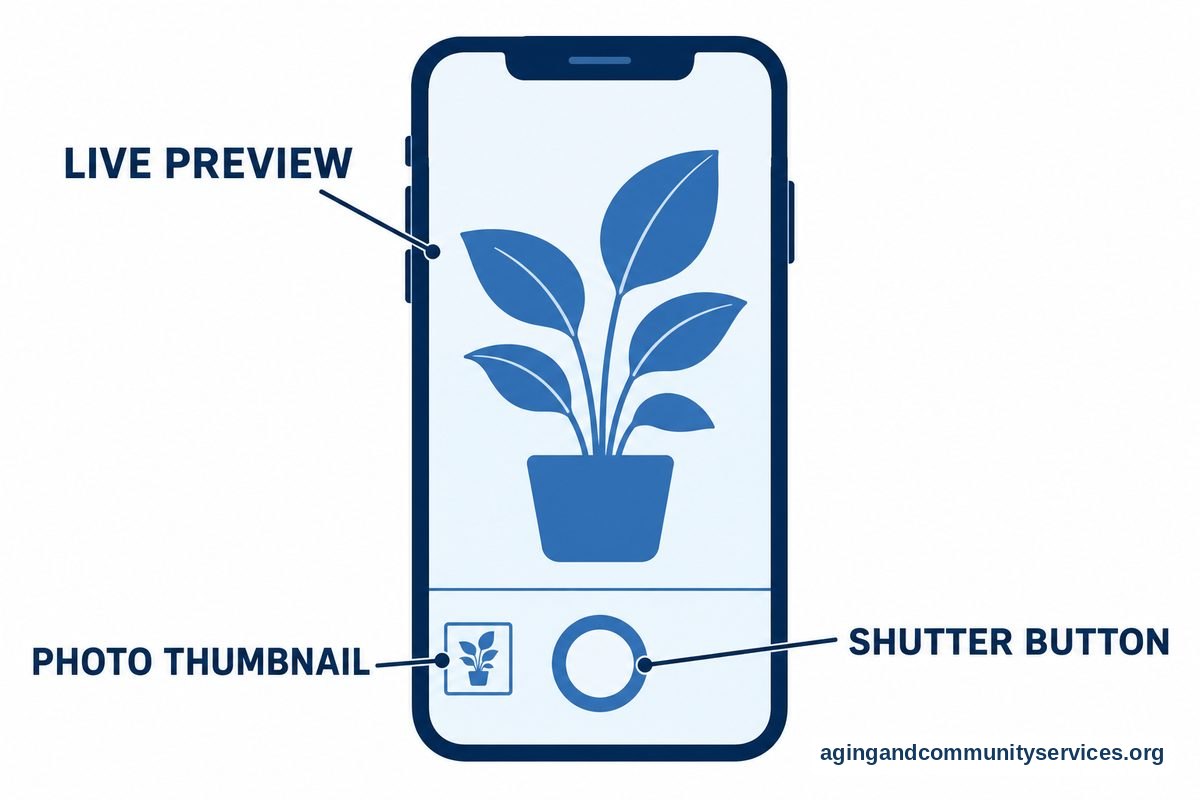
For photos, open Camera, point the phone, and tap the round shutter button. Photos are saved in the Photos app. A simple album for family, medical papers, home repairs, or recipes can make pictures easier to find later.
For appointments and daily tasks, Reminders can create simple prompts. For example, a reminder can say, “Call pharmacy,” “Take trash out,” or “Bring insurance card.” If health-related reminders are being used, they should support care instructions from a clinician, not replace them.
If the phone is being set up for the first time, a guide on iPhone setup can help with Apple ID, Wi-Fi, contacts, and basic choices. If the person needs a slower beginning, basic iPhone instructions may be a better first step.
Accessibility on iPhone for Easier Use
Accessibility on iPhone is a group of built-in tools that can make the phone easier to see, hear, touch, and understand. These settings are found in Settings, then Accessibility, and they can be turned on or off as needs change.
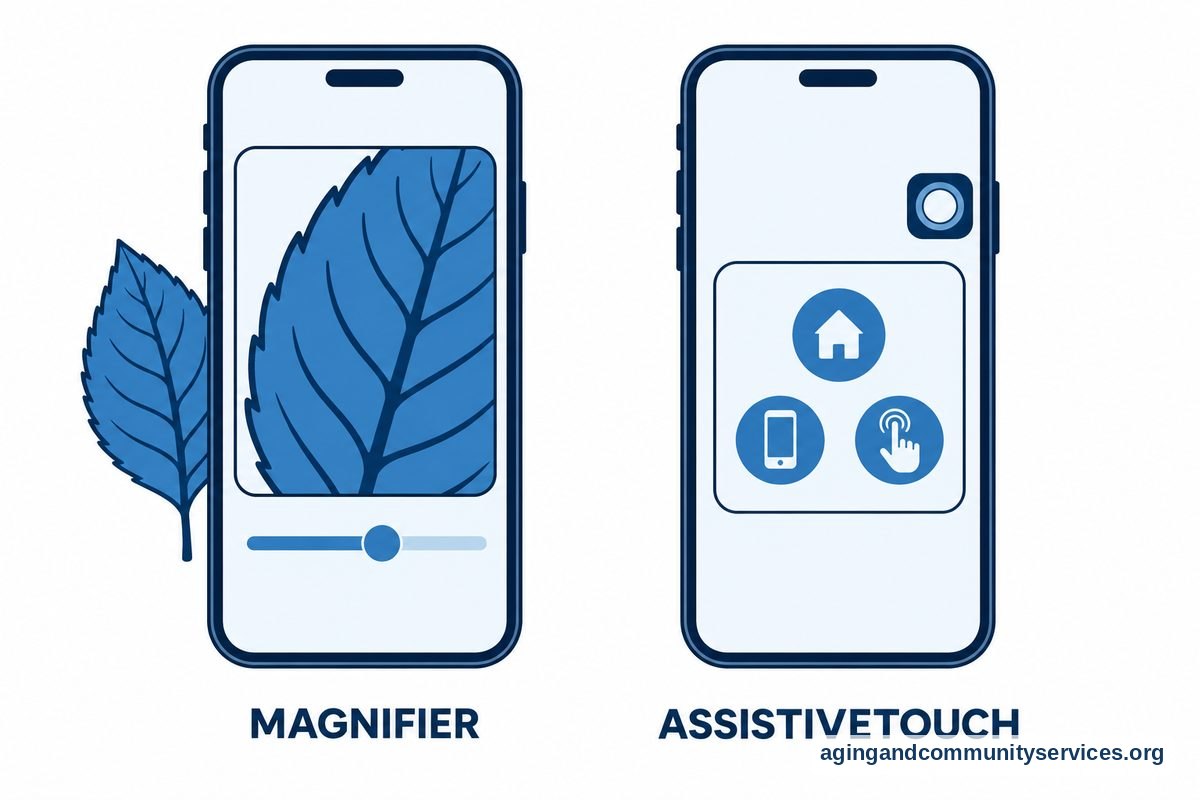
For vision, try Larger Text, Bold Text, Display Zoom, Increase Contrast, and Magnifier. Magnifier uses the camera to enlarge labels, menus, mail, and other small print. If reading the screen is difficult, Spoken Content can read selected text aloud.
For hearing, check volume, ringer settings, LED Flash for Alerts, Live Captions if available, and hearing device options. Also review ringtone and text tone choices. A clear, familiar sound can make alerts easier to notice.
For touch, look at Touch Accommodations, AssistiveTouch, and Back Tap. AssistiveTouch can place an on-screen button for common actions, which may help if pressing side buttons is difficult. If hand pain, tremor, or weakness affects phone use, an occupational therapist may offer practical suggestions.
For focus and simplicity, remove unused apps from the Home Screen, turn off extra notifications, and use Focus modes if alerts are distracting. A guide on how to make iPhone easy can help families choose fewer, clearer options.
Accessibility settings do not have to be perfect on the first try. Change one setting, use the phone for a while, and ask, “Did that make it easier?” If not, turn it off and try another option.
Helpful Apps and Settings to Consider
Built-in Apple apps are often enough for calling, texting, photos, reminders, maps, notes, weather, and video calls. Adding too many apps can make the phone harder to manage, so choose apps with a clear purpose.
Useful app types may include pharmacy apps, health system portals, transportation apps, banking apps, weather apps, and video chat apps. Each app should be set up with strong sign-in information, and a trusted helper should explain what information the app collects or shares.
For family connection, FaceTime can support video calls with people already in Contacts. For everyday planning, Calendar and Reminders may be easier than paper notes that can get lost. For reading, the Books app or library apps may be useful if the person already enjoys reading on a screen.
Families who want ideas can review apps for elderly and then choose only a few. The goal is not to fill the phone. The goal is to make the phone useful, calm, and easy to return to each day.
Safety-related features also deserve a slow review. Emergency SOS, Location Sharing, Find My, and Medical ID can be helpful when everyone understands how they work. The National Institute on Aging explains that exercise, home safety steps, and medication review can lower the risk of falls, and its guide to falls prevention can be a useful starting point for broader safety planning.
Frequently Asked Questions
What is the easiest way to learn how to use iPhone features?
Start with the three tasks used most often: making a call, sending a text, and finding the Home Screen. Practice those tasks several times before adding camera, reminders, FaceTime, or accessibility settings.
Where can I find iPhone help for seniors?
Good places to ask include a trusted family member, Apple support, a phone carrier store, a library class, or a local community program. Bring the phone, charger, Apple ID information if available, and a short written list of questions.
Which accessibility on iPhone settings should be tried first?
Try Larger Text, Bold Text, Display Zoom, louder ringtones, and Favorites in the Phone app first. These changes are simple and can make daily use easier without changing how the whole phone works.
How can I make the iPhone less confusing?
Keep only key apps on the first Home Screen, remove extra notifications, use Favorites for important contacts, and write down simple steps on paper. Avoid changing many settings in one sitting.
Can Siri help with daily iPhone use?
Yes. Siri can make calls, send texts, set timers, create reminders, and answer basic questions. Speak in short, clear phrases and check the screen to make sure Siri understood the request.
What should I do if the iPhone is locked or the password is forgotten?
Do not keep guessing if the phone warns that it may lock for longer. Contact Apple support or a trusted helper who understands Apple ID recovery, and have any account information ready before the call.