

Apps for elderly people can help with everyday tasks, staying in touch, reminders, reading, games, and getting around. The most useful app is not always the one with the most features. It is the one the person can open, understand, and use with confidence.
A good starting point is to choose a few apps that match real needs, then set them up slowly. Families can help by keeping the phone simple, using large text, removing clutter, and practicing one task at a time.

What Makes an App Easier to Use
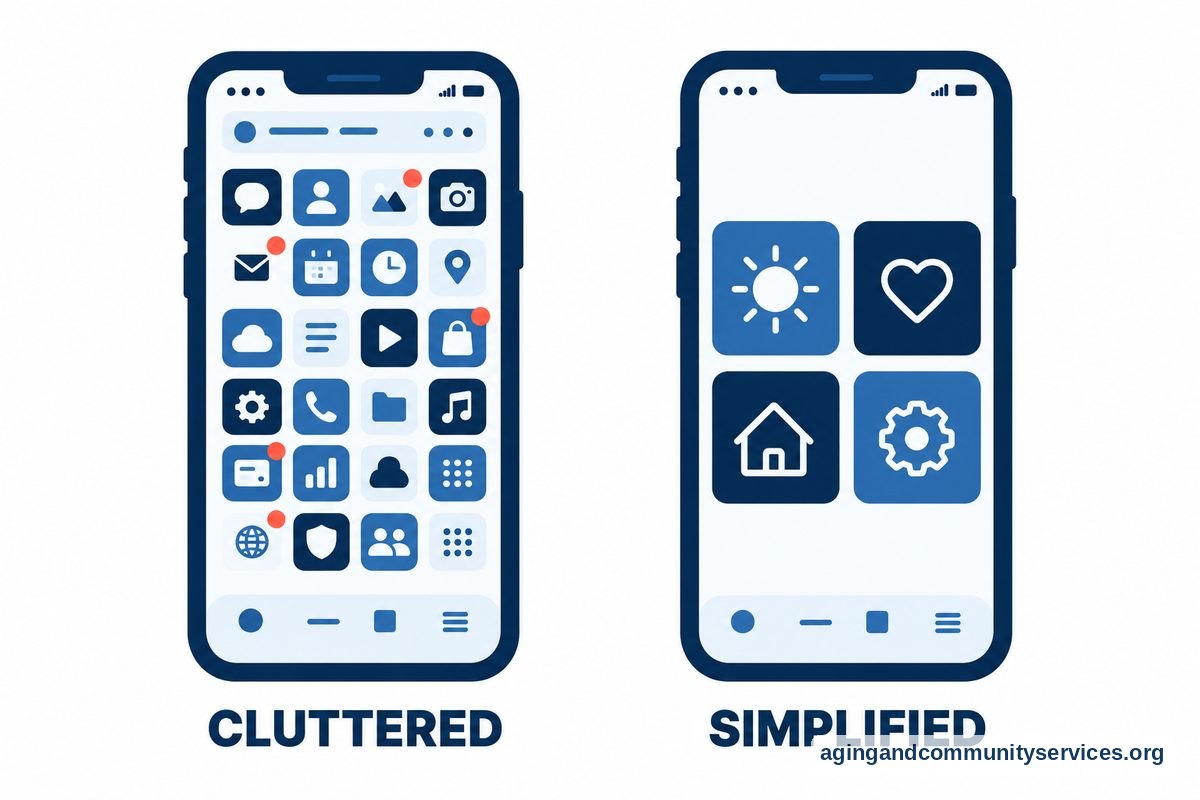
Many apps for older adults look helpful at first, but they can feel hard to use if the screen is crowded or the steps are not clear. Before adding anything new, look at how the app feels in the first few minutes.
Simple apps often have large buttons, clear words, strong color contrast, and fewer pop-ups. They also let the person finish a task without moving through too many screens.
- Clear purpose: The app should do one main job well, such as reminders, calls, photos, or games.
- Readable text: The words should be large enough without pinching or zooming.
- Few steps: Common tasks should take only a few taps.
- Low pressure: Avoid apps that push upgrades, alerts, or extra sign-ups too often.
- Easy recovery: It should be simple to go back if the wrong button is tapped.
If the phone itself feels confusing, it may help to simplify the device before adding more apps. A step-by-step phone setup guide, such as iPhone setup for elderly, can make the home screen easier to manage.
Helpful Types of Apps for Daily Life
The best apps for elderly parents are usually practical. They support things a person already wants to do, such as checking the weather, seeing family photos, or remembering an appointment.
Start with needs that come up often. If an app solves a small daily frustration, it is more likely to become part of a routine.
| App Type | How It Can Help | Setup Tip |
|---|---|---|
| Calendar and reminders | Helps track appointments, birthdays, errands, and daily tasks | Use simple labels and set alerts at helpful times |
| Video calling | Makes it easier to see family, friends, and caregivers | Add favorite contacts and practice answering calls |
| Photos | Gives quick access to family pictures and shared albums | Place the photo app on the first screen |
| Maps and rides | Can help with directions, saved addresses, or transportation plans | Save home and common destinations ahead of time |
| Notes and lists | Helps with shopping lists, questions for appointments, and simple reminders | Create one shared note for family tasks |
Video calls are often a high-value choice because they support connection without needing travel. If calls feel difficult, a simple guide to video calls for elderly can help families choose settings and practice.
Smart speakers can also support daily routines for people who prefer voice commands. For example, families exploring voice tools may want to read about Alexa for elderly parents before deciding what fits the home.

Communication and Connection Apps
Apps for senior citizens often focus on staying connected. Calls, messages, photos, and family calendars can reduce friction when someone wants to reach out or receive updates.
For many families, the goal is not to add more screen time. The goal is to make connection easier when it matters. A simple contact list, pinned favorites, and one main calling app may be better than several apps that do similar things.
- Put the most important contacts at the top of the phone or tablet.
- Use contact photos when possible, since faces can be easier to recognize than names.
- Turn off nonessential notifications so important alerts stand out.
- Practice one action at a time, such as answering a video call.
- Write down the steps in plain words and keep them near the device.
Messaging apps can be useful when family members share photos or short updates. Keep in mind that some apps change their layout often. If changes cause confusion, choose one main app and keep the routine steady.
Some people enjoy companion or conversation apps, while others prefer direct human contact. If you are comparing newer tools, this overview of an AI companion for elderly may help you think through comfort, privacy, and expectations.

Safety, Health, and Home Support Apps
Some apps help organize health information, home routines, and safety-related tasks. These tools should support good habits, not replace professional advice. For questions about symptoms, medicines, mobility, or falls, speak with a doctor, pharmacist, physical therapist, or occupational therapist.
Medication reminder apps can help someone remember when to take medicines, but they should be set up carefully. Use the exact directions from the medicine label or care team. A family member may also want to check that alerts are not being missed or dismissed by accident.
Fall-related apps and device features can be useful, but no app can remove all risk. The National Institute on Aging explains that exercise, vision checks, medicine reviews, and home changes can lower fall risk. A clinician can help decide what steps fit the person.
Home support apps may also help with grocery delivery, transportation, bill reminders, or household tasks. If someone wants to remain at home, the National Institute on Aging has a helpful overview of aging in place that can guide family conversations.
- Emergency contacts: Add trusted contacts and make sure they are easy to find.
- Medical ID: If the phone offers this feature, fill it out with care.
- Location sharing: Use it only with clear consent and shared understanding.
- Home lists: Keep repair, ride, pharmacy, and family contacts in one place.
Games, Reading, and Brain-Friendly Fun
The best apps for elderly games are the ones that feel enjoyable, not stressful. Games can offer quiet entertainment, friendly competition, or a pleasant routine. Choose apps that allow a relaxed pace and do not punish mistakes harshly.
Good options may include word games, card games, jigsaw puzzles, trivia, coloring apps, music apps, and audiobooks. Look for games with large print, simple controls, and the choice to turn off sound effects or timers.
Some people like games that connect them with family, such as shared word puzzles or turn-based card games. Others prefer solo play. Both are fine.
- Choose games without fast countdowns if speed feels stressful.
- Use paid or ad-light versions only if the person understands the choice and wants it.
- Place favorite games in one folder with a simple name like Games.
- Try one new game at a time before adding more.
- Remove games that create frustration, repeated errors, or unwanted pop-ups.
Reading apps can also be helpful, especially when they offer large type, audiobooks, bookmarks, and simple navigation. If the person has vision or hearing changes, ask an eye doctor, audiologist, or occupational therapist about settings and tools that may help.
Privacy, Scams, and Family Boundaries
Apps for elderly people should be chosen with privacy in mind. A useful app may ask for access to contacts, location, photos, microphone, or camera. Some access is needed for certain features, but not every request is necessary.
Before installing an app, check who made it, what permissions it asks for, and whether it shows many ads. Be careful with apps that ask for banking details, personal documents, or urgent action without a clear reason.
- Download apps from the official app store on the device.
- Use strong passwords and turn on two-step sign-in when practical.
- Keep recovery email and phone information current.
- Talk through location sharing before turning it on.
- Review subscriptions and permissions from time to time.
Family help should feel respectful. Ask permission before changing settings, reading messages, or adding tracking features. If support is needed, agree on what help is welcome and what stays private.
For broader device planning, a simple overview of technology for seniors can help families compare phones, tablets, smart speakers, and other tools without adding too much at once.
What You Can Do Next
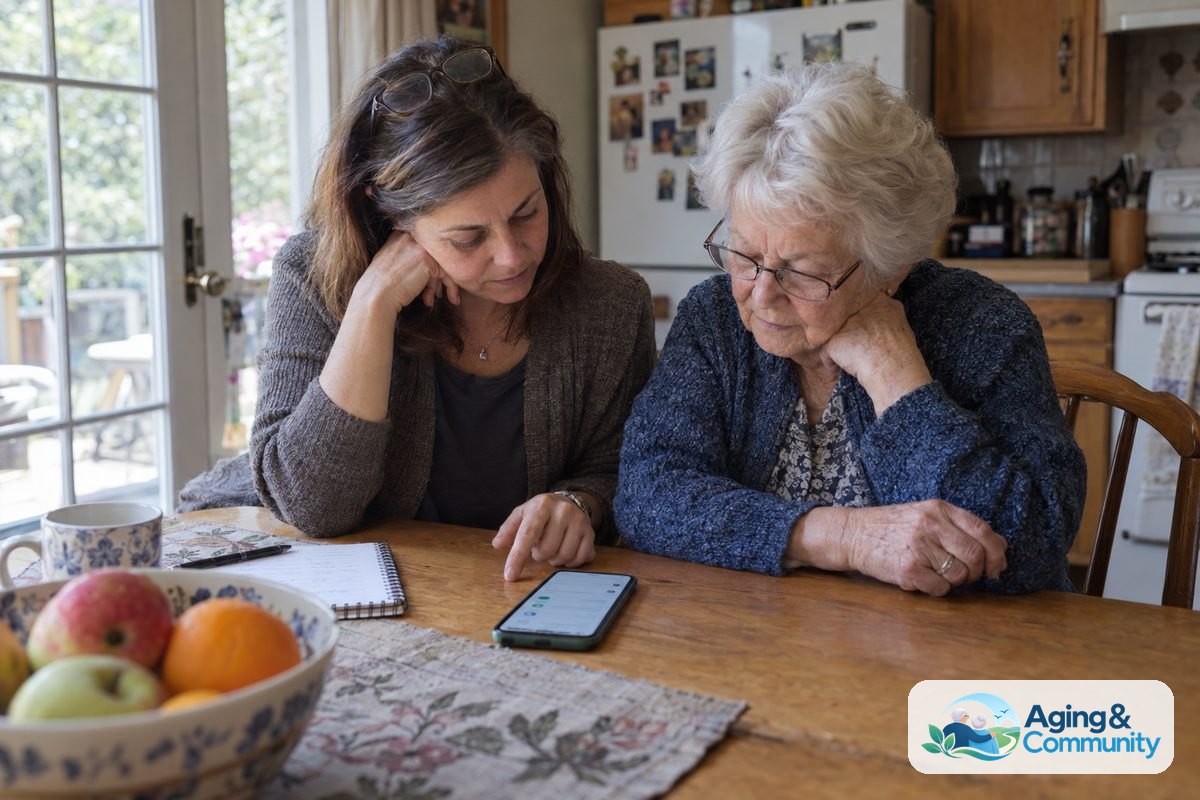
Start small. Pick one goal, such as easier video calls, reminders, games, or shared photos. Then choose one app that supports that goal and spend a little time setting it up together.
- Ask what feels useful: Begin with the person’s own priorities, not a long list of features.
- Clean up the home screen: Move the chosen apps to the first page and remove clutter.
- Adjust the display: Increase text size, raise contrast, and turn on helpful accessibility settings.
- Practice in short sessions: Repeat one task, such as answering a call or opening a reminder.
- Write simple steps: Use plain words, large print, and the same terms shown on the screen.
- Check in later: Ask what works, what annoys them, and what can be removed.
If daily tasks are becoming harder, consider asking an occupational therapist for ideas about phone setup, home routines, and adaptive tools. If the need is local support, transportation, meals, or caregiver resources, the Eldercare Locator can help connect families with services in their area.
Frequently Asked Questions
What are the best apps for seniors?
The best apps for seniors are usually simple, useful, and easy to repeat. Common choices include video calling, reminders, weather, maps, photos, notes, reading, and games. The right choice depends on the person’s comfort with technology and what they want help doing.
What are the best apps for elderly parents?
The best apps for elderly parents often support communication, reminders, shared calendars, transportation, and home routines. Families should set them up with consent and keep the number of apps small. It is better to have three apps used often than ten apps that feel confusing.
Are there apps for older people who are new to smartphones?
Yes. Many basic apps can work well for beginners if the phone is set up clearly. Use large text, simple icons, favorite contacts, and a clean home screen. Practice one task at a time until it feels familiar.
What are the best apps for elderly games?
The best apps for elderly games are easy to read, calm in pace, and not full of ads or pop-ups. Word games, card games, puzzles, trivia, coloring, and music games are common options. Choose games that feel fun rather than frustrating.
Is one app for elderly people enough?
Sometimes, yes. If one app solves the main need, such as video calling or reminders, it may be enough for now. More apps can be added later if the person wants them and feels comfortable.
How can I choose apps for the elderly without taking over?
Ask first, explain each change, and let the person make choices whenever possible. Offer help with setup, but avoid reading private messages or turning on sharing features without clear permission. Respect builds trust and makes the app more likely to be used.