

A video call for elderly family members can be simple when the device is easy to reach, the screen is clear, and the call steps are practiced. Start with one trusted app or device, set it up ahead of time, and keep the routine the same for each call.
The goal is not to make someone become a technology expert. The goal is to make face-to-face contact feel calm, familiar, and useful for everyday family life.
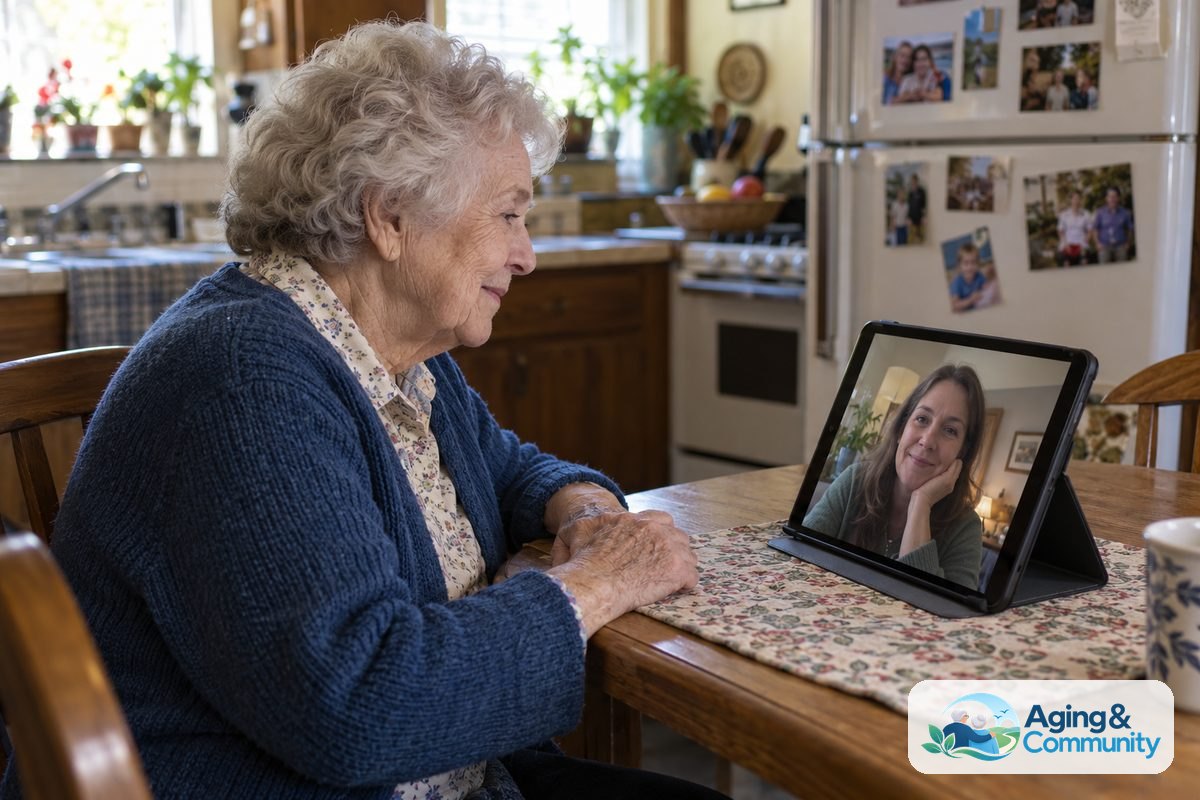
How to Set Up an Easy Video Call
- Choose one main device. Pick a tablet, phone, smart display, or video phone that matches the person’s comfort level. If they already use a phone well, start there before buying something new.
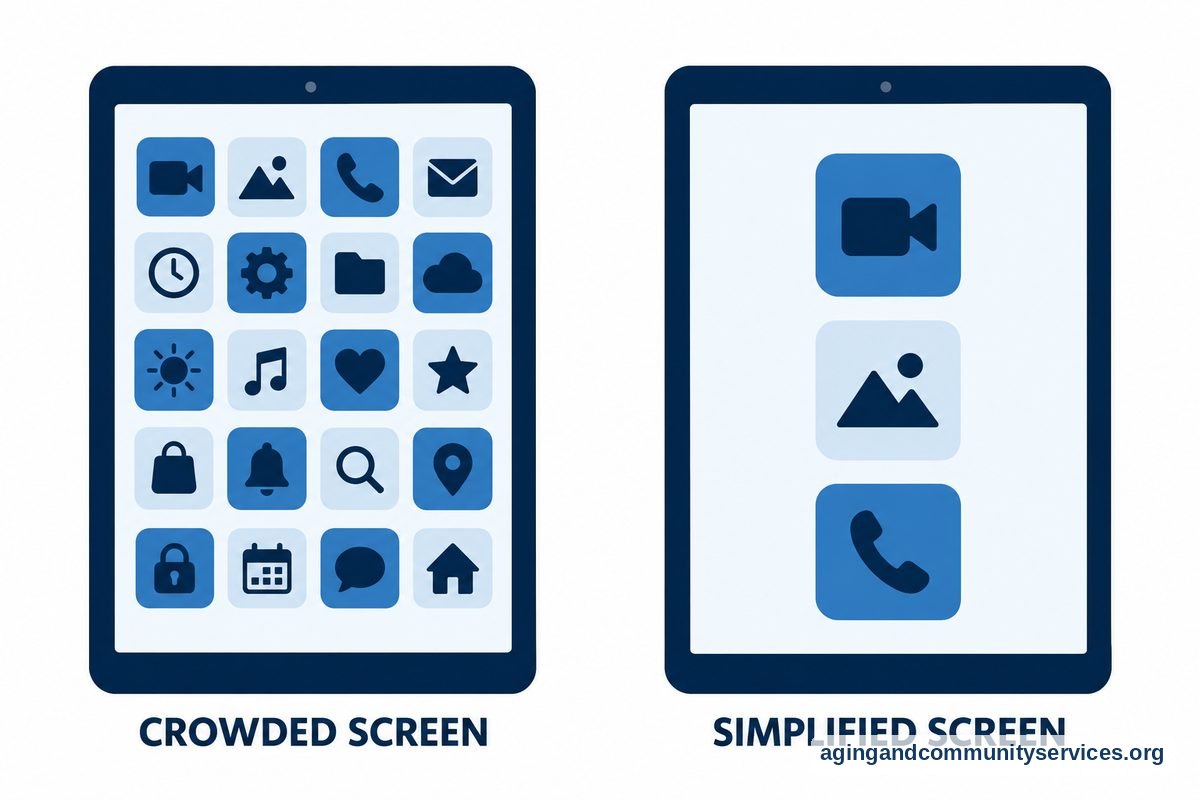
- Use the fewest steps possible. Put the video calling app on the home screen, remove extra clutter if you can, and use large text or large icons. A short printed note beside the device can help more than a long manual.
- Set up contacts ahead of time. Add family members, caregivers, and close friends with clear names and photos. Avoid nicknames that may be hard to remember during a call.
- Test the camera, sound, and lighting. Place the device where the face is lit from the front, not from a bright window behind them. Make sure the volume is loud enough without being harsh.
- Practice at a calm time. Do the first few practice calls when no one is rushed. Let the person answer, hang up, and call back so the steps become familiar.
- Create a regular calling routine. A set day and time can make video calls feel expected rather than confusing. Keep the call short at first, then adjust based on comfort.
- Write down a backup plan. If the video call does not work, the person should know whether to wait, call by phone, or ask a nearby helper. A backup plan lowers frustration for everyone.
If you are helping from a distance, it can help to review basic technology for seniors so you can choose tools that match real daily habits. Simple is usually better than powerful.
Common Mistakes to Avoid
- Choosing a device with too many features. Extra apps, small buttons, and pop-up alerts can make a simple call feel harder than it needs to be.
- Changing the setup often. Moving icons, switching apps, or changing passwords can undo the comfort built through practice.
- Skipping sound checks. Many video call problems are really volume, microphone, or speaker placement problems.
- Calling without warning at first. Until the routine feels normal, a quick phone call or message before the video call may help the person feel ready.
- Using poor lighting. A dark room or strong backlight can make faces hard to see, which may make the call less pleasant.
- Taking over too quickly. Give the person time to try the step before stepping in. Respect builds confidence.
When to Call for Help or Get Professional Advice
Call the device maker, phone carrier, internet provider, or app support if calls drop often, the camera will not turn on, the microphone does not work, or the device keeps asking for passwords. Tell them the device type, app name, internet setup, and what happens on the screen.
If vision, hearing, hand strength, memory, balance, or seating comfort makes video calling hard, ask a doctor, occupational therapist, or physical therapist what setup may be safer and easier. They can suggest practical changes, such as where to place the device, how to reduce reaching, or whether a stand, larger screen, or hearing support may help.
For home setup questions beyond the device, the National Institute on Aging has practical guidance on aging in place. If you need local support, transportation, caregiver resources, or help finding services, the Eldercare Locator can point you toward community options.
Choosing the Right Video Call Device
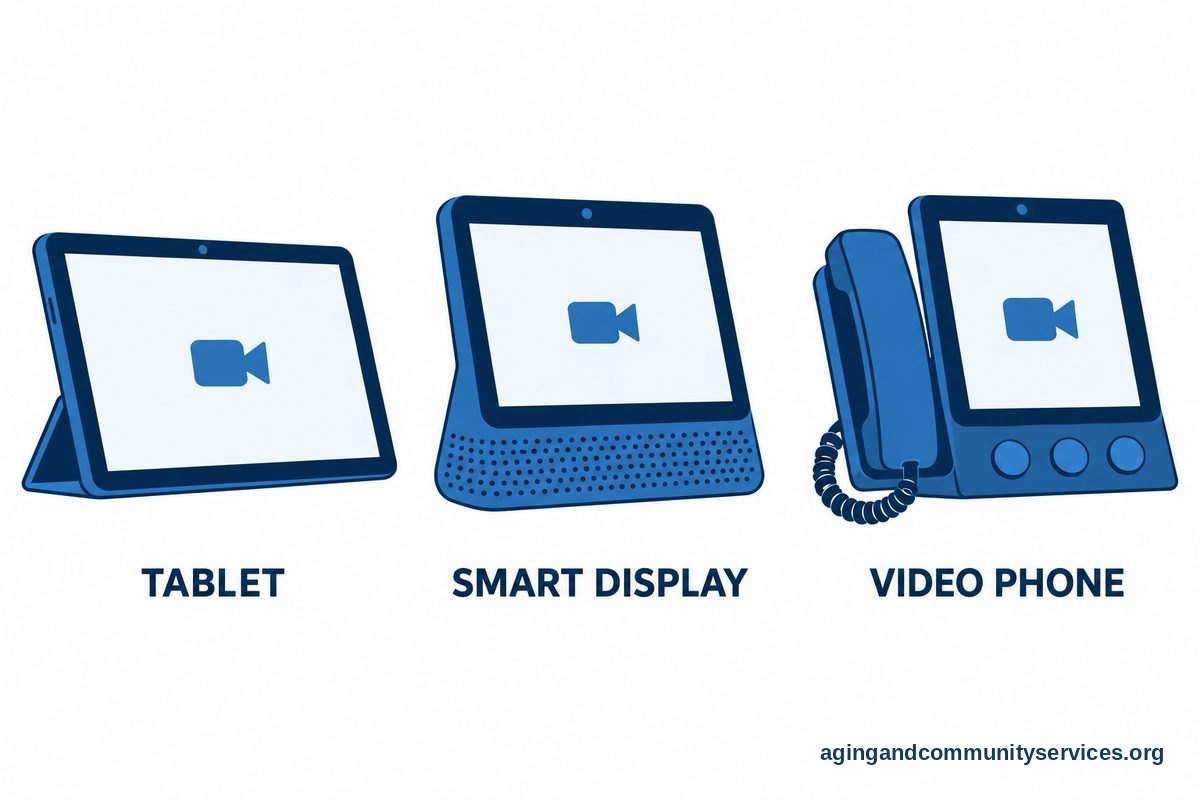
The best video call device for elderly family members is the one they can use with the least stress. For one person, that may be a tablet with a large screen. For another, it may be a video phone that works more like a regular phone.
A tablet can be a good choice when the person can tap a screen and keep the device charged. It can also support photos, messages, and reading. If you are comparing options, a guide to tablets for elderly parents may help you think through screen size, sound, and ease of use.
A smart display can work well when it stays in one place, such as a kitchen counter or side table. This can reduce the problem of a missing charger or a device left in another room. The main concern is privacy, so set it up carefully and explain what it does in plain words.
A video phone for elderly users may be worth considering when regular phone habits are strong. Some models use larger buttons, clear contact photos, or a simpler call flow. You can compare the idea with other video calling devices before deciding.
A regular smartphone may be enough if it is already familiar. You can make it easier by enlarging text, placing key contacts on the home screen, turning off unnecessary alerts, and using a sturdy case or stand. If the device is an iPhone, steps for setting up an iPhone can make daily use simpler.
| Device Type | May Fit Well When | What to Check |
|---|---|---|
| Tablet | The person likes a large screen and can tap icons | Volume, charging, stand, home screen layout |
| Smart display | The device can stay in one room | Privacy settings, placement, clear wake words |
| Video phone | The person prefers phone-like habits | Contact buttons, speaker volume, ease of answering |
| Smartphone | The person already uses it often | Text size, shortcuts, battery, notifications |
Making Video Calls Easier for Memory, Hearing, or Vision Changes
A video call for seniors with dementia or memory changes should be as predictable as possible. Use the same device, same chair, same contact names, and same call time when you can. Keep the call calm and short if attention fades.
For someone with memory changes, avoid asking too many setup questions during the call. Instead, say who you are, where you are, and why you are calling. A simple opening like, Hi Mom, it is Anna calling from home after lunch, can make the call feel more grounded.
For hearing changes, check volume before the call and reduce background noise on both ends. Speak clearly at a normal pace. If captions are available and the person likes them, turn them on and practice using them together.
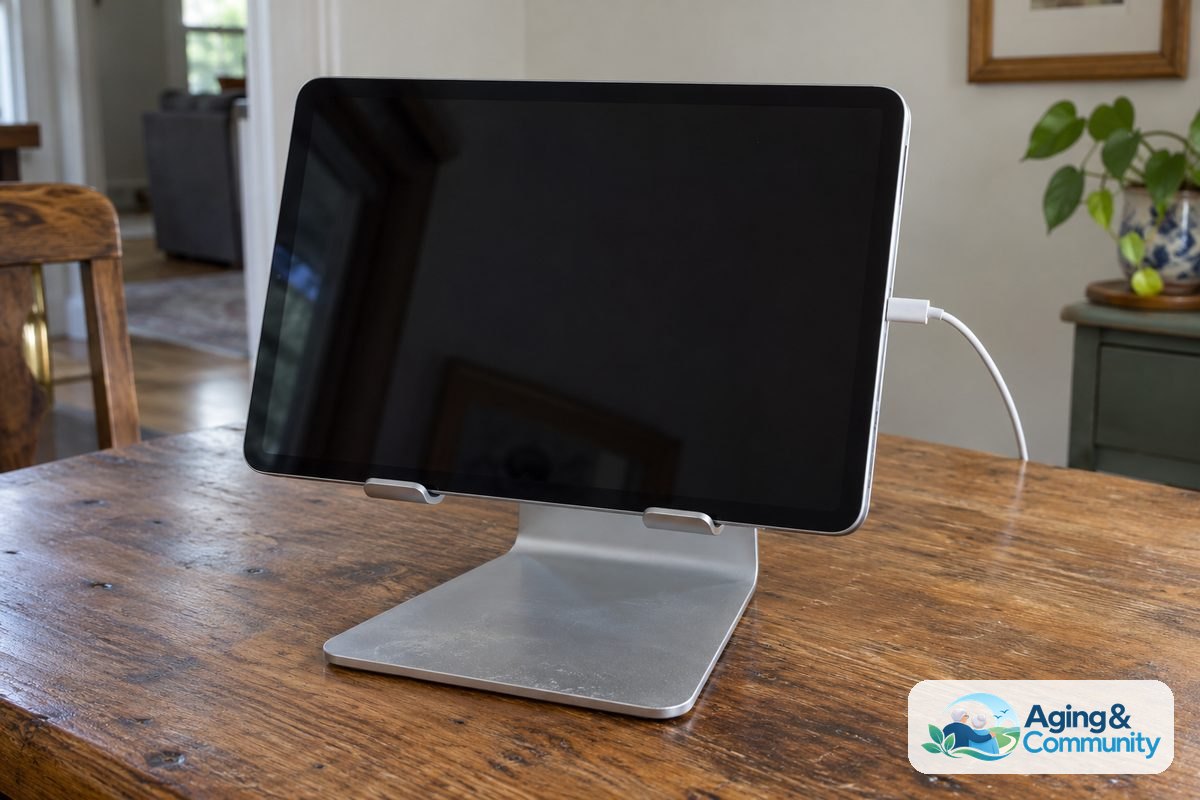
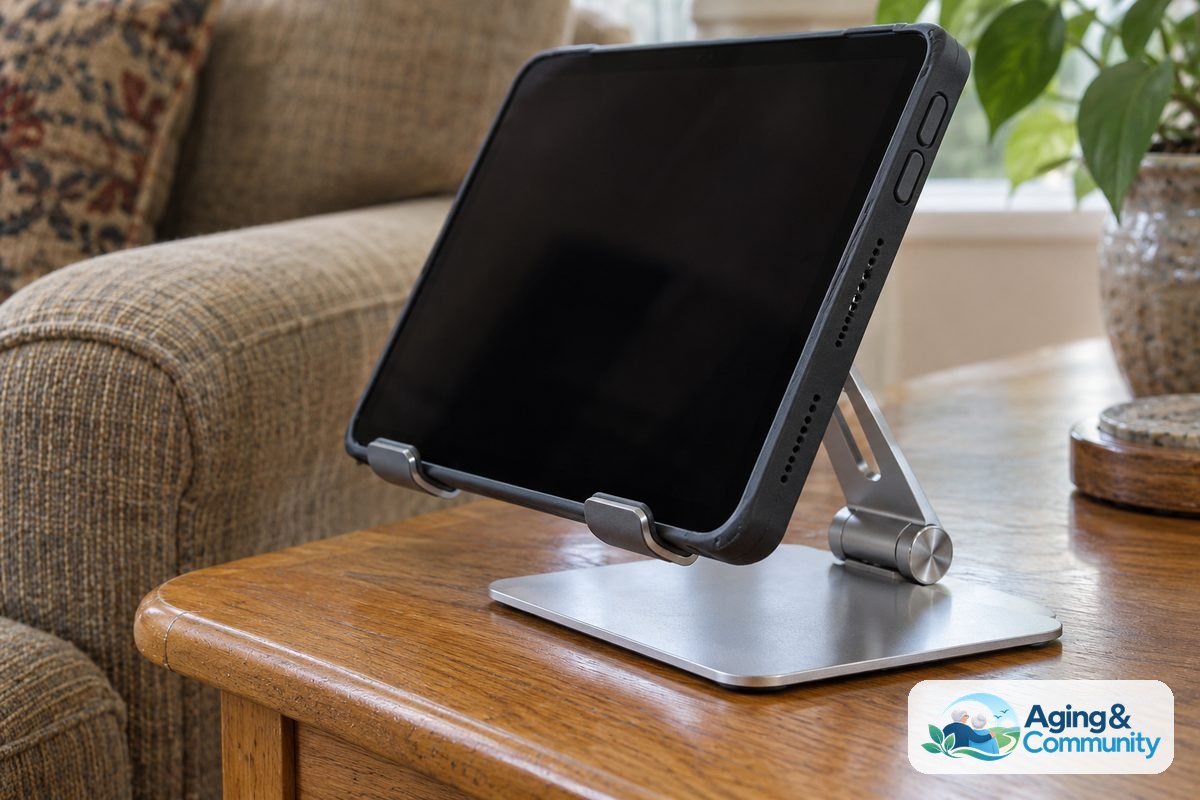
For vision changes, use a larger screen when possible. Increase text size, choose high-contrast contact photos, and place the device where glare is low. A stand can help keep the screen steady and at a comfortable angle.
For hand tremor, arthritis, or limited reach, a stable stand may be easier than holding a phone. If getting to the device creates a fall concern, ask a doctor, physical therapist, or occupational therapist about safer placement. The National Institute on Aging explains that home changes and strength or balance support can lower fall risk for some people.
If regular phone calling is still the easiest path, do not force video every time. A large-button phone for seniors may support daily contact, while video calls can be saved for special times. A simple guide to large-button phones can help if dialing is the main challenge.
Frequently Asked Questions
What is the easiest video call for seniors?
The easiest option is usually the one already connected to a familiar device. If the person uses a tablet or smartphone, simplify that device first. If they do not use touchscreens well, a smart display or video phone may be easier.
What is a good video call device for elderly parents?
A good device has a clear screen, loud enough sound, simple answering steps, and stable placement. It should also be easy for a helper to manage updates, contacts, and settings when needed.
How can I make video calls for seniors less confusing?
Use one app, one calling routine, and one written instruction card. Add contact photos, remove unused apps from the main screen, and practice when everyone is calm.
Is a video phone for elderly users better than a tablet?
It depends on the person. A video phone may feel more familiar if they are used to regular calls. A tablet may be better if they like a larger screen and can tap icons without trouble.
How do I set up a video call with elderly relatives from far away?
Ask someone nearby to help with the first setup if possible. Have them connect Wi-Fi, sign in, add contacts, test sound, and place the device where it can stay charged and easy to reach.
Can video calling for elderly relatives help family stay connected?
Yes, it can make everyday connection feel more personal because people can see faces, rooms, pets, and small moments. Keep expectations gentle, and use regular phone calls when video is not the right fit that day.