

Alexa for elderly parents can be a simple way to use voice commands for reminders, calls, lights, music, and daily routines at home. It works best when the setup is calm, limited to a few useful features, and paired with a clear backup plan for urgent needs.
Think of Alexa as a hands-free helper, not as a replacement for family, neighbors, caregivers, doctors, or emergency services. The goal is to make common tasks easier, especially for someone who may not want to use a phone or small screen all day.

How to Set Up Alexa for Elderly Parents
- Choose the right room first. Start with the room where your parent spends the most time, such as the kitchen, bedroom, or living room. One well-placed device is usually better than several devices that create confusion.
- Pick simple goals. Write down three things Alexa should help with, such as reminders, calls, and music. Keeping the first setup small makes it easier to learn and easier to trust.
- Use a clear account plan. Decide who will manage the app, settings, contacts, and reminders. If a family member is helping, make sure your parent knows what is being set up and agrees to it.
- Set up voice calling carefully. Add only trusted contacts at first, such as close family, a neighbor, or a caregiver. Test names that sound alike so Alexa does not call the wrong person.
- Create useful reminders. Good reminders may include taking out the trash, feeding a pet, drinking water, charging a phone, or getting ready for an appointment. For medicine, use reminders only as a prompt and ask a doctor or pharmacist about safe medication routines.
- Make commands easy to say. Choose short phrases like, Alexa, call Lisa or Alexa, remind me at 8. Put a small printed list near the device so your parent does not have to remember every command.
- Adjust sound and speech. Raise the volume, slow down responses if needed, and turn off features that interrupt too often. A calm device is easier to live with than one that talks too much.
- Add smart home features slowly. A smart plug or light can help with a lamp, fan, or radio, but add only one item at a time. If you are choosing broader tools, a plain guide to technology for seniors can help you compare options.
- Check privacy settings. Review voice history, purchasing controls, contact access, and drop-in settings. Explain what each setting does in plain words so your parent can make informed choices.
- Practice together. Sit with your parent and try the same few commands several times. End the session while things are going well, then practice again another day.

Common Mistakes to Avoid
- Setting up too many features at once. Too many skills, rooms, alerts, and smart devices can make Alexa feel like one more chore.
- Using nicknames that confuse Alexa. If several contacts have similar names, use full names or labels such as daughter Lisa.
- Relying on Alexa for emergencies. Alexa can help with calls and routines, but it should not be the only urgent help plan.
- Skipping consent and privacy talks. Your parent should know what calling, drop-in, announcements, and recordings mean before those tools are used.
- Forgetting the internet connection. Alexa needs power and Wi-Fi, so it may not work during an outage or connection problem.
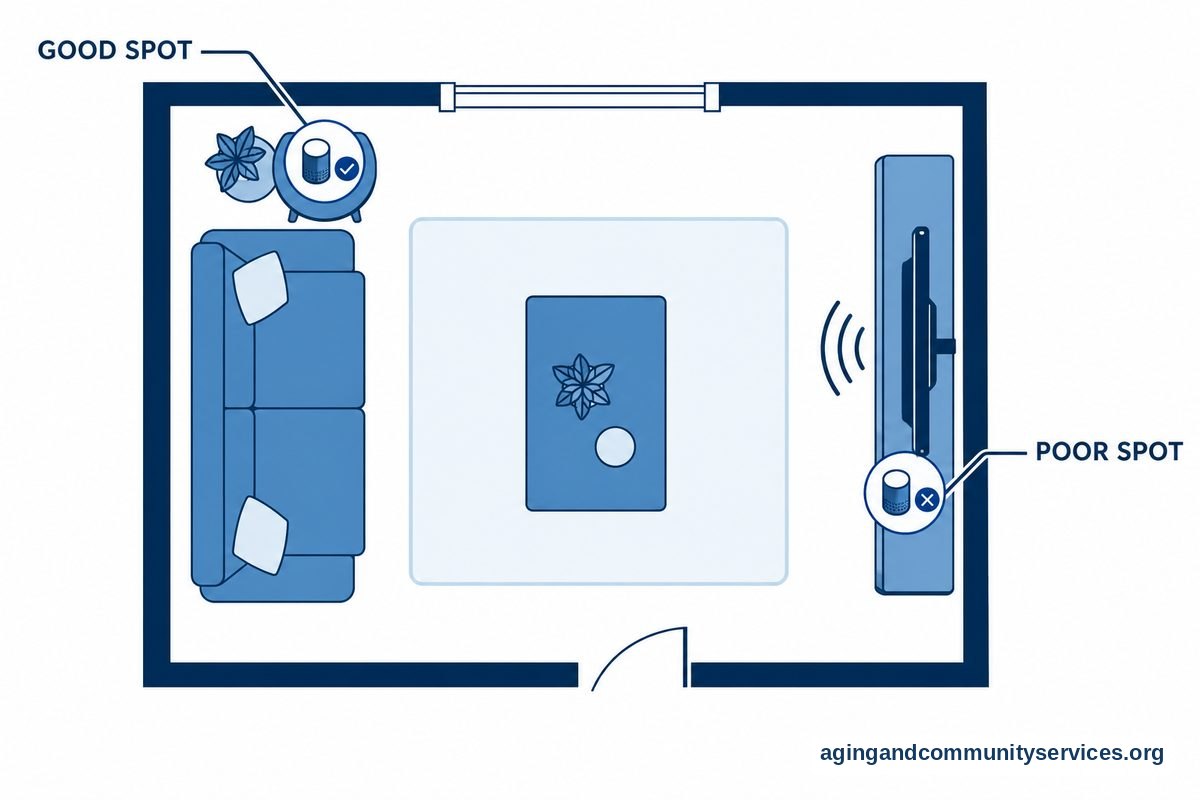
- Making the device hard to reach or hear. Place it where it can hear normal speech, but not right next to a loud TV, sink, or fan.
When to Call for Help or Get Professional Advice
Call the device maker support line or your internet provider if Alexa will not connect, keeps dropping Wi-Fi, cannot hear commands, or calls the wrong person. Tell them the device model, where it is placed, what you already tried, and whether the problem happens all the time or only in one room.
Call a doctor, pharmacist, physical therapist, or occupational therapist when the question is about medication routines, falls, memory changes, hearing, vision, or safe movement around the home. Alexa can remind someone to do a task, but a health professional should guide medical or safety decisions.
If the main concern is living safely at home, the National Institute on Aging has plain guidance on aging in place. For local support, rides, meals, home help, or caregiver resources, the Eldercare Locator can help families find services by area.
If falls are a concern, ask a doctor, physical therapist, or occupational therapist what changes are right for the home. The National Institute on Aging says steps such as reviewing medicines, checking vision, and making the home safer can lower the risk, and its guide to falls prevention explains those ideas in more detail.
What Can Alexa Do for Elderly Daily Life?
Alexa uses for elderly households are often most helpful when they support daily rhythm. Common uses include reminders, timers, weather, news, music, audiobooks, jokes, simple questions, shopping lists, and hands-free calls.
For many families, the most helpful feature is a reminder that speaks out loud. It can remind someone about laundry, meals, appointments, trash day, or a favorite show. It can also set repeating reminders, which is useful for weekly tasks.
Voice calling can be helpful when a phone is across the room or hard to use. Your parent can say a simple phrase to call a saved contact. If video calls matter, compare Alexa screen devices with other video calling devices so the screen size and controls fit the person.
Alexa can also control smart lights, plugs, thermostats, and some locks if those devices are set up correctly. A voice command for a lamp can reduce walking across a dark room, but it should be part of a wider home safety plan, not the whole plan.
Some families also use Alexa for shared calendars and gentle check-ins. For example, a family member may help set reminders for a visit, a ride, or a meal delivery. If you are exploring more tools like this, a guide to AI for the elderly can explain how voice assistants fit into a larger picture.
Alexa should not be treated as a full monitoring system. If your parent needs a wearable button, fall-related alert feature, or call center support, compare dedicated elderly alert systems and ask care professionals what level of support makes sense.
Best Alexa Device for Elderly Parents
The best Alexa for elderly parents depends on hearing, vision, comfort with screens, room layout, and what the device needs to do. There is no single right choice for every home.
| Device Type | Good For | Things to Consider |
|---|---|---|
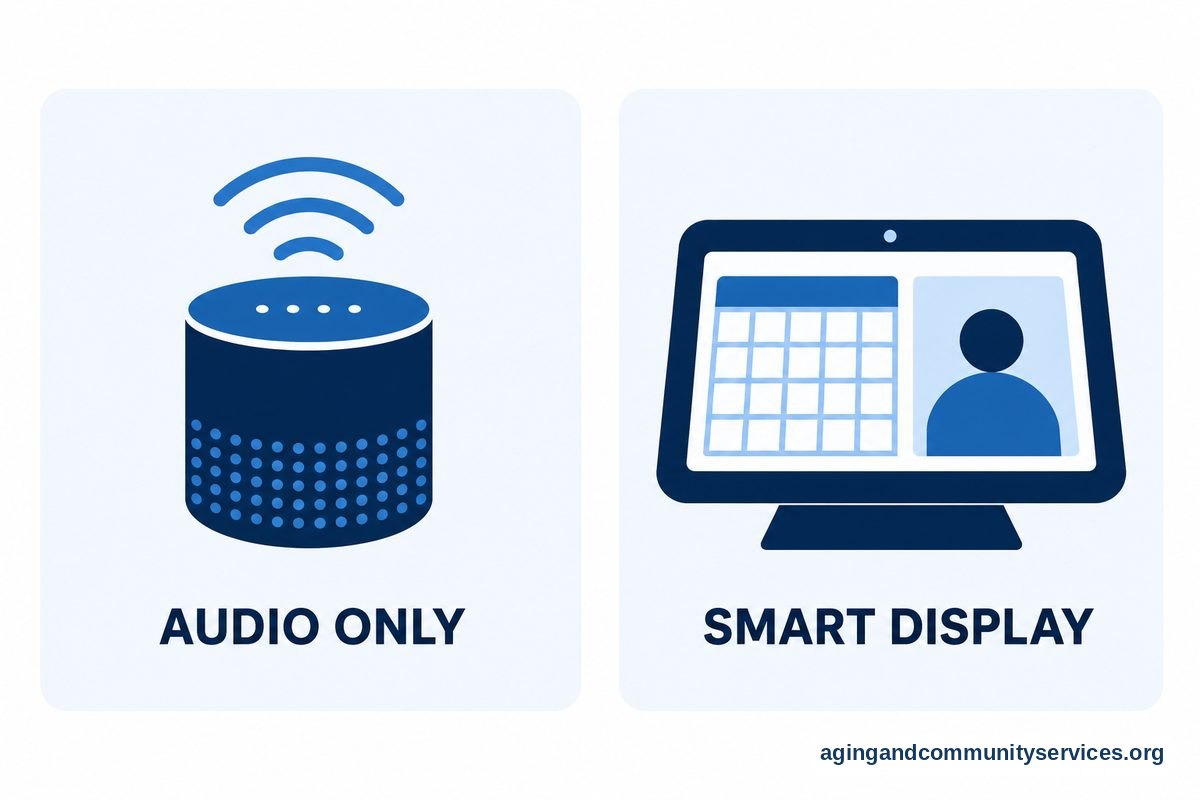
| Small speaker | Reminders, music, weather, timers, and simple calls | No screen, so it works best for someone who likes voice-only help |
| Larger speaker | Better sound for music, news, and hearing responses | Takes more space and may be more than needed in a small room |
| Screen device | Video calls, photo display, calendars, recipes, and visible reminders | The screen can help some people but distract others |
| Smart display with camera | Family video calls and planned check-ins | Privacy settings should be reviewed carefully |
If your parent has trouble hearing, a device with stronger sound may matter more than a screen. If they like seeing faces, recipes, photos, or large text, a screen device may be easier to enjoy. If they dislike screens, a simple speaker may feel calmer.
For a bedroom, consider whether the light from a screen will be bothersome at night. For a kitchen, think about noise from water, fans, and appliances. For a living room, place the device away from the TV so Alexa can hear speech clearly.
If the real need is family visibility, think carefully before using any camera feature. A camera can feel helpful to one person and intrusive to another. If you are comparing options, a guide to cameras to monitor parents can help you think through consent, placement, and privacy.
Alexa for Seniors Tutorial: Simple Commands to Practice
A short Alexa for seniors tutorial works best when it starts with only a few phrases. Practice in a quiet room, speak in a normal voice, and wait for the light or sound that shows Alexa is listening.
- Calling: Alexa, call Maria.
- Reminders: Alexa, remind me to take out the trash at 7 tonight.
- Timers: Alexa, set a timer for 10 minutes.
- Weather: Alexa, what is the weather today?
- Music: Alexa, play quiet music.
- Lists: Alexa, add milk to my shopping list.
After the first few commands feel easy, add one new use at a time. Keep a printed card nearby with the exact words to say. Large print, high contrast, and plain wording can make the card easier to use.
If Alexa often misunderstands, check for background noise, similar contact names, or a device placed too far away. You can also change the wake word if someone in the home has a name that sounds like Alexa.

Frequently Asked Questions
What can Alexa do for elderly parents?
Alexa can help with reminders, timers, music, weather, simple questions, lists, smart lights, and hands-free calls. It is most useful when it supports everyday routines and does not try to do too much.
How to use Alexa for seniors who are not comfortable with technology?
Start with one device, one room, and three commands. Practice together, use a printed command card, and avoid adding extra skills until the first uses feel familiar.
What is the best Alexa for elderly parents?
The best choice depends on the person. A simple speaker may be enough for reminders and calls, while a screen device may help with video calls, photos, calendars, and visible prompts.
Is Alexa for old people hard to set up?
Basic setup is usually simple for a family helper who is comfortable with a phone app and Wi-Fi. The harder part is choosing the right settings, contacts, privacy choices, and daily routines.
What are the most useful Alexa uses for elderly households?
The most useful uses are often reminders, timers, hands-free calling, music, weather, shopping lists, and smart lights. These features are practical and easy to practice.
Can Alexa replace an emergency alert system?
No. Alexa can help place calls or support routines, but it should not be the only plan for urgent help. If urgent response is a concern, talk with family, care professionals, and local support services about safer options.