

Many families want to monitor elderly at home with video calls because it helps them stay connected, check in gently, and notice everyday needs from a distance. A good plan is not about watching all day. It is about using short, agreed-upon calls to support comfort, safety, and independence.
Video calls can help a family member see if the lights are on, if meals look easy to reach, or if a loved one seems confused by the device. They also make it easier to share a smile, talk through a task, or decide when an in-person visit would be helpful.

Start With Consent and a Clear Purpose
Before setting up any device, talk about why video calls may help. The goal should be clear and respectful. For example, the purpose might be a morning hello, help with the TV remote, or a quick check after a missed phone call.
Ask what feels comfortable. Some people like scheduled calls. Others prefer a device that rings first and gives them time to answer. Privacy matters, even when family is trying to help.
- Agree on who may call.
- Choose the usual times for calls.
- Decide what counts as urgent.
- Write down backup steps if a call is missed.
- Review the plan after a few weeks.
It can help to say the plan out loud: “We will call after breakfast on weekdays. If you do not answer, we will call once more, then call a neighbor if needed.” Simple rules reduce worry on both sides.
If there are memory, vision, hearing, or mobility concerns, ask the person’s doctor, physical therapist, or occupational therapist what setup may be easier to use. They may suggest placement, seating, lighting, or other practical changes.
Choose the Right Kind of Video Call Setup
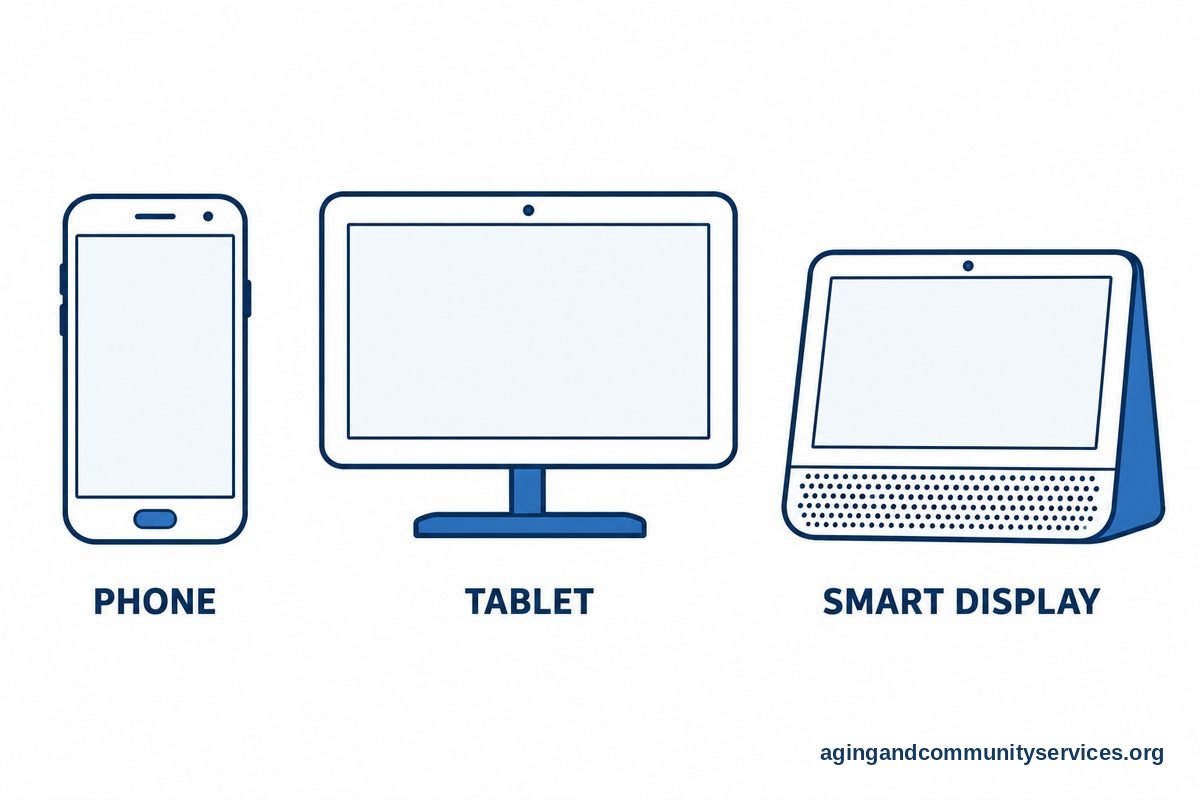
The easiest setup is usually the one your loved one can use without stress. A phone or tablet may be enough for people who already tap apps and answer calls. Others may do better with a display that stays in one place.
A dedicated video call device can be helpful when the person does not want to manage a small screen, charger, or many app icons. Look for a large screen, clear sound, simple controls, and a stable stand.
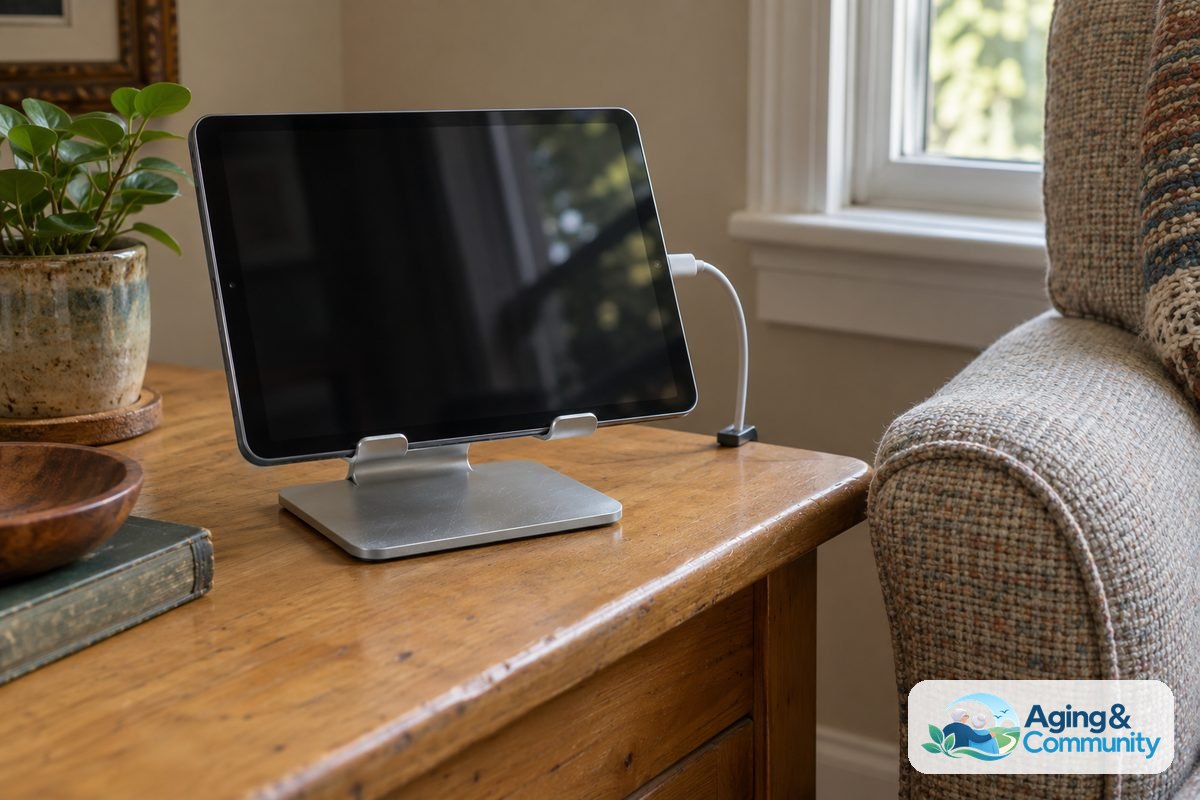
Some families use a smart display on a kitchen counter or side table. Others use a tablet in a charging stand. The device should be close enough for conversation but not placed in a private area like a bathroom or bedroom unless the person clearly asks for that.
| Setup | May Work Well When | Things to Check |
|---|---|---|
| Phone | The person already uses it often | Screen size, volume, charging |
| Tablet | A larger picture is helpful | Stand, Wi-Fi, simple home screen |
| Smart display | Hands-free calling is preferred | Privacy settings, call permissions |
| Camera system | The family needs room views by agreement | Consent, placement, alerts |
If you are comparing options, a guide to video calling devices can help you think through screen size, sound, and ease of use. The right choice is the one that fits daily life, not the one with the most features.
Make Video Calls Easy to Answer
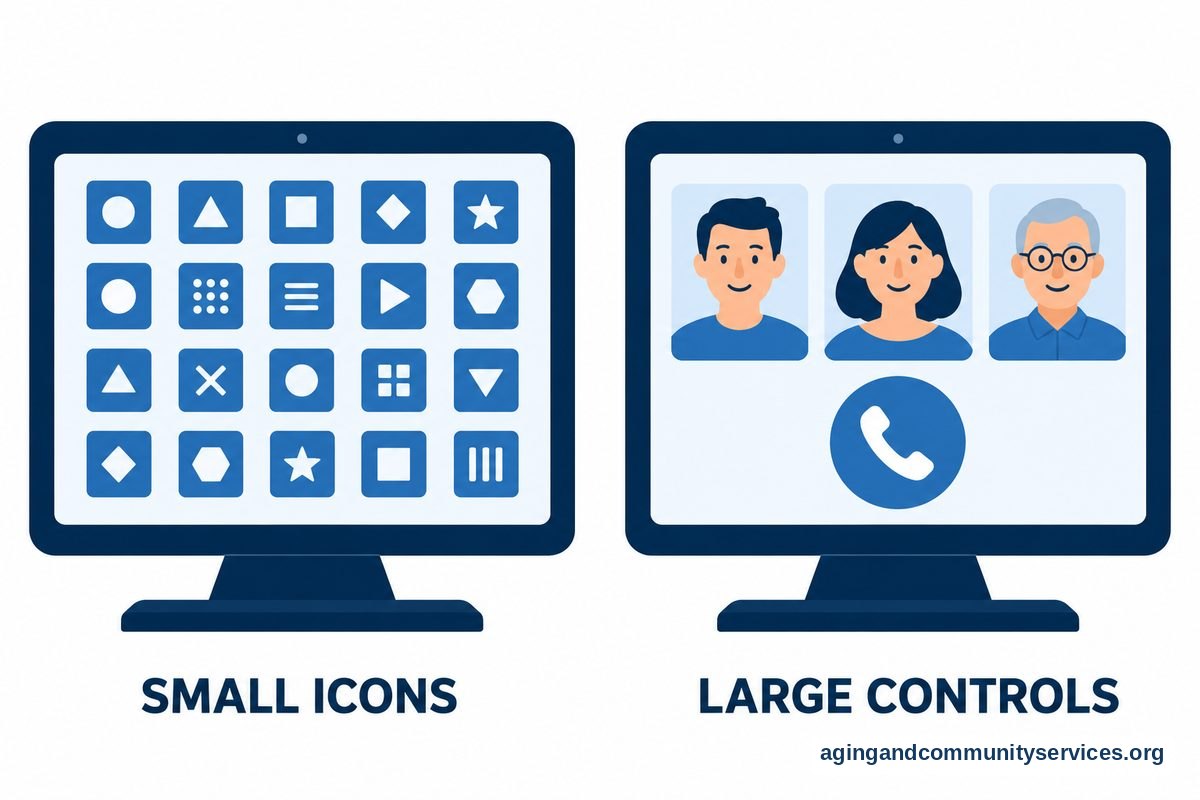
The best video plan can fail if answering the call is hard. Make the screen simple. Remove extra app icons if possible, turn up the volume, and place the device where it is easy to see and reach.
Practice together several times while you are in the home. Ask your loved one to answer, end the call, adjust the volume, and move the device if needed. Keep the practice calm and slow.
- Use large contact photos when possible.
- Label the charger and keep it plugged in.
- Set the device to stay awake during call times if allowed.
- Place written steps next to the device.
- Use a stand so the screen does not fall over.
Some families consider auto answer video calls when tapping a button is difficult. This feature should be used only with clear permission and careful settings. It should not feel like surprise watching.
If auto answer is used, limit it to trusted callers. Also agree on rooms where the device may be kept. A kitchen, living room, or favorite chair area is often more respectful than private spaces.
Use Video Calls to Notice Practical Needs
A video call is not a medical exam. It can, however, help a family member notice small household needs that are easy to miss by phone. You might see poor lighting, clutter in a walkway, or a meal that is hard to open.
The National Institute on Aging says simple home changes can lower the risk of falls, including removing clutter and improving lighting, as part of falls prevention. If you notice repeated balance concerns, new trouble moving around, or fear of walking, suggest speaking with a doctor, physical therapist, or occupational therapist.
Keep your check-ins friendly. Instead of asking many test-like questions, talk naturally while observing the setting. You can ask, “Is that new rug staying flat?” or “Would it help if I ordered a brighter lamp?”
- Look for clear walkways.
- Notice whether the room is bright enough.
- Check whether food, water, glasses, and phone are within reach.
- Ask if the device is still easy to hear.
- Notice if mail, laundry, or dishes are piling up more than usual.
If your loved one wants more help staying at home, the National Institute on Aging offers practical ideas for aging in place. Local support may also be available through the Eldercare Locator, which connects families with area resources.

Respect Privacy While Staying Connected
Video calls should feel like support, not surveillance. That means setting boundaries and honoring them. A person can accept help and still want private time.
Use scheduled calls when possible. If a family member wants an unscheduled check-in, call or text first unless there is an agreed plan for urgent situations. If the person says it is not a good time, respect that and try later.
For families thinking about cameras, it is wise to slow down and talk through the reason. A guide to cameras to monitor can help frame the choice, but the decision should still be based on consent, comfort, and local rules.
- Do not place cameras in bathrooms or changing areas.
- Tell visitors if a camera or video device is in use.
- Turn off recordings unless there is a clear reason and agreement.
- Limit access to trusted people.
- Review privacy settings often.
If several relatives want access, choose one or two main contacts. Too many callers can feel tiring. A shared schedule or family chat can reduce repeat calls and confusion.

Build a Simple Daily or Weekly Routine
A steady routine is easier than random check-ins. It also helps your loved one know what to expect. Start small, then adjust based on what feels useful.
For example, one family might do a short video call after breakfast on weekdays and a longer call on Sunday. Another family might call only after appointments or grocery deliveries. The routine should match the person’s energy and preferences.
A good routine includes a backup plan. If a call is missed, do not assume the worst. Follow the steps you agreed on, such as calling again later, calling a neighbor, or asking a nearby relative to stop by.
- Pick one main device and one backup device.
- Choose regular call times.
- Write down who calls first.
- Agree on what to do after a missed call.
- Check the plan each month and change what is not working.
If the person is new to video, a basic video call for elderly guide can help with first steps. Keep the learning pace slow. Praise what works, and avoid making the device feel like a test.
What You Can Do Next
Start with one calm conversation. Ask what kind of check-in would feel helpful, and listen for concerns about privacy, noise, or feeling watched. Write down the plan in plain words.
Next, set up the device in the room where your loved one spends comfortable daytime hours. Test the sound, lighting, and Wi-Fi. Sit where the person will sit and make sure their face is well lit without glare.
- Choose one main caller for the first week.
- Practice answering and ending a call together.
- Post simple written steps near the device.
- Set a regular time for the first few calls.
- Agree on what happens if a call is missed.
- Ask a doctor, physical therapist, or occupational therapist about home setup concerns when mobility, vision, hearing, or memory make daily tasks harder.
After a week or two, ask what feels good and what feels annoying. Change the plan as needed. The best system is one your loved one accepts and can live with comfortably.
Frequently Asked Questions
Can I use video calls instead of visiting in person?
Video calls can help you stay connected between visits, but they do not replace every in-person need. Some tasks, such as checking supplies, adjusting furniture, or helping with paperwork, may still need someone in the home.
Think of video as one part of a support plan. Combine it with visits, local help, and clear backup steps.
What is the easiest device for video calls at home?
The easiest device is the one the person can answer with the least stress. For some people, that is a tablet with a large button on the screen. For others, it is a smart display that can use voice commands or trusted-contact calling.
Before choosing, think about hearing, vision, hand strength, Wi-Fi, and where the device will sit. A simple setup usually works better than a feature-heavy one.
Is auto answer a good idea?
Auto answer can help when someone has trouble tapping the screen, but it needs careful consent. The person should know who can call, when it may happen, and where the device will be placed.
Use the narrowest settings possible. Limit access to trusted contacts and avoid private rooms.
How often should family do video check-ins?
There is no single right schedule. Some families do a brief daily call. Others do a few calls each week, plus extra calls after appointments or deliveries.
Start with a schedule that feels easy. If calls begin to feel tiring or intrusive, reduce them or change the time.
What if my loved one does not answer?
Follow the backup plan you agreed on. That might mean calling once more, trying a regular phone call, texting, or contacting a nearby helper.
Try to keep the plan practical and calm. Missed calls can happen because of naps, showers, dead batteries, or the volume being too low.
Can cameras be used to monitor at home?
Cameras can be used only when the person understands and agrees to the setup, and when local rules are followed. They should be placed only in shared living areas, not private spaces.
Many families find that scheduled video calls meet their needs with less privacy concern. If cameras are considered, write down who has access, whether recording is on, and how often the plan will be reviewed.