

A tablet for seniors can be easy to use when it has a clear screen, simple menus, loud sound, and help available when something goes wrong. The right choice is less about the fanciest model and more about comfort, confidence, and the tasks the person wants to do.
For many families, a tablet is a gentle way to support video calls, photos, reading, games, music, reminders, and online forms. This guide explains what to look for, what to avoid, and how to set up the tablet so it feels less confusing from the first day.

What Makes a Tablet Easy to Use?
An easy tablet should feel simple from the moment it turns on. The home screen should not be crowded, the icons should be large enough to see, and the person using it should not have to remember too many steps.
Look for features that reduce tapping, searching, and typing. A good tablet for daily use should make common tasks feel steady and repeatable.
- Large display: A bigger screen helps with reading, video calls, photos, and tapping the right button.
- Clear sound: Strong speakers and simple volume controls make calls, videos, and alerts easier to hear.
- Simple home screen: Fewer apps can make the tablet feel calmer and easier to learn.
- Voice help: Voice search and dictation can reduce typing.
- Adjustable text: Larger text and bold type can make menus and messages easier to read.
- Reliable support: Family members, local classes, or store help can matter as much as the device itself.
If you are comparing models, start with how the person will use it most. Someone who mainly wants video calls may need a stand, a wide screen, and easy calling apps. Someone who likes reading may care more about screen brightness, text size, and weight.
You can also compare general options in a guide to tablets for elderly people if you want a broader look at common choices and features.
Choose the Right Screen Size and Weight
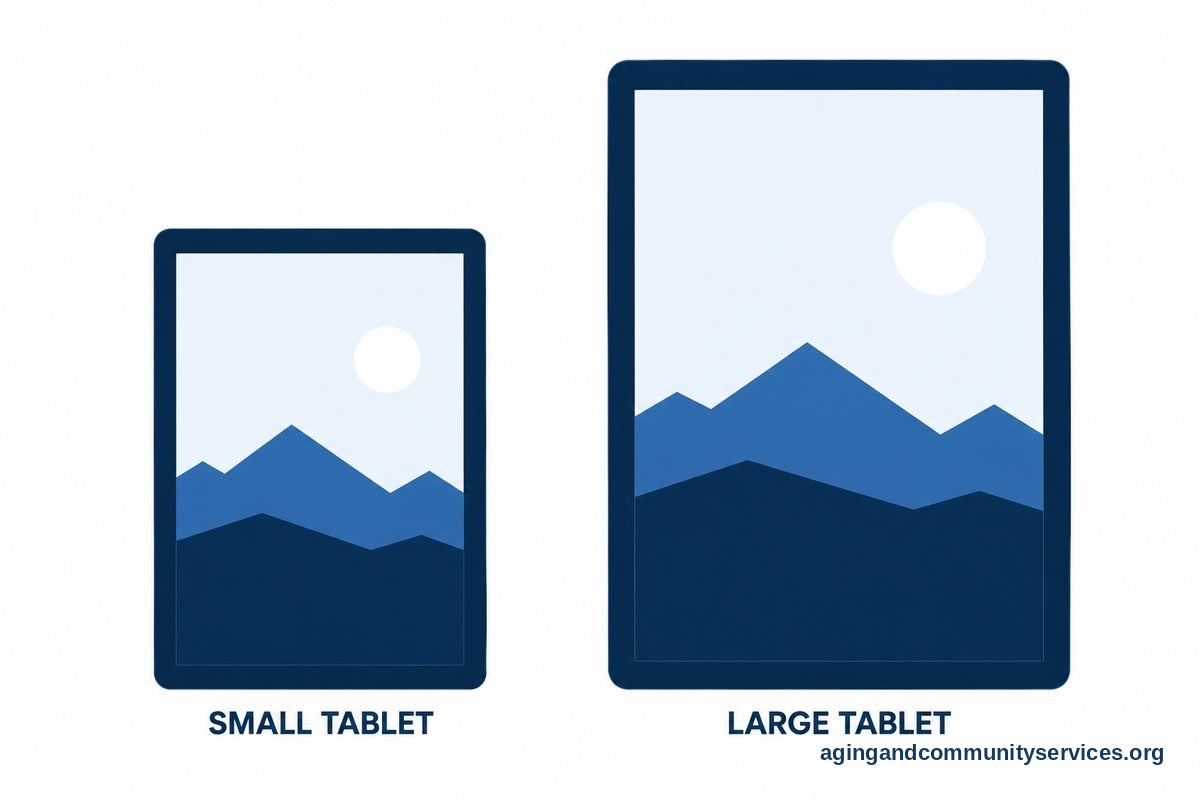
A tablet for seniors easy to use large screen can be helpful for reading, watching shows, seeing family on video calls, and using larger buttons. A larger screen can also reduce missed taps because there is more room between icons.
At the same time, a very large tablet may feel heavy during long use. If the person plans to hold the device while reading in a chair, weight matters. If the tablet will sit on a table or lap stand most of the time, a larger screen may be more comfortable.
Think about these questions before choosing a size:
- Will the tablet be held in one hand or used on a stand?
- Will it mostly be used at home or carried outside?
- Is reading small print hard, even with glasses?
- Will video calls be a main use?
- Does the person have trouble tapping small buttons?
A case with a built-in stand can make a big difference. It can hold the screen at a comfortable angle for reading recipes, joining a family call, or watching a video. A soft grip case may also make the device easier to hold.
If falls or balance are a concern while carrying or charging devices around the home, the National Institute on Aging shares practical home safety ideas in its guide to falls and fall prevention. For personal advice about mobility, hand strength, or safe setup, a doctor, physical therapist, or occupational therapist can help.
Set Up the Tablet So It Feels Familiar
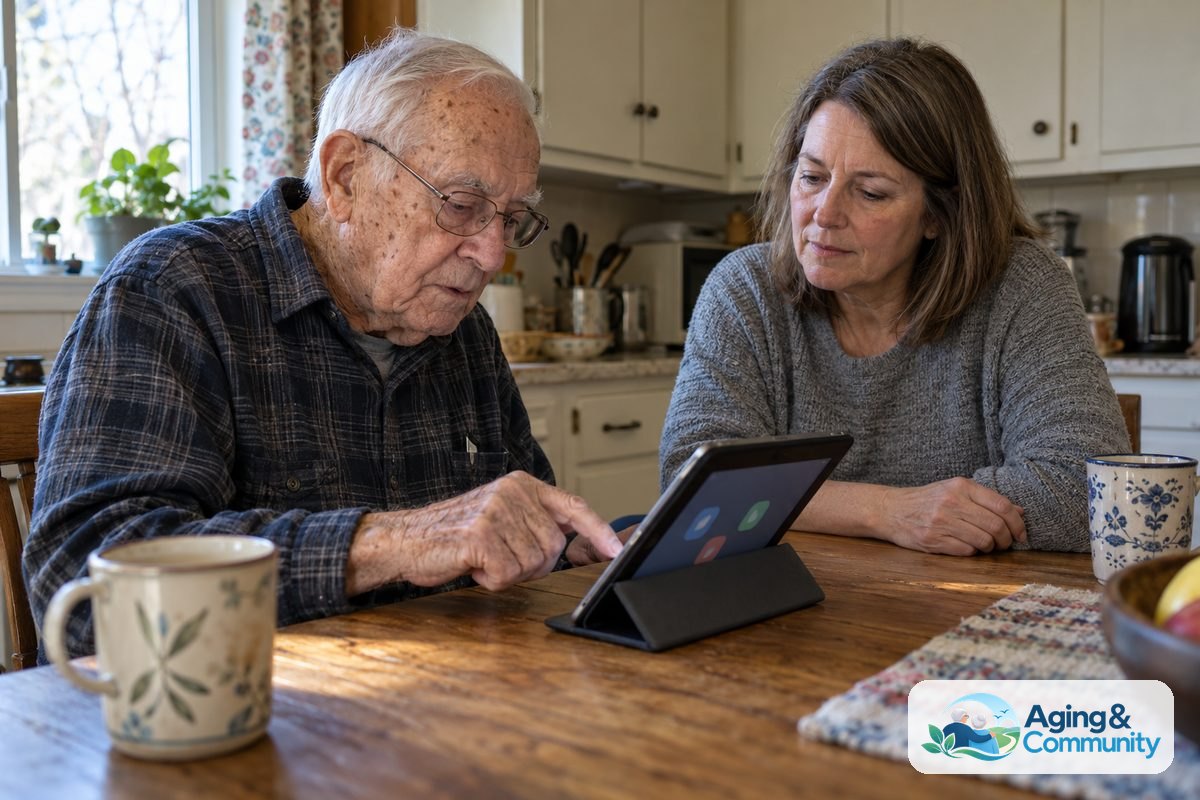
A tablet can be much easier to use after a careful setup. Do not leave every app on the home screen. Remove or hide anything that is not needed, and place the most important apps in the same area.
Start with a short list. For example, the home screen might include video calls, messages, photos, weather, email, books, and one game. Keeping the layout simple helps the person build a routine.
Helpful setup steps include:
- Increase text size and make text bold if needed.
- Turn on a simple passcode, face unlock, or fingerprint unlock if the person is comfortable with it.
- Move key apps to the first screen.
- Remove app alerts that are not useful.
- Add favorite contacts to the calling or messaging app.
- Set up cloud photo sharing if family photos are important.
- Turn on automatic updates if a helper can manage the account.
Write down the most common steps in plain language. A small card near the charging spot can say how to make a call, answer a call, turn up volume, charge the tablet, and return to the home screen.
For families helping a parent, a guide to tablets for elderly parents can help you think through support, setup, and daily use from the helper side.
Match the Tablet to Daily Activities
The best tablet is the one that fits the person’s real life. A device used every day for small, pleasant tasks is often more useful than one with many features that never get opened.
Make a list of the main reasons for buying the tablet. Then choose features around that list. This keeps the decision focused and avoids paying attention to things that may not matter.
| Daily Need | Helpful Tablet Features |
|---|---|
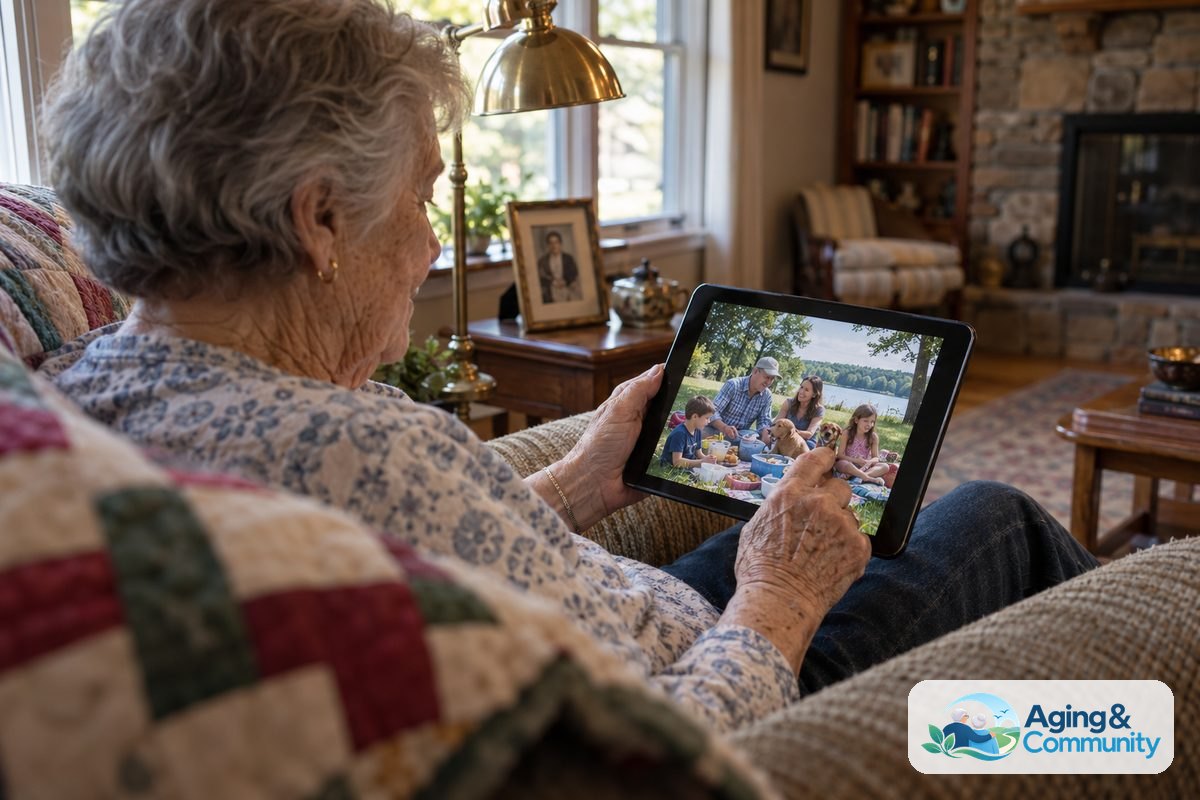
| Video calls with family | Large screen, strong speaker, front camera, simple calling app |
| Reading books or news | Adjustable text, bright screen, comfortable weight, reading app |
| Photos and memories | Easy photo sharing, large storage, simple gallery app |
| Games and puzzles | Large icons, clear colors, responsive touch screen |
| Email and forms | Voice dictation, larger keyboard, password help |
| Music and videos | Clear speakers, simple volume buttons, stand case |
If the person already uses a phone, choosing a tablet from the same brand may make learning easier. The menus, app store, and account may feel more familiar. If the person does not use a smartphone, a simpler tablet setup may be more important than matching a brand.
Some families also look at wider technology for seniors options, such as smart speakers, easy phones, or video calling screens. A tablet is only one choice, and the right answer depends on comfort and support.
Look for Comfort, Safety, and Support Features
A tablet for the elderly should be comfortable to hold, easy to charge, and simple to fix when something goes wrong. Small frustrations can stop regular use, so support features matter.
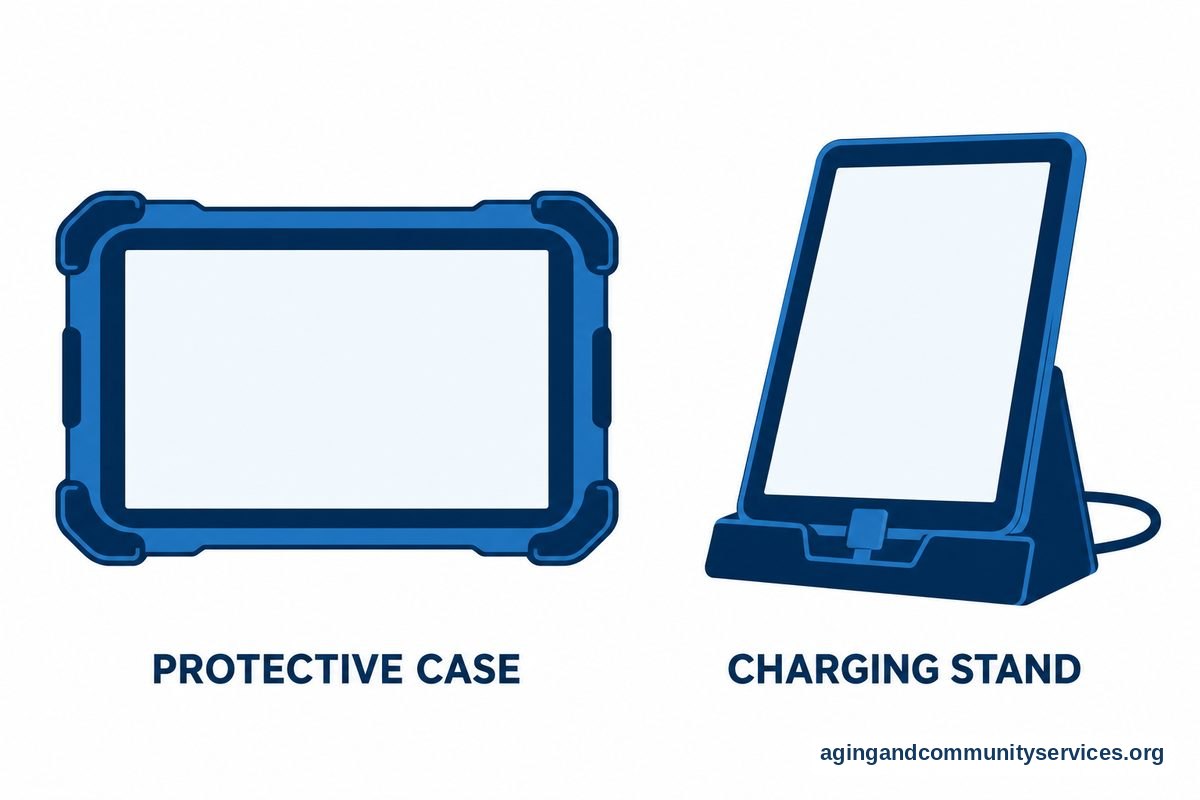
Charging is a common issue. A charging stand or clearly marked cable can help. Place the charger where it is easy to reach, but not where the cord crosses a walking path. The National Institute on Aging also offers helpful ideas for aging in place, including ways to make home routines safer and easier.
Consider these support features:
- Remote help: A trusted family member may be able to help with settings or app issues from another location.
- Simple passwords: Use secure passwords, but keep a safe written record where the right helper can find it.
- Protective case: A sturdy case can reduce damage from everyday drops.
- Screen protector: This can help protect the glass and may reduce worry about using the device.
- App limits: Hiding unused apps can reduce confusion and accidental taps.
Be careful with pop-ups, ads, and messages asking for personal information. Set up trusted contacts and explain that it is okay to pause and ask for help before sharing passwords, account numbers, or payment details.
If memory loss or confusion is part of the situation, the tablet may need a more limited setup with fewer choices on screen. A focused guide to a tablet for seniors with dementia may help families think through simpler layouts, supervision, and routines. For health-related concerns, speak with a doctor or occupational therapist for guidance that fits the person.
Compare Popular Tablet Types Without Getting Overwhelmed
You do not need to understand every technical detail to choose well. It helps to compare tablet types by how easy they are to learn, how many apps they offer, and how much support is available.
Many people choose from three broad groups. One type may work better if the person already uses the same brand of phone. Another may be better for simple reading, videos, and web browsing. The right choice is the one that feels least frustrating.
- Full-feature tablets: Good for calls, photos, email, games, reading, and many apps. They may take more setup.
- Simple media tablets: Good for reading, shows, music, and basic web use. They may have fewer advanced options.
- Large-screen tablets: Good for people who want bigger text, bigger buttons, and easier video calls. They can be heavier.
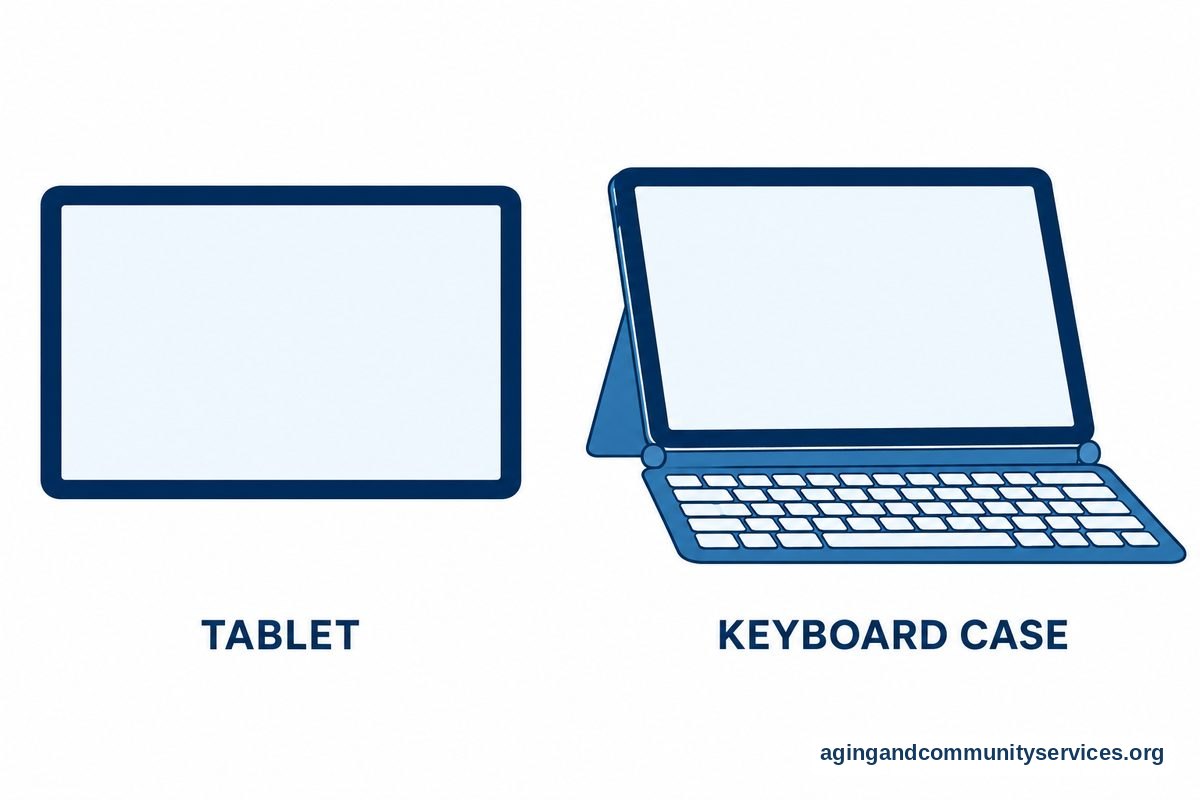
- Tablet with keyboard case: Good for email, writing, or forms. It may add weight and extra parts to manage.
If the person wants to learn at a gentle pace, a printed guide can help. Some families find that an iPad for seniors book gives step-by-step support that can be reviewed as often as needed.
Before buying, try to see the tablet in person if possible. Hold it, open a few apps, adjust the text, and test the volume. If it feels awkward in the hand or the screen seems too busy, keep looking.
What You Can Do Next
Start with the person, not the device. Ask what they want the tablet to help them do. A short, clear list will make the choice easier and more respectful.
- Write down the top three uses, such as video calls, photos, reading, or games.
- Choose a screen size that is easy to see and comfortable to hold or place on a stand.
- Pick a tablet that a trusted helper knows how to support.
- Set up only the needed apps on the first screen.
- Increase text size, simplify alerts, and save favorite contacts.
- Practice one task at a time, such as answering a video call.
- Keep written steps near the tablet and charger.
If local help is needed, the Eldercare Locator can help connect families with community resources. You can also ask a library, senior center, or community education program whether they offer basic tablet classes.
Give the learning process time. A short practice session every few days is often better than one long lesson. Celebrate small wins, such as sending a message, opening a photo, or joining a call without help.
Frequently Asked Questions
What is the best tablet for seniors easy to use?
The best choice is usually the tablet that matches the person’s daily needs and has support nearby. Look for a clear screen, loud sound, simple settings, large text, and a home screen with only the most useful apps.
What should I look for in a tablet for elderly easy to use?
Look for easy charging, large icons, clear volume controls, voice typing, and a protective case. Also consider who will help with passwords, updates, and app questions.
Is a tablet for seniors easy to use large screen worth it?
A large screen can be worth it if the person reads often, uses video calls, watches shows, or has trouble tapping small buttons. If the tablet will be held for long periods, check the weight before choosing.
How do I set up a tablet for seniors?
Start by increasing text size, placing key apps on the first screen, saving favorite contacts, and turning off unneeded alerts. Add a written cheat sheet with steps for calling, charging, and returning to the home screen.
What is a good tablet for the elderly who only wants video calls?
Choose a tablet with a large display, clear speaker, simple calling app, and a sturdy stand case. Set the calling app on the home screen and practice answering a call several times.
Can a tablet for seniors be too complicated?
Yes, if too many apps, alerts, passwords, and settings are added at once. A simple setup, patient practice, and reliable help can make the same tablet feel much easier to use.