

A tablet for senior citizen use should be easy to hold, simple to read, and clear enough for video calls, messages, games, photos, and web browsing. For many people, the right choice is either a basic iPad or an Android tablet with a large screen, strong battery life, and a clean home screen.
The best tablet is not always the most advanced one. It is the one the person will actually use with comfort and confidence. This guide explains what to look for, how iPads and Android tablets compare, what to know about free tablet programs, and how to set up a tablet so daily use feels easier.

What Makes a Tablet Easier to Use
A good tablet for everyday use should reduce steps, not add them. Look for a screen that is large enough to read without strain, but not so large that it feels heavy. A tablet that feels comfortable in the hands is more likely to be used often.
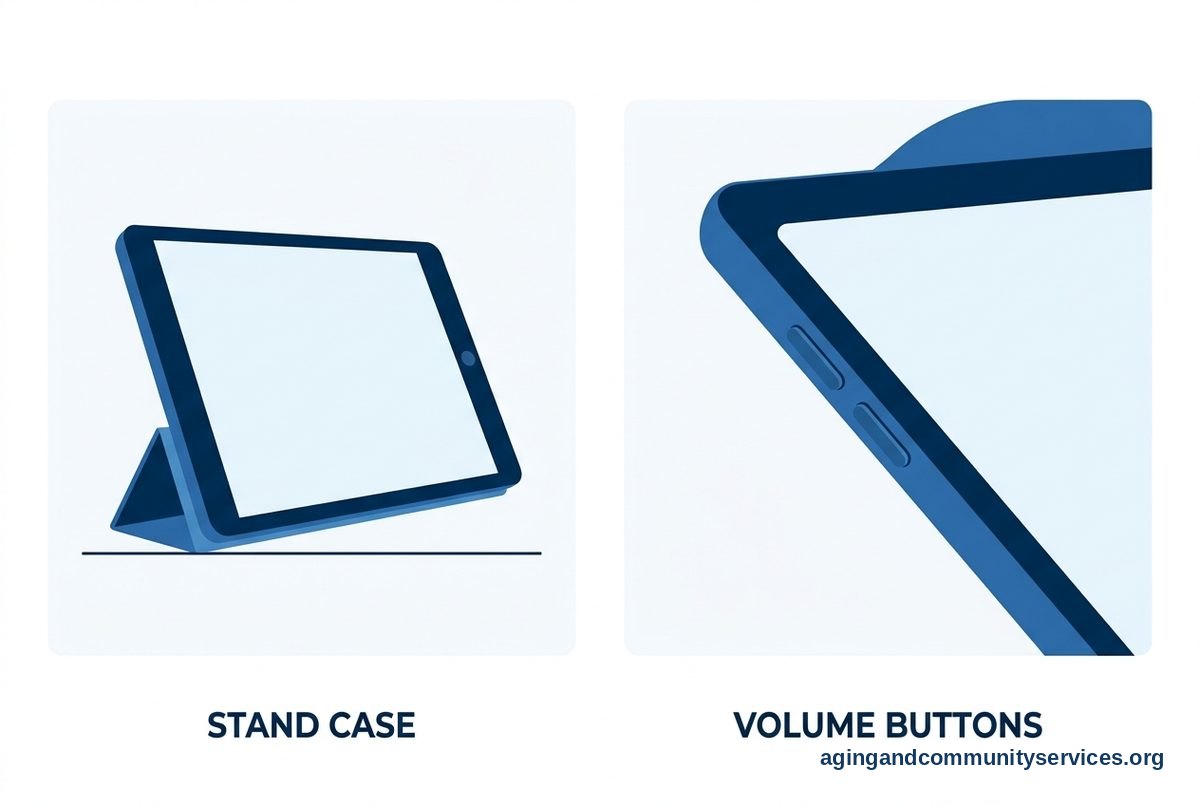
Simple controls matter. A clear home screen, large app icons, and easy volume buttons can make a big difference. Some people also prefer a physical case with a stand, so the tablet can sit on a table during video calls or while watching a show.
- Screen size: A larger screen helps with reading, games, video calls, and photos.
- Weight: Lighter tablets are easier to hold for long periods.
- Battery life: A tablet should last through normal daily use without constant charging.
- Sound: Clear speakers help with calls, videos, and reminders.
- Storage: More storage helps if the person keeps many photos, books, or games.
- Support: Choose a brand that family members can help with if questions come up.
If the person wants the simplest setup possible, a guide to a tablet for seniors easy to use can help narrow the choices. The goal is to match the tablet to daily habits, not to buy the device with the longest list of features.
iPad or Android Tablet for Seniors
An iPad is a strong choice for people who already use an iPhone or have family members who use Apple devices. The menus are consistent, video calling with FaceTime is simple, and many support settings are built in. iPads also tend to receive software updates for a long time.
An Android tablet can be a good choice for people who use Android phones, Google Photos, Gmail, or YouTube. Android tablets come in many sizes and styles, which can make it easier to find a comfortable fit. Some models also allow more home screen changes, which can be useful for creating a very simple layout.
For someone asking which iPad is best for senior citizens, the answer is usually a standard iPad with enough storage for apps and photos. The higher end models are often more than a casual user needs. A standard iPad can handle video calls, email, games, reading, streaming, and family photo sharing.
For someone asking about an Android tablet for seniors, focus on the screen, battery, brand support, and whether the person already uses Google services. A familiar sign in account can make setup easier. If a family member will help with the device, it may also help to choose the same type of tablet that helper uses.
| Choice | Often Works Well For | Things To Check |
|---|---|---|
| iPad | People with iPhones, FaceTime users, and those who want a clean app experience | Storage, size, case, and Apple ID access |
| Android tablet | People with Android phones, Gmail, Google Photos, or YouTube habits | Brand support, screen quality, updates, and app layout |
| Simple tablet setup | People who only need calls, photos, games, email, and web browsing | Home screen cleanup, large text, and easy charging |
Features That Help With Reading, Calling, and Games
Many tablets include settings that make the screen easier to see and the sound easier to hear. These settings are worth checking before buying a special device. Large text, bold text, voice typing, captions, and screen magnification can all make daily use more comfortable.
Video calls are one of the most common reasons families buy tablets. A front camera, clear speakers, and a stand case help the person sit comfortably while talking. If the person has trouble tapping small buttons, placing the video call app on the first screen can reduce confusion.
Games can be a pleasant part of tablet use. Tablets for seniors preloaded games may sound convenient, but many standard tablets can be set up with games before the person receives the device. Family can add card games, word games, puzzles, drawing apps, music apps, and photo apps based on the person’s interests.
Be careful with games that include ads, pop ups, or in app purchases. Choose simple games with clear buttons and calm layouts. If possible, turn on purchase controls so the person does not have to worry about surprise charges or confusing prompts.
People who want ideas beyond games may find a list of apps for elderly helpful when setting up the tablet. Useful apps might include weather, library books, video calling, photos, music, notes, and simple reminders.

How to Set Up a Tablet Before Giving It
A tablet is easier to use when it arrives ready for daily life. If a family member is helping, take time to set it up before handing it over, or consider local classes for seniors for extra practice. This can prevent the first experience from feeling like a long list of passwords and updates.
Start by signing in to the correct account, connecting Wi Fi, updating the tablet, and adding the main apps. Then remove extra apps from the home screen if they are not needed. A clean first screen is easier to understand than several pages of icons.
- Set large text and clear display settings.
- Place the most used apps on the first screen.
- Add key contacts to video calling and messaging apps.
- Turn on captions where useful.
- Set up a simple passcode, if appropriate.
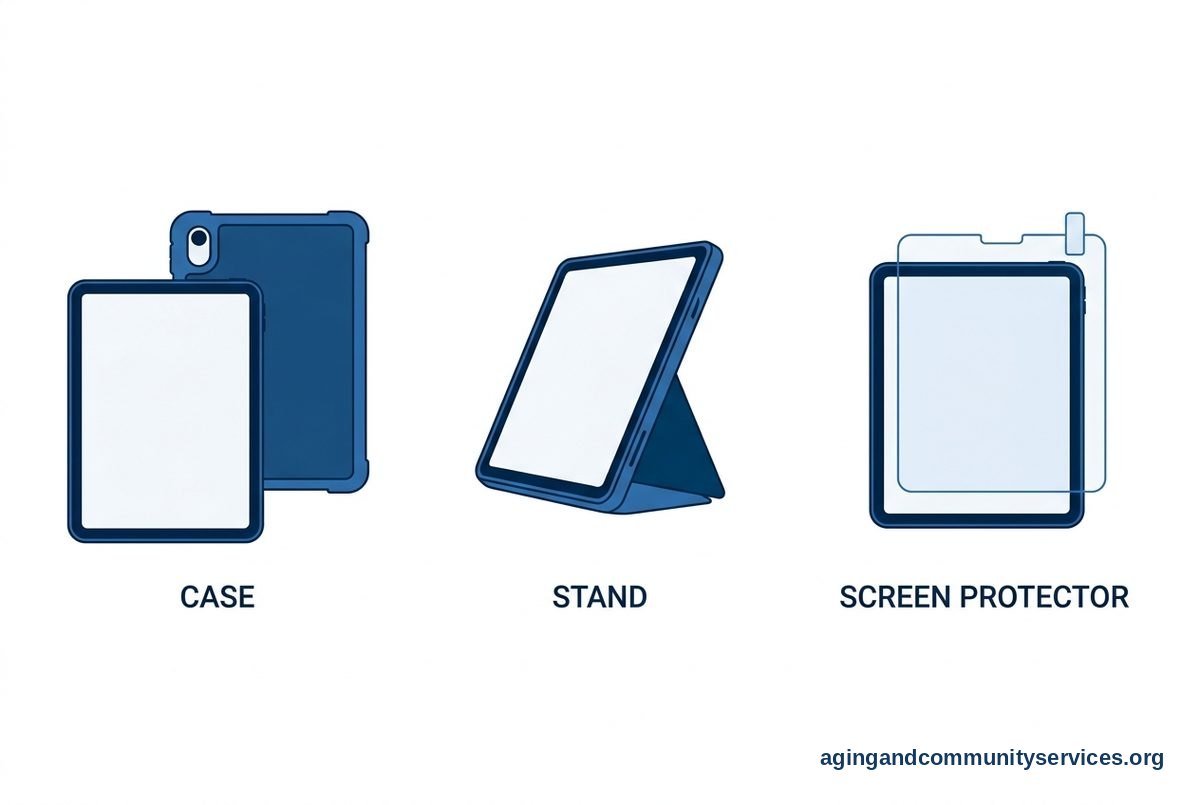
- Add a case, stand, and screen protector.
- Write down account details and keep them in a safe place.
It may also help to create a short paper guide. Use plain steps such as how to answer a video call, how to charge the tablet, and how to get back to the home screen. Keep the guide to one page if possible.
If the tablet is for a parent, a resource on tablets for elderly parents may help families think through support, remote help, and shared accounts. If memory or thinking changes affect technology use, a doctor, occupational therapist, or other qualified professional can help suggest safe and practical routines.
Free Tablets and Low Cost Options
Many people search for tablets for seniors free or a free tablet for seniors. Free tablet offers can come from public programs, internet service programs, community groups, health plans, or local agencies, but availability changes by area and eligibility. Always read the terms before sharing personal information.
Start with trusted local sources. A library, senior center, Area Agency on Aging, community technology program, or benefits counselor may know what is available nearby. The Eldercare Locator can help connect people with local aging services.
Some programs loan tablets instead of giving them away. Others may provide a tablet only when paired with internet service, a class, or a specific benefit. That can still be helpful, but it is important to understand what happens if the service ends or the person moves.
- Ask whether the tablet is free, borrowed, discounted, or tied to a service plan.
- Check whether internet service is included or separate.
- Ask who provides help if the tablet stops working.
- Avoid offers that pressure you to act quickly or share sensitive information.
- Use known local agencies when possible.
If buying new is not practical, a gently used tablet from a trusted family member can be a good option. Make sure it can still receive updates, holds a charge, and has been fully reset before use. A used tablet should not contain another person’s photos, messages, or accounts.

Safety, Comfort, and Everyday Use
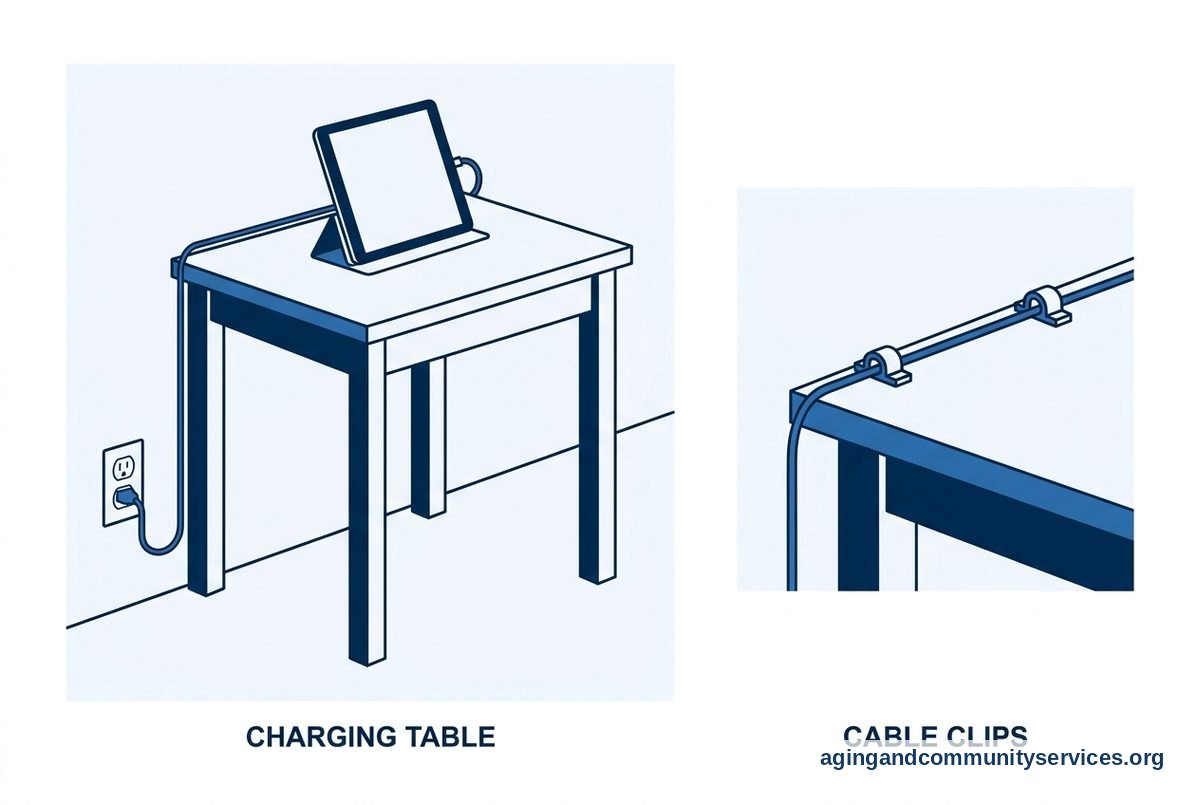
A tablet should fit into daily routines in a comfortable way. Place the charger in a clear spot and use a case that is easy to grip. If cords create a tripping concern, arrange the charging area so the cord stays out of walkways.
The National Institute on Aging shares practical guidance on falls and falls prevention, including ways to look for home hazards. A tablet cannot replace a safer room setup, but a good charging spot and a stable stand can make daily use easier.
Privacy settings are also important. Turn on a passcode that the person can remember, review app permissions, and set purchase limits. If a family member helps manage the device, agree on what kind of help is welcome, such as updating apps or fixing video call settings.
For people who want to use a tablet while staying in their own home, the National Institute on Aging has helpful information about aging in place. A tablet can support daily contact, entertainment, reading, and simple planning, but it should be part of a wider home routine that feels comfortable.
When vision, hearing, hand strength, balance, or memory concerns affect tablet use, it can help to ask a doctor, physical therapist, or occupational therapist for ideas. They may suggest easier grips, safer seating, voice controls, or ways to place the tablet during use.
What You Can Do Next
Start with the person, not the tablet. Ask what they want to do most: video calls, photos, reading, games, email, church services, music, news, or shopping. The right answer depends on those daily goals.
If you are choosing between tablets, write down three must have needs and three nice to have features. For example, must have needs might be a bright screen, video calling, and easy charging. Nice to have features might be a keyboard case, extra storage, or a larger screen.
Before making a final choice, try to hold the tablet if possible. Check the weight, screen brightness, sound, and how easy it is to find the home button or home gesture. If the person has used one type of phone for years, staying in the same device family may make learning easier.
After setup, plan one short practice session. Keep it calm and focused. Practice answering a call, opening one game, looking at photos, and charging the tablet. Too many lessons at once can make any device feel harder than it is.
Frequently Asked Questions
What tablet is best for seniors?
The best tablet for seniors is usually one with a large clear screen, simple controls, strong battery life, and support from family or a local helper. A standard iPad or a well supported Android tablet can both work well. The better choice depends on what phone the person already uses and who will help with setup.
Which iPad is best for senior citizens?
For most everyday needs, a standard iPad is enough. It can handle video calls, email, web browsing, games, photos, reading, and streaming. A larger or higher end iPad may be useful for someone who wants a bigger screen, but many people do not need the extra features.
Is an Android tablet good for seniors?
Yes, an Android tablet can be a good choice, especially for someone who already uses an Android phone or Google services. Look for a clear display, simple home screen, reliable updates, and easy access to video calling and photo apps. Choose a brand that someone nearby can help support.
Can I get a free tablet for seniors?
Free tablet programs vary by location and eligibility. Check with local aging services, libraries, community programs, and trusted benefits counselors. Ask whether the tablet is truly free, loaned, discounted, or connected to an internet service plan.
Are tablets for seniors preloaded games a good idea?
They can be helpful if the games are simple, clear, and free of confusing ads. A standard tablet can also be set up with games before it is given to the person. Choose games based on personal interests, such as cards, puzzles, words, music, or art.
What is the best tablet for a senior who only wants video calls and games?
Choose a tablet with a clear front camera, loud enough speakers, a comfortable case with a stand, and a home screen with only the needed apps. A standard iPad or Android tablet can work well. Set up the contacts and games ahead of time so the first use feels simple.