

Computer classes for seniors online can help you build useful skills from home, at your own pace. Many classes cover the basics, such as using a mouse, joining a video call, sending email, searching the web, and staying safer online.
The right class depends on what you want to do first. Some people want to talk with family by video. Others want to manage photos, use a patient portal, shop online, or feel less stuck when a screen changes.
What Online Computer Classes Usually Teach
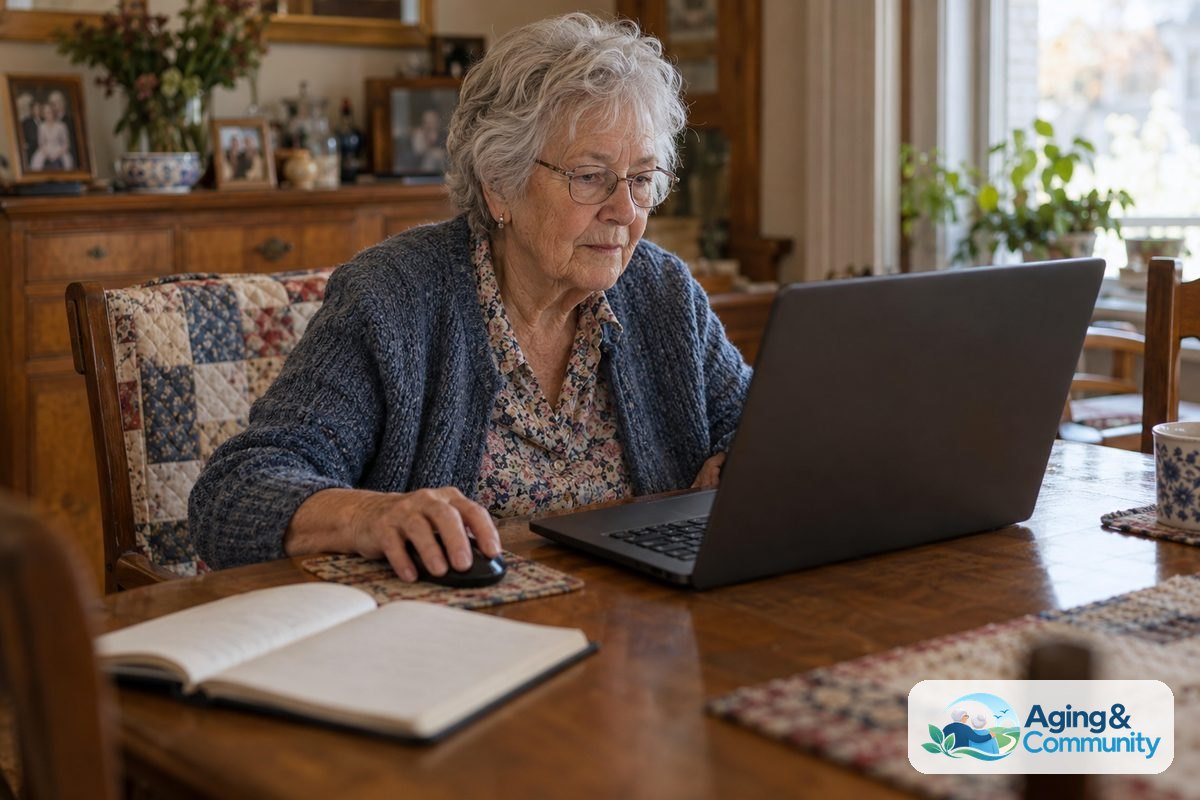
Most online computer classes start with simple, everyday tasks. A good beginner class does not assume you already know the words or the steps. It explains where to click, what each button does, and how to practice without pressure.
Common lessons may include:
- Turning a computer, tablet, or smartphone on and off
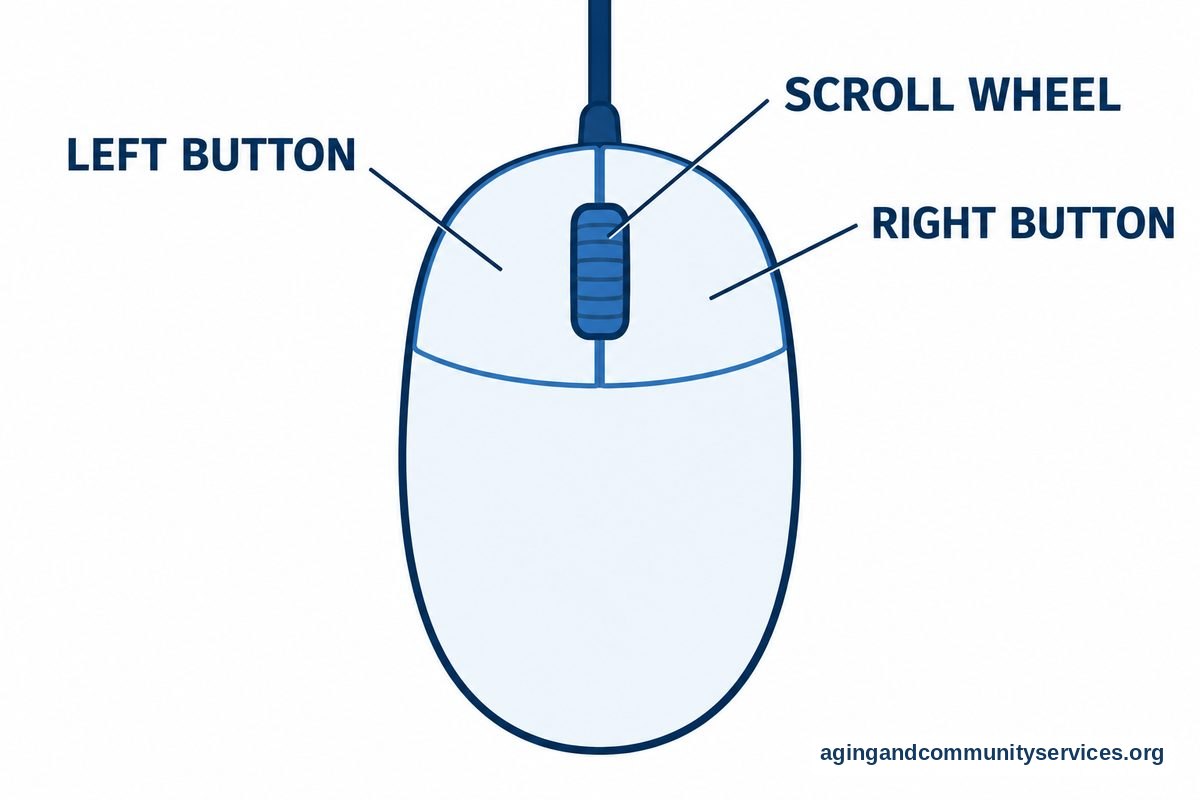
- Using a mouse, touchpad, keyboard, or touch screen
- Connecting to Wi-Fi
- Opening a web browser and searching online
- Creating and using email
- Joining video calls with family, friends, or groups
- Saving, finding, and sharing photos or documents
- Spotting common signs of online scams
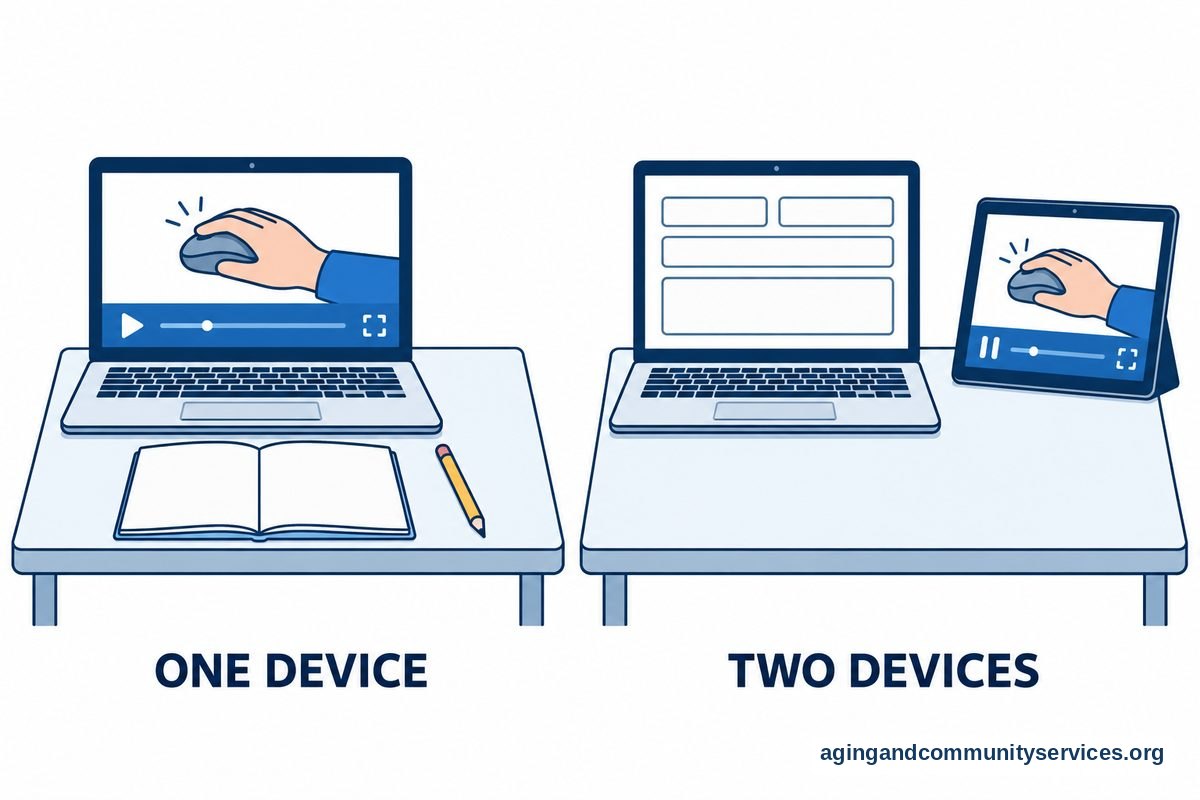
If you are brand new, start with one device. It is easier to learn on the computer, tablet, or phone you use most often. Once the basic ideas feel familiar, it is easier to move between devices.
If you want a wider look at local and online learning choices, a guide to technology classes for seniors can help you compare what is available.
Where To Find Computer Classes Online For Seniors
You can find computer classes online for seniors through many places. The best place to start is often a trusted group you already know, such as a library, senior center, community college, faith group, or local nonprofit.
Some classes are live. You meet with a teacher and other learners on a set day and time. Live classes can be helpful because you can ask questions as you go. Other classes are recorded. You can pause, replay, and repeat them as often as you need.
When comparing classes, look for a few signs that the class is beginner friendly:
- The lesson names are clear, such as email basics or video calls
- The teacher moves slowly and explains each step
- The class shows the screen while explaining what to do
- There is a way to ask for help
- The class does not push you to buy extra items right away
If you need help finding local programs that also offer online support, the Eldercare Locator can connect people with aging services in their area. Libraries and community centers may also know about classes that are not easy to find through a search engine.
Free Computer Classes For Seniors Online
Free computer classes for seniors online can be a good way to begin. Free lessons let you try a topic before signing up for a longer course. They can also help you learn one task at a time, such as sending an email or joining a video meeting.
Free options may come from public libraries, nonprofit groups, community programs, or video websites. Some are full courses. Others are short lessons that teach one skill in a few minutes.
Before you sign up, check what the class asks for. A class may ask for your name and email. Be careful if a free class asks for private information that does not seem needed, such as a bank login, full Social Security number, or passwords.
A helpful first step is to make a short list of the skills you want most. For example:
- Send and receive email
- Use Zoom or another video call app
- Print a document
- Move photos from a phone to a computer
- Use a library website
- Make stronger passwords
For more ideas on no-cost learning, you may want to compare free computer classes before choosing where to begin.
Using YouTube Computer Classes For Seniors
YouTube computer classes for seniors can be useful when you want to watch a task being done on screen. You can pause the video, rewind a step, and watch the same part again. This can make learning feel more manageable.
When searching YouTube, use simple phrases. Try searches like computer basics, email for beginners, how to use Zoom, or Windows basics. If you use an iPad, Chromebook, Android phone, or iPhone, include that device name in your search.
Choose videos that are calm, clear, and focused on the exact task you want. A shorter video can be easier than a long one when you are learning something new. It also helps to watch the first minute before following along, so you know what the lesson will cover.
Use care with videos that ask you to download software, call a number, or share personal details. If you are not sure, pause and ask a trusted family member, librarian, or technology helper before moving forward.
A simple practice method is to use two devices if you have them. Watch the video on a phone or tablet, then follow the steps on your computer. If you only have one device, pause often and take notes on paper.
How To Choose The Right Class For Your Skill Level
The right class should match where you are today, not where someone else thinks you should be. If a class feels too fast, that does not mean you cannot learn. It may only mean the class is not the right fit.
For a true beginner, look for words like basic, beginner, intro, first steps, or getting started. If you already use email and the web, you may be ready for classes on photo storage, online forms, spreadsheets, video calls, or online safety.
Ask these questions before choosing:
- Does the class use the same device I use?
- Is it live, recorded, or both?
- Can I ask questions?
- How long is each lesson?
- Does it teach one skill at a time?
- Will I need to download anything?
If you are helping a parent, spouse, neighbor, or friend, patience matters more than speed. A guide on teaching computer skills may help you make practice sessions kinder and more useful.
Comfort also matters. If a chair, screen height, or keyboard setup causes strain, adjust the space before the lesson starts. The National Institute on Aging shares general home safety ideas in its guide to aging in place, and a doctor, physical therapist, or occupational therapist can give personal guidance if pain, balance, vision, or hand movement makes computer use harder.
Tips For Learning Online Without Feeling Rushed
Online learning works best in small steps. Pick one task and practice it several times before moving to the next one. Repetition is not a problem. It is part of learning.
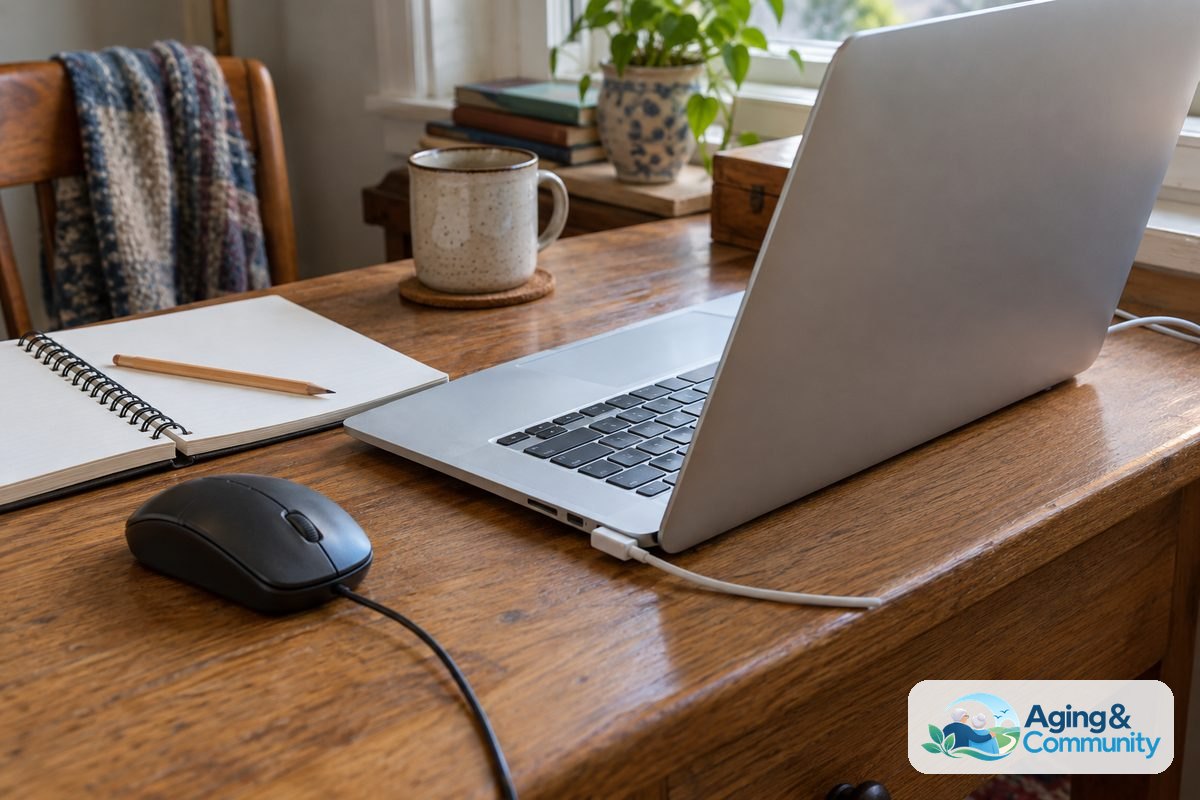
Set up a simple learning space before class. Keep your charger nearby, make sure the screen is bright enough, and have your passwords in a safe place. Use a notebook to write down steps in your own words.
Try this easy practice plan:
- Choose one goal for the day.
- Watch or attend one short lesson.
- Repeat the steps while the lesson is fresh.
- Write down what worked.
- Write down one question for next time.
If you get stuck, take a break. Then return to the last step that made sense. Many computer problems are solved by slowing down, reading the screen, and checking whether a button says cancel, back, next, or save.
It can also help to have support lined up. Some people ask a family member to be available by phone. Others use library help, a community volunteer, or a local tech support program. If you want ongoing help, a page on technology support for seniors can help you think through options.
What You Can Do Next
Start with a goal that matters in daily life. You might choose to email a grandchild, join a video call, read news from a trusted source, or save a photo. A useful goal gives practice a clear purpose.
Next, write down the device you use and the skill you want. For example, iPad and video calls, Windows laptop and email, or Android phone and photos. Use those words when you search for a class.
Then choose one learning path for the next few weeks:
- Ask your library about online computer classes
- Search for one beginner YouTube lesson on your device
- Try a free class from a trusted community group
- Ask a patient teacher to practice with you once a week
- Make a notebook with your own step-by-step directions
If your current device feels too hard to use, the issue may be the setup, not your ability. A simpler keyboard, larger screen, clearer icons, or easier login method may help. You can compare ideas for an easy to use computer if the device itself is getting in the way.
Frequently Asked Questions
Are computer classes online for seniors hard to follow?
They do not have to be. The easiest classes move slowly, show the screen, and teach one task at a time. If a class feels too fast, look for a beginner lesson or a recorded class you can pause.
Where can I find online computer classes for seniors?
Good places to check include public libraries, senior centers, community colleges, nonprofit groups, and trusted video websites. You can also ask local aging services about programs in your area.
Are there free computer classes for seniors online?
Yes, free options are often available through libraries, community groups, nonprofits, and video lessons. Review what information the class asks for before signing up, and avoid sharing private passwords or financial details.
Are YouTube computer classes for seniors a good place to start?
YouTube can be a helpful place to start if you choose clear, slow videos that match your device. Pause often, take notes, and avoid following instructions that ask for personal information unless you know the source is trustworthy.
What should a beginner learn first?
Start with the tasks you will use most. Email, web searching, video calls, Wi-Fi, passwords, and basic online safety are common first lessons.
How can family members help without taking over?
Sit beside the learner, explain one step at a time, and let them control the mouse, keyboard, or screen. Write down the steps together so they can practice later without needing to remember everything at once.