

A tablets for seniors program can mean a few things: a free or reduced device, help paying for internet, or local training on how to use a tablet. The best place to start is by asking what the program includes, who qualifies, and whether internet service comes with the tablet.
Some programs focus on the device only. Others help with tablets for seniors with internet, which can be more useful if the goal is video calls, email, online forms, or telehealth visits. A simple plan, clear setup help, and patient support matter as much as the tablet itself.

What A Tablets For Seniors Program May Include
Programs can be run by community groups, public agencies, libraries, housing communities, health plans, or nonprofit partners. Each one has its own rules. Some lend tablets for a set time, while others let the person keep the device.
Before applying, ask for the details in plain language. A helpful program should make it clear what is included and what the user may need to provide on their own.
- Tablet only: The program gives or lends a device, but the user must arrange internet service.
- Tablet with internet: The device may come with mobile data or a home internet option.
- Training: Staff or volunteers may show how to use video calls, email, apps, and safety settings.
- Technical support: Some programs help with passwords, updates, Wi-Fi, and simple troubleshooting.
- Accessibility setup: The tablet may be adjusted with larger text, voice controls, captions, or simplified screens.
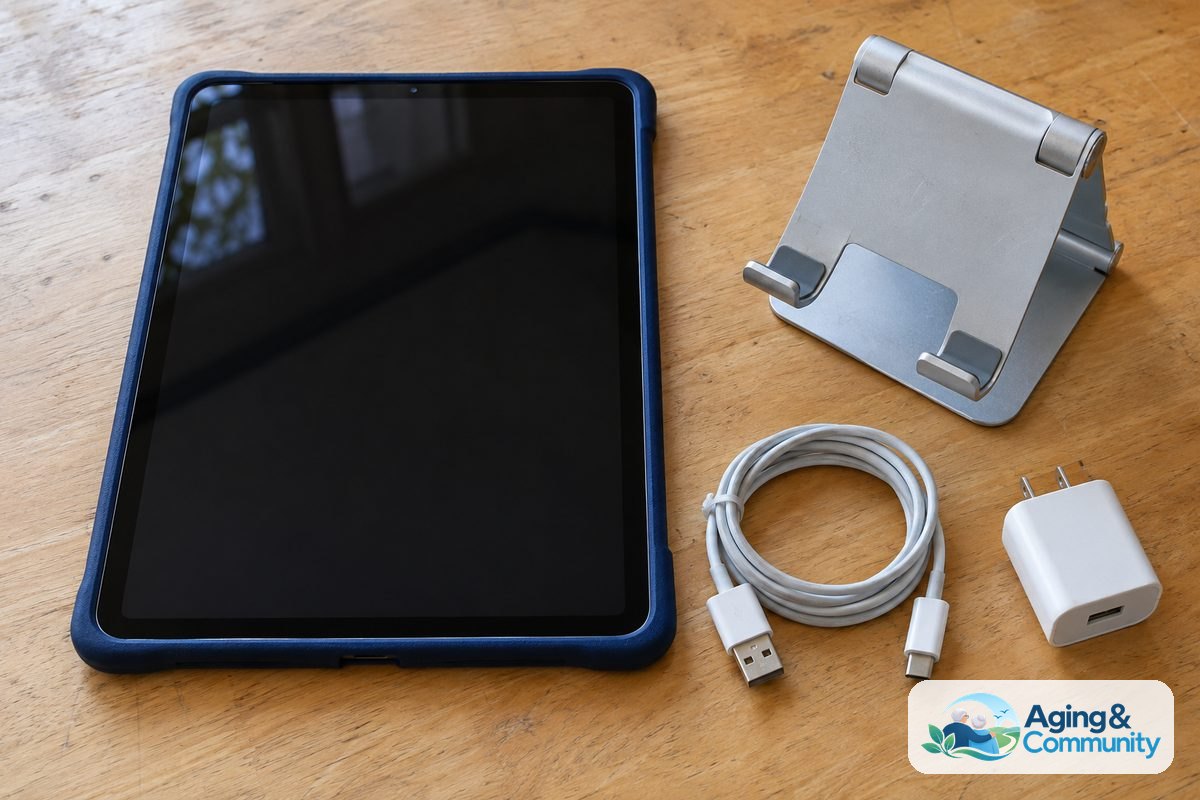
If the program offers a device but no training, a family member, library worker, or community volunteer may be able to help with setup. You can also compare features in a guide to a tablet for seniors easy to use before choosing a device.
Where To Look For Tablet And Internet Help
Start close to home. Local programs are often easier to work with because they know the services in the area. They may also offer in-person help, which can make setup less stressful.
Good places to ask include public libraries, senior centers, county aging offices, housing offices, faith communities, and local nonprofit groups. If you are not sure where to begin, the Eldercare Locator can help connect families with local aging services.
When calling or visiting, use clear questions. Ask whether the program provides tablets, internet service, training, or referrals. If the first place cannot help, ask who else in the area might offer digital access programs.
- Ask the public library about tablet lending, computer classes, and Wi-Fi hotspots.
- Ask the local aging office about device programs or internet help.
- Ask a housing community or service coordinator about on-site technology support.
- Ask a health plan or clinic if they offer help for video visit access.
- Ask nonprofit groups about digital literacy classes or refurbished devices.
For people who mainly need a lower-cost connection at home, a guide to internet for seniors low income can help explain what to ask about service, setup, and ongoing support.
How To Compare Tablets For Seniors With Internet
A tablet is only useful if it works well for the person using it. Look beyond the brand name. The right choice should be simple to hold, easy to read, and able to connect reliably where it will be used most.
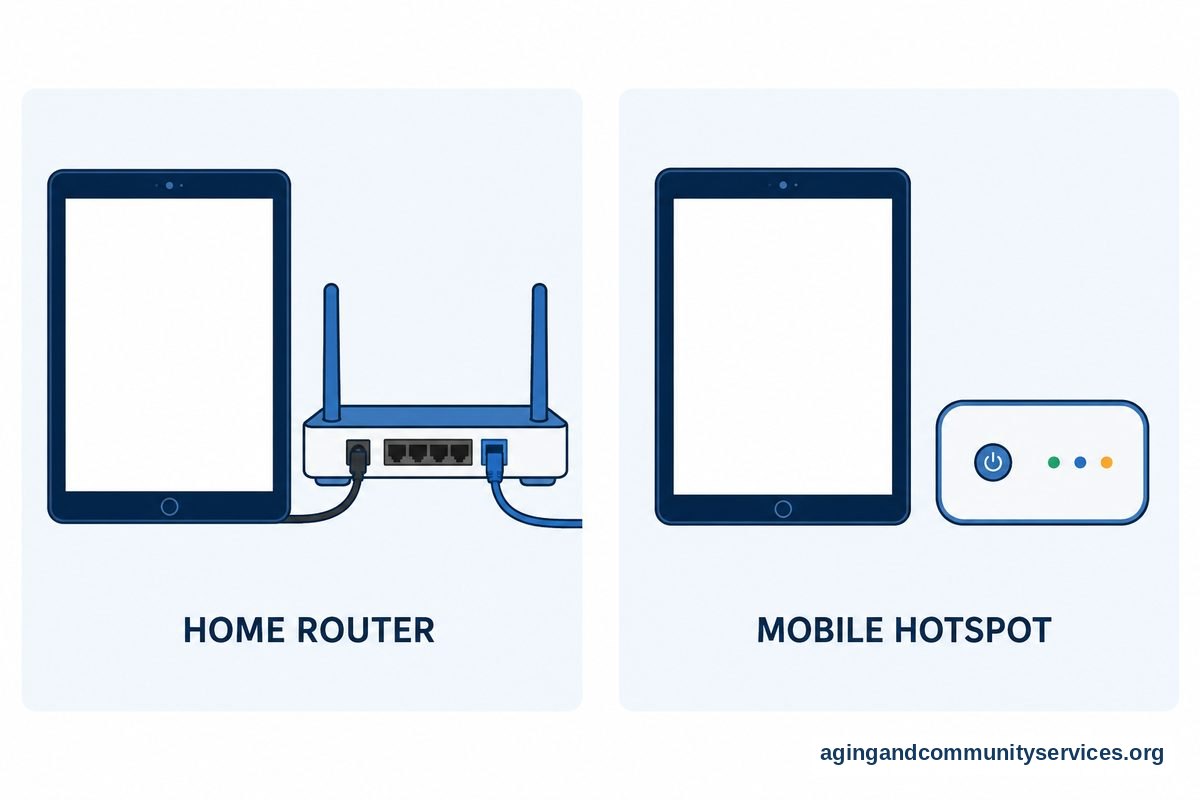
There are two common ways a tablet gets online. One uses home Wi-Fi. The other uses mobile data, similar to a phone. Some tablets can use both, but the program rules may limit which option is included.
| Feature | Why It Matters | Question To Ask |
|---|---|---|
| Internet connection | Needed for video calls, email, browsing, and online forms | Does the tablet include Wi-Fi, mobile data, or both? |
| Screen size | Larger screens can make reading and tapping easier | Is the screen comfortable to read without strain? |
| Battery life | A longer charge reduces frustration during the day | How often will it need charging? |
| Support | Help with passwords and updates can prevent small problems from becoming barriers | Who helps if something stops working? |
| Accessibility settings | Large text, voice typing, captions, and contrast can make use easier | Will someone help set these features up? |
If the device is meant for a parent or relative, it can help to compare needs in advance. A guide to tablets for elderly parents can help families think through calling, reminders, reading, and shared support.
Questions To Ask Before You Sign Up
Tablet programs can be helpful, but it is important to understand the rules. Take notes during each call. If possible, ask for the information in writing so there is less confusion later.
Try not to rush. A program that sounds helpful should still be clear about internet service, support, privacy, and what happens if the tablet is lost or stops working.
- Who qualifies for the program?
- Is the tablet free, loaned, discounted, or tied to another service?
- Does the tablet come with internet access?
- If internet is included, how long does it last?
- Are there forms, appointments, or income rules?
- Who owns the tablet?
- What happens if the device breaks or is lost?
- Is training included?
- Can a family member help with setup or attend training?
- What personal information is collected?
It is also wise to ask whether the tablet comes with apps already installed. Some programs install video call apps, email, health portal apps, or learning tools. Ask how to remove apps that are not needed.
For general home planning, the National Institute on Aging has practical information on aging in place, including ways to think about support and daily needs at home.
Setup Tips That Make A Tablet Easier To Use
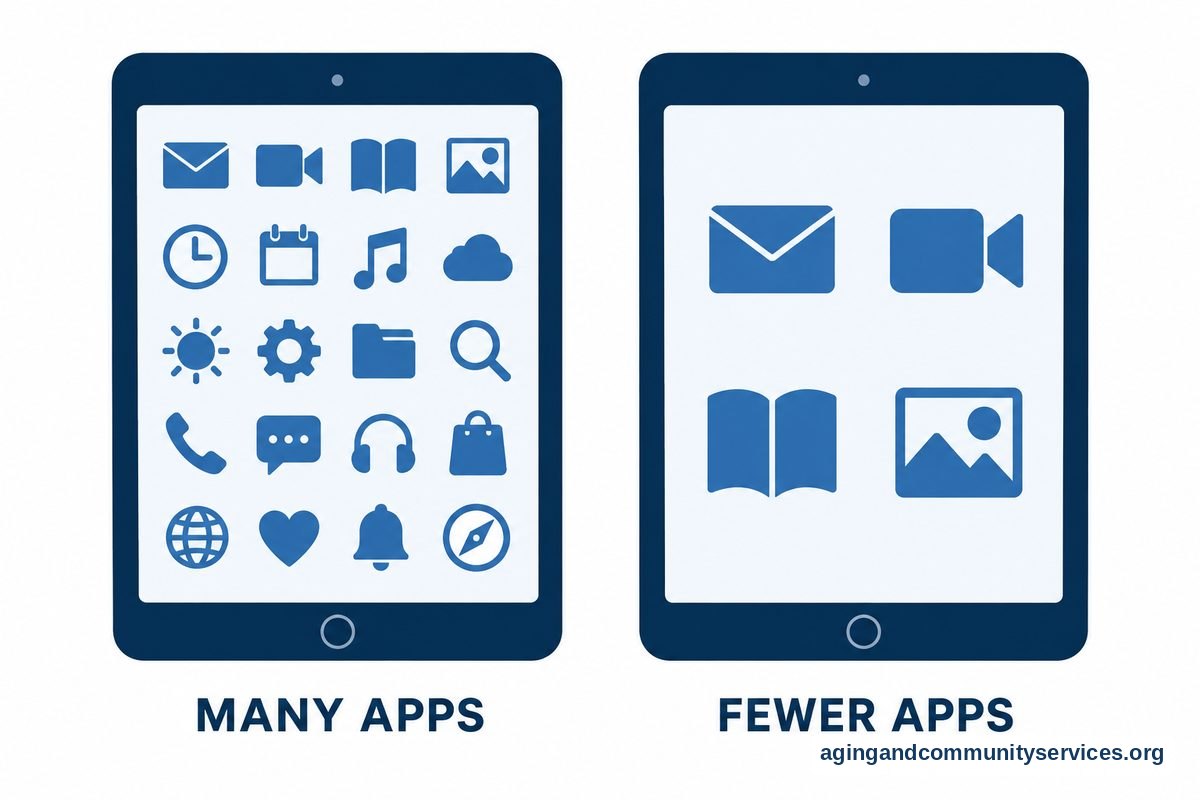
A good setup can make the difference between a tablet that sits in a drawer and one that gets used. Keep the home screen simple. Place the most important apps where they are easy to find.
Set up the tablet while sitting together, if possible. Let the user practice each step. It is better to repeat a few simple tasks than to explain many features at once.
- Increase text size and screen contrast.
- Turn on captions for videos and calls if helpful.
- Add only the most useful apps to the main screen.
- Create a written password list and keep it in a safe place.
- Set up automatic updates when possible.
- Add trusted contacts for video calls and messages.
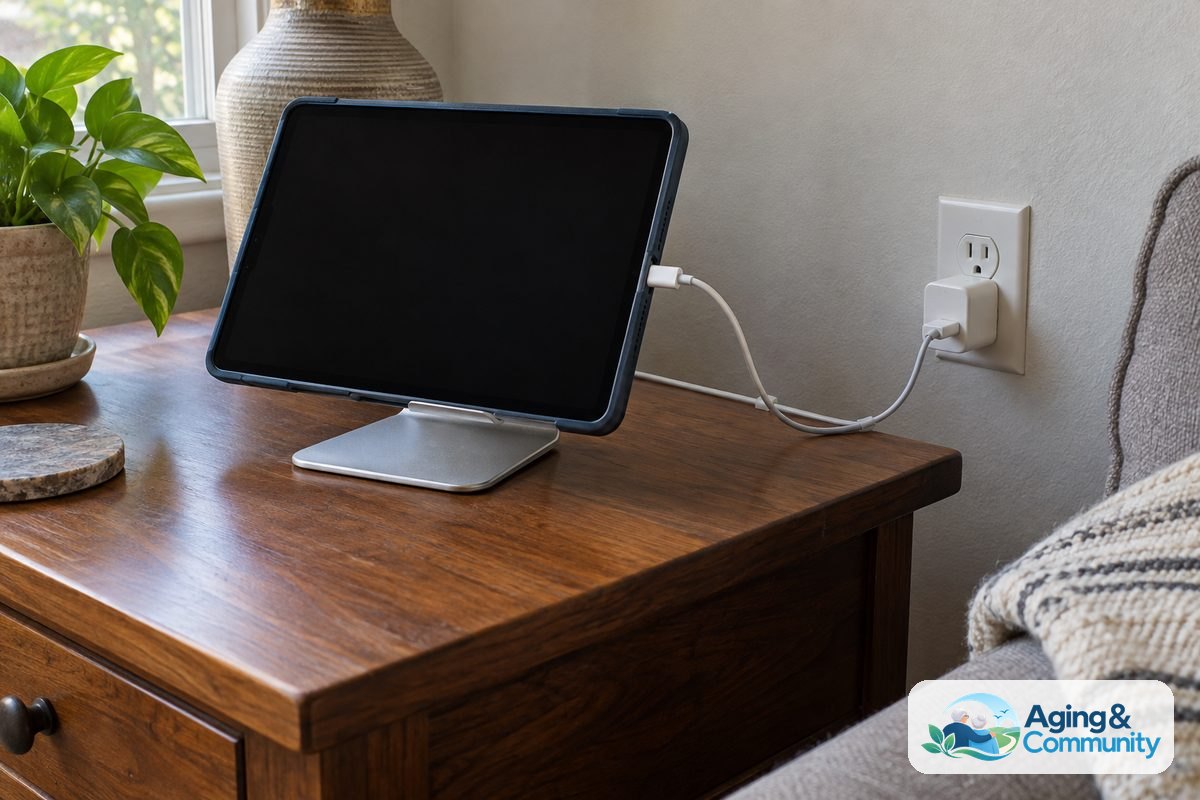
- Use a sturdy case and a simple stand.
- Place the charger in the same spot every day.
Safety settings also matter. Use a screen lock that the user can remember. Turn on device location features only if the user understands and agrees. Review privacy settings together, especially for photos, contacts, and location.
If holding the tablet, seeing the screen, hearing calls, or tapping icons is difficult, ask a doctor, physical therapist, or occupational therapist for suggestions. They may be able to recommend safer positioning, adaptive tools, or ways to reduce strain during daily use.
What You Can Do Next
Start with the main need. Is the goal to make video calls, read news, manage appointments, join classes, or use a patient portal? The answer helps narrow the type of tablet and internet support to look for.
- Write down the top three things the tablet must do.
- Ask a local library or aging office about tablet and internet programs.
- Call any program that sounds promising and ask what is included.
- Compare whether the tablet uses home Wi-Fi, mobile data, or both.
- Ask who will help with setup, passwords, updates, and repairs.
- Set up large text, key contacts, and a simple home screen first.
- Practice one task at a time, such as making a video call.
If you are choosing a device without a program, compare a few options first. A guide to a tablet for senior citizen needs can help you focus on simple controls, readable screens, and support.
Frequently Asked Questions
Are There Tablets For Seniors With Internet Included?
Some programs include internet access with the tablet, but others do not. Ask whether the connection uses home Wi-Fi, mobile data, or a hotspot. Also ask how long the service lasts and what happens after the program period ends.
How Do I Find A Free Tablet Program Near Me?
Start with the public library, local aging office, housing service coordinator, or community nonprofit. Ask if they provide devices, lend tablets, offer digital training, or know another local program. If they do not have tablets, they may still help you find internet options or classes.
What Is The Easiest Tablet For Video Calls?
The easiest tablet is usually the one with a clear screen, loud enough sound, a simple contact list, and an app the family already uses. Set up shortcuts for the most common contacts. Practice answering and ending a call several times before relying on it.
Can A Tablet Work Without Home Internet?
Yes, some tablets can use mobile data or connect through a hotspot. Others need Wi-Fi at home or in a public place. Before choosing, ask where the tablet will be used most and whether the signal is reliable there.
What Should Be Set Up First On A New Tablet?
Set up internet, a screen lock, text size, contacts, video calling, and charging habits first. Then add only the apps that are truly needed. Keeping the first setup simple makes it easier to build confidence over time.
Can Family Members Help Manage The Tablet?
Yes, if the user agrees. A trusted helper can assist with updates, passwords, app setup, and troubleshooting. It is still important to respect privacy and explain any shared access before turning it on.