

Zoom for seniors can be simple once the basic buttons make sense. Zoom lets you join a video call, see family, attend a class, or take part in a group from home using a phone, tablet, laptop, or desktop computer.
The goal is not to learn every feature. The goal is to feel comfortable joining a meeting, turning sound and video on or off, and knowing what to do if something does not work.

How to Use Zoom for Seniors: Main Steps
- Choose the device: Pick the device that feels easiest to hold, see, and charge. A tablet is often simple for video calls, while a laptop may be better if the screen needs to be larger.
- Install Zoom or use the browser: If you have an invitation link, select it and follow the prompts. Some people use the Zoom app, while others join from a web browser if that option appears.
- Check the internet connection: Zoom works best with a steady home internet connection. Sit near the Wi-Fi router if the picture freezes or the sound cuts in and out.
- Join a test call first: Practice before an important meeting. Try joining, leaving, muting, unmuting, turning video on, and turning video off.
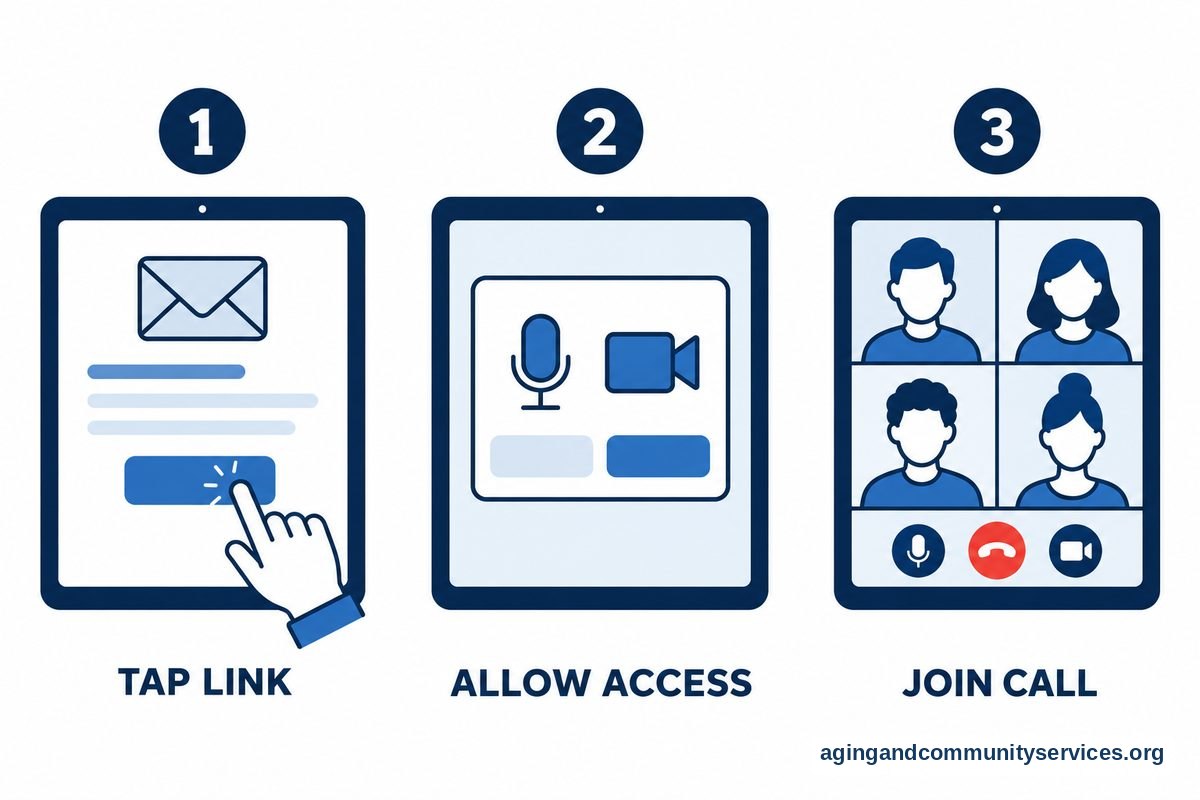
- Use the meeting link: Most Zoom meetings start from a link in an email, text message, or calendar invite. Select the link a few minutes early so there is time to handle updates or permission pop-ups.
- Enter the meeting ID if needed: If the link does not work, open Zoom and choose Join. Type the meeting ID and passcode exactly as shown in the invitation.
- Allow camera and microphone: The first time Zoom opens, the device may ask for permission to use the camera and microphone. Choose Allow so others can see and hear you.
- Know the two main buttons: The microphone button controls sound, and the camera button controls video. If a red line appears through either icon, that feature is turned off.
- Set the view: Speaker View shows the person talking, while Gallery View shows several people at once. Choose the view that feels least confusing.
- Leave the meeting: When the call is finished, select Leave. If you joined by phone audio, hang up the phone too.
Common Mistakes to Avoid
- Waiting until the meeting time to practice: A short practice call can make the real call feel much smoother.
- Forgetting to charge the device: Plug in the device before a class, family call, or appointment, especially if the meeting may run long.
- Ignoring sound settings: If no one can hear you, check that you are not muted and that the correct microphone is selected.
- Sharing a meeting link too widely: Treat a Zoom link like an invitation. Send it only to people who should attend.
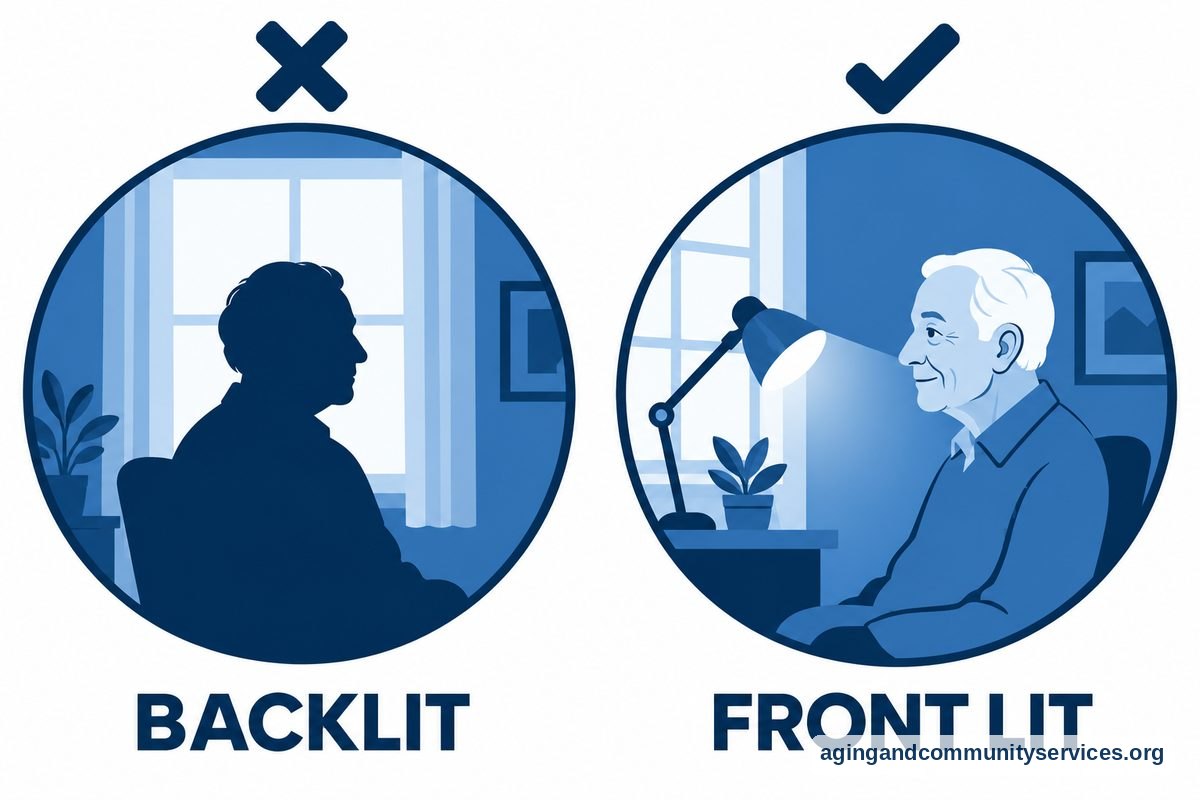
- Sitting with a bright window behind you: A lamp or window in front of you helps others see your face more clearly.
- Clicking unknown links during a call: If a message appears and you are not sure what it means, ask the host or a trusted helper before selecting it.
When to Call for Help or Get Professional Advice
Call for help when Zoom will not open, the device keeps asking for a password, the camera or microphone will not work, or you feel unsure about a link you received. A family member, friend, library staff member, senior center volunteer, or local computer support service may be able to walk through the steps with you.
Tell the helper what device you are using, such as iPhone, iPad, Android phone, tablet, Windows laptop, or Mac. Also tell them what you see on the screen, what you already tried, and whether you are using a meeting link, meeting ID, or passcode.
If Zoom is being used for exercise, balance work, physical activity, or therapy-style instruction, ask a doctor, physical therapist, or occupational therapist what is safe for you. The National Institute on Aging says exercise and home changes can lower fall risk in its guidance on falls and prevention, so it is wise to match the activity to your needs.
If you need local help finding community programs, technology support, or services for staying at home, the Eldercare Locator can help connect people with nearby resources. You can also ask a local senior center, library, faith group, or Area Agency on Aging whether they offer Zoom classes for seniors.

Choosing a Device and Setting Up for Comfort
A good Zoom setup does not have to be fancy. It should be easy to see, easy to hear, and easy to keep charged. If the current device is too small or confusing, it may help to compare tablets for elderly parents or laptops for elderly parents before buying anything new.
For many people, the best screen is the one they already know how to use. A phone is portable, but the buttons can be small. A tablet gives more room for faces and controls. A laptop can sit on a table, which keeps hands free during classes or family calls.
Place the device on a stable surface instead of holding it for the whole call. A stand, stack of books, or firm table can raise the camera close to eye level. This makes the call more comfortable and keeps the picture steadier.
Use a quiet room when possible. Turn off the television, move away from a running dishwasher, and ask others nearby to keep background noise low. If hearing is difficult, headphones or earbuds may help, as long as they are comfortable and safe to use.
Good lighting makes a big difference. Sit facing a window or lamp, not with the light behind you. If others say your face is dark, move the device or turn on another light.
For families helping from a distance, a short printed note can help. Write down how to join, where the mute button is, how to turn video on, and who to call if there is a problem. If video calling is new, a basic guide to video call for elderly users may also help with the first setup.
Zoom Classes, Exercises, Games, and Programs
Zoom meetings for seniors can include family visits, book clubs, faith groups, community meetings, caregiver check-ins, hobby groups, and appointments. Many people also use Zoom programs for seniors through libraries, senior centers, recreation departments, and community groups.
Zoom classes for seniors may cover art, cooking, history, languages, computer skills, music, and local lectures. Some are live, which means you can ask questions. Others are recorded, which means you can watch when it fits your schedule.
YouTube Zoom for seniors videos can be useful when you want to see each step on screen. Search for a zoom tutorial for seniors or simple zoom instructions for seniors, then choose videos that move slowly, show the buttons clearly, and avoid extra features you do not need yet.
Zoom exercises for seniors and zoom exercise classes for seniors can be seated, standing, dance-based, stretching-focused, or strength-focused. Before joining, read the class description and ask whether the instructor offers easier options. If balance, pain, dizziness, surgery recovery, or a health condition is a concern, ask a doctor, physical therapist, or occupational therapist before taking part.
Set up exercise calls with safety in mind. Clear rugs, cords, and clutter from the area. Use a sturdy chair if the class includes seated moves. The National Institute on Aging also has practical tips for growing older at home, including changes that can make daily spaces easier to use.
Fun games to play on Zoom with seniors include bingo, trivia, name that tune, show and tell, word games, scavenger hunts, family photo guessing, and simple card games where everyone has their own deck. Keep the rules short, repeat them as needed, and choose games where people can join without special supplies.
Tech savvy seniors video calling habits grow with practice. Try one new feature at a time, such as chat, screen sharing, reactions, or changing the view. A broader guide to technology for seniors can help families plan setup, support, and safer habits.
Zoom discounts for seniors and a Zoom senior discount are worth checking directly with Zoom or the group offering the class. Discounts, free basic plans, nonprofit access, and community-sponsored programs can change, so avoid relying on old articles or social media posts. If a program asks for payment, confirm who runs it, what is included, and how cancellation works.
Before paying for any Zoom class, look for free or low-cost options from libraries, senior centers, recreation departments, health systems, and local colleges. Ask whether the class is beginner friendly, whether recordings are available, and whether someone can help you join the first session.

Frequently Asked Questions
What are simple Zoom instructions for seniors?
Open the meeting link, allow the camera and microphone, choose Join with Audio, and look for the mute and video buttons. If the link does not work, open Zoom, choose Join, and enter the meeting ID and passcode from the invitation.
Where can I find a Zoom tutorial for seniors?
Look for beginner lessons from libraries, senior centers, community education programs, or trusted video channels. A good tutorial moves slowly, uses clear screens, and focuses on joining, muting, unmuting, and leaving a meeting.
Are there Zoom classes for seniors?
Yes. Many community groups offer Zoom classes for art, fitness, book clubs, technology help, lectures, and social time. Ask your local library, senior center, recreation department, or community college what is available.
Are Zoom exercise classes for seniors safe?
They can be a helpful way to stay active, but the class should match your ability and space. Ask a doctor, physical therapist, or occupational therapist if you have balance concerns, pain, recent surgery, or questions about which movements are right for you.
Does Zoom have a senior discount?
Zoom discounts for seniors are not something to assume. Check directly with Zoom, the class provider, or the organization hosting the meeting, because offers and program rules can change.
What are fun games to play on Zoom with seniors?
Good choices include trivia, bingo, word games, family photo guessing, show and tell, and name that tune. Pick games with simple rules, little setup, and plenty of time for conversation.