

Seniors and technology challenges often come from fast changes, small screens, confusing passwords, and worry about making mistakes. The good news is that most problems can be eased with patient teaching, simple settings, and a plan for getting help when something feels unclear.
Technology can help with calling family, managing appointments, reading news, watching shows, and using home services. It works best when it fits the person, not when the person is asked to fit the device.

Why Technology Can Feel Hard
Many devices are made for speed. They use small icons, hidden menus, and words that may not match everyday speech. A person may know exactly what they want to do, but not know where the phone or computer has placed that option.
Past experience also matters. Someone who used paper bills, landline phones, and printed maps for many years may need more time to connect a new action with an old habit. That is not a lack of ability. It is a normal learning curve.
Common challenges include:
- Passwords: Many sites ask for long passwords, codes, and security questions.
- Updates: Phones and computers may change after an update, which can make familiar steps look new.
- Small text: Tiny letters and crowded screens can make simple tasks tiring.
- New words: Terms like app, browser, cloud, and two step code can feel unclear.
- Fear of mistakes: Some people worry they will break the device or lose money by tapping the wrong thing.
A calm teaching plan helps. If you are helping a family member, the guide on teaching technology skills can support a slower, kinder approach.
Choosing Devices That Are Easier To Use
The right device is not always the newest one. A good choice is one that feels comfortable, has clear sound, has readable text, and does the main tasks well. For many people, fewer choices on the screen can be better than many features.
Before buying or setting up a device, make a short list of what it needs to do. The list might include video calls, texting, photos, email, online forms, maps, or rides. This keeps the choice focused on real life, not marketing terms.
Helpful features may include:
- Large text and high contrast settings
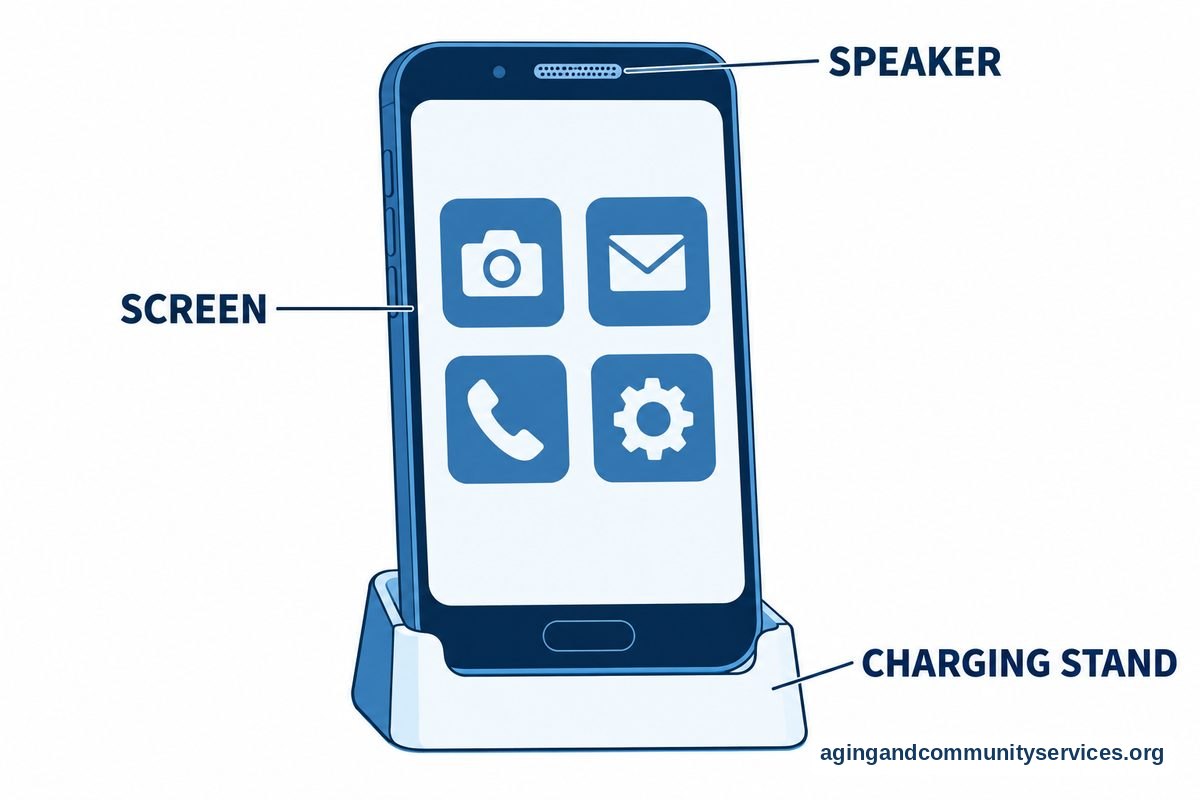
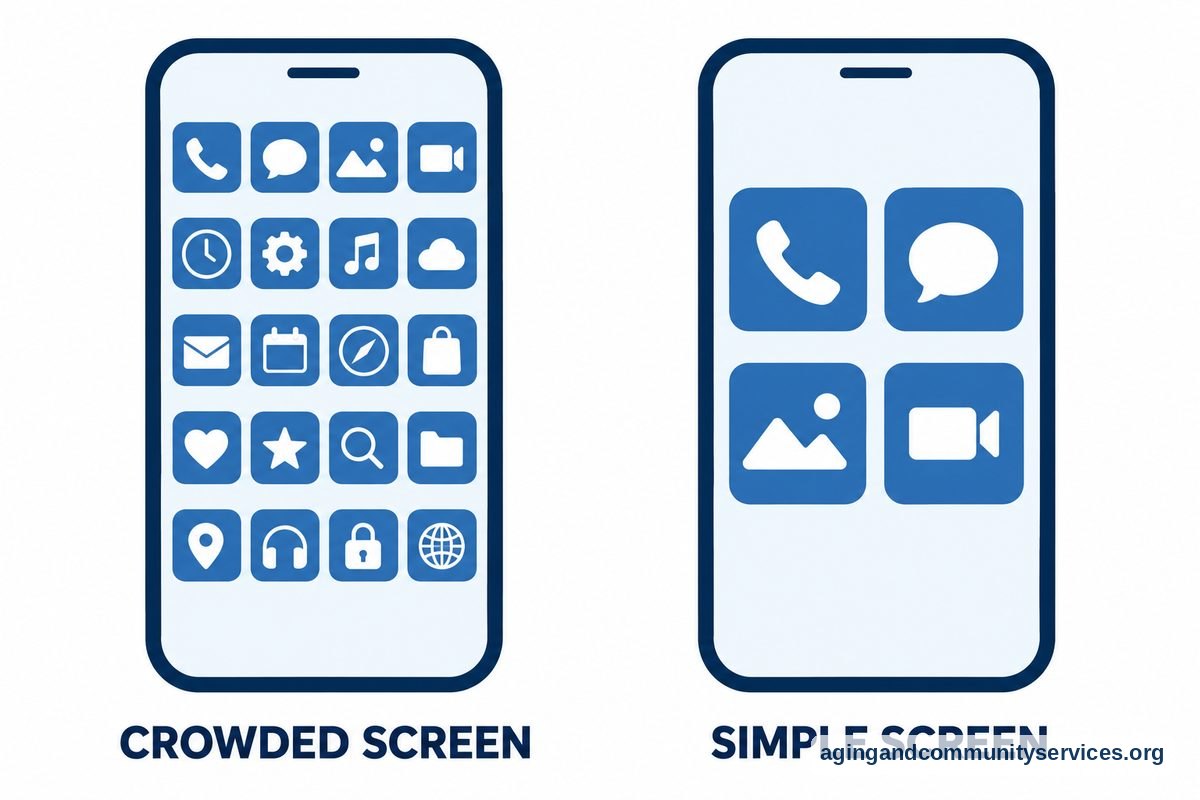
- Simple home screen layout
- Voice typing or voice search
- Strong speaker volume
- Easy charging stand or clearly marked cable
- Emergency contact shortcuts, if wanted
If the main need is calling, texting, and photos, an easy to use smartphone may be a better fit than a more complex device. If the person wants more choices, a tablet or computer may work well for reading, video calls, and forms.
It can also help to remove clutter. Delete unused apps, move important apps to the first screen, and turn off alerts that do not matter. A quiet screen is often easier to trust.
Making Everyday Tasks Less Confusing
Small routines make technology feel more familiar. Instead of teaching many things at once, start with one task the person cares about. That may be sending a photo, joining a video call, reading a message, or checking a calendar.
Write steps in plain words. Use the exact names that appear on the screen. For example, write, “Tap the green Phone button,” instead of “Open the calling app.” Keep the paper near the device.
A simple practice routine can look like this:
- Pick one task, such as making a video call.
- Practice at the same time of day when the person is not rushed.
- Use the same device and same chair each time, if possible.
- Let the learner tap the buttons while the helper talks them through it.
- Stop before frustration builds and return later.
Repetition is not a problem. It is part of learning. If someone asks the same question several times, the question may be showing where the written steps need to be clearer.
Families can also make a small “tech notebook.” It can hold passwords hints, device names, WiFi names, and steps for common tasks. Do not write full passwords in a place that is easy for guests or workers to see. A trusted password manager may be useful for some households, but it should be set up with care.
Staying Safer With Scams, Privacy, And Passwords
Online safety is one of the biggest reasons people feel unsure about technology. The goal is not to scare anyone. The goal is to create habits that make it easier to pause, check, and ask for help.
A good rule is: if a message creates pressure, slow down. Real companies and agencies usually do not need a person to act in a panic. If a message asks for gift cards, wire transfers, account codes, or remote access to a computer, stop and talk with a trusted person first.
Use simple safety habits:
- Do not share one time codes with anyone who calls or texts.
- Use a different password for important accounts.
- Turn on account alerts for banks or credit cards when helpful.
- Keep devices updated when updates are from the device itself.
- Do not tap links in surprise messages about prizes, refunds, or account problems.
- Call a known number from a bill, card, or official website if something seems wrong.
Privacy settings can also be simplified. Turn off location sharing for apps that do not need it. Review who can see social media posts. If forms ask for information that seems unrelated, pause before sending.
For family members, it helps to agree on a support plan before there is a problem. Decide who can help with account questions and what steps to take if a device is lost. If regular support is needed, technology support services may offer ideas for setting up help in a steady way.

Using Technology At Home And In The Community
Technology can support daily life when it is chosen for a clear reason. It may help with grocery orders, rides, reminders, weather alerts, library books, church events, or family calls. It should make routines easier, not add stress.
Some home tools can also support comfort and independence. Examples include smart speakers, video doorbells, automatic lights, and simple reminder devices. These tools should be discussed with the person who will use them, especially when cameras, microphones, or shared accounts are involved.
The National Institute on Aging explains that planning for aging in place can include looking at home needs, services, and safety. Technology may be one part of that plan, along with transportation, home layout, and local support.
Falls are another area where home planning matters. The National Institute on Aging shares information on falls and safety, including practical ways to look at home risks. If balance, walking, or daily movement is a concern, it is wise to speak with a doctor, physical therapist, or occupational therapist about what changes may fit the person.
Community programs can be useful too. Libraries, senior centers, faith groups, and local agencies may offer classes or help desks. For people who want a learning setting, free computer classes can be a good place to build skills at a comfortable pace.

How Family Members Can Help Without Taking Over
Helping with technology is not just about fixing devices. It is about respect. The person using the device should still make choices whenever possible.
Ask first before changing settings, deleting apps, reading messages, or saving passwords. Explain what you are doing in plain language. If the person wants to do the task alone, stay nearby and let them try.
Support works better when it is steady and calm. A weekly tech time can reduce last minute stress. During that time, you can update devices, answer questions, review scam messages, and practice one useful skill.
Helpful teaching habits include:
- Sit beside the person, not over their shoulder.
- Use the same words each time for the same action.
- Let the learner control the device.
- Keep lessons short.
- Praise effort, not speed.
- End with one success the person can repeat.
If a task remains frustrating, change the setup instead of pushing harder. Larger text, fewer apps, saved contacts, voice commands, or a different device may solve the real problem. A broader guide to helpful technology options can make it easier to compare choices.

What You Can Do Next
Start with one device and one goal. Trying to fix every technology problem in one day can feel tiring. A small plan is easier to follow and easier to improve.
Here is a practical next step list:
- Ask what the person most wants to do with technology.
- Clean up the home screen so only useful apps are easy to see.
- Increase text size and check volume settings.
- Write one set of steps for one common task.
- Set a regular time for questions and practice.
- Make a short safety plan for suspicious calls, texts, and emails.
If local support would help, the Eldercare Locator can help families look for community resources. Libraries and local agencies may also know about classes, device help, and transportation options.
If technology problems are tied to vision, hearing, hand strength, memory, balance, or movement, ask a doctor, physical therapist, or occupational therapist for guidance. They can suggest next steps based on the person’s needs and daily routines.
Frequently Asked Questions
Why Do Some People Struggle With New Technology?
New technology often changes quickly and uses words or symbols that are not always clear. Small screens, hidden menus, passwords, and updates can make a simple task feel harder than it should be.
The best help is slow, clear, and practical. Focus on one useful skill at a time, and write down the steps in plain language.
What Is The Easiest Technology To Start With?
The easiest choice is the device that matches the person’s main goal. For family calls and photos, a simple smartphone or tablet may be enough. For forms, email, and larger reading, a tablet or computer may be better.
Look for large text, clear sound, simple menus, and reliable charging. Avoid choosing a device only because it has many features.
How Can I Teach Technology Without Causing Frustration?
Keep lessons short and let the learner hold the device. Use the same words each time, and avoid taking over unless asked. Practice one task until it feels familiar before adding another.
It also helps to connect the lesson to something meaningful, such as seeing family photos or joining a group call. Learning feels easier when the reason is clear.
How Can We Make Online Accounts Safer?
Use strong, different passwords for important accounts, and keep recovery information current. Turn on extra sign in steps when the person understands how they work and has a trusted way to get codes.
Make a rule that no one shares sign in codes over the phone or by text. If a message feels urgent or confusing, pause and check with a trusted person.
When Should A Family Look For Outside Tech Help?
Outside help may be useful when questions keep coming up, devices need regular setup, or family members live far away. Classes, library programs, community groups, and local support services can all be helpful.
Look for patient helpers who explain steps clearly and respect privacy. The goal is to build confidence, not to make the person depend on someone else for every small task.