

Knowing how to teach elderly to use technology starts with patience, small steps, and real practice. Pick one useful task, show it slowly, let the person try it, and repeat it the same way each time.
The goal is not to make someone use every app or feature. The goal is to help them feel steady with the tools that matter, such as calling family, reading messages, joining appointments, using a computer, learning how to operate van lifts, or getting help online.
Main Steps for Teaching Technology
- Start with one clear goal. Ask what the person wants to do first, such as make a phone call, send a text, open email, or join a video visit. A useful goal gives the lesson a reason.
- Use the device they already own. Teaching on a familiar phone, tablet, or computer is easier than switching devices during the lesson. If the device is new, help set up only the basics first.
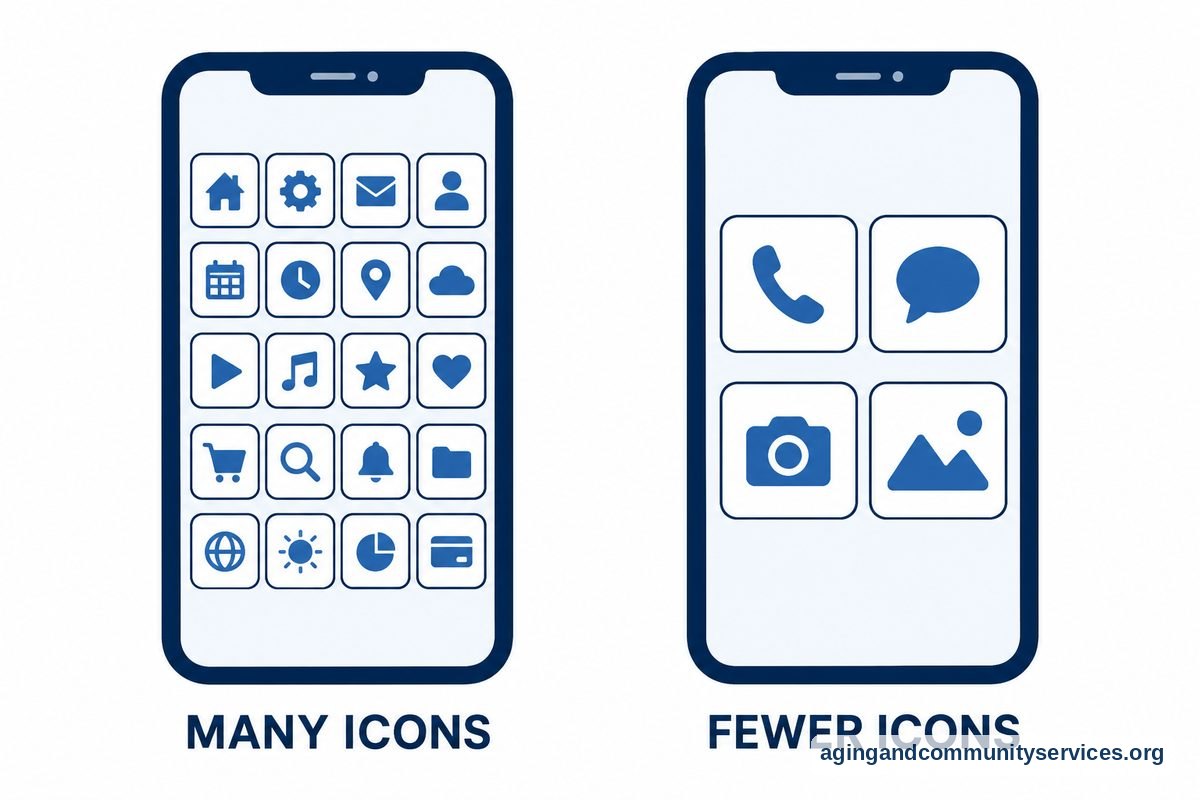
- Make the screen easier to see. Increase text size, turn up brightness, add important contacts, and remove extra shortcuts if possible. If balance, vision, hand strength, or pain affects use, a doctor, physical therapist, or occupational therapist may suggest safer ways to hold or place the device.
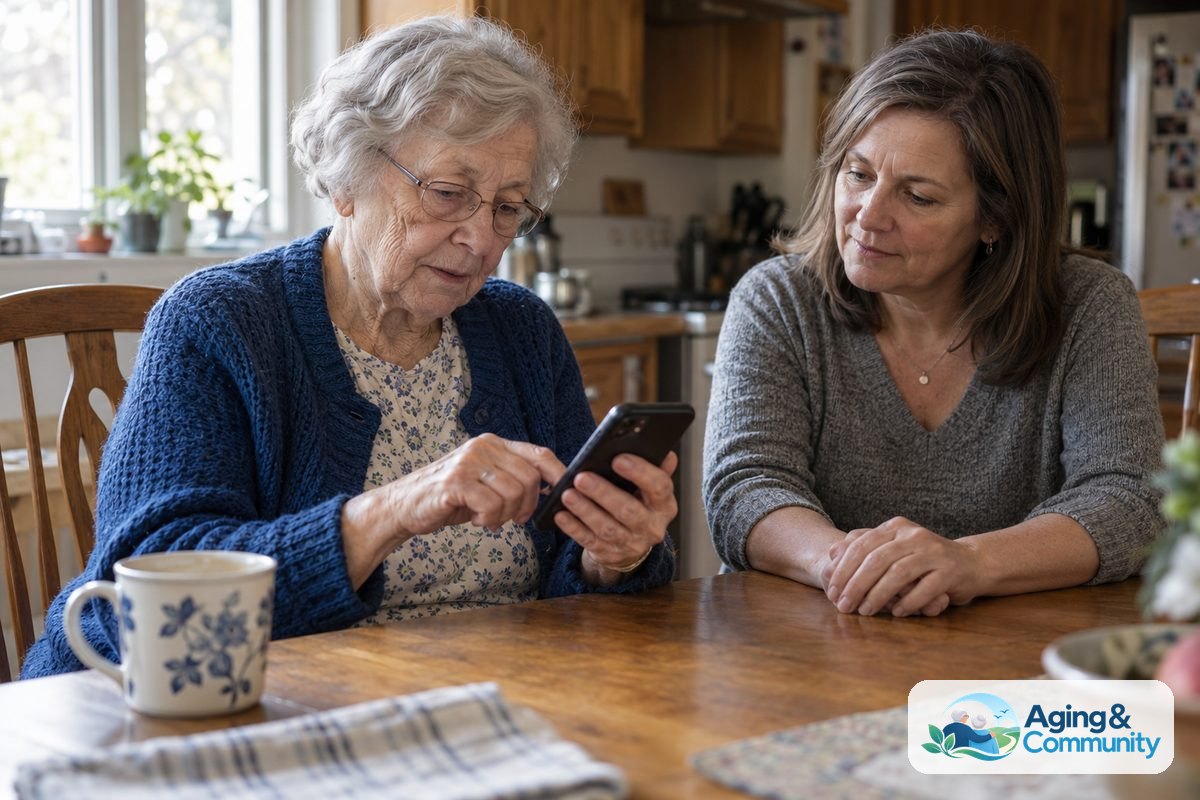
- Show, then let them do it. Do not take over the whole time. Show the step once, then ask them to tap, type, or click while you guide with simple words.
- Use the same words every time. Say “tap the green phone button” instead of changing between tap, press, hit, and select. Steady language lowers confusion.
- Write a short cheat sheet. Use large print and list the exact steps in order. Keep it near the device, not tucked away in a drawer.
- Practice one skill several times. Repeating the same task builds comfort. It is better to send three practice texts than to cover five new apps in one sitting.
- Connect the lesson to daily life. Practice calling a family member, checking a calendar, opening a saved photo, or joining a meeting. For social connection, a simple guide to video call options can help you choose what to teach first.
- End before frustration builds. Short lessons work well. Stop while the person still feels successful, then plan the next small step.
- Review at the next visit. Begin by repeating the last task before adding anything new. Review is part of learning, not a sign that the person failed.
Common Mistakes to Avoid
- Teaching too much at once. A long lesson can make simple tools feel harder than they are.
- Using jargon. Words like browser, cloud, sync, and operating system may not help at first. Use plain words tied to what they see on the screen.
- Grabbing the device too quickly. It may feel faster, but it keeps the learner from building muscle memory.
- Rushing through passwords. Passwords need care. Help create a safe plan for storing them, and avoid sharing private information by text or email.
- Making jokes about age. Humor can sting when someone already feels unsure. Keep the tone respectful and matter of fact.
- Skipping safety habits. Teach how to pause before tapping links, answering unknown calls, or giving out personal details.
When to Call for Help or Get Professional Advice
Call for help when the device will not update, messages stop working, the person cannot sign in, or you see signs of a scam. You can call the phone carrier, internet company, device maker, local library, community center, or a trusted repair shop. If the need is more general, the Eldercare Locator can point families toward local support.
Before calling, write down the device type, the problem, when it started, and any error message on the screen. If possible, take a photo of the message. Do not give a password, banking code, or full Social Security number to someone who contacted you first.
If the person has trouble seeing the screen, hearing alerts, holding the phone, reaching the keyboard, or sitting safely at a desk, ask a doctor, physical therapist, or occupational therapist for advice. The National Institute on Aging notes that home safety steps can lower the risk of falls, and its guidance on falls prevention may be helpful when deciding where to place cords, chairs, and chargers.

How to Teach Phone and Smartphone Skills
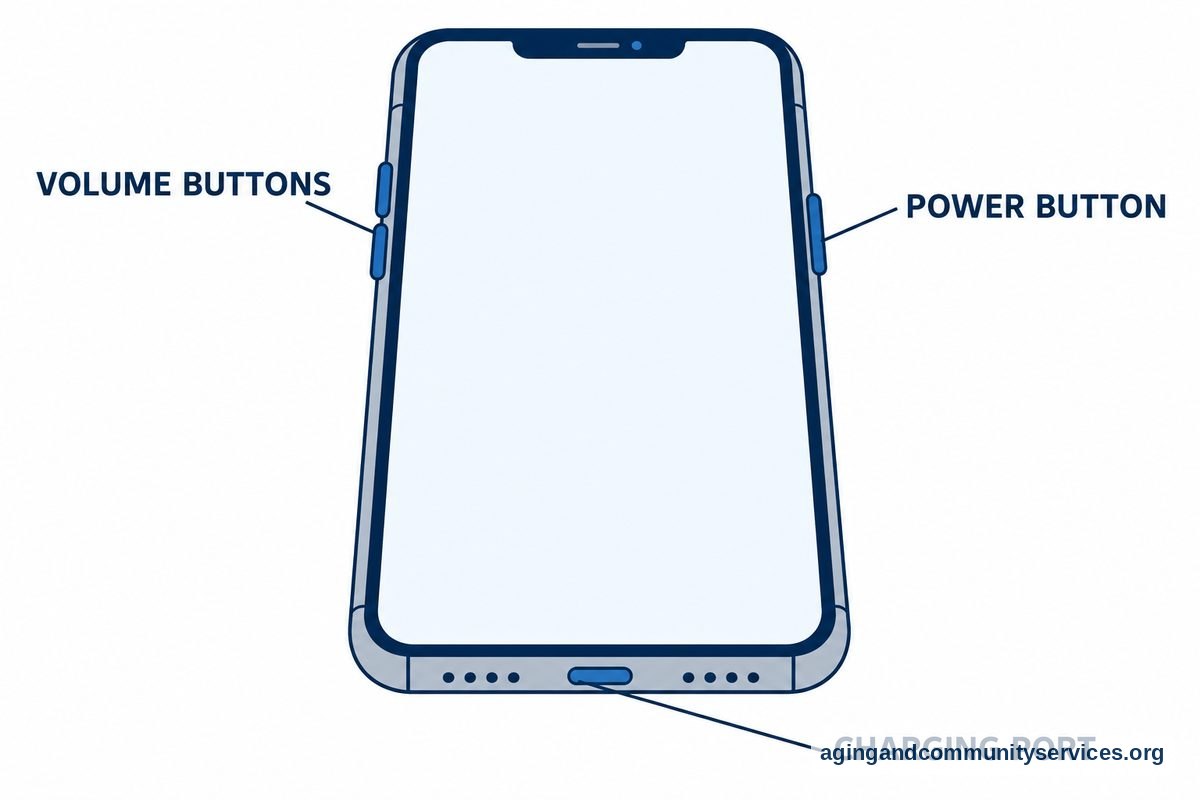
When teaching a smartphone, begin with the home screen, volume buttons, power button, and charging port. Then teach one common task, such as answering a call. Do not start with app stores, settings menus, or many icons at once.
For iPhone users, a guide to set up iPhone can help with larger text, favorite contacts, and simple settings. For Android users, a guide to Android phone basics can make the first lessons easier to plan.
A good first phone lesson might include these tasks: answer a call, make a call from favorites, read a text, send a short reply, take a photo, and charge the phone. Practice each task several times. If the person only learns calling and texting at first, that is still useful progress.
Many people also want to learn video calls. Start by choosing one app and one contact. A focused guide to Zoom meeting basics can help if the person needs to join family calls, classes, or appointments.
| Skill | First Practice Task | Helpful Teaching Tip |
|---|---|---|
| Phone calls | Call a favorite contact | Put the contact on the first screen if possible |
| Texting | Send “I am home” | Use short practice messages at first |
| Photos | Take and view one photo | Teach where the photo goes after it is taken |
| Video calls | Join one planned call | Practice sound and camera before the call |
| Safety | Ignore an unknown link | Teach them to ask before tapping anything odd |
How to Teach Computer Skills
To teach someone to use a computer, start with the mouse or touchpad, keyboard, power button, and screen. Explain that the computer has a desktop, and that programs open in windows. Keep the first lesson slow and simple.
Begin with a task that matters, such as opening email, reading a message, typing a short reply, or searching for a trusted website. If the person wants a wider overview, a plain guide to technology for seniors can help you choose useful tools without adding too much at once.
For mouse practice, ask the person to move the pointer, single click, double click, and scroll. Use a blank document for typing practice. Let them type their name, a short note, and a simple email draft.
Computer safety matters too. Teach the person to close pop ups, avoid unknown downloads, and call a trusted helper before responding to urgent messages. A simple rule works well: if a message asks for money, passwords, gift cards, codes, or private information, pause and ask someone trusted.

Frequently Asked Questions
How to teach old people to use technology?
Start with respect and one useful goal. Show the task slowly, let the person do the tapping or typing, and repeat the same steps at the next lesson.
How to teach seniors technology?
Choose the device they use most and teach only the features they need right now. Calls, texts, email, photos, and video visits are often better starting points than apps and settings.
How to teach seniors to use a smartphone?
Begin with charging, volume, answering calls, making calls, reading texts, and sending a short reply. Add photos, maps, or video calls later, once the first skills feel steady.
How to teach elderly to use smartphone?
Use large text, favorite contacts, and a written step list. Sit beside the person, not across from them, so your directions match what they see on the screen.
How to teach seniors to use a computer?
Teach the mouse, keyboard, desktop, and one program first. Email is a useful first program because it includes opening, reading, typing, and sending.
How to teach an old person to use a computer?
Keep sessions short and repeat the same steps often. Write down the steps in plain words, and let the person control the mouse and keyboard as much as possible.