

Apps for senior caregivers can help families stay organized, check in more easily, and share everyday care tasks without relying on long text chains. The right app will not replace personal contact, medical advice, or emergency help, but it can make routine support clearer and calmer.
Many families use caregiver apps to manage reminders, appointments, grocery lists, medication lists, notes from visits, and quick check ins. Some tools are made mainly for the caregiver, while others are simple enough for the person receiving care to use directly.
What Caregiver Apps Can Help With
A caregiver app is usually a shared place for information and daily tasks. It can help one person avoid carrying every detail alone, especially when siblings, neighbors, friends, or paid helpers are involved.
Common features include:
- Shared calendars for appointments, visits, and errands
- Medication lists and refill reminders
- Daily check in buttons or simple status updates
- Task lists for meals, rides, bills, laundry, or home chores
- Notes about mood, sleep, meals, or changes in routine
- Document storage for contacts, care plans, and instructions
For many families, the main benefit is not the app itself. It is the shared routine the app supports. A clear plan can reduce missed messages and help everyone know who is doing what.
If you are comparing broader options, a guide to apps for elderly care can help you see how care, reminders, and communication tools fit together.
Types of Apps for Senior Caregivers
Not every family needs a full care management platform. A simple shared calendar or check in app may be enough. Start with the problem you want to solve, then choose the simplest tool that meets that need.
| Type of App | What It Helps With | Good Fit For |
|---|---|---|
| Care coordination app | Tasks, calendars, notes, contacts | Families with more than one helper |
| Check in app | Daily status updates or quick replies | Families who want a simple daily touchpoint |
| Medication reminder app | Reminders, lists, refill notes | People who need help tracking a routine |
| Shared calendar app | Appointments, visits, rides | Care teams managing schedules |
| Home safety or device app | Alerts from connected devices | Homes using sensors or smart devices |
A care coordination app may be useful if several people help with rides, meals, appointments, or bills. It gives the group one place to see updates instead of asking the same questions again and again.
A check in app is often simpler. It may send a daily prompt such as, “How are you today?” The person can tap a response, and a family member can see that the check in was completed.
Some families also use general apps for seniors for video calls, reminders, reading, transportation, or grocery delivery. These may not be caregiver apps by name, but they can still support daily life.
How Check In Apps for Elderly Family Members Work
A check in app for elderly family members usually sends a reminder at a chosen time. The person may tap a button, answer a short question, or send a quick message. If the check in is missed, the app may notify a caregiver.
These apps are helpful when everyone agrees on what a missed check in means. It may mean the person is busy, forgot, is away from the phone, or needs a call. Families should decide ahead of time what steps to take.
A simple check in plan might look like this:
- The app sends a prompt each morning.
- The person taps a response or sends a short note.
- If there is no response, a family member calls.
- If the call is not answered, a nearby contact may stop by.
- If there is an urgent concern, the family uses local emergency services.
Keep the plan respectful. A check in should feel like support, not surveillance. Ask the person what time works best, what wording feels comfortable, and who should receive alerts.
If the app connects to home devices, think through privacy first. Motion sensors, door sensors, cameras, and location tools may give families useful information, but they should be used with clear consent whenever possible.
Features to Look For Before Choosing an App
The best app is the one your family will actually use. A long feature list does not matter if the screen is confusing or the setup is hard to manage.
Look for these practical features:
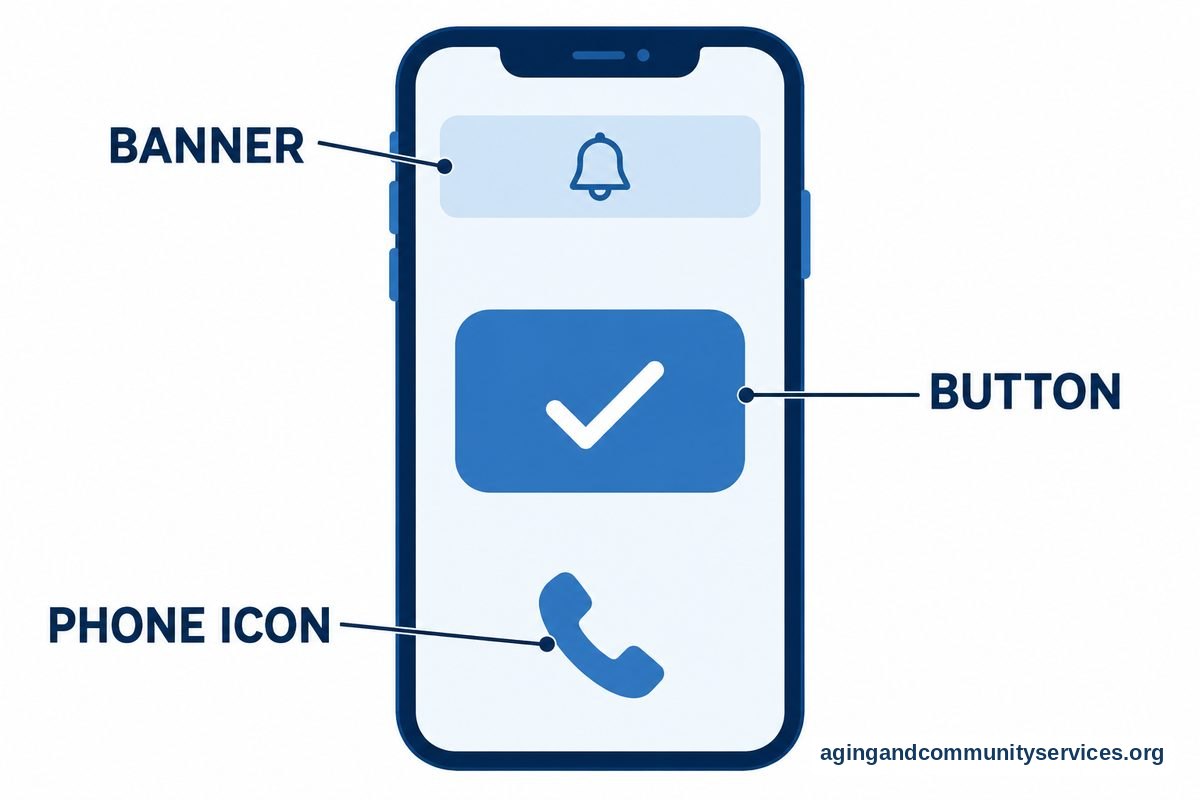
- Simple setup: The app should be easy to install, sign in to, and explain.
- Clear reminders: Alerts should be noticeable without being stressful.
- Shared access: More than one helper should be able to view updates if needed.
- Easy check ins: One tap is often better than typing a long message.
- Privacy controls: The person receiving care should know what is shared and with whom.
- Reliable support: The app should offer clear help instructions inside the app or on its website.
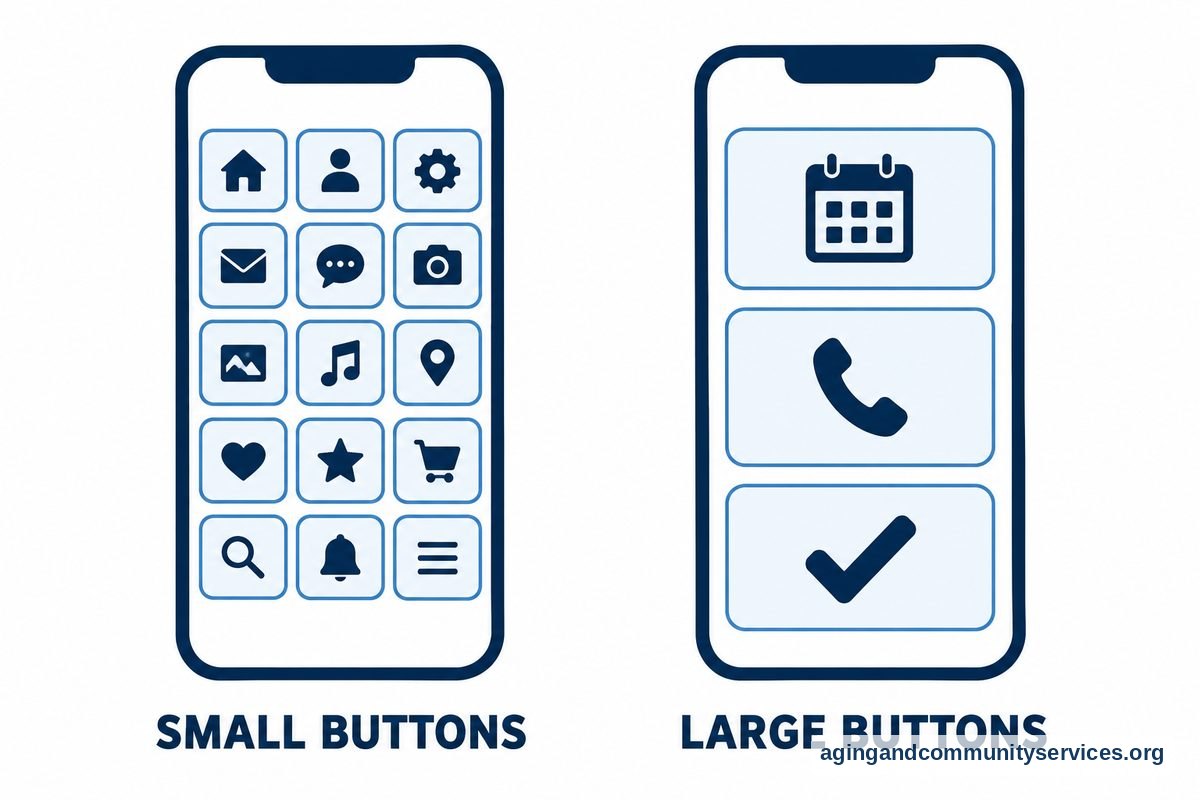
Also think about the phone or tablet being used. Small text, too many menus, weak contrast, or tiny buttons can make an app frustrating. If vision, hearing, memory, or hand strength affects use, look for larger buttons, voice options, and fewer steps.
For a bigger picture of devices, apps, and home tools, a guide to technology for elderly care can help you choose tools that work together instead of adding clutter.
If memory changes are part of your family’s care plan, ask a doctor, occupational therapist, or other qualified professional what type of reminders may be appropriate. You may also want to read about apps for dementia support and review any tool with the person’s care team.
Privacy, Safety, and Respect
Caregiver apps often hold personal information. This may include medication lists, addresses, appointment details, phone numbers, and notes about daily routines. Treat that information with care.
Before adding an app, talk about what will be shared. Decide who can see updates, who can change information, and what should stay private. If the person receiving care can take part in the decision, include them from the start.
Use strong passwords and avoid sharing one login with several people. When possible, give each helper their own account. This makes it easier to remove access later if a paid helper, neighbor, or friend is no longer involved.
Be careful with location sharing. Some people find it helpful for rides or errands. Others may feel watched. It is better to agree on clear limits than to turn on every feature just because it is available.
For home safety, apps can support a plan, but they do not replace common sense or professional advice. The National Institute on Aging explains that changes such as removing tripping hazards and improving lighting can lower the risk of falls in its guide to falls and prevention. If falls, balance, or home setup are a concern, ask a doctor, physical therapist, or occupational therapist for guidance.
How to Introduce a Caregiver App Without Frustration
Even a helpful app can feel like one more chore if it is introduced too quickly. Start small and build comfort over time. One feature used well is better than five features no one trusts.
Try this approach:
- Choose one goal, such as a daily check in or shared calendar.
- Set up the app before asking the person to use it.
- Use plain names for contacts, tasks, and reminders.
- Practice together when no one is rushed.
- Write down the steps in large, clear print.
- Review what is working after a week or two of regular use.
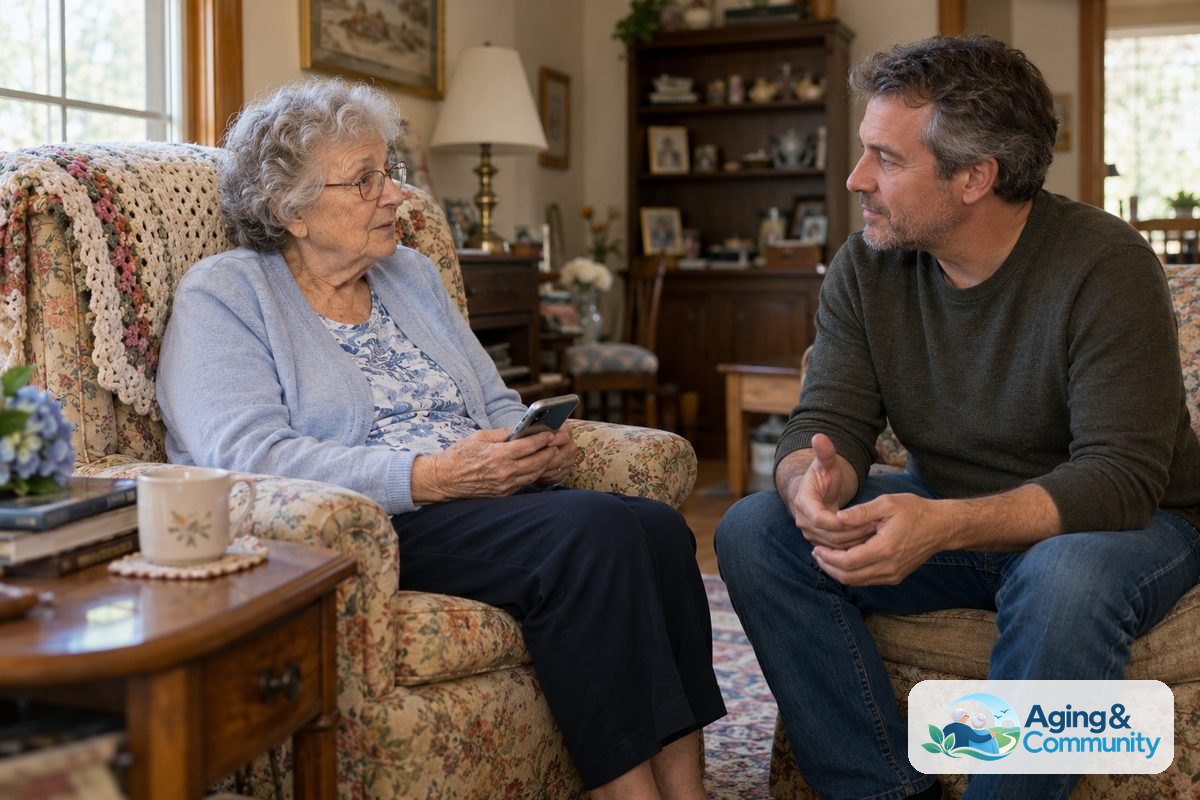
Keep teaching patient and practical. Instead of saying, “It is easy,” say, “Let’s do it together a few times.” That respects the person’s effort and avoids making the tool feel like a test.
If you need a step by step approach, this guide on teaching technology skills can help you slow the process down and make it easier to follow.
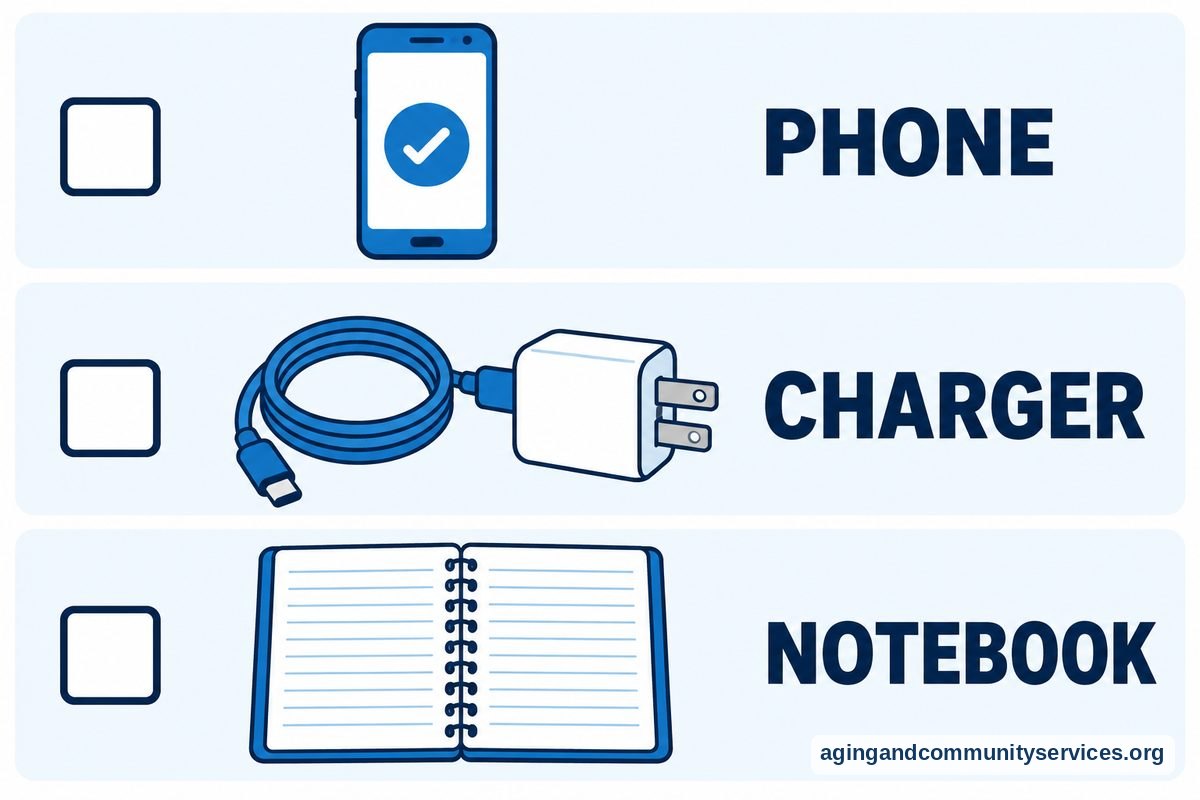
It also helps to keep a backup plan. If the app stops working, the phone battery dies, or the internet goes out, decide how the family will check in. A phone call, neighbor visit, or written calendar may still be part of the routine.
What You Can Do Next
You do not need to choose every tool at once. A calm, step by step plan can help your family find an app that fits real life.
- Write down the main problem you want the app to solve.
- Ask the person receiving care what kind of check in feels respectful.
- Choose one simple app or tool to try first.
- Set a daily or weekly routine for using it.
- Decide what happens if a check in is missed.
- Review privacy settings and who can see information.
If you need help finding local support, the Eldercare Locator can connect families with aging services in their area. It can be a useful starting point when technology is only one part of a larger care plan.
For medical questions, changes in memory, medication concerns, falls, or sudden changes in daily function, contact a doctor or other qualified professional. Apps can help organize information, but they should not be used to make medical decisions on their own.
Frequently Asked Questions
What is an app for caregivers of elderly family members?
An app for caregivers of elderly family members is a tool that helps organize care tasks, reminders, notes, appointments, and updates. Some apps are built for a whole care team, while others focus on one task, such as check ins or medication reminders.
The right choice depends on your family’s needs. If one person handles everything, a simple reminder app may be enough. If several people help, a shared care app may be easier.
What is a check in app for elderly adults?
A check in app for elderly adults sends a prompt and lets the person respond with a tap, message, or short status update. A caregiver can see that the check in was completed.
These apps work best when the family agrees on a routine. Decide what time the check in happens, who gets alerts, and what steps to take if there is no response.
Is there an app for elderly to check in with family?
Yes, there are apps that let a person check in with family using a simple button, message, or scheduled reminder. Some are made only for check ins, while others include calendars, tasks, and notes.
Choose an app with large text, clear buttons, and very few steps. If the app feels hard to use, the family may be better served by a simpler tool.
What app for seniors to check in is easiest to use?
The easiest app for seniors to check in is usually the one with the fewest steps. A daily prompt, one tap response, and clear alert to a caregiver may be enough.
Before choosing, practice the check in together. Make sure the person can see the screen, hear alerts, and understand what happens after they tap the button.
How should families set up an app for elderly check in?
Start by agreeing on the purpose. A check in might mean “I am up for the day,” “I am home,” or “Please call me.” Clear meaning helps avoid confusion.
Then choose the time, alert contact, and backup plan. Write the steps down and keep them near the phone or tablet.
Can an app for senior check ins replace phone calls?
An app for senior check ins can reduce some routine calls, but it should not replace personal connection. Many families use both: a quick daily check in through the app and regular calls or visits for conversation.
If a missed check in would cause concern, make sure your family has a clear follow up plan. Technology works best when it supports human help, not when it stands alone.