

AI for seniors organizing digital life can help sort photos, find files, clean up email, remember tasks, and make everyday technology feel easier to handle. The safest way to use it is to start small, keep private information protected, and ask it to help with simple chores before trusting it with anything important.
Think of AI as a patient helper, not as the person in charge. You still decide what to keep, delete, share, or change, while the tool helps you move through the work one step at a time.

Steps to Use AI to Organize Your Digital Life
- Pick one area to organize first. Start with one small task, such as photos, email, passwords, files, or calendar reminders. Trying to fix everything at once can make the job feel larger than it needs to be.
- Make a simple list of what feels messy. Write down the top problems, such as too many unread emails, photos that are hard to find, or files with unclear names. This list helps you ask AI for clear help instead of a vague answer.
- Choose a familiar tool when possible. Many phones, email accounts, photo apps, and computers already include AI features. If you need help choosing basic tools, a guide to apps for elderly users can help you compare what is simple and useful.
- Use AI to create a sorting plan. Ask the tool for a step by step plan, such as how to organize family photos by person, date, or event. Then follow only the parts that make sense to you.
- Clean up email in small batches. AI can help you write search terms, spot newsletters, and draft polite replies. If email itself feels confusing, a plain guide to email for seniors can make the basics easier before adding AI.
- Rename files in a way you understand. Ask AI for naming ideas like medical papers, home records, taxes, photos, and travel. Use clear names that a family member could understand later.
- Use reminders for real life tasks. AI can help turn a messy note into a calendar reminder, shopping list, or packing list. Keep reminders short, clear, and tied to a date or time when needed.
- Keep passwords separate and protected. Do not type passwords, Social Security numbers, bank details, or full account numbers into a general AI chat. Use a trusted password manager or ask a trained helper to explain safe options.
- Review before you delete or send anything. AI can make mistakes or misunderstand what you want. Read its suggestions carefully before deleting files, sending messages, changing account settings, or sharing personal details.
- Ask someone you trust to check the first setup. A patient family member, librarian, local tech class, or support service can help you set safe habits. If the person teaching you needs ideas, this guide on teaching technology offers a helpful approach.
Common Mistakes to Avoid
- Starting with too many tools. One AI assistant, one email account, and one storage place are usually easier than several new apps at once.
- Sharing private information too freely. Avoid putting passwords, bank numbers, Medicare numbers, full birth dates, or private family details into AI chats.
- Letting AI decide what matters. AI can suggest folders or names, but you should choose what to keep, move, or delete.
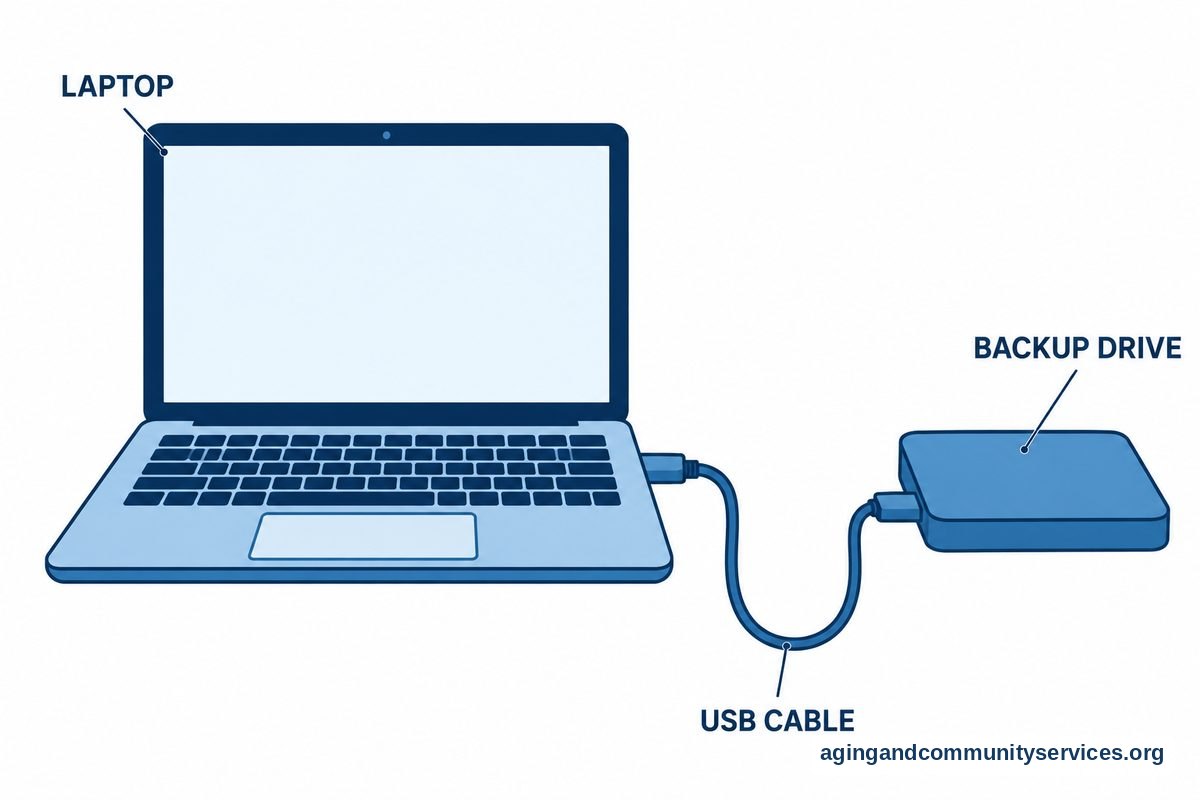
- Deleting before backing up. If a file, photo, or message might matter later, save a copy before removing it.
- Trusting every answer. AI may sound confident even when it is wrong. Check important information with a trusted source or person.
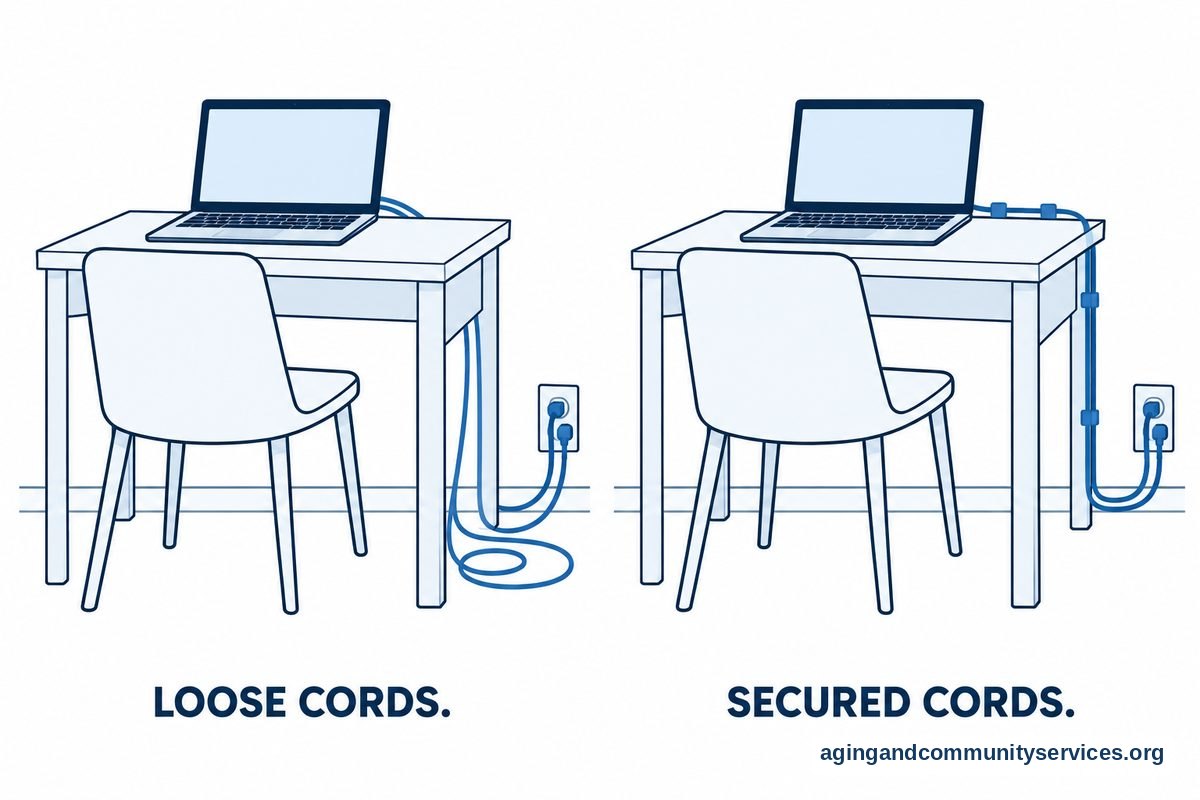
- Ignoring comfort and safety at the computer. Take breaks, use good lighting, and keep cords tidy. The National Institute on Aging has practical advice on falls and falls prevention that can support a safer home setup.
When to Call for Help or Get Professional Advice
Call for help when you feel stuck, rushed, unsure, or worried about privacy. Good people to ask include a trusted family member, a library technology helper, a senior center class, a local computer repair service, or an account support line from the company you already use.
Tell them exactly what you want to do. For example, say, I want to organize my photos into family folders, or I want help setting up reminders without sharing private information. Clear requests make it easier for someone to help without taking over.
If you need help finding local services, the Eldercare Locator can point you toward community resources. If your digital organizing is part of a larger plan to stay comfortable at home, the National Institute on Aging explains ideas for aging in place, including planning and support.
For health related technology, such as patient portals, medication lists, or therapy instructions, ask the medical office, pharmacist, doctor, physical therapist, or occupational therapist before making changes. AI can help you write questions or organize notes, but it should not replace professional advice.
What AI Can Help Organize
AI is most useful when a task has many small pieces. It can help you sort, label, summarize, and plan. It can also turn a messy thought into a short list you can follow.
| Digital Area | How AI Can Help | What You Should Check |
|---|---|---|
| Draft replies, find old messages, suggest folders, and make search phrases. | Check the tone, names, dates, and any personal details before sending. | |
| Photos | Suggest folder names, captions, and ways to group pictures by person or event. | Confirm the people, places, and dates before saving labels. |
| Files | Create naming rules for documents, receipts, home papers, and family records. | Make sure important papers are backed up before moving or deleting them. |
| Calendar | Turn notes into reminders, appointments, packing lists, and recurring tasks. | Check times, time zones, addresses, and repeat settings. |
| Messages | Draft short texts, make a polite response, or summarize a long message. | Read the message out loud before sending if it involves feelings or money. |
One helpful approach is to create a few main folders and stop there at first. For example, you might use Family, Home, Health, Money, Travel, and Keepsakes. Simple folder names are easier to remember than a large system with many levels.
AI can also help you make personal rules. You can ask, Help me make a simple plan for naming photos from family events, or Give me a short checklist for cleaning up my email every Friday. The more plain your request, the more useful the answer tends to be.

How to Protect Privacy While Using AI
Privacy matters because digital life often includes personal, family, financial, and health details. A good rule is to ask AI for structure, not secrets. Let it help with wording, lists, and plans without giving it sensitive information.
Instead of typing a real account number, use a placeholder like my bank account. Instead of giving a full name and address, say my sister or my doctor office. This keeps the question useful while limiting what you share.
Be careful with messages that ask you to act fast, move money, buy gift cards, or share a code. AI can help you draft a calm reply, but it cannot prove that a message is honest. If money, identity, or account access is involved, pause and call the company using a number from your bill, card, or official account screen.
For a wider look at simple tools, safety habits, and patient support, a guide to technology support for seniors can help you decide what kind of help fits your situation. If you want a broader overview of how AI may be used at home, this article on AI for the elderly explains common uses in plain language.
It is also wise to keep a small paper note that says where key digital items are stored. Do not write full passwords on a note in plain view. Instead, note the name of the password manager, the main email account, and who to contact if help is needed.

Simple AI Prompts You Can Use
A prompt is just the question or instruction you type into an AI tool. You do not need special words. Clear, everyday language works well.
- For photos: Help me make a simple folder plan for family photos from vacations, holidays, and birthdays.
- For email: Give me five search terms to find old bills, appointment messages, and family updates in my email.
- For files: Suggest clear file names for home papers, car records, tax papers, and medical visit notes.
- For reminders: Turn this list into weekly reminders: water plants, call pharmacy, charge phone, take trash out.
- For messages: Help me write a short, friendly reply that says I received the message and will respond later.
- For learning: Explain how cloud storage works in plain English, using a simple example.
If the first answer is too long, ask for a shorter one. If it uses confusing words, ask it to explain in simpler terms. You can also say, Give me one step at a time, which can make the process feel more manageable.
Frequently Asked Questions
What is the easiest way to start using AI for digital organizing?
Start with one task that bothers you often, such as finding photos or cleaning up email. Ask AI for a short plan with only a few steps, then do the first step before asking for more.
Can AI organize my photos for me?
AI can suggest groups, captions, folder names, and search ideas for photos. You should still check names, dates, and people before saving changes, because photo tools can make mistakes.
Is it safe to ask AI about passwords?
You can ask AI to explain what a password manager does or how to make strong password habits. Do not type your real passwords, security codes, or account recovery details into an AI chat.
How can AI help with email clutter?
AI can help you write search terms, create folder names, draft replies, and make a simple clean up routine. It is still important to review messages before deleting or sending anything.
What should I do if AI gives confusing advice?
Ask it to explain the answer in simpler words, give one step at a time, or make a checklist. If the task involves money, health, legal papers, or account access, ask a trusted person or professional for help.
Can a family member help without taking over?
Yes. A helpful family member can sit beside you, explain each step, and let you make the choices. It is often better when the helper teaches slowly instead of grabbing the device and doing everything alone.