Setting up an emergency contact for the fall detection feature on an Apple Watch gives you and your family meaningful peace of mind. When your device senses a hard impact and you cannot respond, it calls local dispatchers first and then promptly alerts your chosen contacts with a text message and your location. Taking a few minutes to connect your details ensures your loved ones stay informed during an urgent situation.
Many older adults use this wrist wearable every day for its helpful health tracking and safety features, just as our bidet toilet guide helps with bathroom safety. Knowing exactly how to set up your information makes the tool far more reliable when unexpected accidents happen.
How to Add an Emergency Contact for Apple Watch Fall Detection
- Open the Health app on your iPhone. Tap your profile picture or initials in the top right corner of the main screen to access your account settings.
- Tap Medical ID to access your personal records. Select the edit option in the upper right corner to modify your existing safety details and contact choices.
- Scroll down to the emergency contacts section. Tap the green plus button labeled add emergency contact to display your saved address book.
- Choose your trusted person from your contacts list. Select the specific phone number you want the device to reach, especially if your contact has both a home and mobile line.
- Designate your relationship to that person. Pick the matching label, such as spouse, partner, child, parent, or friend, so first responders understand who they are calling.
- Tap Done to save your changes. Confirm that the new name appears clearly under the emergency section before exiting the application.
- Verify Fall Detection is active in your Watch app. Open the Watch app on your paired phone, tap Emergency SOS, and make sure the switch for Fall Detection is toggled to the on position.
Common Mistakes to Avoid
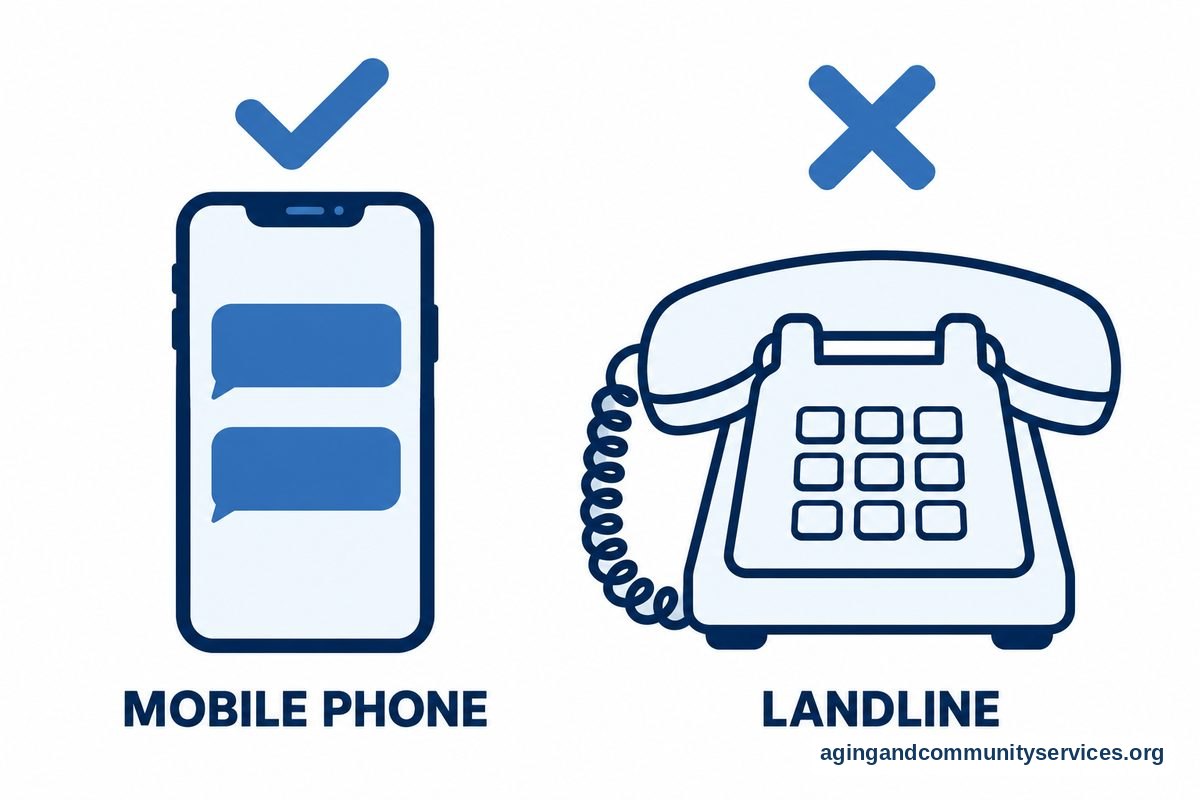
- Listing a landline phone number instead of a mobile number. The device sends a text message with a map of your location, so your designated person must be able to receive standard SMS text messages.
- Leaving Medical ID access turned off on the Lock Screen. Make sure the Show When Locked switch is green so emergency personnel can view your health notes without needing your passcode.
- Entering duplicate contacts with conflicting details. Clean up your phone address book so the system does not pick an outdated number or an old office line by accident.
- Forgetting to inform your chosen contacts. Always tell your family members or friends that you have listed them so they know what to do if an automated text arrives.
- Assuming the watch replaces regular voice check-ins. Technology provides great support, but it works best alongside regular daily routines with neighbors and family.
When to Call for Help or Speak with a Specialist
If you experience frequent trips or balance problems, reach out to your primary care doctor. A physician can review your medications, check your inner ear health, and look for subtle changes in your walking pattern. You can also ask your doctor for a referral to an occupational therapist or physical therapist, who can suggest home modifications and balance exercises to help with fall prevention.
According to resources on falls and falls prevention from the National Institute on Aging, everyday changes like improving lighting and staying active can lower the risk of balance incidents. For community support, transportation aid, or local wellness classes, families can contact the Eldercare Locator to find regional assistance programs.
If a hard tumble occurs and you feel severe pain, dizziness, or cannot stand back up safely, press and hold the side button on your wrist device immediately. Tell the emergency dispatcher your exact location, what hurts, and whether you hit your head or lost consciousness, even for a brief moment.
How Your Apple Watch Handles an Emergency Call
Understanding the exact sequence of events helps reduce anxiety about accidental triggers. When the wearable detects a significant impact, it taps your wrist, sounds an alarm tone, and shows an alert on the screen. If you are moving, it waits for you to respond or dismiss the message. If you remain completely still for about one minute, a thirty-second countdown begins with loud chimes.
Once that countdown ends, the watch places an automated call to 911 or your local emergency services. Many people wonder who does Apple Watch fall detection call during this process. The system always connects directly to public safety dispatchers first to ensure professional medical help is dispatched without delay.
After that call disconnects, the device immediately creates a message for your saved contacts. It tells them that the watch sensed a hard fall and dialed emergency services, and it includes your current coordinates on a map. If your location changes, the device sends an update so family members can find you at the hospital or at home.
Device Connections and Everyday Reliability
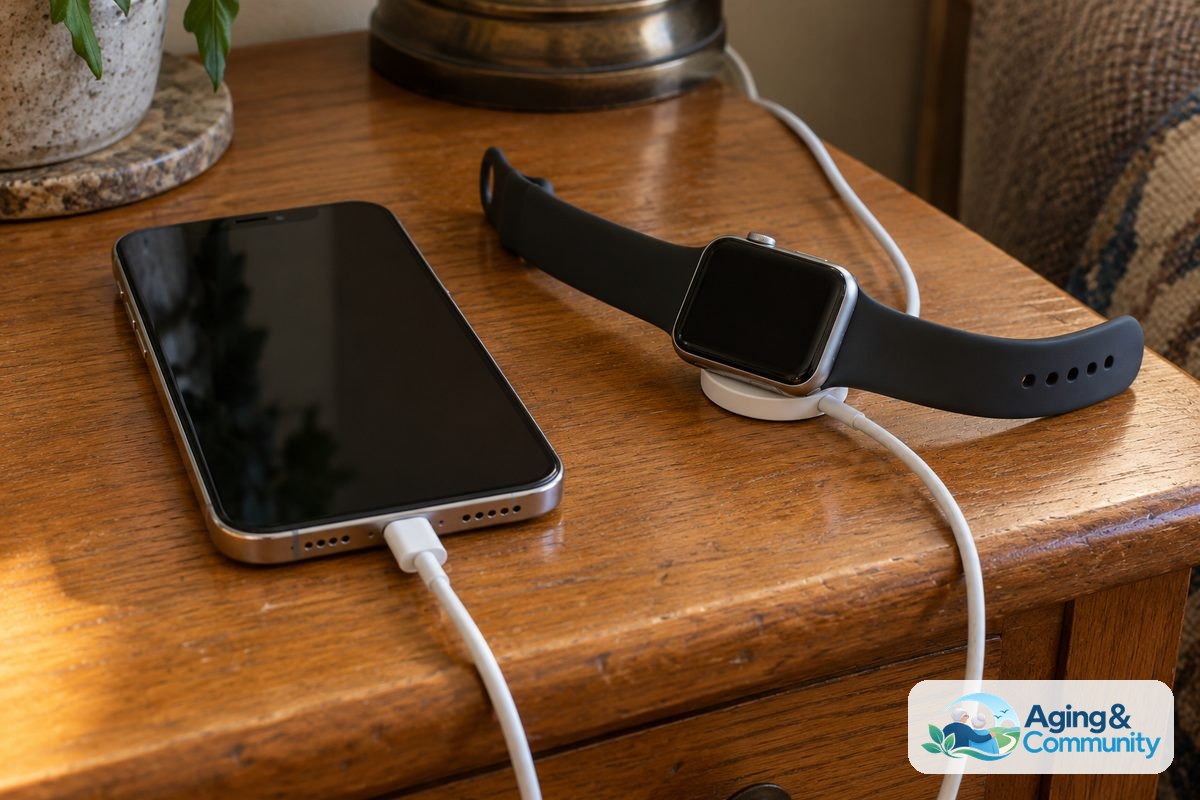
For these safety alerts to go through smoothly, your watch must have a way to communicate with cellular networks. If your wearable has its own active cellular plan, it can place the emergency call and send the text independently. If you wear a GPS-only model, it must remain within Bluetooth range of your phone, or be connected to a known Wi-Fi network with Wi-Fi calling enabled.
Families often ask about using a fall detection Apple Watch without iPhone nearby. While cellular models offer independence on outdoor walks, keeping your phone charged and connected provides the most consistent bridge for your safety messages.
There may also be times when an alert sounds while you are clapping, exercising, or dropping into a soft chair. Knowing how to handle a fall detection Apple Watch false alarm keeps you calm. You can simply tap the dismiss button or cancel the countdown before the call goes out, which prevents dispatchers and your contacts from receiving an accidental alert.
Finally, keep in mind that no wearable detects every single tumble. High-impact slips register most reliably, while sliding slowly from a low couch might not generate enough sudden momentum to trigger the sensor. If your fall detection Apple Watch did not trigger during a minor slip, remember that manual dialing is always available by holding down the long side button.
Frequently Asked Questions
Can my Apple Watch alert my family without calling 911 first?
No, the system is designed to call public safety services first whenever the automatic countdown finishes. Once that initial connection ends, the watch sends your text notification and coordinates to your saved family members. You cannot bypass the 911 call to notify personal contacts alone during an automated sequence.
How many emergency contacts can I select?
You can add multiple names to your Medical ID records in the Health app. The watch will attempt to send the notification text and your location details to all listed individuals after calling local emergency dispatchers. Choose people who keep their mobile phones nearby and can respond promptly.
Will my contacts receive updates if I move?
Yes, if your location shifts after the initial incident, your watch will send follow-up notifications to your family. This feature helps them know if an ambulance is transporting you to a nearby medical center. You can stop sharing your location at any time by tapping the status bar on the screen.
Does fall detection turn on automatically for everyone?
The feature turns on automatically if you entered your age as fifty-five or older when setting up your device or Health profile. If you are younger, or if your birthdate was skipped during setup, you must manually toggle the feature on inside the Watch app on your phone under the Emergency SOS menu.
Do my emergency contacts need to own an iPhone?
No, your contacts do not need to use an iPhone to receive your alert. The watch transmits the notification as a standard SMS text message over mobile networks. As long as their mobile phone can receive text messages, they will see your alert and the web link showing your location.