

Android for seniors can be a good choice when the phone is easy to hold, easy to read, and simple to set up. Many Android phones can be adjusted with larger text, clearer buttons, voice help, and fewer distractions. The right choice depends on comfort, budget, hearing and vision needs, and who can help with setup.
An Android phone is not just one phone. Android is the system used by many phone brands, so there are many sizes, styles, and feature levels. That can be helpful, but it also means you may want a short checklist before buying or changing settings.
What Makes an Android Phone Easier to Use?
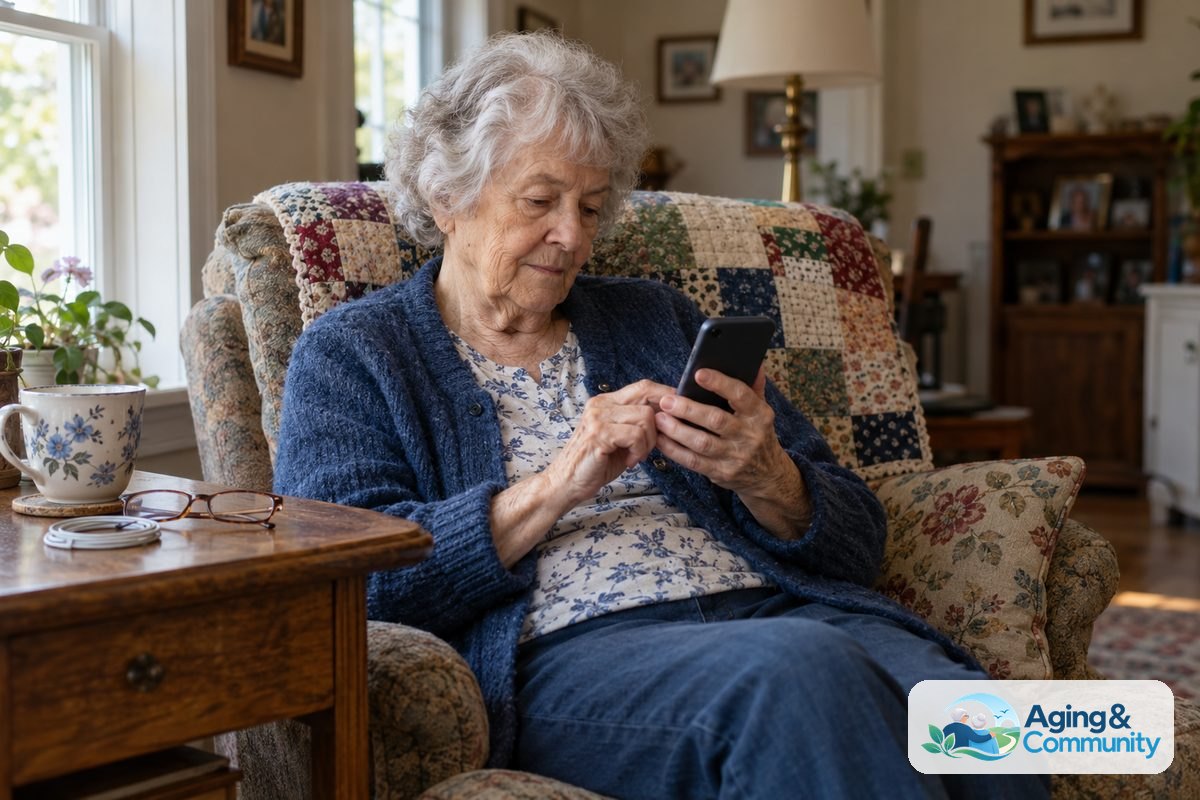
A good android phone for seniors should reduce small choices and make daily tasks clear. The most useful phone is the one a person will actually keep charged, carry, and use with confidence.
Start with the basics. Can the person read the screen without strain? Can they hear calls well? Can they answer the phone without hunting for the right button? If not, settings may help before a new phone is needed.
- Screen size: A larger screen can make text, photos, maps, and video calls easier to see.
- Text size: Android lets you increase font size and display size in settings.
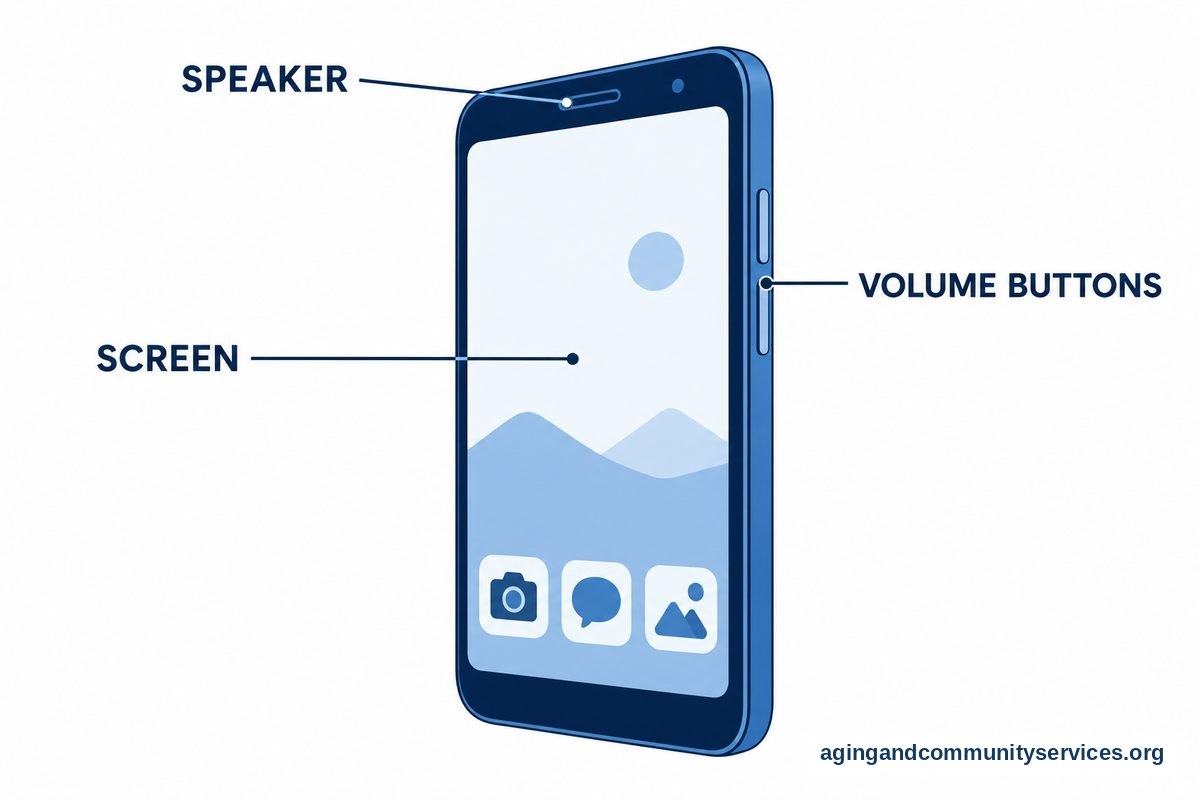
- Sound: Look for loud, clear speakers and easy volume buttons.
- Battery life: A phone that lasts through the day is easier to trust.
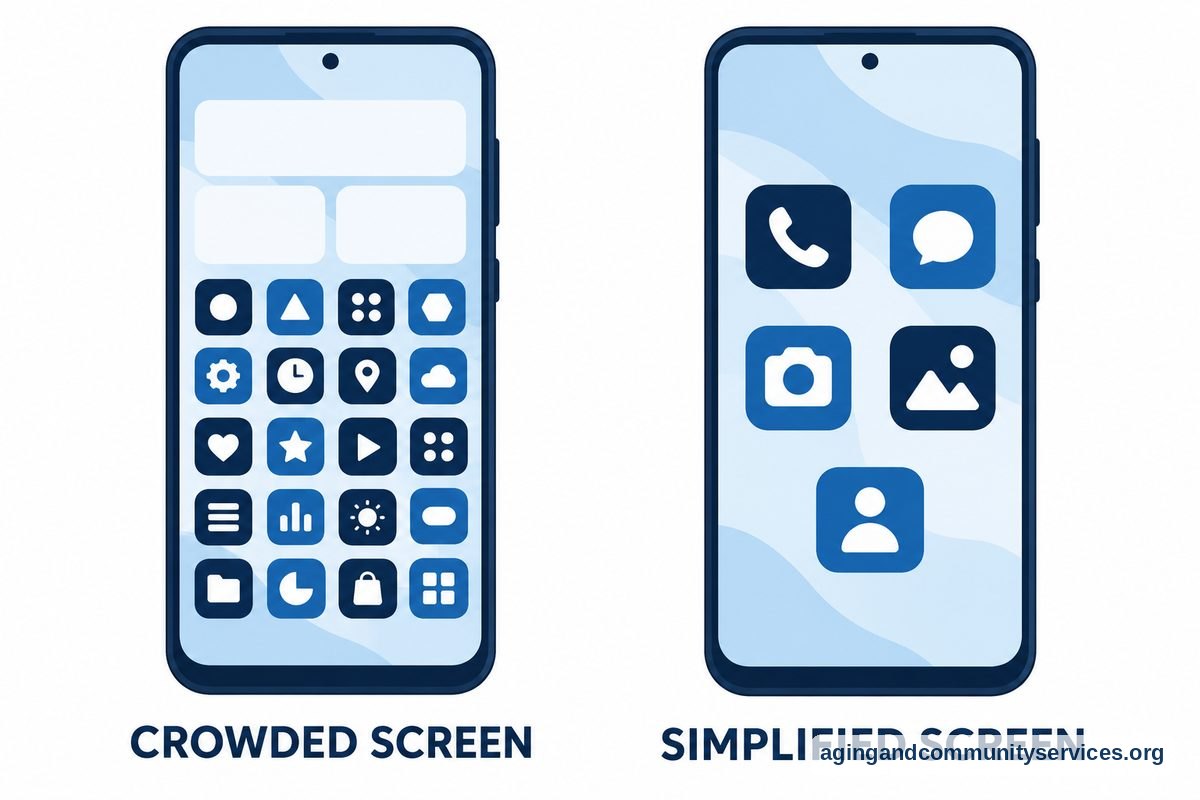
- Simple home screen: Keep only the most used apps on the first screen.
- Emergency features: Save emergency contacts and learn how the phone handles urgent calls.
Some people prefer a simple android phone for seniors with fewer apps and fewer alerts. Others want a full android smartphone for seniors with photos, maps, ride apps, video calls, email, and banking. Both can work if the setup matches the person.
If the phone will be part of a broader home setup, it may help to read more about technology for seniors and choose devices that work well together.
Android Phone for Seniors: Features to Look For
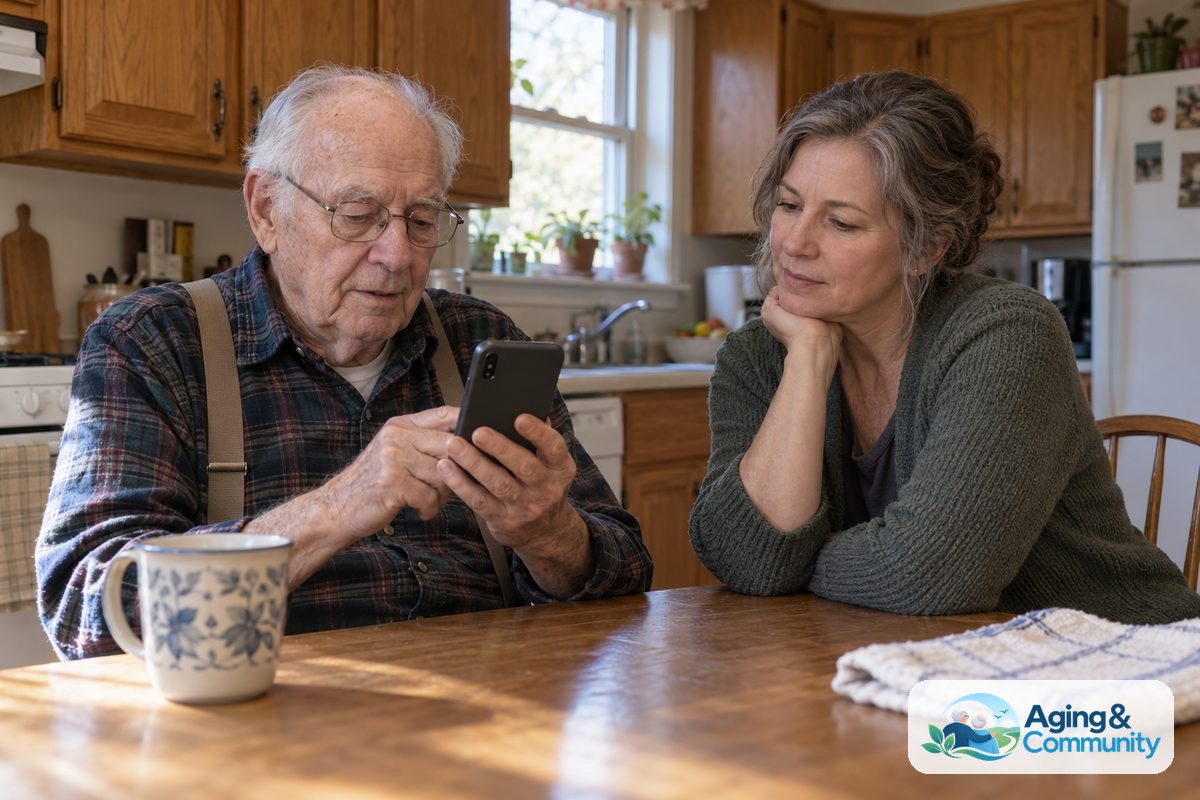
When comparing android phones for seniors, try not to focus only on the newest model. A clear screen, steady performance, and simple controls matter more than extra features that will not be used.
For many families, the best fit is a mid-level phone with enough storage, a bright screen, and reliable battery life. Very low-end phones may feel slow after updates. Very advanced phones may add cost and complexity without adding comfort.
| Feature | Why It Helps | What To Check |
|---|---|---|
| Large display | Makes text, photos, and buttons easier to see | Hold it and read a message sample |
| Clear speaker | Helps with calls, alarms, and videos | Test call volume in a normal room |
| Good battery | Reduces worry about the phone shutting off | Ask how long it lasts with regular use |
| Easy camera | Supports photos, documents, and video calls | Open the camera and take a sample photo |
| Fingerprint or face unlock | Can reduce typing passwords | Make sure it works comfortably |
Also think about the store or carrier. It is useful when staff can help transfer contacts, set up voicemail, and show the person how to answer calls. A phone that is bought online may still be a good choice, but someone should plan time for setup.
If the person mainly wants calls, texts, photos, and video chat, there is no need to chase every feature. If they already use many apps, look for enough storage and a phone that receives regular software updates.
Simple Android Phone Setup Tips
A phone can feel easier after one careful setup session. The goal is to remove clutter, make important items easy to find, and write down the few steps that matter most.
Start by placing the Phone, Messages, Camera, Photos, and Contacts apps on the first home screen. Add only a few more, such as weather, maps, pharmacy, or family video chat. Move unused apps into folders or off the first screen.
- Increase text size and display size in Settings.
- Turn on high contrast or dark text if it is easier to read.
- Add favorite contacts with names and photos.
- Set up voicemail and practice checking it.
- Choose a simple ringtone and alert sound.
- Turn off alerts from apps that are not important.
- Add a lock method the person can use without stress.
Voice tools can also help. Android phones often include voice typing, voice search, and a voice assistant. These can make it easier to send a short text, call a contact, or ask for directions.
Write a short paper guide with the unlock code, charging routine, voicemail steps, and the names of key apps. Keep it near the charger. A printed guide is often easier than searching through menus later.
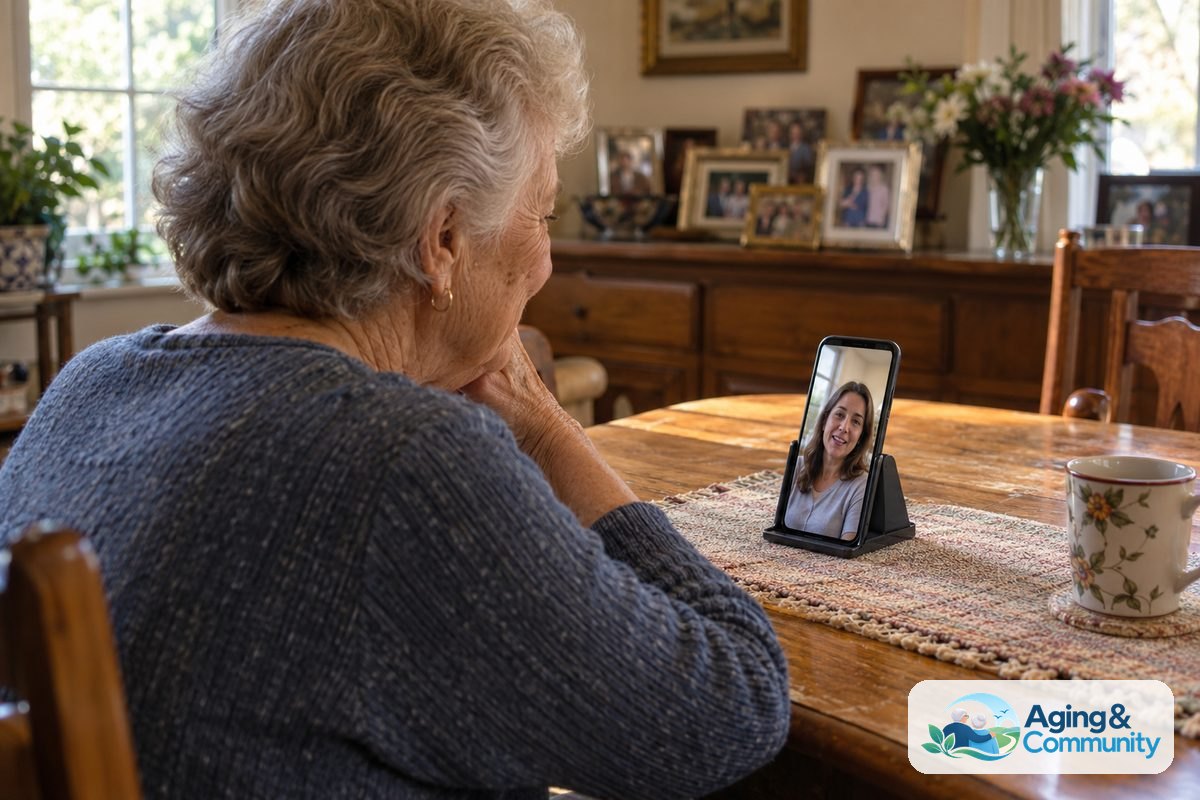
For people who use video chat often, a larger phone or tablet may feel more comfortable. You can compare phone and tablet options with guides to video call for elderly needs and tablets for elderly parents.
Android or iPhone for Seniors?
The question of android or iphone for seniors usually comes down to support, comfort, and cost. Both can be simple when set up well. Both can be confusing when too many apps, alerts, and settings are left untouched.
Android may be a good fit if the person wants more phone choices, different screen sizes, or a lower-cost option. It can also be a good fit when family members already use Android and can help with settings.
iPhone may be a good fit if the person already uses Apple products, such as an iPad, or if close family members use iPhones and can help by phone. Some people also like the steady layout across iPhone models.
Here is a practical way to decide: choose the phone that the helper knows best. If a daughter, son, neighbor, or friend will be the main helper, their comfort with the phone matters. Clear support often matters more than the brand.
If possible, try both in a store. Make a call, send a text, enlarge text, open the camera, and find the settings. A few minutes of real use can answer more than a long feature list.
Helpful Apps, Safety Settings, and Daily Use
Android smartphones for seniors can support daily life in many small ways. Useful apps might include calendar reminders, medication list apps, weather, maps, ride services, banking, photo sharing, and video calls. Choose only what is truly useful.
Too many apps can make the phone harder to use. Add one or two at a time, practice them, and remove what is not used. For ideas, see this guide to apps for elderly users.
Safety settings are worth a calm review. Add emergency contacts, turn on location sharing only with trusted people if wanted, and learn how the phone handles urgent calls. If falls are a concern, the National Institute on Aging explains that exercise, home safety checks, and medication reviews can lower the risk of falls in its guide to falls prevention.
A phone can also support aging at home by making it easier to reach family, services, rides, and local support. The National Institute on Aging offers practical ideas for aging in place, including planning for help with daily needs.
Keep privacy simple. Use a screen lock, avoid sharing passwords by text, and be careful with links from unknown senders. If a message feels rushed or asks for gift cards, banking details, or a code, pause and ask a trusted person before responding.
How to Choose Among Android Cell Phones
Before buying, write down the top three uses. Common answers are calls, texts, photos, video calls, maps, and reminders. The phone should serve those uses without making the person learn many extras right away.
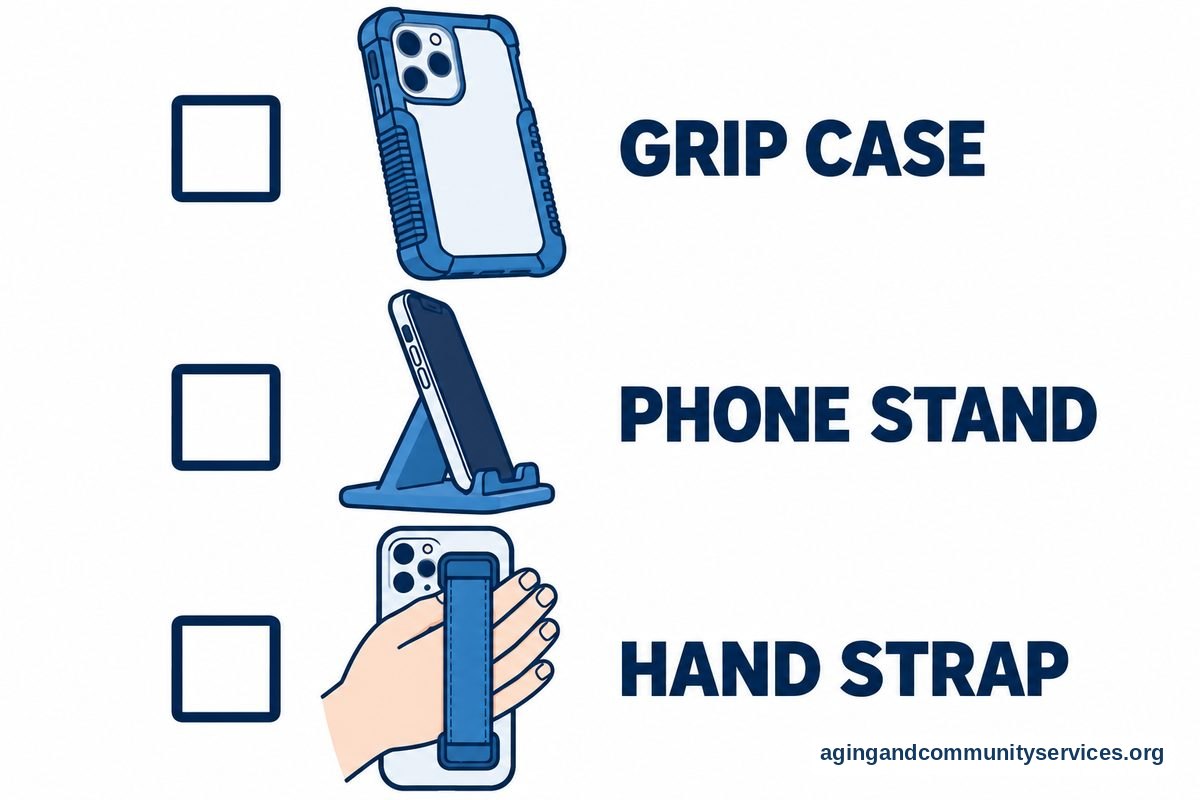
Also think about hand comfort. Some large phones are easier to read but harder to hold. A case with a grippy back, a stand, or a strap can help. If hand pain, vision changes, or balance concerns affect phone use, it may be wise to ask a doctor, physical therapist, or occupational therapist for practical guidance.
Ask these questions before choosing an android senior phone:
- Can the person read the screen in normal light?
- Can they hear the ringtone and caller clearly?
- Can they charge it without trouble?
- Can they unlock it in a way that feels easy?
- Can a family member or friend help with updates?
- Does the carrier have good service where they live?
It can also help to compare general phone options in a guide to smartphones for elderly people. Use any list as a starting point, not a final answer. Comfort in the hand and real support after purchase are just as important.
What You Can Do Next
If you are helping someone choose an Android phone, start with one calm conversation. Ask what they want the phone to do and what feels frustrating now. Try not to solve everything in one day.
- List the must-have tasks, such as calls, texts, photos, and video calls.
- Visit a store and hold two or three Android phones.
- Check screen size, sound, weight, and button feel.
- Choose a phone that a trusted helper can support.
- Set up the home screen with only the most useful apps.
- Practice common tasks three times: answer a call, send a text, take a photo, and charge the phone.
After setup, plan a short follow-up in a week or two. Remove unused apps, adjust text size again if needed, and answer new questions. Small changes often make the phone feel much easier.
If local help is needed, the Eldercare Locator can connect people with community resources through its local support directory. A library, senior center, carrier store, or community class may also offer patient help with phone basics.
Frequently Asked Questions
What is the best Android phone for seniors and elderly users?
The best android phones for seniors and elderly users are usually the ones with a bright screen, loud speaker, simple setup, good battery life, and reliable support. Instead of starting with brand names, start with the tasks the person wants to do every day.
What makes a simple Android phone for seniors easier?
A simple android phone for seniors is easier when the home screen has only key apps, text is larger, alerts are limited, and favorite contacts are easy to find. A written cheat sheet can also make daily use less stressful.
Is an Android phone for elderly people better than an iPhone?
An android phone for elderly people is better for some users, while an iPhone is better for others. The better choice is usually the phone that feels comfortable and has a nearby helper who knows how to use it.
Can Android cell phones for seniors be made safer?
Yes. Android cell phones for seniors can be set up with a screen lock, emergency contacts, trusted location sharing if wanted, and fewer app alerts. It also helps to review common scam warning signs in a calm, practical way.
Are Android smartphones for seniors hard to learn?
Android smartphones for seniors do not have to be hard to learn. Start with a few tasks, practice often, and add features slowly. Most people do better with short lessons than with a long setup session.
Should I choose iPhone or Android for seniors in my family?
When choosing iphone or android for seniors in your family, look at support first. If the main helper uses Android, Android may be easier. If the main helper uses iPhone, iPhone may be easier. Familiar help can make either phone simpler.