

Setting up an iPad for seniors so it is easy to use takes only a few simple steps. The device has built-in features that make reading messages, making video calls, and viewing photos clear and direct. With a few quick adjustments to the settings, anyone can enjoy using a tablet without feeling overwhelmed.

Why an iPad Works Well for Older Adults
Apple designs its tablets with clear icons, smooth touchscreens, and reliable software. You do not need deep technical knowledge to tap an icon and open an email or photo album. The large glass screen responds gently to a light touch, which helps anyone who finds small phone buttons frustrating.
Tablets also support daily routines and safe living at home, such as learning how to use a wheelchair after an injury. The National Institute on Aging provides aging in place guidance that highlights how communication tools help people stay connected to family, neighbors, and community resources. A quick daily check-in with a child or grandchild can bring peace of mind to the entire family.
If you are exploring different models, learning what is a good ipad for seniors can help you choose the right screen size and storage level for your personal needs.
Simple Adjustments to Make the Screen Clearer
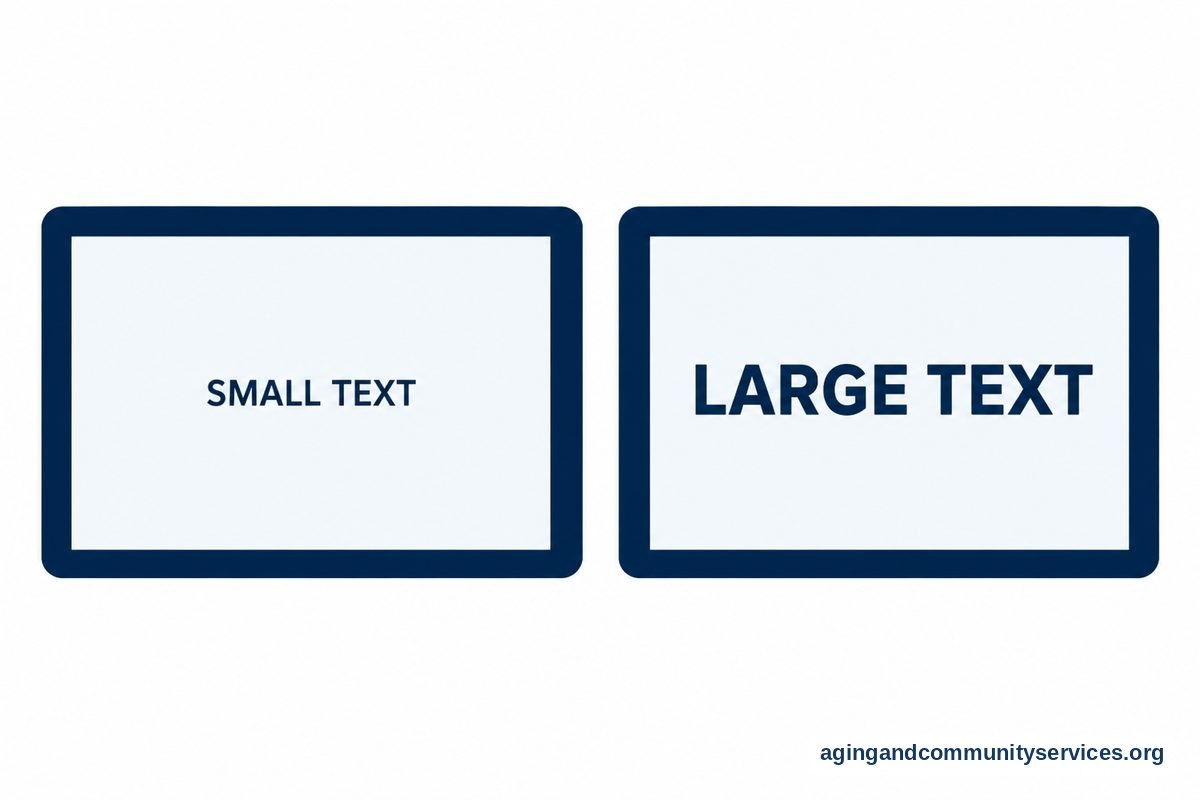
Out of the box, screen text can look small and pale. You can change these display options in the Settings app under Accessibility. These changes make the screen much more comfortable on the eyes during daily reading.
- Larger Text: Turn on Larger Accessibility Sizes to increase the font across mail, messages, and news apps.
- Bold Text: Switch on bold letters so words stand out clearly against the bright background.
- Display Zoom: Choose the zoomed view option to make every app icon and control button larger on the main screen.
- Increase Contrast: Reduce background transparency so buttons and menus have distinct, sharp edges.
Taking ten minutes to adjust these settings creates a personalized layout that feels inviting rather than crowded.
Streamlining the Home Screen
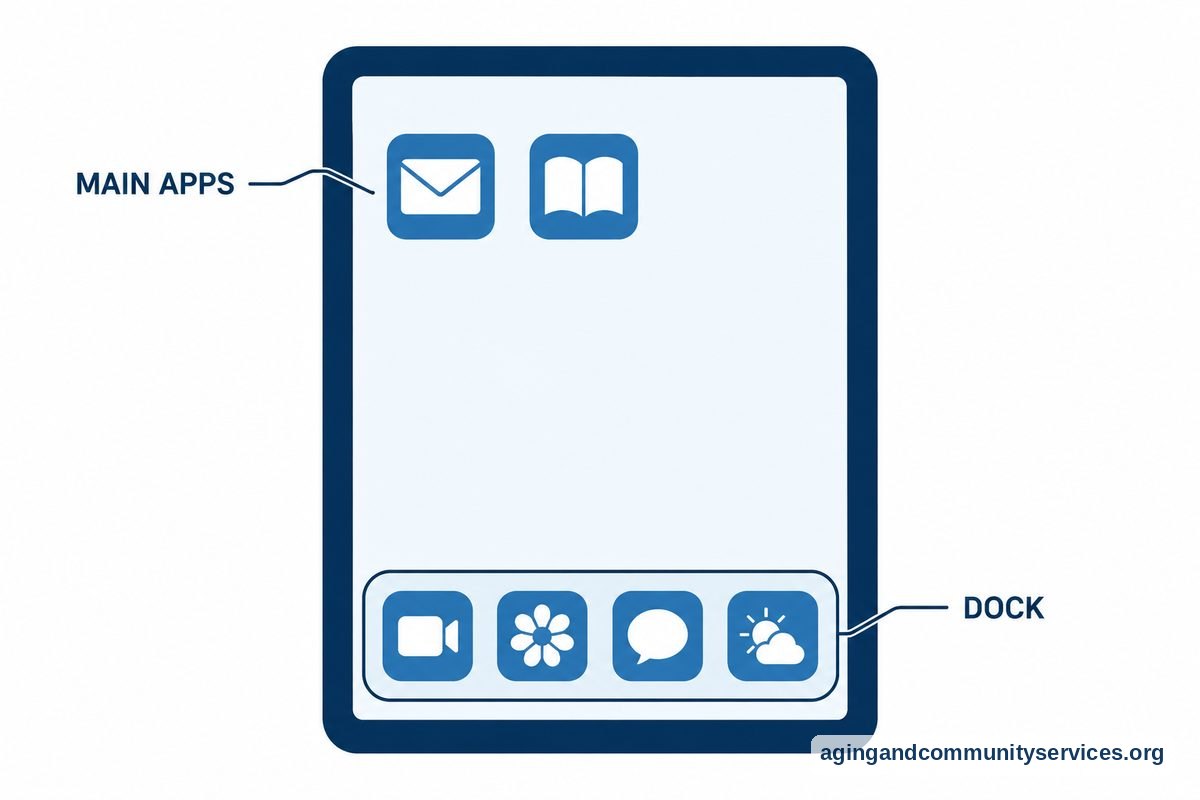
A busy screen filled with dozens of unfamiliar apps can cause confusion. Keeping only five or six main apps on the front screen makes the tablet straightforward and fun to pick up.
Move less useful apps into folders on the second page, or remove them from the home screen entirely. Place essential tools right on the main dock at the bottom of the screen. Great dock items include:
- FaceTime: For one-tap video calls with family members.
- Photos: To view shared family albums that update automatically.
- Messages: For quick notes and photos from relatives.
- Weather: To check daily temperatures before walking outside.
If you prefer step-by-step reading material with large pictures, an ipad for seniors book can be a handy companion to keep on the coffee table.
Useful Hearing and Touch Settings
Every person interacts with technology differently. Some people have dry fingers that do not register well on glass, while others find that taps turn into accidental holds. The iPad has built-in answers for these situations.
Under the Touch menu in Accessibility, you will find Touch Accommodations. This setting tells the screen to ignore fast, accidental double taps. It can also require the screen to wait a moment before registering a touch, which helps if a hand trembles slightly.
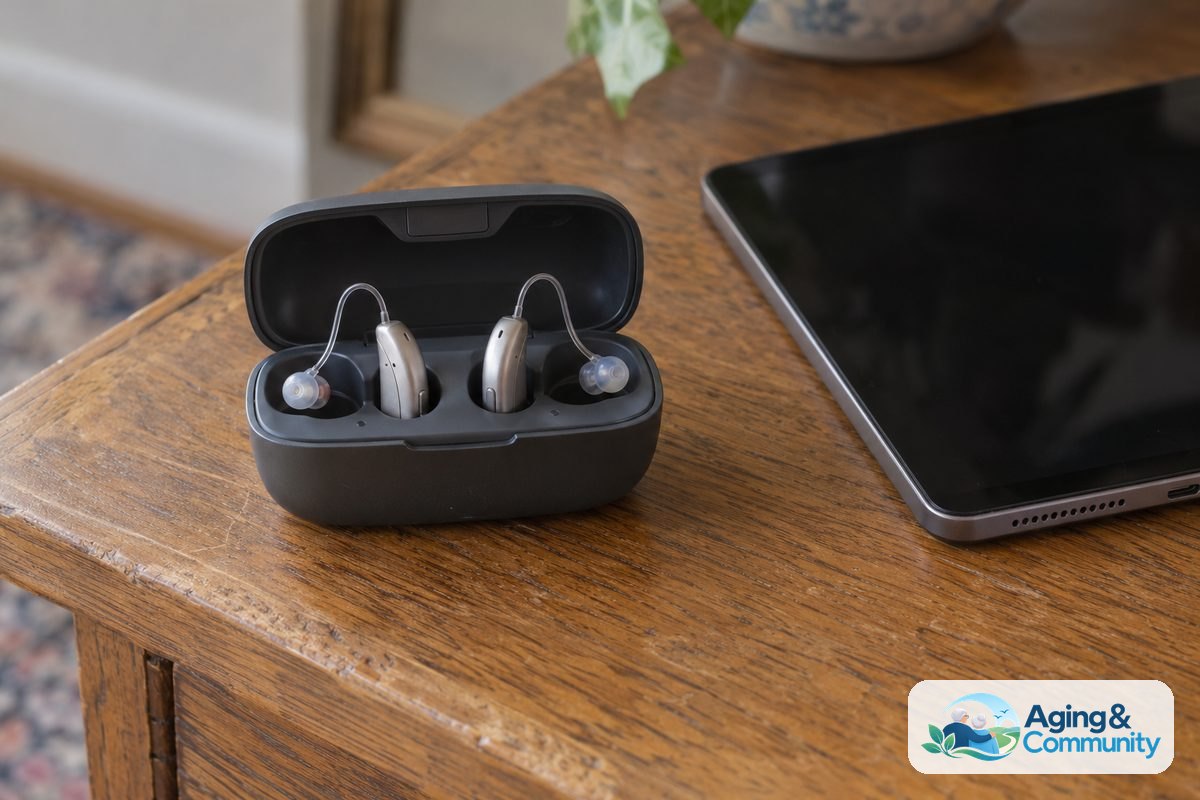
For sound, you can pair modern hearing aids directly to the device using Bluetooth. This allows telephone calls, audiobooks, and video chats to stream directly into your ears with crisp clarity. If someone in your home prefers a different brand of device, you can also look into another tablet for seniors easy to use to compare basic features.
Programs That Help with Tablet Costs
A new tablet can be a significant purchase, but several community programs help lower the barrier. Federal assistance programs like the Lifeline program work with participating internet and phone providers to offer discounts on monthly service and connected devices for qualifying households.
Local libraries, non-profit community centers, and regional agencies on aging often run digital inclusion programs. These initiatives sometimes provide loaner devices or donated tablets along with free classes. You can reach out to the Eldercare Locator community services resource to find out which local aging organizations in your county offer technology distribution or training workshops.
What You Can Do Next
Getting comfortable with a new device works best when you take small, relaxed steps over a few days. You do not have to learn everything at once.
- Pick three core activities: Decide what matters most, such as viewing pictures of grandchildren, reading the morning news, or listening to classic radio.
- Set up a shared family album: Have a family member create an iCloud shared album so new family photos arrive directly on the tablet screen without any downloading.
- Practice one task a day: Spend ten minutes answering a message or asking Siri for tomorrow weather forecast until the action feels natural.
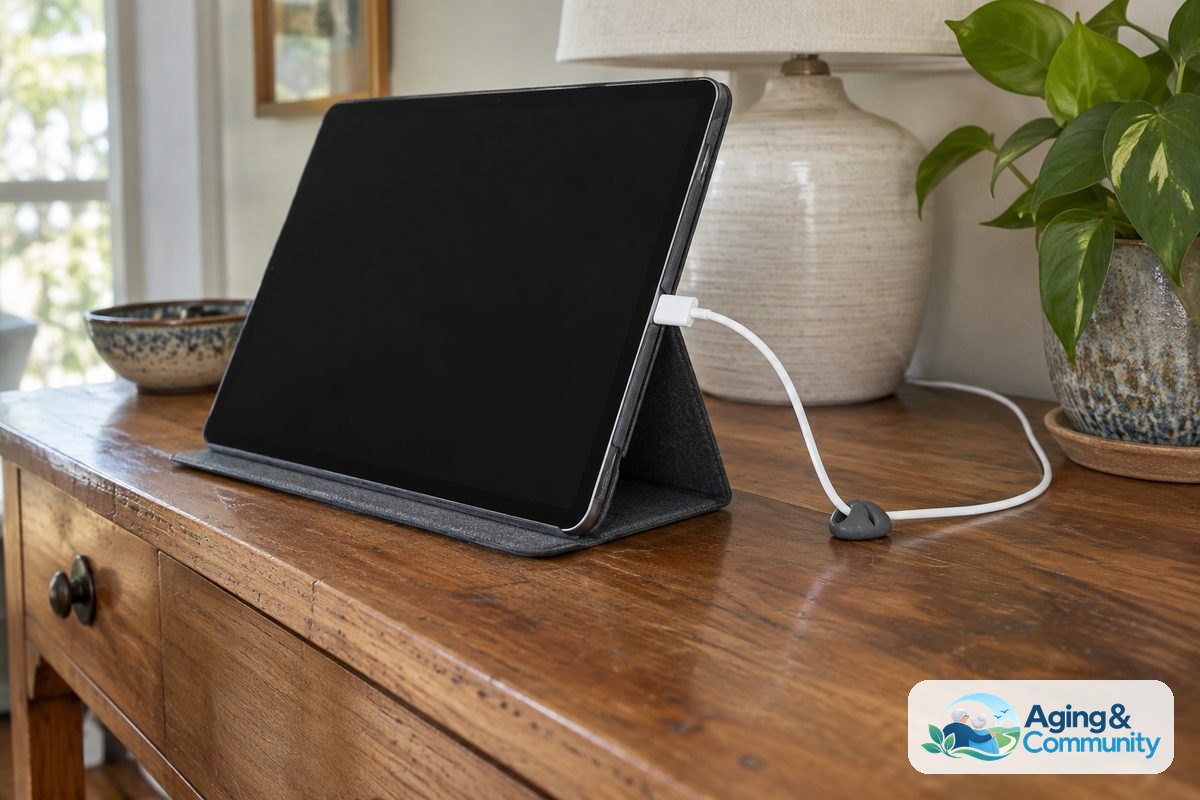
- Keep the charger in an easy spot: Place the charging cord on a sturdy table at waist height so plugging it in does not require bending down behind furniture.
Frequently Asked Questions
How can I find an iPad for seniors free through community programs?
Free tablet programs are typically organized through local non-profit groups, state assistive technology programs, or digital equity grants. Qualifying is often based on household income or participation in assistance programs like Medicaid or SNAP. Check with your local area agency on aging or senior community center to see if they currently offer free device distribution programs.
What makes my iPad for seniors simple to navigate?
Turning on Display Zoom and moving unused app icons off the main screen makes the device much simpler to use, whether reading about how to use knee scooter gear safely or browsing photos. Using voice commands through Siri also allows you to make phone calls, set reminders, and check the news without typing on the glass keyboard.
Is an iPad for the elderly better than a basic tablet?
An iPad is often preferred because Apple devices receive regular security updates for many years and have strong accessibility settings. The screen is sharp and bright, and many family members already know how iOS works, which makes it easy for them to offer help when questions arise.
What is the most comfortable way to hold an iPad for a senior?
Holding a tablet by hand for a long time can tire the wrists. A sturdy case with a built-in folding stand or a soft beanbag tablet cushion lets the device rest securely on a lap or tabletop, leaving both hands free to tap the screen.