

Technology to help seniors age in place can make daily life at home easier, safer, and more connected. The right tools can support reminders, communication, home safety, and help with everyday routines without taking away independence.
A good plan starts with the person, not the device. Think about what is hard now, what may be hard later, and which tools feel simple enough to use every day.

Start With Everyday Needs, Not Gadgets
It is easy to get pulled toward the newest device. A better first step is to list the daily tasks that need support. Technology works best when it solves a real problem in a simple way.
Walk through a normal day at home. Notice where reminders, lighting, communication, or movement around the house could be easier. Family members can help by asking calm, practical questions rather than taking over.
- Communication: Is it easy to call family, friends, or neighbors?
- Medication routines: Are reminders needed for daily schedules?
- Home safety: Are dark halls, stairs, or cluttered areas a concern?
- Meals and shopping: Would lists, delivery apps, or shared calendars help?
- Emergencies: Is there a clear way to ask for help?
If you are planning more broadly, the National Institute on Aging has a helpful overview of aging in place that can guide family conversations. You can also use a written home safety checklist to spot simple changes before buying anything.
Communication Tools That Keep People Connected
Staying connected is one of the most useful roles for home technology. Video calls, simple smartphones, tablets, and voice assistants can make it easier to talk with family, friends, care partners, and local services.
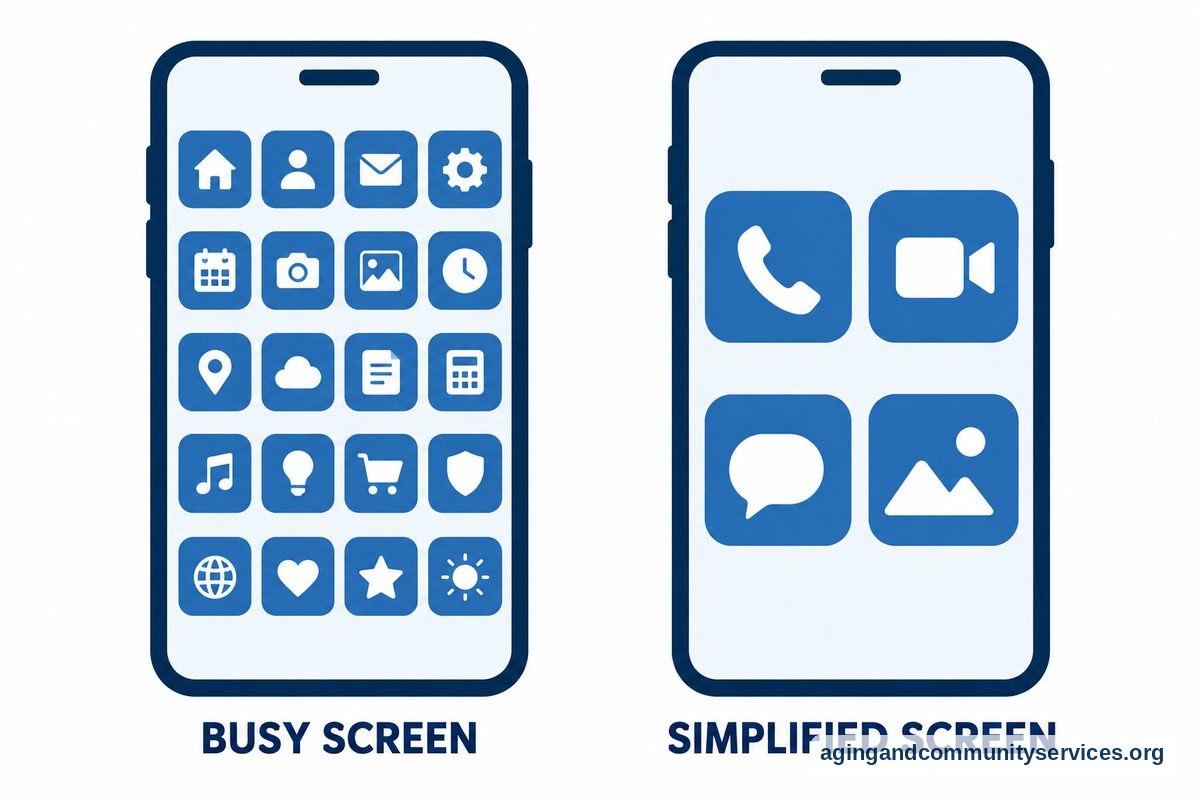
The best communication tool is the one the person will actually use. Large buttons, clear sound, simple menus, and saved contacts can matter more than extra features.
- Video calling: Useful for family check-ins, social visits, and group calls.
- Shared calendars: Helpful for appointments, rides, meals, and visitors.
- Group messaging: Keeps family members on the same page.
- Voice calling: Lets someone make a call without searching for a phone.
- Photo sharing: Adds a friendly reason to use the device often.
For someone who lives by themselves, communication tools may be part of a larger plan. A guide to technology for seniors living alone can help families think through check-ins, reminders, and daily support in a balanced way.
Smart Home Devices That Can Make Daily Tasks Easier
Smart home devices can reduce small daily hassles. Lights can turn on by voice or motion. Thermostats can be easier to adjust. Doorbells can show who is at the door without rushing across the room.
These tools should be set up with clear consent. The person living in the home should know what each device does, who can see alerts, and how to turn features off when needed.
- Smart lights: Can brighten halls, bathrooms, and entryways.
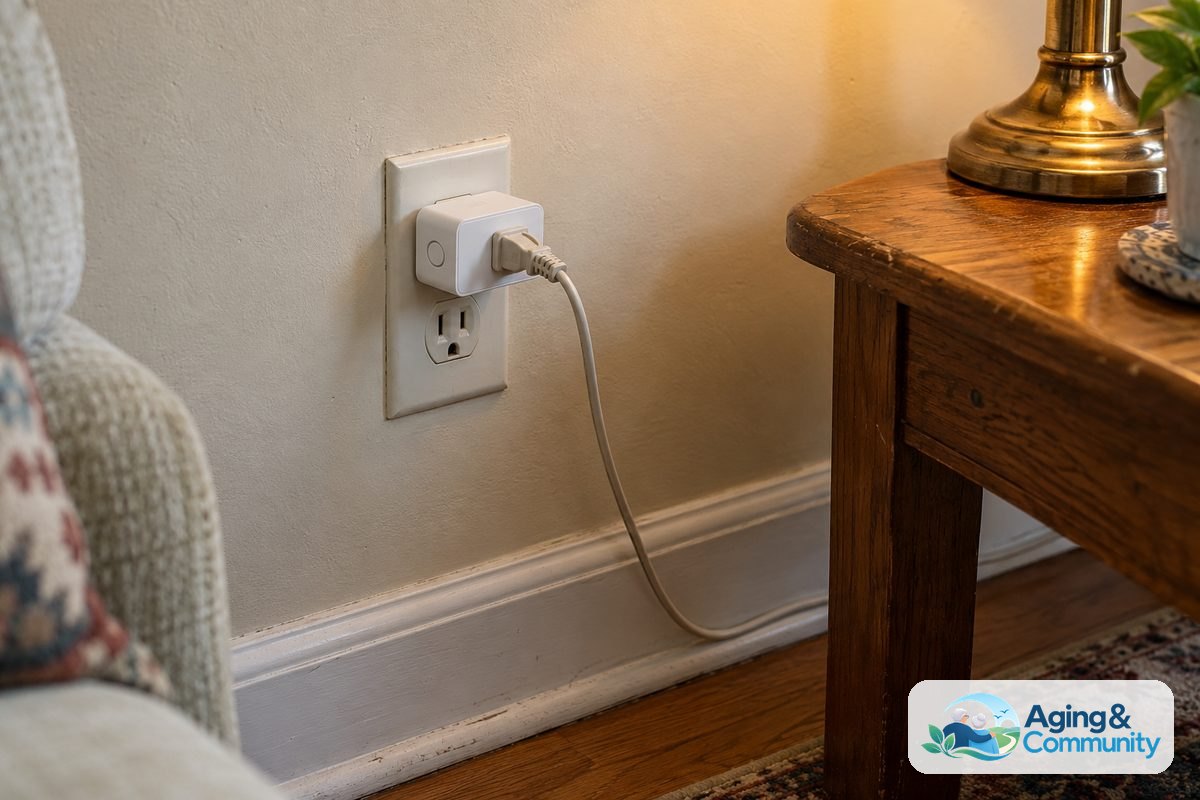
- Smart plugs: Can control lamps or small devices from one place.
- Video doorbells: Can show visitors on a phone or screen.
- Smart thermostats: Can make temperature changes easier.
- Voice assistants: Can set timers, make calls, and answer simple questions.
Keep the setup simple at first. One or two helpful devices are better than a house full of tools that feel confusing. If you want to compare common options, a plain guide to a smart home for elderly living can help you match devices to real needs.
Safety And Alert Tools For Peace Of Mind
Some technology is made to help someone call for help or alert a trusted contact. Examples include wearable alert buttons, fall alert devices, smart speakers, and phone shortcuts. These tools do not replace regular check-ins, but they can be one layer of a home support plan.
Falls are a common reason families look at home technology. The National Institute on Aging explains that exercise, home changes, and regular health review can lower fall risk. A doctor, physical therapist, or occupational therapist can help decide which steps fit the person and the home.
When comparing alert tools, look at comfort and ease of use. A device that is hard to charge, awkward to wear, or easy to forget may not be useful in daily life.
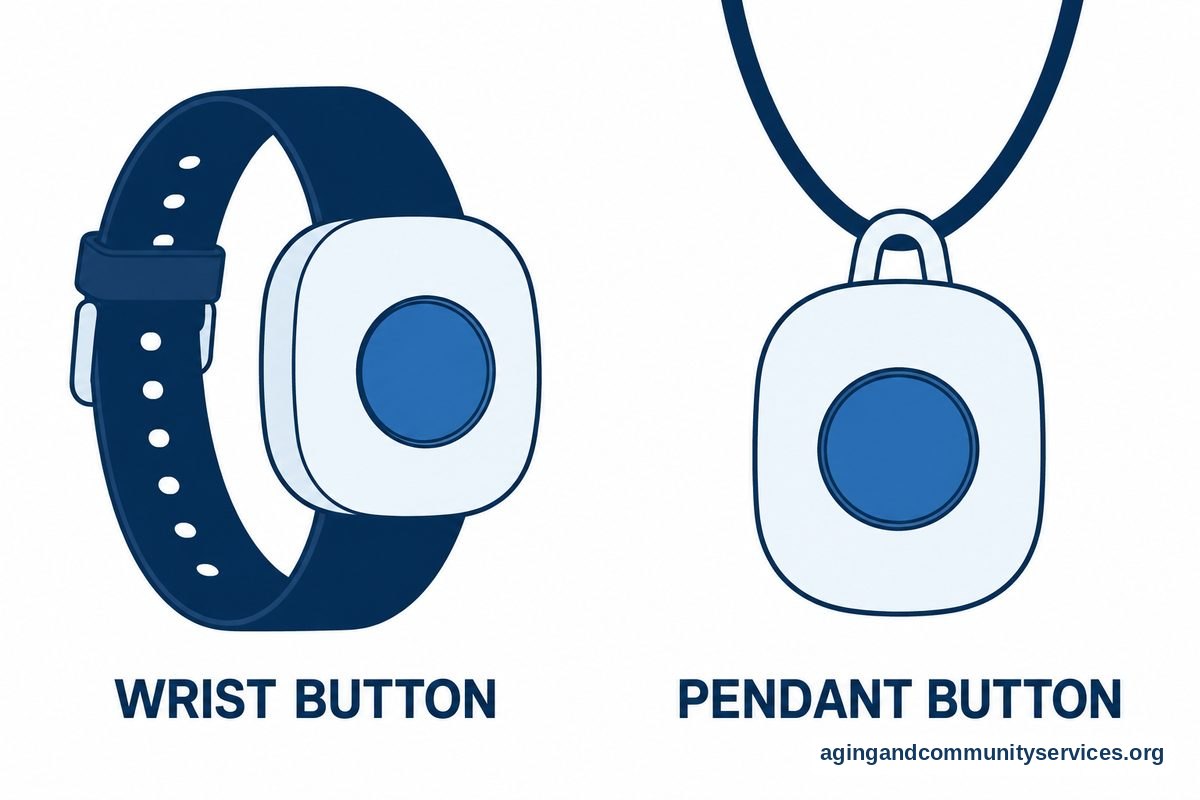
- Wearable buttons: Often worn on the wrist or around the neck.
- Phone emergency features: Can call selected contacts quickly.
- Motion sensors: Can show activity patterns without cameras.
- Smart speakers: May allow hands-free calls from some rooms.
- Door and window sensors: Can alert a caregiver if something is opened.
Privacy matters. Talk through who gets alerts, when they get them, and what they should do next. Written instructions can prevent confusion and help everyone respond calmly.
Health, Medication, And Routine Reminders
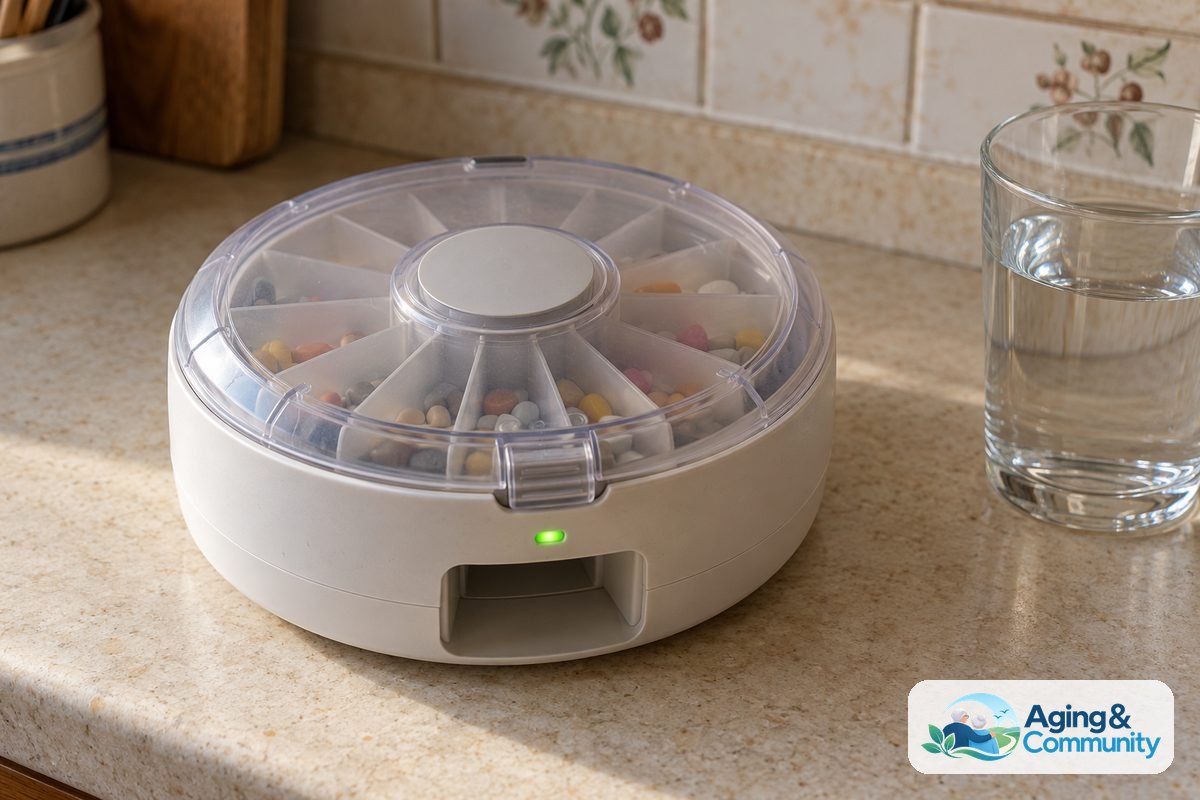
Technology can support daily routines without making medical decisions. Reminder apps, pill dispensers with alarms, calendar alerts, and smart speakers can prompt someone to take action at the right time.
These tools should not be used to change medicines or care plans on their own. If there are questions about medicines, side effects, dizziness, sleep, memory, or balance, speak with a doctor or pharmacist. For home setup and daily task support, an occupational therapist may also be helpful.
Simple reminders often work best. A phone alarm labeled with plain words may be easier than a complex app. Some families use a shared calendar so one person can add appointments and another person can see them.
- Medication reminders: Can prompt a person at set times.
- Appointment alerts: Can remind someone before rides or visits.
- Meal reminders: Can support regular eating routines.
- Hydration prompts: Can remind someone to drink water.
- Task lists: Can break chores into smaller steps.
For family helpers, broader technology for elderly care may include calendars, shared notes, transportation tools, and ways to keep records organized.
Privacy, Comfort, And Ease Of Use
Aging in place technology should feel respectful. Cameras, sensors, location sharing, and alerts can be useful, but they should not be added without a clear conversation. The person at home should have a real say in what is used.
Try to choose tools that fit current habits. If someone already uses a phone, start there. If they prefer talking instead of tapping screens, a voice assistant may be easier. If they dislike wearing devices, a wall button or phone shortcut may be a better fit.
Write down the basics for every device. Include what it does, where it is, how to charge it, who gets alerts, and who to call if it stops working. Keep this note in a visible place and share a copy with trusted family members.
| Need | Technology To Consider | What To Check First |
|---|---|---|
| Hard to reach switches | Smart lights or smart plugs | Can the person control them without help? |
| Missed calls | Simple phone, tablet, or voice calling | Are contacts easy to find? |
| Daily reminders | Alarms, calendar alerts, or smart speaker | Are the alerts clear and not too frequent? |
| Home entry | Video doorbell or smart lock | Who can view or control access? |
| Family coordination | Shared calendar or care app | Who updates it and how often? |
Newer tools may include artificial intelligence features that sort reminders, answer questions, or notice patterns. If you are curious, a guide to AI and aging in place can help you think about benefits, limits, and privacy questions.
What You Can Do Next
Start small. Pick one daily problem and choose one simple tool to address it. Give it time, then decide together if it helps or adds stress.
- Make a short needs list. Write down the top three tasks that feel harder at home.
- Check the home setup. Look at lighting, cords, stairs, bathrooms, doors, and phone access.
- Choose one tool. Start with the simplest option, such as a reminder, smart light, or easier phone setup.
- Set privacy rules. Decide who can see alerts, locations, cameras, or shared calendars.
- Practice together. Use the device during a calm time, not during a rushed moment.
- Review after a while. Ask what is working, what is annoying, and what should be changed.
If you are not sure where to start, local aging services may help you find home support options. The Eldercare Locator can connect families with nearby resources.
For health, movement, memory, or home safety concerns, ask a doctor, physical therapist, or occupational therapist for guidance. Technology can support a plan, but it should not replace personal advice from qualified professionals.
Frequently Asked Questions
What Is The Most Useful Technology To Help Someone Age In Place?
The most useful technology is the tool that solves a real daily problem. For many homes, that may be better lighting, an easier phone, reminder alerts, a video doorbell, or a way to call for help quickly.
Start with the person’s routine. A simple device used every day is more helpful than a complex device that sits unused.
Are Smart Home Devices Hard To Set Up?
Some are simple, and some need more setup. Smart plugs, smart bulbs, and voice assistants are often easier than systems with many sensors or cameras.
It helps to have one trusted person set up the device, write down the steps, and practice with the person who will use it. Keep passwords and support details in a safe place.
Do Fall Alert Devices Stop Falls From Happening?
No device can promise that. Fall alert tools are meant to help someone call for help or send an alert if a fall is detected.
To lower fall risk, the National Institute on Aging points to steps such as exercise, home safety changes, and health review. A doctor, physical therapist, or occupational therapist can suggest steps that fit the person’s needs.
How Can Families Use Technology Without Taking Away Privacy?
Begin with consent and clear limits. Explain what each device does, what information it collects, and who can see it.
Choose the least intrusive tool that meets the need. For example, a motion sensor may be enough for a daily activity check when a camera would feel too personal.
What If The Person Does Not Like New Technology?
That is common and understandable. Start with familiar tools, such as a phone, a lamp, or a calendar, before adding something new.
Let the person try the device without pressure. If it feels confusing or annoying, adjust the setup or choose a different option.