

Choosing apps for seniors android phones can feel easier when you focus on daily needs first: calling family, reading clearly, remembering tasks, getting around, and enjoying simple games. The right mix is usually a small set of android apps for seniors, set up with large text, clear icons, and only the alerts that matter.
A good app does not need to do everything. It should be easy to open, easy to understand, and useful often enough to stay on the home screen. This guide explains common app types, what to look for, and how a family helper can set up an Android phone without making it feel crowded.
Start With The Phone Settings Before Adding Apps
Before downloading anything, it helps to make the Android phone easier to see, hear, and use. Many helpful features are already built into the phone. These settings can make every app feel simpler.
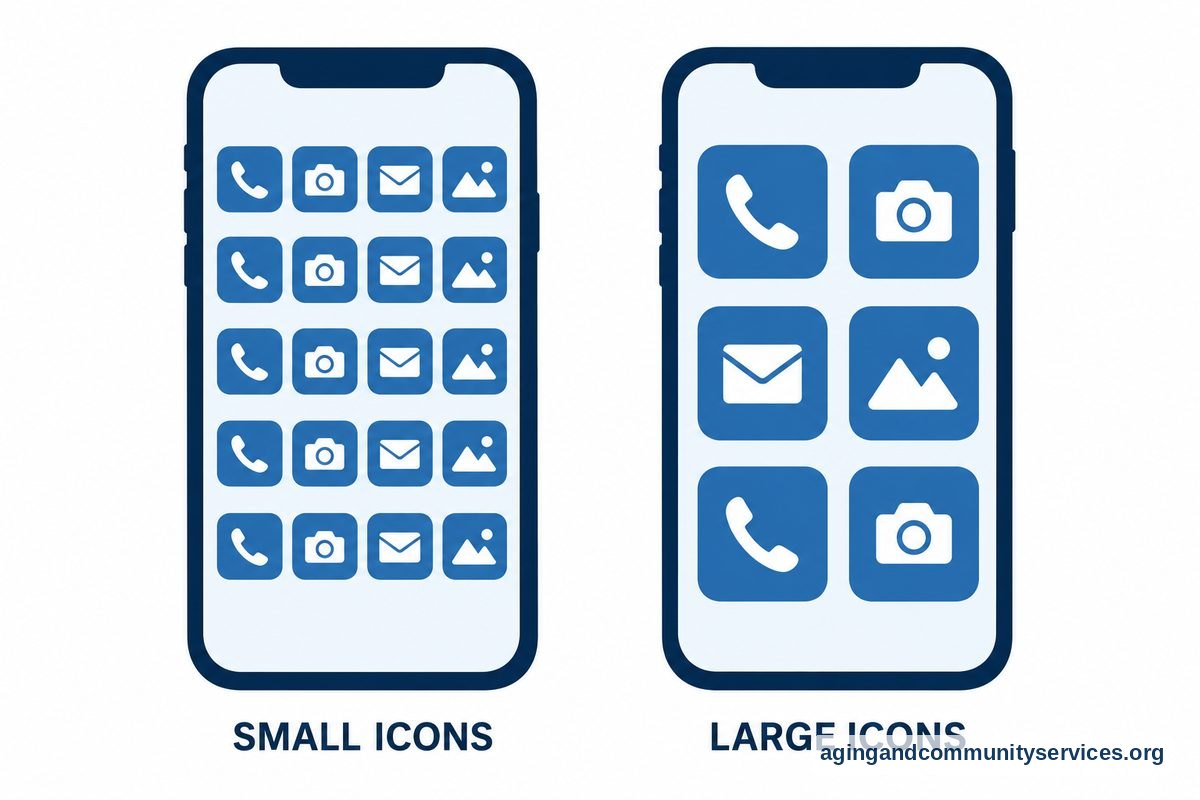
- Make text larger: Open display settings and increase font size and display size.
- Use high contrast: Turn on stronger contrast or a simpler color setting if available.
- Clean up the home screen: Keep only the most used apps on the first screen.
- Set up contacts: Add favorite contacts for calls and messages.
- Check sound: Raise ringtone and notification volume, then choose clear tones.
- Use voice help: Turn on voice typing or the built-in assistant if speaking is easier than typing.
If the phone itself feels hard to use, an app may not fix the problem. A simple home screen, larger buttons, and fewer pop-ups often make the biggest difference. For more phone setup ideas, a guide to Android for seniors can help you adjust the basics first.
Helpful Android Apps By Everyday Need
The most useful apps usually fit one clear need. Try not to add too many at once. Add one app, use it for a few days, and remove it if it causes confusion.
| Need | App Type To Consider | What To Look For |
|---|---|---|
| Staying in touch | Video calling, texting, contacts | Large buttons, simple contact list, clear sound |
| Remembering tasks | Calendar, reminders, notes | Repeat alerts, easy wording, shared access if wanted |
| Reading and viewing | Magnifier, e-reader, news | Adjustable text, dark text on light background, zoom |
| Getting around | Maps, rides, transit | Saved home address, simple directions, clear trip details |
| Home and safety | Weather, emergency info, smart home | Reliable alerts, simple controls, easy contact sharing |
| Enjoyment | Puzzles, music, audiobooks, photos | Low clutter, calm screens, no confusing ads |
For many people, the most helpful first group is calls, messages, photos, weather, calendar, and maps. If someone enjoys games, keep them separate from important tools so the home screen stays clear. You can also review apps for elderly users if you want more examples by daily task.
Communication Apps That Keep Things Simple
Communication apps are often the first apps to set up. The goal is not to add every possible feature. The goal is to make it easy to call, video chat, text, and share photos with the right people.
Choose one main video calling app that family members already use. Then place it on the home screen and add a clear label if the launcher allows it. If the person uses texting, pin the most important conversations and remove old message threads that add clutter.
- Contacts: Add clear names, photos, and family labels such as daughter, neighbor, or pharmacy.
- Video calls: Pick one app, practice answering, and write down the steps.
- Texting: Turn on larger text and show how to send a photo.
- Email: Keep only one account on the phone if possible.
- Photos: Place the gallery app where it is easy to find.
It can help to practice one task at a time. For example, spend one short session on answering a video call and another on sending a photo. A patient teaching plan, like this guide on teaching technology, can make practice less stressful for both people.
Reminder, Calendar, And Health-Related Apps
Reminder apps can help with appointments, chores, bills, shopping lists, and daily routines. Keep the wording clear. For example, use “Take morning walk” or “Call Sam” instead of short labels that may be hard to remember later.
For medication, blood pressure, glucose, therapy, or other health-related tasks, an app can help organize information, but it should not replace advice from a doctor, pharmacist, physical therapist, or occupational therapist. If reminders are tied to a care plan, ask the care team what information should be tracked and what should be shared.
Some families like shared calendars because a trusted helper can add appointments from another phone. Others prefer a simple reminder app that rings at the same time each day. The better choice is the one the person will actually use without frustration.
- Calendar apps: Good for appointments, visits, and repeating events.
- Reminder apps: Good for short tasks and daily routines.
- Notes apps: Good for grocery lists, questions for a doctor, and instructions.
- Voice recorder apps: Useful when typing is hard, if everyone agrees when recording is appropriate.
If fall risk is a concern, phone apps may be one small part of a larger plan. The National Institute on Aging explains that exercise, medication reviews, vision checks, and home safety steps can lower fall risk. A doctor, physical therapist, or occupational therapist can help decide which steps fit the person’s needs.
Reading, Vision, Hearing, And Accessibility Apps
Android phones include many accessibility settings, and some apps can add extra help. A magnifier app can make labels, menus, and mail easier to view. E-reader apps can increase text size and spacing, which may make reading more comfortable.
For hearing, look for apps and settings that support captions, sound alerts, and clearer audio. Some phones can flash the screen for alerts or show live captions for some audio. If hearing changes are getting in the way of daily life, a hearing professional can suggest the right next step.
When choosing reading or accessibility apps, avoid screens packed with ads, tiny close buttons, or hard-to-read colors. Simple design matters. A helpful android senior app should make a task easier, not add extra steps.
- Magnifier: Helps with small print on packages, mail, and menus.
- Text-to-speech: Reads selected text aloud on many phones.
- Voice typing: Turns spoken words into messages or notes.
- Captions: Shows spoken words as text when supported.
- Launcher apps: Can create larger home screen buttons and simpler menus.
If the phone still feels too complex after settings changes, it may be worth looking at an easy to use smartphone instead of adding more apps. Sometimes a simpler device is better than a crowded phone.
Safety, Home, Travel, And Daily Errand Apps
Some senior apps for android can help with daily movement outside the home, home routines, and practical errands. These may include maps, weather, ride services, pharmacy apps, grocery apps, and smart home controls. Set up only the ones that match real habits.
Maps can be helpful when the home address is saved and directions are spoken clearly. Weather apps can help plan errands and clothing. Grocery or pharmacy apps may be useful if the person already uses that store and wants help with lists, refills, or pickup options.
Home safety apps should be chosen with care. A phone can store emergency contacts and medical information for first responders, depending on the device. Family members can also talk about home updates and support services, and the National Institute on Aging has practical ideas for aging in place.
- Maps: Save home, favorite places, and common routes.
- Weather: Use one clear app with simple alerts.
- Ride apps: Add payment and address details with a trusted helper if needed.
- Store apps: Keep only the stores used often.
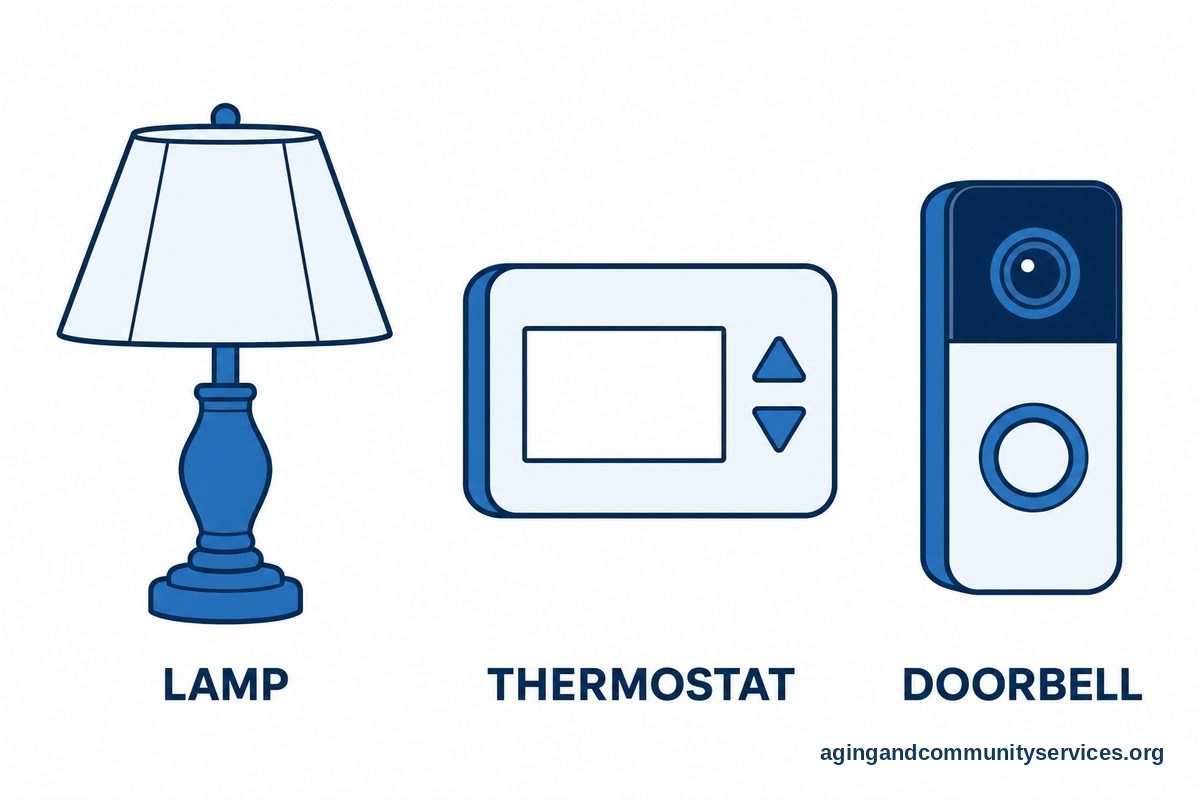
- Smart home apps: Place lights, thermostat, or doorbell controls in easy reach.
Entertainment matters too. Music, audiobooks, photo apps, and puzzles can make the phone more enjoyable. If games are welcome, a page about apps for seniors games can help you think through simple options without crowding the phone.
How To Choose Safe, Simple Apps
When looking at the app store, focus on trust, clarity, and control. Read the app description and check who made it. Be careful with apps that ask for access that does not fit the task, such as a flashlight app asking for contacts.
Before installing, ask a few plain questions. What problem does this app solve? Will it be used every week? Are the buttons and words easy to see? Can alerts be turned off? If the answer is no, skip it.
- Use known sources: Download from the Google Play Store when possible.
- Check permissions: Allow only what the app needs to work.
- Limit notifications: Turn off alerts that are not helpful.
- Avoid clutter: Remove apps that are not used.
- Write down passwords safely: Use a password manager or another secure family plan.
- Review subscriptions: Make sure no one signs up for something by mistake.
It also helps to set up app updates and phone updates on a regular schedule. Updates can improve reliability and fix problems. If updates change the look of an app, spend a few minutes practicing the main task again.
What You Can Do Next
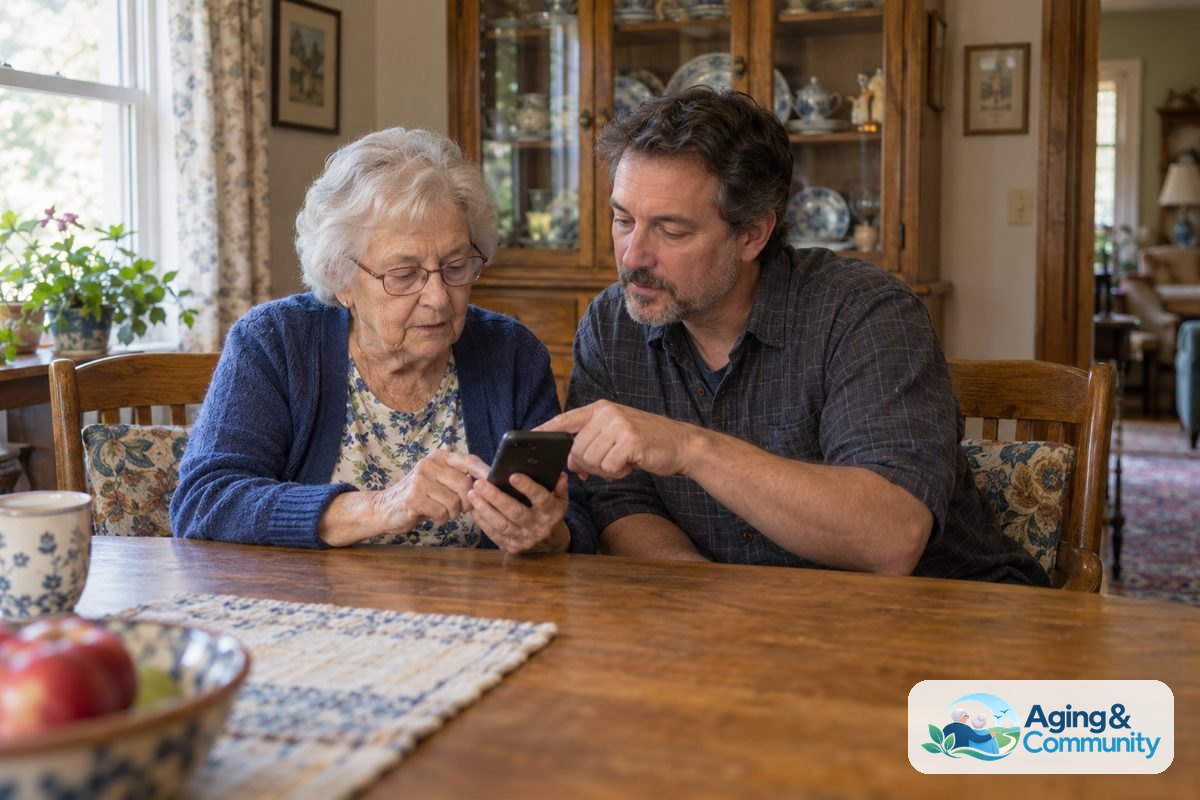
Start small. Choose one need, such as video calls or reminders, and set up one app for that need. Put it on the home screen, remove extra icons nearby, and practice the same steps several times.
- Make text and icons larger in Android settings.
- Pick three main apps for the first home screen: phone, messages, and camera or video calls.
- Add one reminder or calendar app only if it solves a real problem.
- Save important contacts with names and photos.
- Turn off noisy notifications that are not useful.
- Schedule a short check-in to remove unused apps and answer questions.
If daily phone use is tied to health, mobility, memory, or home safety concerns, bring those questions to a doctor, physical therapist, or occupational therapist. For local support with aging services, the Eldercare Locator can help families look for nearby resources.
Frequently Asked Questions
What Are The Most Useful Android Apps For Seniors?
The most useful android apps for seniors are usually calling, messaging, video chat, calendar, reminders, weather, maps, photos, and one or two entertainment apps. The right choice depends on daily habits. A simple app used often is better than a powerful app that feels confusing.
How Do I Choose An Android Senior App?
Choose an android senior app by looking for large text, clear buttons, simple menus, and useful alerts. Check permissions before installing. If the app has too many ads, pop-ups, or steps, it may not be the right fit.
Are Senior Apps For Android Hard To Set Up?
Most senior apps for android are easier to set up when a helper handles the first install, signs in, and places the app on the home screen. After that, practice one task at a time. Written steps can help if the same task will be repeated later.
Which Apps For Seniors Android Phones Should Be On The Home Screen?
Keep the home screen simple. Good choices include phone, messages, camera, photos, video calls, weather, calendar, and maps. Add a reminder app if it is used often, and move rarely used apps to another screen.
Can Android Apps Help With Reminders?
Yes, reminder and calendar apps can help organize appointments, routines, lists, and family plans. For medication or health-related reminders, ask a doctor, pharmacist, or care team how to use reminders safely with the person’s plan.
How Many Apps Should Be Installed At First?
Start with only a few. Add one new app at a time and wait until it feels familiar before adding another. This keeps the phone easier to use and makes it simpler to find what matters.