

Seniors and technology images can help a website, flyer or family guide show how digital tools fit into daily life. The most helpful images are respectful, clear and practical, showing real tasks like video calls, reading messages, using a tablet or checking a calendar.
Good images do more than decorate a page. They can help a reader understand what a device is for, feel included and picture a small next step. The goal is not to make technology look perfect. The goal is to make it feel usable, calm and human.

What Makes a Good Technology Image for Seniors
A strong image should feel familiar and easy to understand. It should show a person using a device in a normal setting, such as a kitchen table, living room, library, senior center or family gathering.
Look for photos where the device is visible, the task is simple and the person looks comfortable. A photo of someone smiling at a video call is often clearer than a photo of someone surrounded by many gadgets.
- Clear action: The person is doing one easy-to-read task, such as tapping a screen or reading a message.
- Natural setting: The background feels like a real home, class, clinic waiting room or community space.
- Respectful tone: The person is shown as capable, engaged and in control.
- Readable device: The phone, tablet or laptop screen is large enough to understand, without showing private details.
- Good lighting: The image is bright enough to see faces, hands and screens clearly.
If the image supports a written guide, it should match the topic. For example, a page about easy to use smartphones should show a phone with large, simple details rather than a busy desk full of devices.
Image Ideas for Common Technology Topics
Different technology pages need different kinds of images. A page about safety at home may call for a simple photo of a smart speaker or video doorbell. A page about staying connected may work better with a video call or text message image.
Use images that answer the reader’s quiet question: What would this look like in my life? That question matters more than showing the newest device.
| Topic | Helpful Image Idea | Why It Works |
|---|---|---|
| Video calls | A person talking with family on a tablet | Shows connection and a clear use for the device |
| Smartphones | A hand tapping a large contact button | Makes the task feel simple and specific |
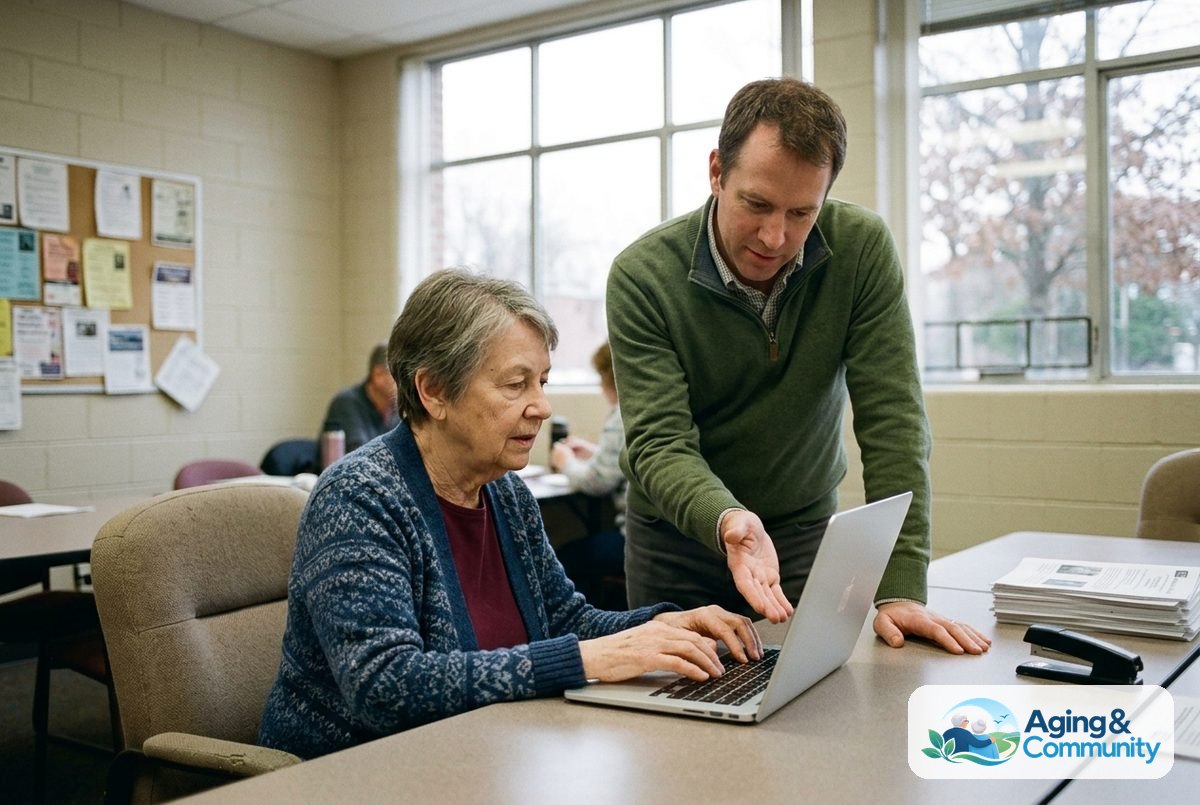
| Online forms | A person using a laptop with a helper nearby | Shows support without making the person look helpless |
| Home technology | A smart speaker or reminder device on a table | Shows how a tool can fit into a normal room |
| Learning technology | A small class or one-on-one lesson | Shows practice, patience and shared learning |
For a broad overview, a page on technology for seniors can use a mix of images. Include one image for communication, one for learning and one for daily routines. This helps readers see that technology is not one thing. It can be a phone call, a reminder, a map, a photo album or a class.
How to Choose Respectful Images
Respectful images avoid jokes, pity and stereotypes. They do not show people looking confused just to make a point. They also do not show technology as something only young people understand.
Choose images where the person has agency. That means they are holding the device, making a choice, asking a question or sharing the moment with someone else. If a helper is present, the helper should look supportive, not controlling.
- Avoid images that show someone helplessly staring at a screen.
- Avoid photos where the younger person takes over completely.
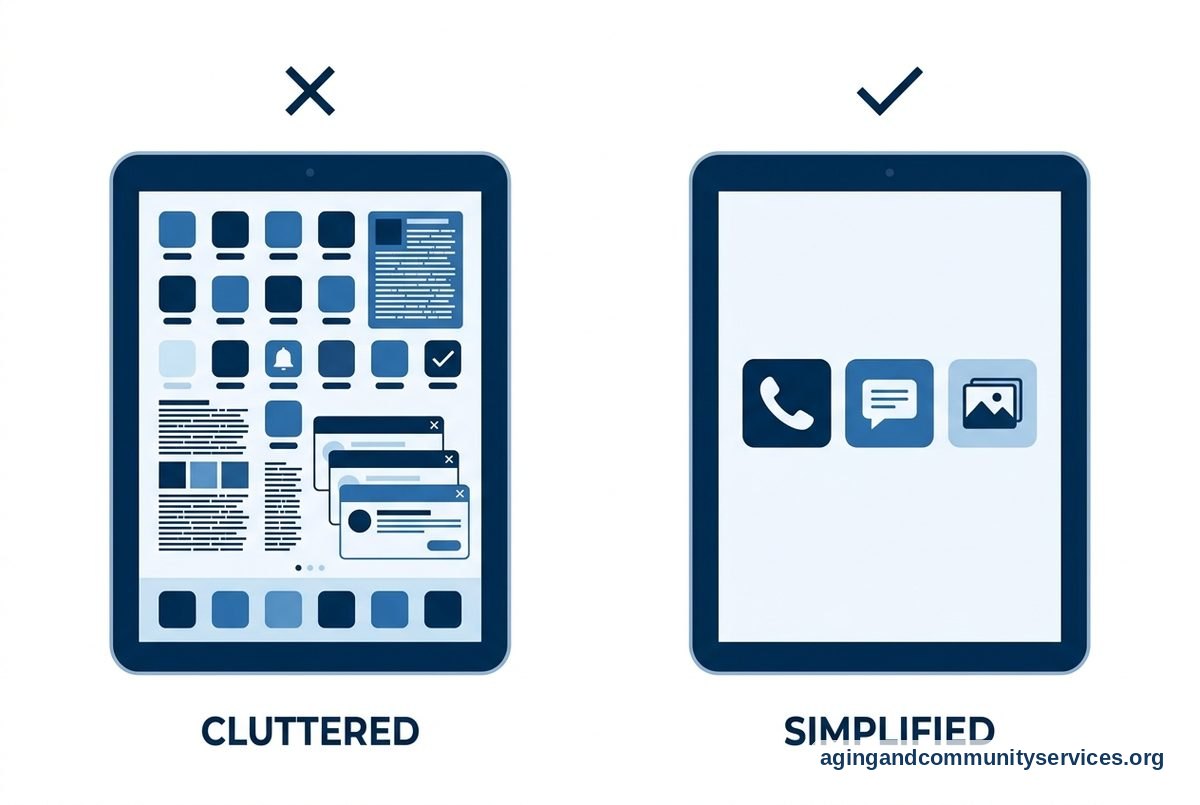
- Avoid cluttered images with too many cords, pop-ups or devices.
- Avoid images that make aging look like a problem to fix.
- Choose photos that include different homes, skin tones, body types and family roles.
If you are making a teaching page, pair the image with simple words. A guide about teaching technology gently should show patience, side-by-side help and time to practice. The image should match the lesson: one step at a time.
It is also helpful to think about privacy. Do not show a real medical portal, bank account, password screen or private message. If a screen is visible, use a generic view or a staged example.
Accessibility Tips for Technology Images
Images should be easy to understand for people with different vision, reading and attention needs. This is especially important when images explain steps, buttons or devices.
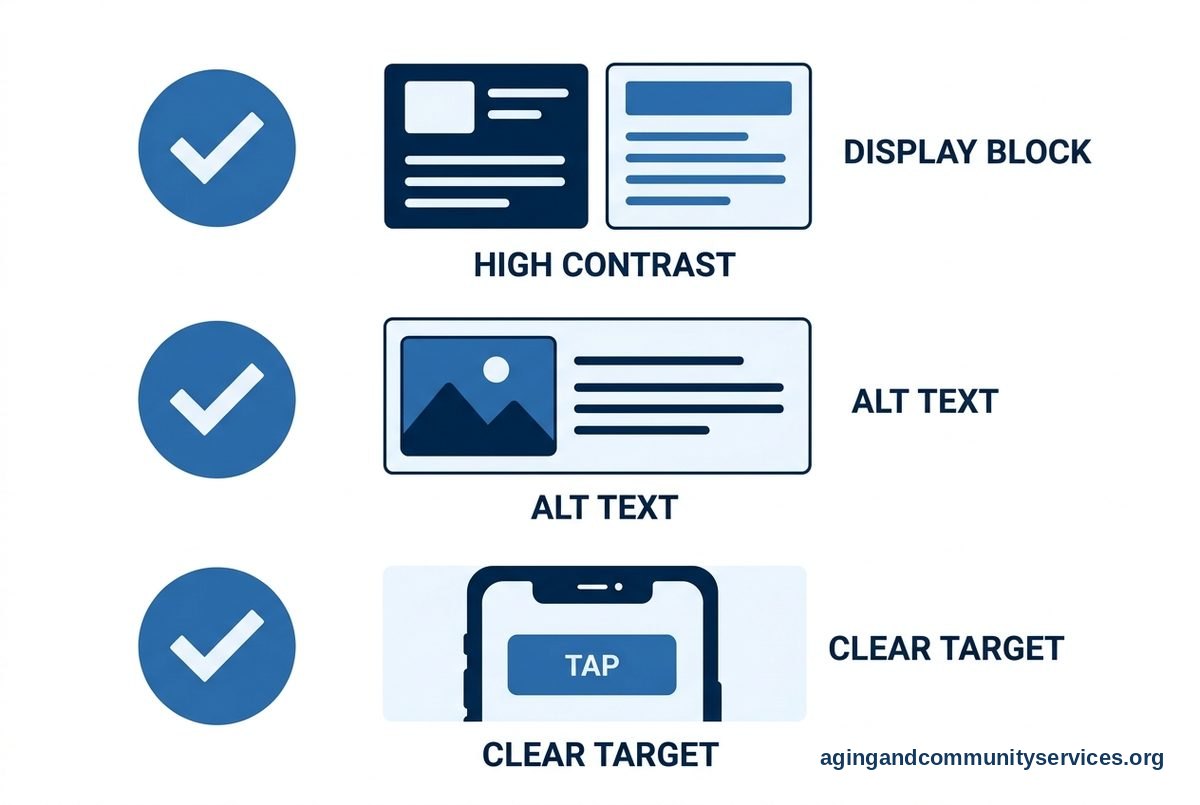
Use large, clear photos with strong contrast. If the image shows a screen, the screen should not be the only place where important information appears. Repeat the key point in text nearby.
- Write helpful alt text: Describe the useful part of the image, such as “person using a tablet for a video call.”
- Keep captions simple: Use plain language that names the task shown in the picture.
- Do not rely on color alone: If you point to a button, name it and explain where it is.
- Use close-up images when needed: A close view of a phone screen may be clearer than a full-room photo.
- Leave space around the image: Crowded pages can make simple tasks feel harder than they are.
Images can also support home safety content, but they should not make medical promises. The National Institute on Aging explains that steps like removing trip hazards and improving lighting can lower the risk of falls in its guide to falls prevention. If you show technology that relates to movement, such as reminder devices or home sensors, suggest talking with a doctor, physical therapist or occupational therapist when the issue involves balance, mobility or daily tasks.
Where Images Fit in a Helpful Page
Place images where they make the next step clearer. A large image at the top can set a warm tone, but step-by-step pages often need smaller images placed near each instruction.
For example, a page about setting up a tablet may begin with a friendly photo of someone using the device. Later, it may use simple close-up images to show the power button, volume buttons and video call icon.
A page about easy to use tablets should not use only lifestyle photos. It should also show practical details, such as screen size, simple app layouts or a stand that keeps the tablet steady on a table.
For caregiving topics, images can show how technology supports routines without replacing human care. A page about technology for elderly care might include medication reminder devices, shared calendars or video check-ins. Keep the tone balanced. Technology can help with organization and communication, but it does not replace personal judgment, medical advice or trusted support.

Using Images in Family Guides, Classes and Community Materials
Families, libraries, senior centers and community groups often use images in handouts or slides. In these settings, clarity matters more than style. A simple, well-lit photo can be better than a polished image that feels staged or hard to understand.
When possible, use a series of images to show a process. One image can show opening a tablet. The next can show finding the video call app. The next can show joining a call. This helps readers follow the story without feeling rushed.
If you are creating a class handout, keep one main idea per page or section. Use a short caption under each image. A caption like “Tap the green phone button to answer” is more useful than a broad caption like “Using technology.”
It can also help to include images of support. A family member sitting nearby, a librarian answering a question or a volunteer leading a small group can make learning feel normal. The image should show teamwork, not rescue.
If a person needs help finding local programs, the Eldercare Locator can connect families with aging services in their area. Community programs may offer classes, device help or referrals to local support.
What You Can Do Next
If you are choosing images for a website, handout or family guide, start with the reader’s real task. Ask what the image should make easier to understand. Then choose a photo that shows that task in a kind, practical way.
- Write down the main action you want to show, such as making a video call or reading a text.
- Choose an image with one clear focus and a calm setting.
- Check that the person in the image looks capable and respected.
- Add alt text that explains the useful part of the image.
- Place the image next to the words it supports.
- Ask someone else to look at the page and tell you what the image communicates.
If the topic includes home setup, mobility, memory concerns or personal care, keep the advice practical and encourage the reader to talk with a qualified professional when needed. A doctor, physical therapist or occupational therapist can help match tools and routines to a person’s needs.
Frequently Asked Questions
What are good seniors and technology images for a website?
Good images show a clear, everyday technology task. Examples include a person using a tablet for a video call, reading a message on a phone, joining a class or using a shared family calendar.
The best choice depends on the page topic. A general article can use a warm lifestyle photo, while a how-to guide should use images that show the actual steps.
Should technology images show family members helping?
Yes, if the help looks respectful and balanced. A good image may show a family member sitting beside the person, pointing gently or answering a question.
Avoid images where the helper takes over the device or makes the person look unable to learn. The message should be support, not control.
How can I make technology images easier to understand?
Use simple images with one main action. Choose close-ups for buttons, screens and setup steps. Add short captions when the image explains what to do.
Alt text also matters. It should describe the purpose of the image, not every small detail. For example, “person tapping a video call icon on a tablet” is clear and useful.
What images should I avoid?
Avoid images that make technology look scary, messy or out of reach. Also avoid photos that use confusion as a joke or show someone as helpless.
It is wise to avoid private screens, such as medical records, passwords, banking pages or personal messages. Use staged or generic screens when a device display is visible.
Can stock photos work for senior technology topics?
Stock photos can work if they feel natural and respectful. Look for real-looking settings, clear actions and people who seem comfortable with the task.
If a stock photo feels too staged, pair it with clear writing or choose a simpler image. The photo should support trust and understanding, not distract from the message.