

Technology support for seniors means helping with phones, tablets, computers, apps, internet service, and smart home tools in a way that feels patient and useful. Good support is not about doing everything for someone. It is about making technology easier to use, easier to remember, and more helpful in daily life.
Many families start with a small problem, such as a confusing phone setting, too many passwords, or trouble joining a video call. A calm plan can turn those small problems into steady routines that support connection, errands, entertainment, and home tasks.

What Technology Support Usually Includes
Technology support can be as simple as setting up a larger font or as detailed as organizing a whole home tech setup. The goal is to match the help to the person, not to add more devices than they want.
Common areas of support include:
- Setting up a smartphone, tablet, laptop, or desktop computer
- Making text, sound, and buttons easier to see and use
- Creating simple steps for email, texting, and video calls
- Installing and organizing useful apps
- Setting up home Wi-Fi, printers, or smart speakers
- Helping with passwords and account recovery
- Reviewing privacy, scam awareness, and safe browsing habits
Some people need help once in a while. Others do better with a regular check-in, especially after software updates or when a new device arrives.
If the person is choosing new tools, a basic guide to technology for seniors can help families compare options without rushing into devices that may not fit daily habits.
Start With Daily Needs, Not Devices
The most helpful support begins with one question: what does the person want to do? The answer may be calling family, reading news, ordering groceries, managing appointments, watching church services, or enjoying photos.
Once the need is clear, the technology choice becomes easier. A tablet may be better for reading and video calls. A simple smartphone may be better for calls, texts, photos, and directions. A desktop computer may work well for someone who likes a full keyboard and large screen.
It also helps to notice what is frustrating. Small buttons, fast pop-ups, weak hearing, low vision, stiff fingers, or unclear menus can all make a device feel harder than it needs to be. Many settings can be changed to make the same device more comfortable.
Useful adjustments may include:
- Larger text and display zoom
- Higher contrast colors
- Voice typing or dictation
- Captioning for videos
- Favorite contacts on the home screen
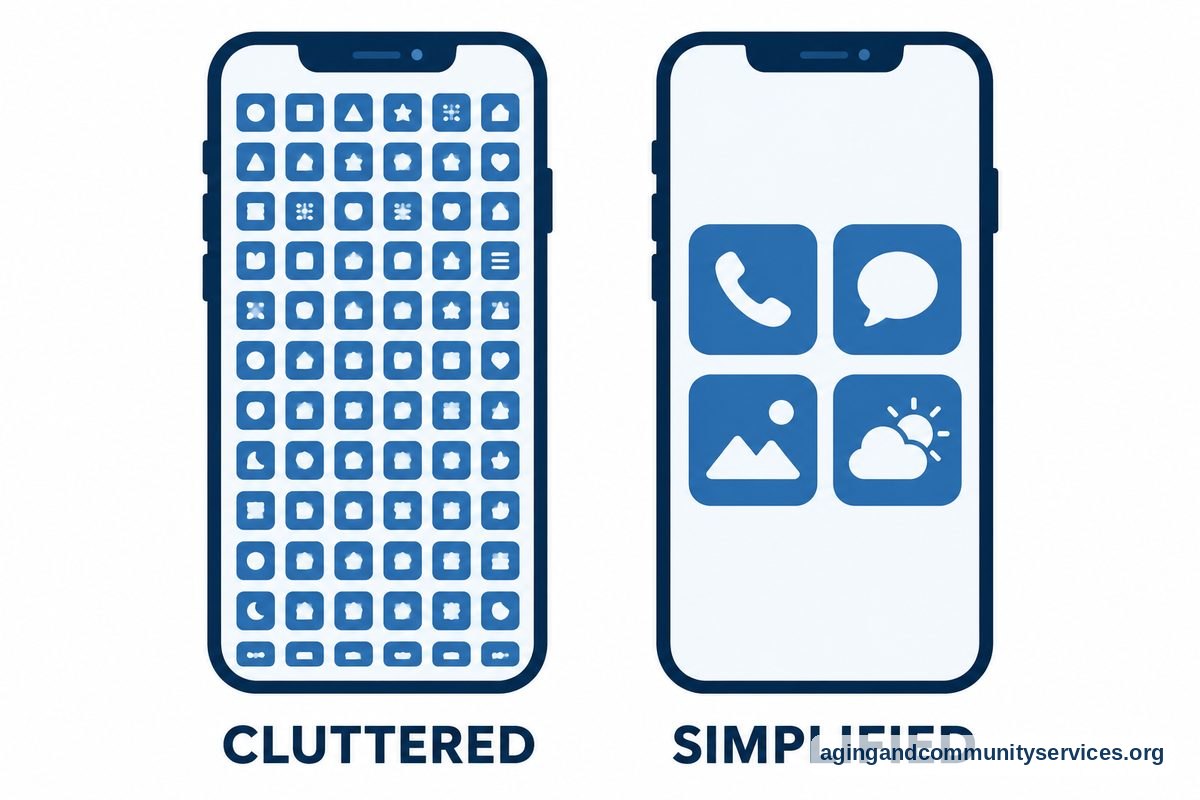
- Fewer app icons on the main screen
- Longer screen timeout settings
If balance, vision, hand strength, or memory changes are affecting daily tasks, it may help to speak with a doctor, physical therapist, or occupational therapist. They can offer guidance based on the person’s needs and home setup.
Make Phones and Tablets Easier to Use
Phones and tablets are often the center of daily tech support. They hold contacts, photos, messages, maps, calendars, and many services. When they are set up well, they can feel much less stressful.
Start by cleaning up the home screen. Keep only the most used apps on the first page. Put rarely used apps in a folder or move them to another screen. A simple layout lowers the chance of tapping the wrong thing.
Next, review the most important settings together. Increase the text size, turn on captions, adjust ringer volume, and set up emergency contacts if the person wants that feature. Write down where these settings are, because menus can be hard to remember.
For someone choosing a simpler device, a guide to an easy to use smartphone can help compare features such as larger screens, clear menus, and simple calling tools.
Apps should earn their place. Too many apps can make a device feel crowded. A small set of useful tools is often better than a long list.
Helpful app categories may include:
- Video calling
- Weather
- Calendar reminders
- Medication lists or refill reminders, if appropriate
- Library, music, or audiobook apps
- Transportation or maps
- Photo sharing
A list of apps for elderly users can give families ideas, but the final choice should fit the person’s comfort level and interests.
Teach in a Way That Builds Confidence
Good teaching is a major part of technology support. The tone matters as much as the steps. Speak slowly, use plain words, and give time to try again.
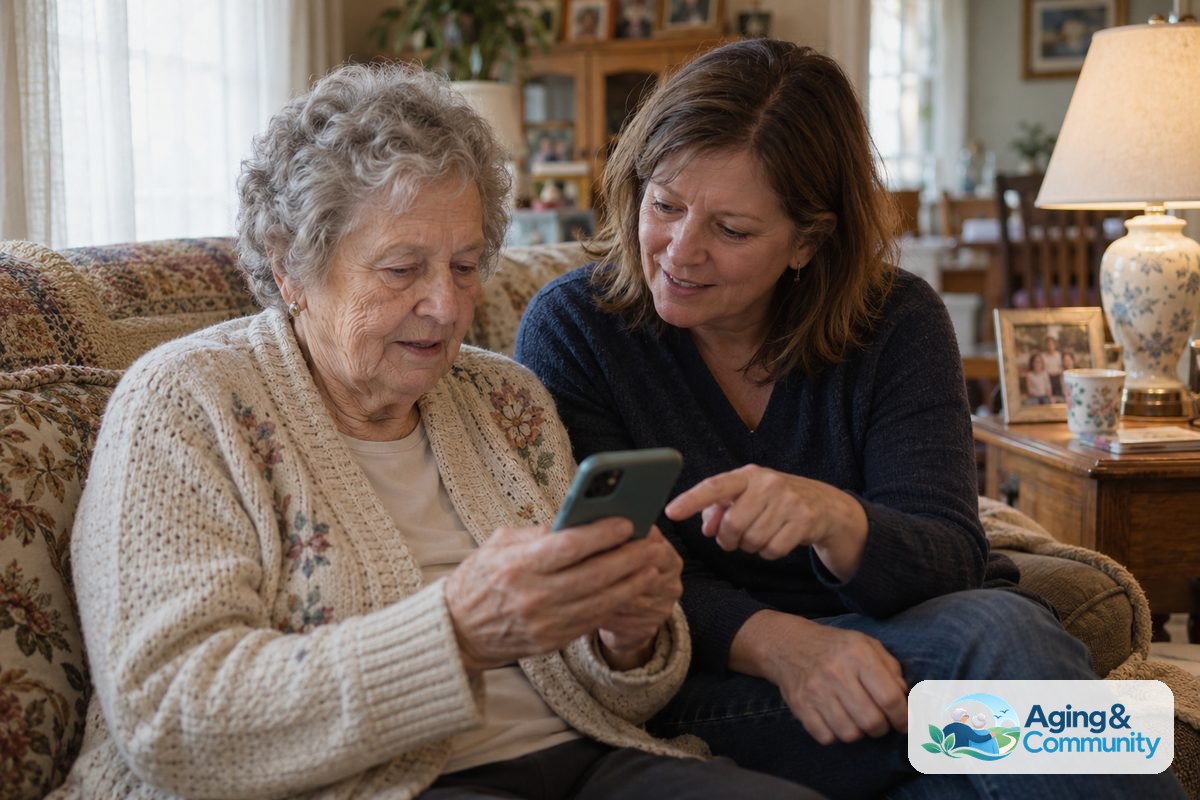
Try not to take the device away unless asked. It can feel faster to do the task yourself, but the person may learn more by holding the device and practicing. Sit beside them, not across from them, so you both see the same screen.
Teach one task at a time. For example, practice sending a text before adding photos, emojis, links, and voice messages. A short lesson that ends well is better than a long lesson that becomes tiring.
Written steps can help. Use large print, simple words, and real labels from the device. If the button says “Share,” write “Tap Share,” not “send it over.”
A good teaching note might look like this:
- Tap the green phone icon.
- Tap Favorites.
- Tap Maria.
- Tap the red button when the call is done.
Families who want a patient teaching approach can use tips on how to teach elderly relatives in ways that support practice and independence.
Support Safety, Privacy, and Scam Awareness
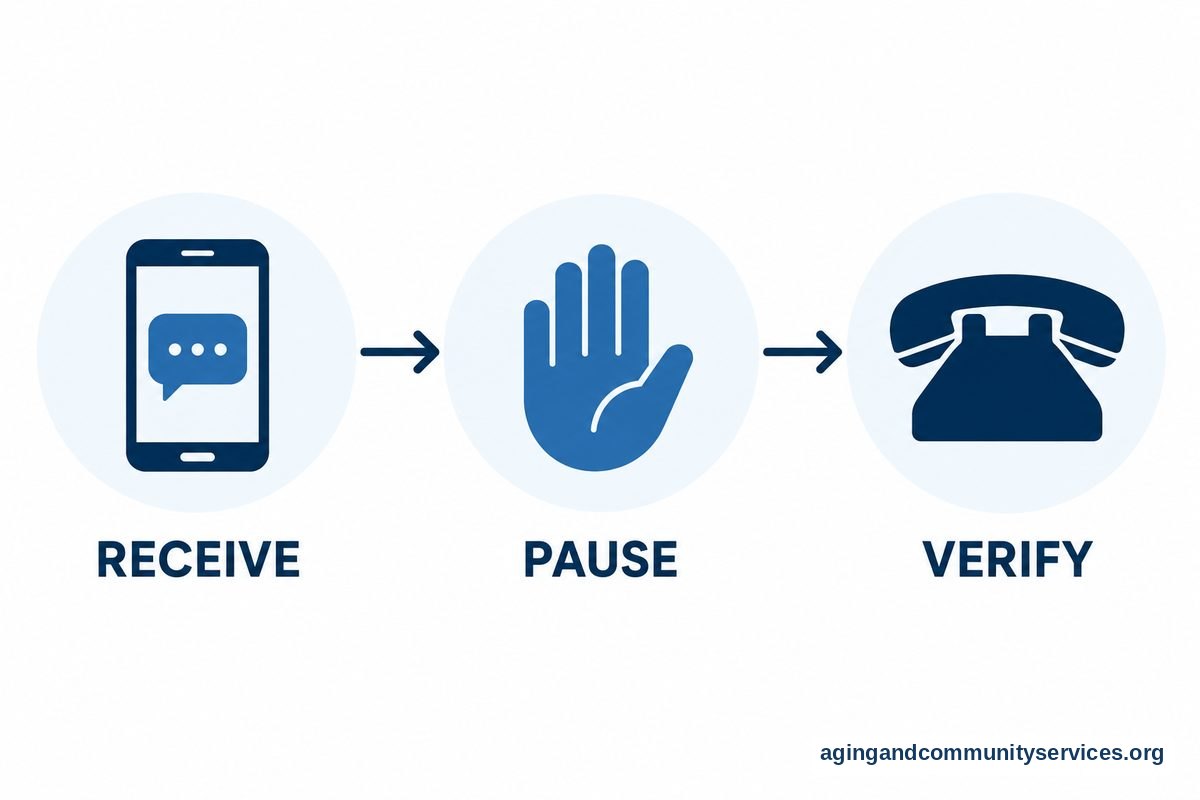
Safety support should be practical, not frightening. The goal is to help the person pause, check, and ask for help when something feels odd. A few simple rules can make daily use safer.
Start with passwords. Use strong, unique passwords for important accounts. A password manager may help, but only if the person or helper can use it reliably. If not, choose a safe written system kept in a secure place at home.
Set up account recovery carefully. Make sure the recovery phone number and email address are current. If a trusted family member helps, be clear about what they can access and what stays private.
Useful safety habits include:
- Do not share codes sent by text or email with unexpected callers
- Do not rush when a message says an account has a problem
- Call a known number instead of using a number from a strange message
- Ask a trusted person before sending money, gift cards, or private details
- Keep devices updated when updates come from the device settings
Privacy matters too. Ask before reading messages, opening photos, or changing accounts. Support should protect independence and dignity, not take over personal space.
Use Technology to Support Home Life
Technology can support many home routines when it is chosen with care. It can help with reminders, lights, calls, calendars, deliveries, and entertainment. It should feel like a tool, not another chore.
Some families use smart speakers for timers, weather, music, and simple questions. Others use video doorbells, smart lights, or shared calendars. These tools can be helpful, but they should be explained clearly and reviewed often.
For home planning, the National Institute on Aging offers guidance on aging in place, including practical ways to think about daily needs at home. If falls are a concern, the National Institute on Aging also explains that exercise, medication reviews, vision checks, and safer home setup can lower the risk of falls.
Technology is only one part of home support. Good lighting, clear walkways, stable furniture, and simple routines also matter. If there are concerns about movement, balance, or safe use of equipment, a doctor, physical therapist, or occupational therapist can help guide next steps.
Families comparing connected tools may also find it useful to review technology for elderly care, especially when choosing devices for reminders, communication, or home routines.

How to Choose Reliable Tech Help
Not every family has someone nearby who can help. Even when family members are available, it can be useful to have outside support for setup, repairs, or training. The right helper should be patient, clear, and respectful.
Before choosing help, write down the main tasks. For example, “set up video calls,” “fix printer,” “organize passwords,” or “make phone easier to read.” A clear list helps keep the visit focused.
Ask these questions before hiring or accepting help:
- Do you explain steps in plain language?
- Can you write down the steps after the visit?
- Will you ask permission before opening private files or accounts?
- Can a family member be present by phone or video if needed?
- What happens if the same issue comes back?
Libraries, community centers, faith groups, senior centers, and local agencies may offer classes or one-on-one help. The Eldercare Locator can help families find local support through community aging services.
Trust is important. A good helper does not pressure the person to buy new devices, share private information, or make fast decisions. They explain choices and let the person decide.
What You Can Do Next
Start small. Choose one task that would make daily life easier this week. It might be enlarging the text on a phone, saving favorite contacts, setting up a video call, or writing down steps for checking voicemail.
Use this simple plan:
- Ask what the person wants to do more easily.
- Pick one device or app to focus on.
- Remove clutter from the screen.
- Change comfort settings such as text size and volume.
- Practice the task three times together.
- Write the steps in large, plain words.
- Set a regular time to review questions.
Keep the tone calm and respectful. If frustration builds, pause and come back later. Technology support works best when it protects choice, privacy, and confidence.
Frequently Asked Questions
What is seniors technology support?
Seniors technology support is help with phones, tablets, computers, apps, internet, passwords, and smart home tools. It can include setup, teaching, troubleshooting, and making devices easier to see, hear, and use.
Where can I find technology support for elderly family members?
Start with local libraries, community centers, senior centers, faith groups, and area agencies. You can also ask trusted friends or family for referrals to patient tech helpers who explain steps clearly and respect privacy.
How do I make technology support for elderly parents less frustrating?
Focus on one task at a time, use plain words, and let the person hold the device while practicing. Write down each step, repeat often, and stop before the lesson becomes tiring.
What devices are easiest for technology support for seniors?
The easiest device is the one that matches the person’s daily needs. A large screen tablet may work well for video calls and reading, while a simple smartphone may be better for calls, texts, photos, and reminders.
How often should seniors technology support be reviewed?
A short regular check-in is often helpful, especially after updates, new apps, password changes, or device problems. Many families choose a simple weekly or monthly time to answer questions and review important settings.